Pine Script Colors: RGB, Transparency, and Readable Charts

Pine Script colors control how plots, fills, labels, and backgrounds appear. A useful palette makes each state recognizable without changing the underlying calculation. Styling cannot make a moving-average crossover occur earlier or establish that a signal is profitable.
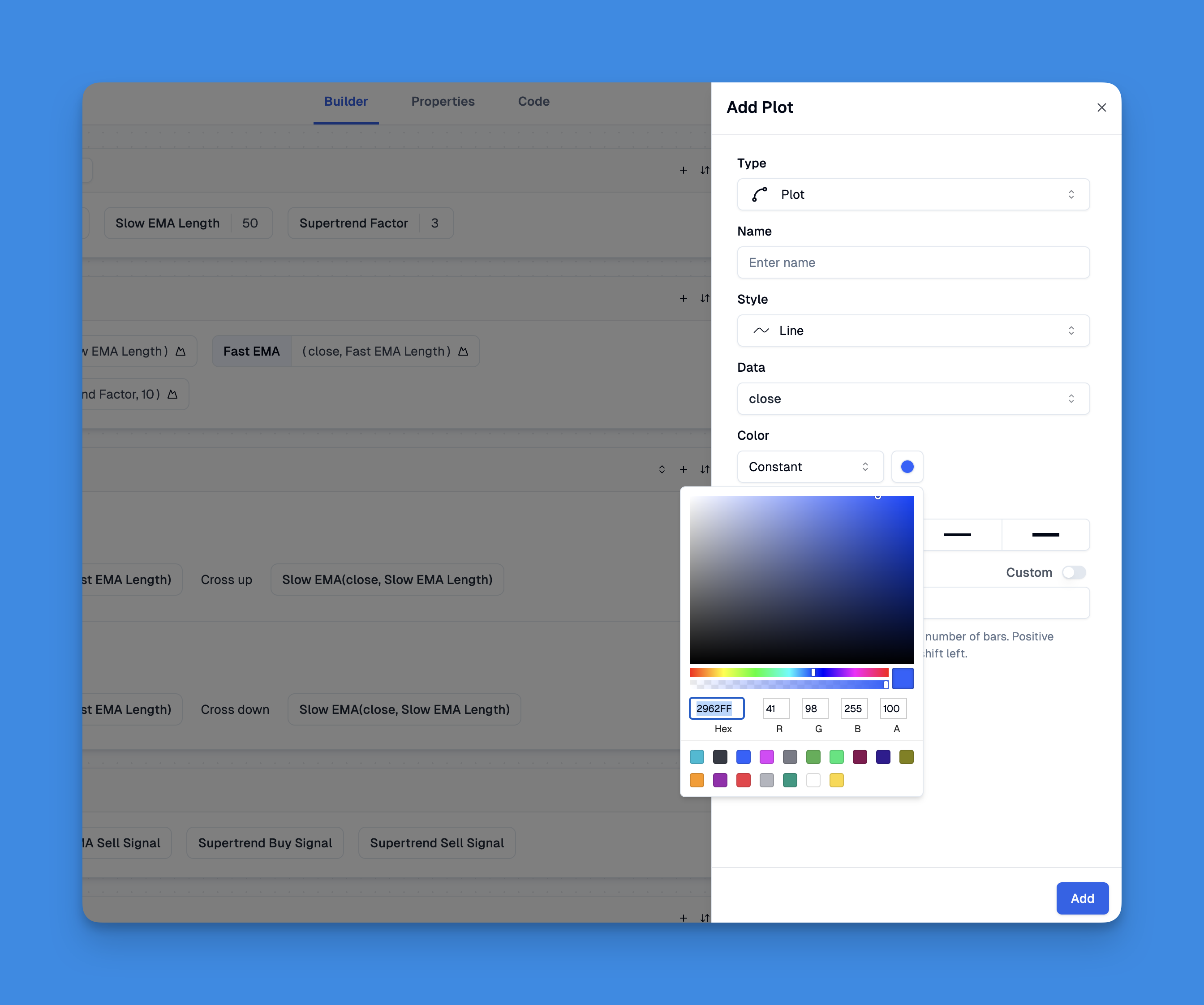
Choose the right color interface
Pine offers named constants such as color.blue, color.orange, and color.gray. Use color.rgb() when you need explicit red, green, and blue components. Each component ranges from 0 to 255. Its optional fourth argument sets transparency from 0, fully opaque, to 100, invisible.
color.new(existingColor, transparency) applies a transparency setting to an existing color. input.color() lets the user choose a base color in the indicator settings. TradingView's official color guide documents these functions and the built-in color constants.
| Need | Appropriate approach |
|---|---|
| A familiar fixed color | A named color constant |
| A specific RGB palette | color.rgb() |
| A translucent version of a chosen color | color.new() |
| A user-selectable palette | input.color() |
| A color that changes with a condition | Select a color from the calculated state |
Transparency is not brightness. A translucent color mixes visually with what is behind it, so the same setting may look different on a dark background, a light background, or a dense candle chart.
Complete example with reusable plot references
This educational indicator colors a fast average according to its position relative to a slow average. It uses a neutral state for equal values or unavailable calculations, reuses its plot references for the fill, and adds different marker shapes for the two crossover directions.
//@version=6
indicator("Configurable MA Colors", overlay=true)
fastLength = input.int(10, "Fast length", minval=1)
slowLength = input.int(20, "Slow length", minval=1)
aboveColor = input.color(color.rgb(33, 150, 243), "Fast above slow")
belowColor = input.color(color.rgb(255, 152, 0), "Fast below slow")
neutralColor = input.color(color.gray, "Neutral")
fillTransparency = input.int(85, "Fill transparency", minval=0, maxval=100)
fastMA = ta.sma(close, fastLength)
slowMA = ta.sma(close, slowLength)
stateColor = na(fastMA) or na(slowMA) ? neutralColor : fastMA > slowMA ? aboveColor : fastMA < slowMA ? belowColor : neutralColor
fastPlot = plot(fastMA, "Fast MA", color=stateColor, linewidth=2)
slowPlot = plot(slowMA, "Slow MA", color=neutralColor, linewidth=1)
fill(fastPlot, slowPlot, color=color.new(stateColor, fillTransparency), title="MA fill")
crossUp = ta.crossover(fastMA, slowMA)
crossDown = ta.crossunder(fastMA, slowMA)
plotshape(crossUp and barstate.isconfirmed, title="Confirmed up cross", style=shape.triangleup, location=location.belowbar, color=aboveColor, size=size.tiny)
plotshape(crossDown and barstate.isconfirmed, title="Confirmed down cross", style=shape.triangledown, location=location.abovebar, color=belowColor, size=size.tiny)
The line and fill can change on an open bar because the current price changes. The markers require bar confirmation. This is a deliberate distinction between the current state and a confirmed event; color alone does not prevent repainting.
Make the palette readable
Assign one meaning to each color and keep that meaning consistent. Do not assume every reader interprets red and green in the same way. Reinforce important distinctions with marker direction, text, position, or another non-color cue.
Keep broad fills more transparent than the lines they support. Then inspect the actual chart at the zoom level and screen size you expect readers to use. A fixed transparency value is a starting point, not a universal readability standard.
Test both light and dark themes, overlapping indicators, and reduced contrast. Ask whether the chart remains understandable when the colors are difficult to distinguish. A color-vision simulation can reveal problems, but it does not by itself prove accessibility for everyone.
Using Pineify's visual controls
Pineify includes color-picker controls in its visual editing forms. They can help choose an RGB color without guessing numeric values. The exported script's settings and plots still determine how those colors appear in TradingView.
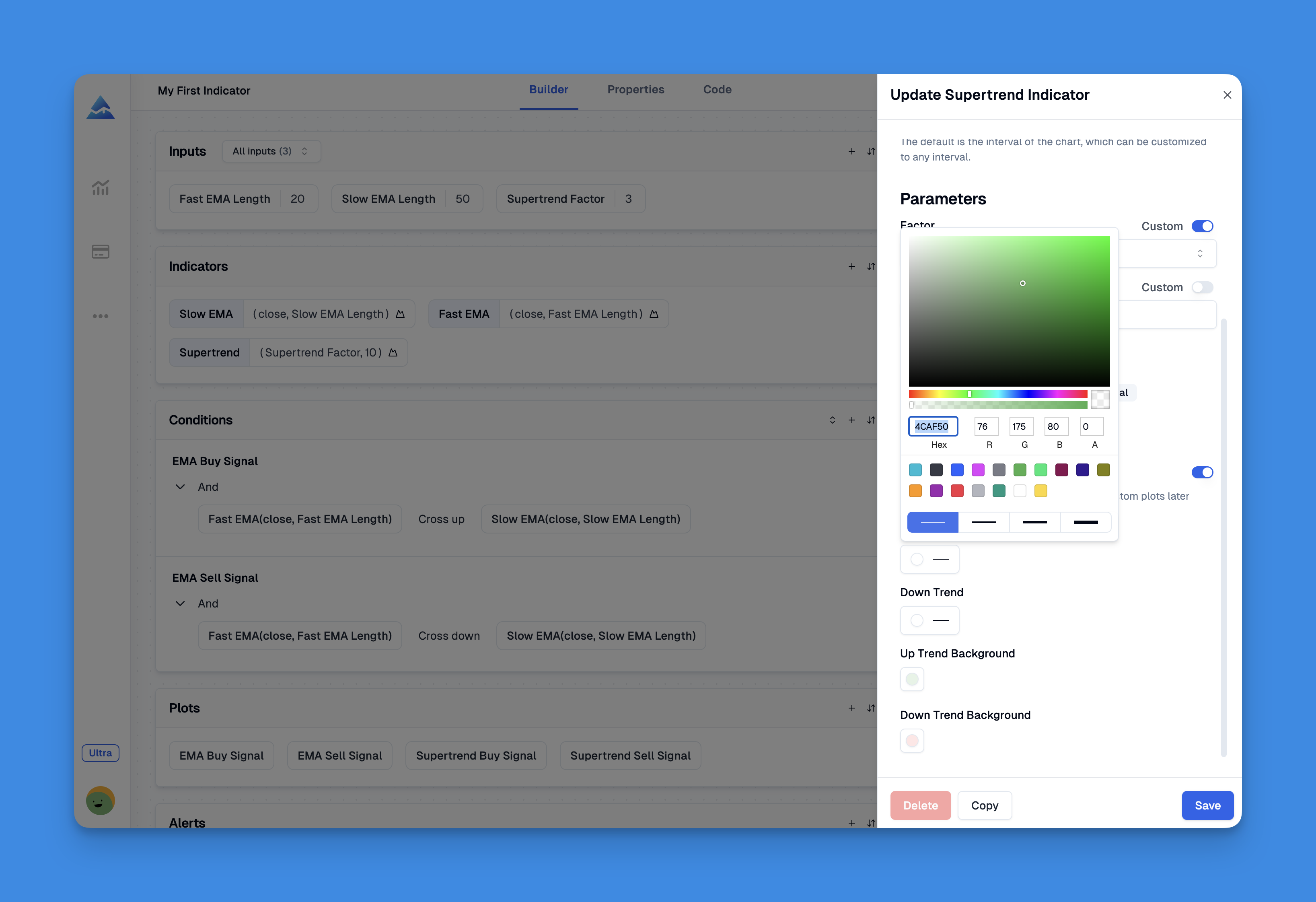
Use the Pineify feature overview to find the relevant editor controls. If you combine several indicators, review each one's color meaning and plot scale rather than simply adding more colors.
Frequently asked questions
Does higher transparency make a line more visible?
No. In Pine's transparency scale, 0 is opaque and 100 is invisible. The final appearance also depends on the background and overlapping visuals.
Can a color change on every bar?
Yes. A color expression can depend on a calculated condition. If that condition changes on the open bar, the color can change before the bar closes.
Why save the return value of plot()?
The returned plot reference can be reused by fill(), avoiding unnecessary duplicate plots just to create the fill boundaries.
What is the best trading palette?
There is no universally best palette. Use clear meanings, configurable colors, sufficient contrast, and non-color cues, then inspect the chart in its intended context.