How to Plot Vertical Lines in Pine Script: A Complete Guide

· 7 min read

Ever stared at your TradingView charts thinking "I really need to mark that exact moment when the market went crazy"? Yeah, me too. Vertical lines in Pine Script are like digital highlighters for your charts - they help you bookmark those "holy cow, look what happened here" moments.

Whether you're marking earnings announcements, Federal Reserve decisions, or that random Tuesday when Bitcoin decided to do its thing, vertical lines are your best friend for visual storytelling on charts.

Why Vertical Lines Matter in Trading Analysis

Think about it - trading is all about timing, right? Sometimes you need to see exactly when something significant happened. Maybe it's when your custom Pine Script strategy triggered a signal, or when major economic news hit the wires.

Vertical lines serve multiple purposes:

  • Event marking: Highlighting earnings releases, news events, or policy announcements
  • Signal visualization: Showing when your trading algorithm generated buy/sell signals
  • Time-based analysis: Marking specific trading sessions or market hours
  • Pattern recognition: Identifying recurring timing patterns in market behavior

The Fundamentals: Using line.new() for Vertical Lines

The most straightforward approach uses Pine Script's line.new() function. Here's the basic syntax that actually works:

//@version=5
indicator("Simple Vertical Line", overlay=true)

if barstate.islast
line.new(bar_index, low, bar_index, high, extend=extend.both, color=color.blue, width=2)

This code creates a vertical line on the current bar that extends from the chart's bottom to top. The extend=extend.both parameter is the magic sauce - it makes your line truly vertical by extending beyond the visible price range.

But here's where it gets interesting. You can trigger vertical lines based on specific conditions:

//@version=5
indicator("Conditional Vertical Lines", overlay=true)

// Draw vertical line when volume spikes above average
avg_volume = ta.sma(volume, 20)
volume_spike = volume > avg_volume * 2

if volume_spike
line.new(bar_index, low, bar_index, high, extend=extend.both, color=color.red, width=1)
The Best Pine Script Generator

Advanced Timing: Marking Specific Dates and Times

Sometimes you need surgical precision - marking exact dates when major events occurred. This is where Pine Script's timestamp function becomes your secret weapon:

//@version=5
indicator("Event Markers", overlay=true)

// Mark specific dates (earnings, Fed meetings, etc.)
earnings_date = timestamp("2024-01-15 16:30 +0000")
fed_meeting = timestamp("2024-01-31 14:00 +0000")

// Check if current bar matches our target time
if time == earnings_date
line.new(bar_index, low, bar_index, high, extend=extend.both, color=color.yellow, width=3)
label.new(bar_index, high, "Earnings", style=label.style_label_down, color=color.yellow)

if time == fed_meeting
line.new(bar_index, low, bar_index, high, extend=extend.both, color=color.orange, width=3)
label.new(bar_index, high, "Fed Meeting", style=label.style_label_down, color=color.orange)

This approach lets you create a visual timeline of important market events. Super useful when you're trying to correlate price movements with fundamental catalysts.

Visual Customization: Making Lines That Don't Hurt Your Eyes

Let's be honest - nobody wants their charts looking like a chaotic mess of lines. Here's how to make vertical lines that enhance rather than clutter your analysis:

//@version=5
indicator("Stylish Vertical Lines", overlay=true)

// Different line styles for different purposes
signal_line = line.new(bar_index, low, bar_index, high,
extend=extend.both,
color=color.new(color.blue, 50),
style=line.style_dashed,
width=2)

warning_line = line.new(bar_index, low, bar_index, high,
extend=extend.both,
color=color.new(color.red, 30),
style=line.style_dotted,
width=3)

Pro tip: Use transparency (color.new(color.blue, 50)) to make lines less aggressive. The second parameter controls transparency - higher numbers mean more transparent.

The Background Color Alternative

Sometimes a full vertical line feels too heavy. That's when background highlighting comes in handy:

//@version=5
indicator("Background Highlights", overlay=true)

// Highlight specific trading sessions
is_market_open = not na(time("1", "0930-1600"))
highlight_color = is_market_open ? color.new(color.blue, 95) : na

bgcolor(highlight_color)

This creates subtle background shading instead of stark lines. It's perfect for marking trading sessions, lunch hours, or any time-based periods you want to highlight.

If you're working with multi-timeframe analysis, background colors can help distinguish between different session types or market conditions.

No-Code Solutions: When You'd Rather Click Than Code

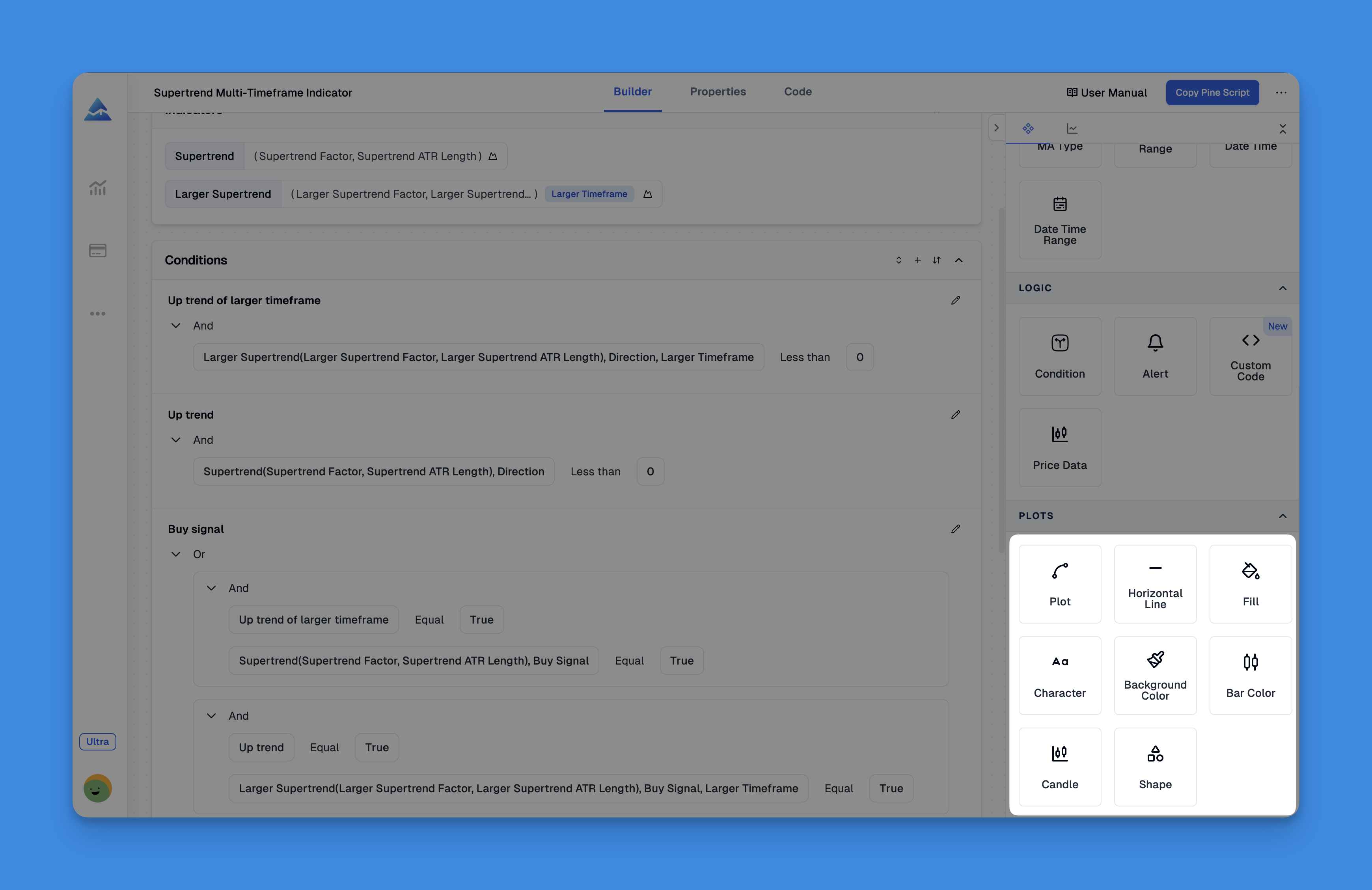
Look, I get it. Sometimes you just want to add some vertical lines without diving into code. That's where visual tools like Pineify come into play.

Pineify Visual Pine Script Editor

Tools like Pineify let you edit elements to create indicators without writing a single line of code. You can add vertical lines, customize colors, set timing conditions - all through a visual interface. It's especially helpful when you're starting out or need to quickly prototype ideas.

For those interested in learning more about Pine Script fundamentals, check out this comprehensive Pine Script tutorial that covers the basics.

Smart Line Management: Avoiding Chart Clutter

Here's something nobody talks about enough - line management. Create too many vertical lines and your chart becomes unreadable. Here's how to keep things clean:

//@version=5
indicator("Smart Line Management", overlay=true, max_lines_count=10)

var line[] recent_lines = array.new<line>()

// Function to add new line and manage count
add_vertical_line(condition, line_color) =>
if condition
new_line = line.new(bar_index, low, bar_index, high,
extend=extend.both, color=line_color, width=1)

// Add to array
array.push(recent_lines, new_line)

// Remove oldest line if we have too many
if array.size(recent_lines) > 5
old_line = array.shift(recent_lines)
line.delete(old_line)

// Usage example
volume_spike = volume > ta.sma(volume, 20) * 1.5
add_vertical_line(volume_spike, color.blue)

This approach maintains a rolling window of recent lines, automatically cleaning up old ones to prevent chart pollution.

Practical Applications: Real-World Examples

Here are some practical scenarios where vertical lines shine:

1. Breakout Confirmation

//@version=5
indicator("Breakout Markers", overlay=true)

// Mark when price breaks above 20-period high
resistance = ta.highest(high, 20)
breakout = close > resistance[1]

if breakout
line.new(bar_index, low, bar_index, high, extend=extend.both, color=color.green, width=2)
label.new(bar_index, high, "Breakout!", style=label.style_label_down, color=color.green)

2. Economic Calendar Integration

//@version=5
indicator("Economic Events", overlay=true)

// Mark first Friday of each month (NFP release)
is_first_friday = dayofweek == dayofweek.friday and dayofmonth <= 7

if is_first_friday
line.new(bar_index, low, bar_index, high, extend=extend.both, color=color.orange, width=2)
label.new(bar_index, high, "NFP", style=label.style_label_down, color=color.orange)

3. Session Separators

//@version=5
indicator("Session Markers", overlay=true)

// Mark session opens
ny_open = hour == 9 and minute == 30
london_open = hour == 8 and minute == 0

if ny_open
line.new(bar_index, low, bar_index, high, extend=extend.both, color=color.blue, width=1)

if london_open
line.new(bar_index, low, bar_index, high, extend=extend.both, color=color.red, width=1)

Performance Considerations and Best Practices

When working with vertical lines, keep these performance tips in mind:

  1. Limit line count: Use the max_lines_count parameter in your indicator declaration
  2. Clean up old lines: Implement line deletion logic for dynamic indicators
  3. Use conditions wisely: Don't create lines on every bar unless necessary
  4. Consider transparency: Heavy visual elements can slow down chart rendering

For more advanced Pine Script techniques, you might want to explore Pine Script v6 features which offer improved performance and additional drawing capabilities.

Troubleshooting Common Issues

Lines not appearing? Check these common culprits:

  • Make sure your indicator has overlay=true
  • Verify your condition logic is triggering
  • Check that line coordinates are within visible range
  • Ensure you're not hitting line count limits

Lines disappearing? This usually happens when:

  • Your script is deleting lines without proper management
  • TradingView is automatically cleaning up due to memory limits
  • Your time conditions are too restrictive

Wrapping Up: Making Your Charts Tell a Story

Vertical lines in Pine Script aren't just about drawing pretty pictures on charts. They're about creating visual narratives that help you understand market behavior. Whether you're marking significant events, highlighting pattern breaks, or simply organizing your analysis by time periods, vertical lines are essential tools in your charting arsenal.

Remember, the goal isn't to create the most complex indicator possible - it's to build tools that genuinely improve your trading analysis. Start simple with basic vertical lines, then gradually add complexity as your needs evolve.

And hey, if you find yourself spending more time fighting with code than analyzing markets, there's no shame in using visual tools to get the job done faster. The best indicator is the one you'll actually use consistently.

The key is finding the right balance between functionality and visual clarity. Your future self (and anyone else looking at your charts) will thank you for keeping things clean and purposeful.