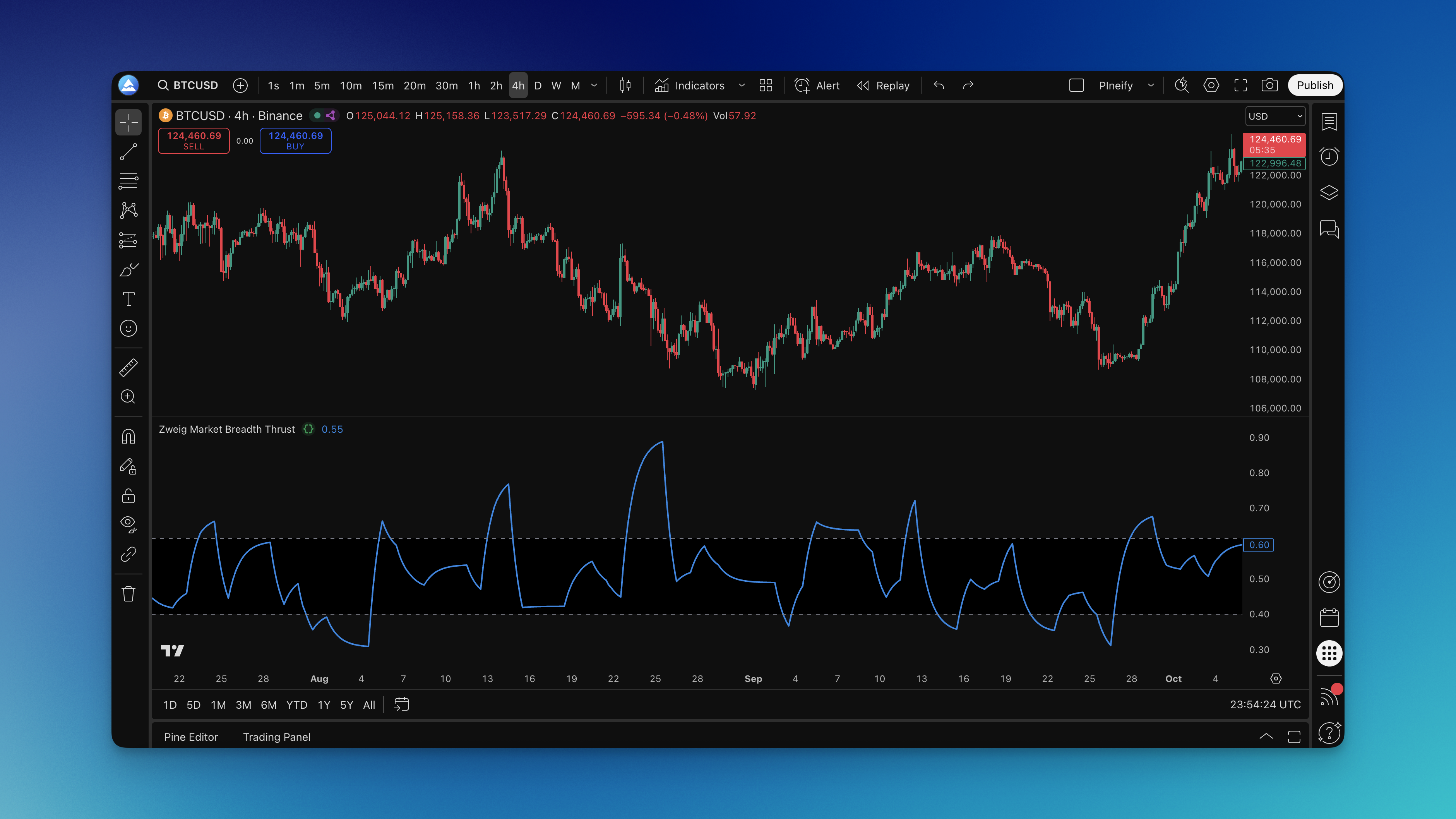
How to Remove or Hide TradingView Indicators - Complete Guide
When you want to clean up your TradingView chart and get rid of those technical indicators, you've got a few straightforward options.
Blog posts related to the TradingView
View All TagsWhen you want to clean up your TradingView chart and get rid of those technical indicators, you've got a few straightforward options.
Look, I get it. You've probably seen Market Cipher B all over crypto Twitter and trading forums, with people posting screenshots of those mysterious green dots and blue waves like they've discovered the holy grail of trading. The truth? This indicator can actually be pretty useful once you understand what all those colors and lines actually mean.

If you’ve ever looked at a strong price move and thought, “Is this real or just noise?”, RVOL (Relative Volume) answers that question in plain terms. It compares today’s volume to what’s normal for this exact time of day, so you can quickly tell when participation is unusually high (or suspiciously low) during intraday trading.
TradingView gives you some really powerful tools to backtest your trading ideas. It lets you simulate how a strategy would have played out in the past, so you can see how it might perform without putting any real money on the line. This guide will walk you through how to do backtesting on TradingView, both by manually checking the charts and by using their automated tools, so you can fine-tune your approach.
With the recent release of OpenAI's GPT-5—hailed as their most powerful coding model yet—traders and developers can now harness this next-generation AI inside Pineify, the leading Pine Script code generator and visual editor for TradingView indicators and strategies. In this article, we'll explore how integrating GPT-5 into PineifyAI and PineifyGPT revolutionizes Pine Script development, why this matters for traders, and how you can get started building error-free, advanced custom indicators in minutes.
TradingView has become a go-to tool for people all over the world who are interested in the markets. As we look ahead to 2025, the platform is used by a massive community of over 100 million traders and investors. It's not just about the number of accounts, though; the engagement is incredible, with more than 50 million active users and the website itself pulling in over 200 million visits every month. It's clear that once people start using it, they tend to stick around, especially with powerful features like Pine Script trading bots that enable automated trading strategies directly on the platform.
TradingView is a go-to for so many traders and investors, loved for its interactive charts and the sheer amount of financial data it offers. But a common head-scratcher you might run into is this: your TradingView chart seems to be running on its own time, lagging behind the live market by up to 10 minutes. Let's figure out why this happens, what you can do about it, and how it affects your trading, so you can stay in the loop with real-time action.
TradingView has completely changed the way we look at market charts, and one of its best features is how easily you can customize the look and feel of everything. These chart themes let you adjust colors and layouts, which makes staring at screens for hours a lot easier on the eyes. By picking or creating your own theme, you can make charts clearer, reduce strain, and just set things up in a way that helps you concentrate.
This guide covers all you need to know about TradingView chart themes—why they're helpful, some popular choices, and simple steps to make them your own. Whether you're just starting out or you're a seasoned trader looking for a visual refresh, getting a handle on themes can seriously improve your routine. We'll look at practical tips and real setups to help you create the most efficient workspace.
Chart patterns are like a trader's secret language, giving you clues about where the price might be headed next by looking at its past behavior. Instead of staring at charts for hours, the Chart Patterns Indicator on TradingView does the heavy lifting for you. It automatically scans and spots these classic formations, which is a huge help whether you're just starting out or have been trading for years. It's all about getting a timely nudge when a potential opportunity arises.
If you're looking to get TradingView up and running on your MacBook, you've come to the right place. I'll walk you through the quickest and most reliable ways to do it, whether you prefer a one-click install, the command line, or no installation at all. We'll also cover setup tips and what to do if you hit a snag.