Pineify Visual Editor: Build and Verify TradingView Scripts

Pineify's Visual Editor turns configured inputs, indicators, conditions, and trading rules into Pine Script. It can reduce repetitive source editing, but the generated script still follows TradingView's calculation, data-request, alert, and execution rules. Start with the intended output and verify that it behaves as specified.
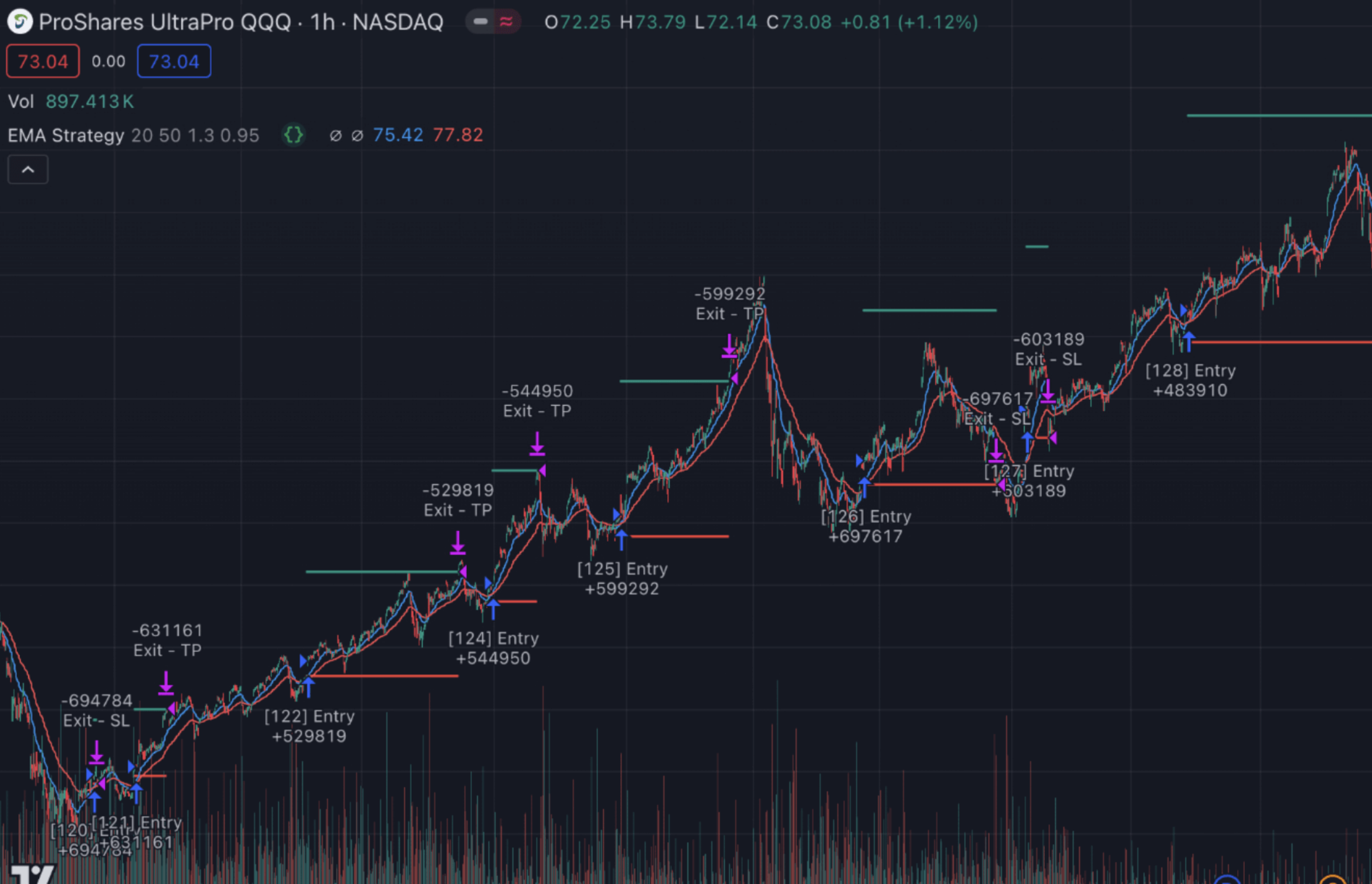
Choose the output before choosing components
| Output | Main purpose | Verification |
|---|---|---|
| Indicator | Calculate and display values or conditions | Compare plots and signal timing with the rule definition |
| Strategy | Simulate entries and exits in Strategy Tester | Inspect trades, fills, sizing, costs, and order timing |
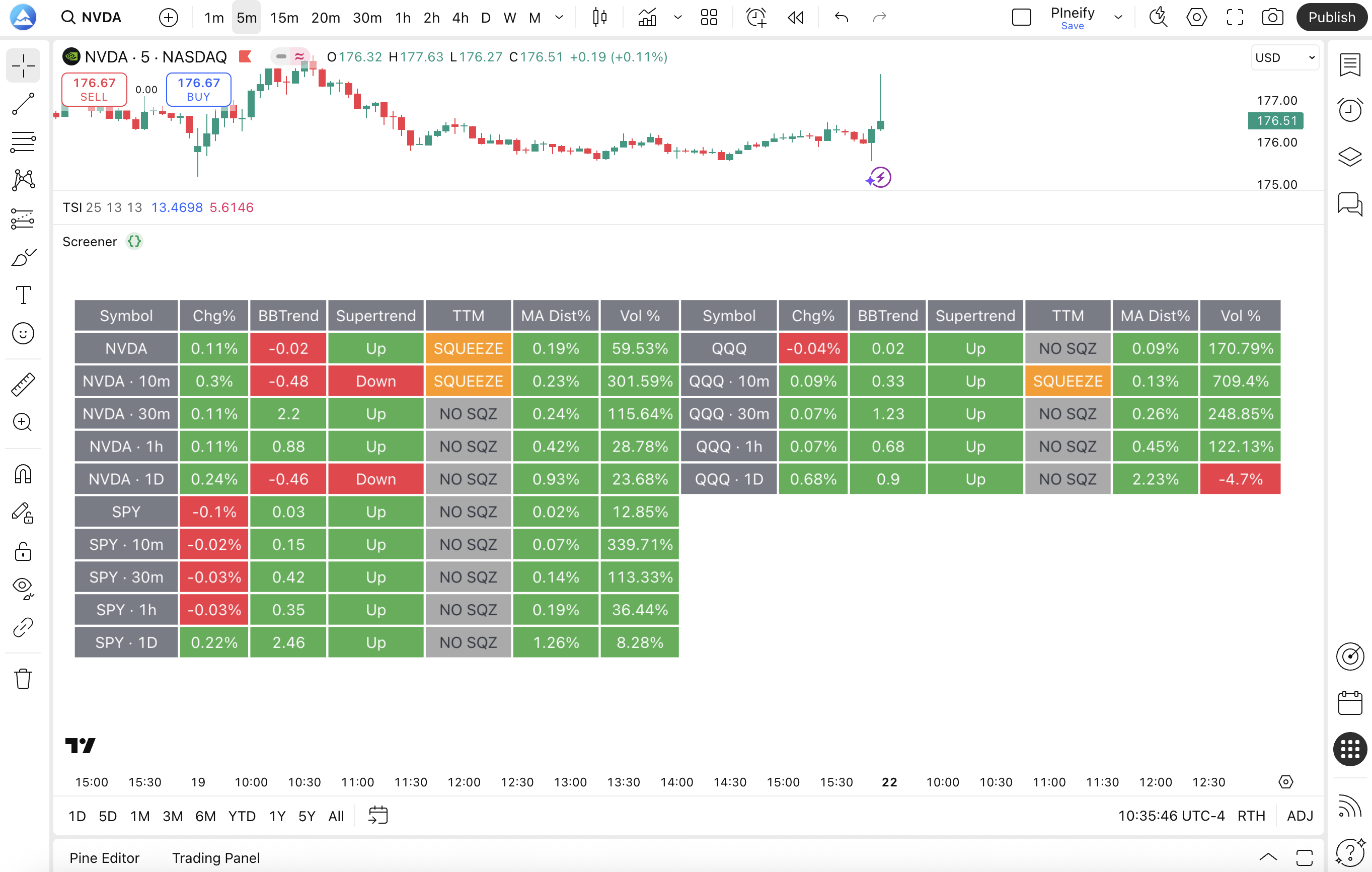
| Pine screener table | Request selected symbols/timeframes and display a table on a chart | Check coverage, request limits, and missing values |
The generated screener table is distinct from Pineify's app-based Custom Stock Screener and from TradingView's native screeners. Exporting a table script does not automatically register it as a native TradingView screener or scan every symbol on the platform.
Build a small rule first
For an illustrative moving-average crossover, create fast and slow length inputs, add the two moving averages, and define the crossover condition. This is a test specification, not a profitable strategy claim. Compare the resulting crossover with the visible series before adding another filter.
For a strategy, specify direction, position sizing, entry trigger, and the intended exit. Distinguish a price-based stop from a tick-distance stop. Also distinguish a level calculated from a signal bar's close from one calculated using the actual simulated entry fill. Those choices can produce different trades even when the chart looks similar.
Copy the generated code into TradingView's Pine Editor, save it, and add it to the chart. Fix any compiler or runtime error before evaluating the result. Successful compilation establishes syntax acceptance, not faithful implementation or future performance.
Multi-timeframe values need confirmation rules
The builder can generate requests for another symbol or timeframe. The implementation uses Pine's data-request mechanism; it does not automatically prove that every higher-timeframe value is confirmed or non-repainting.
Write down whether the rule uses the current developing higher-timeframe bar or the previous completed bar. A daily condition can change during a day even when a five-minute chart bar has closed. Compare live behavior, historical plots, and reload behavior using the same settings. TradingView's repainting documentation explains these distinctions.
Avoid interpreting a label plotted on an earlier bar as proof that the signal was available there. Pivot confirmation, offsets, and requested data can change when information first becomes usable.
Treat a screener as a bounded program
A generated screener requests data for its configured symbol and timeframe combinations, then displays calculated fields. Pine resource limits still apply. Adding many symbols, timeframes, or complex expressions can exceed request or execution limits, so verify the generated script with the intended universe.
Pineify's separate Custom Stock Screener instead displays collection snapshots in the app, with its own access and refresh rules. Its screener-alert creation is marked coming soon. Do not transfer a claim about generated Pine alerts to that separate collection interface.
Custom code remains code
The Import Custom Code workflow retains source and exposes selected variables for use in the visual editor. It is not a general reverse compiler that turns any Pine program into an editable visual graph. A snippet still needs compatible declarations, types, dependencies, and variable definitions.
Review the available variables after parsing, check how they connect to conditions, and validate the combined output. AI assistance can help draft or explain source, but generated and imported logic need the same behavior checks as manually written code.
Alerts and orders are separate steps
An alert condition in generated code does not create a running TradingView alert by itself. Add the script to the chart, choose a supported condition in Create Alert, and verify the symbol, timeframe, settings, and frequency. Existing alerts use a saved script/settings snapshot; recreate them after relevant changes. See TradingView's alert documentation.
A strategy's historical orders are simulations. Sending an alert to a broker or execution service requires a separate configured integration. Neither a plotted stop nor a successful backtest establishes that a live order has been submitted.
Use the Visual Editor for supported structured rules, then preserve the final source and a short record of expected plots, signal timing, and example trades. Current plan controls determine which creation and AI features are available.
Does the Visual Editor guarantee non-repainting scripts?
No. Requested timeframes, developing bars, and signal placement still need review. A visual interface does not remove Pine's execution semantics.
Does importing custom code turn it into visual blocks?
The workflow retains source and exposes selected variables. It does not guarantee arbitrary source-to-visual conversion.
Is a generated screener a native TradingView screener?
The verified generator produces a Pine table script with configured data requests. That is a different workflow from native screener registration or Pineify's app collection screener.