

Visual Pine Script Editor
Build TradingView indicators, strategies, and screeners with Pineify's visual Pine Script editor. No-code controls generate editable Pine Script V6.
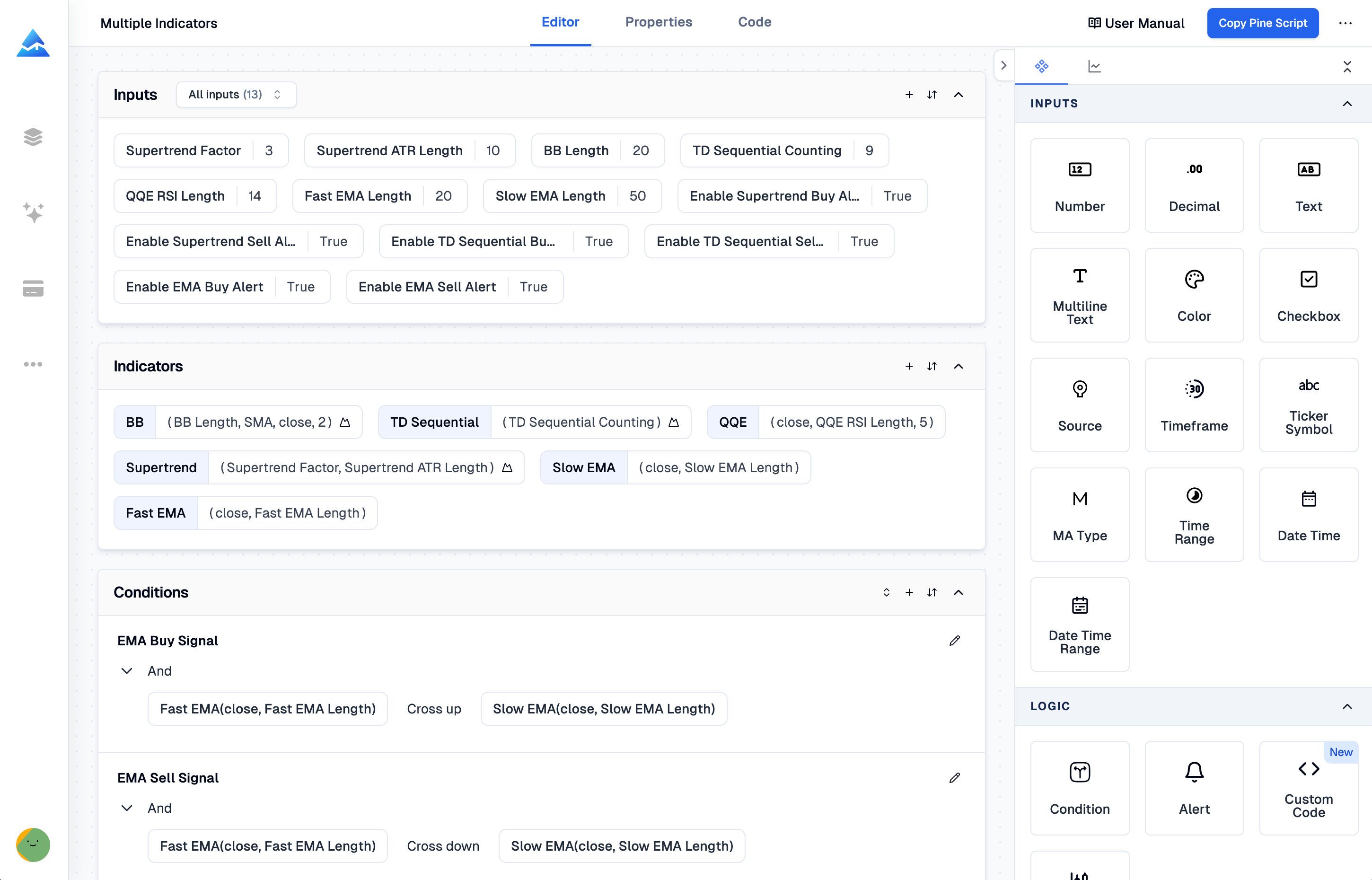
The Visual Pine Script Editor is Pineify's no-code interface for building TradingView indicators, strategies, and screeners. You connect indicators, price data, inputs, conditions, plots, alerts, and strategy orders through visual controls, then export editable Pine Script V6 for review in TradingView. It is a visual Pine Script editor for traders who want a structured builder without typing every statement.
What does the visual Pine Script editor do?
The editor maps a visual specification to a Pine Script V6 file. Start with a blank or existing script, configure the blocks that represent your idea, and export the result to TradingView for compilation and testing.
The current product page lists 235+ built-in technical indicators and candlestick pattern recognition. The available controls and export features depend on your plan, so check the in-app access message before designing a larger script.
How do you build a TradingView script without code?
Use this workflow to create a TradingView indicator, strategy, or screener:
- Choose the script goal. Select an indicator, a strategy for TradingView Strategy Tester, or a screener. Keep the first version narrow enough to validate on a chart.
- Add data and indicators. Select price data, technical indicators, and candlestick patterns, then configure supported inputs, timeframes, and symbols.
- Define the logic. Connect entry, exit, plot, and alert conditions. Strategy projects can also set position sizing, pyramiding, commission, stop loss, take profit, and trailing stops.
- Generate and review Pine Script V6. Export the code, open it in TradingView's Pine Editor, and check the compiler output. Visual controls reduce syntax work, but they do not replace testing.
- Backtest or alert. Apply the script to a chart and inspect it across symbols and timeframes. For deeper trade analysis, use the Backtest Deep Report.
What can you create with the TradingView indicator builder?
The editor supports three common outputs. The table pairs each workflow with the TradingView checks that matter most.
| Output | Visual controls | What to verify in TradingView |
|---|---|---|
| Indicator | Indicators, patterns, plots, inputs, and alert conditions | Plots, signals, input behavior, and alert triggers on the selected chart |
| Strategy | Entry and exit conditions, orders, risk settings, and position rules | Strategy Tester results, fills, fees, and behavior on other symbols or timeframes |
| Screener | Symbol and timeframe inputs, filtering conditions, and alert logic | Returned symbols, timeframe assumptions, and alert frequency before relying on a scan |
How do you build a visual indicator?
Select indicators, adjust their inputs, and combine conditions in the visual editor. The current library includes studies such as EMA, SMA, Bollinger Bands, MACD, Supertrend, RSI, and candlestick patterns. The result remains editable Pine Script V6 rather than a locked chart preset.
How does the visual strategy builder handle orders?
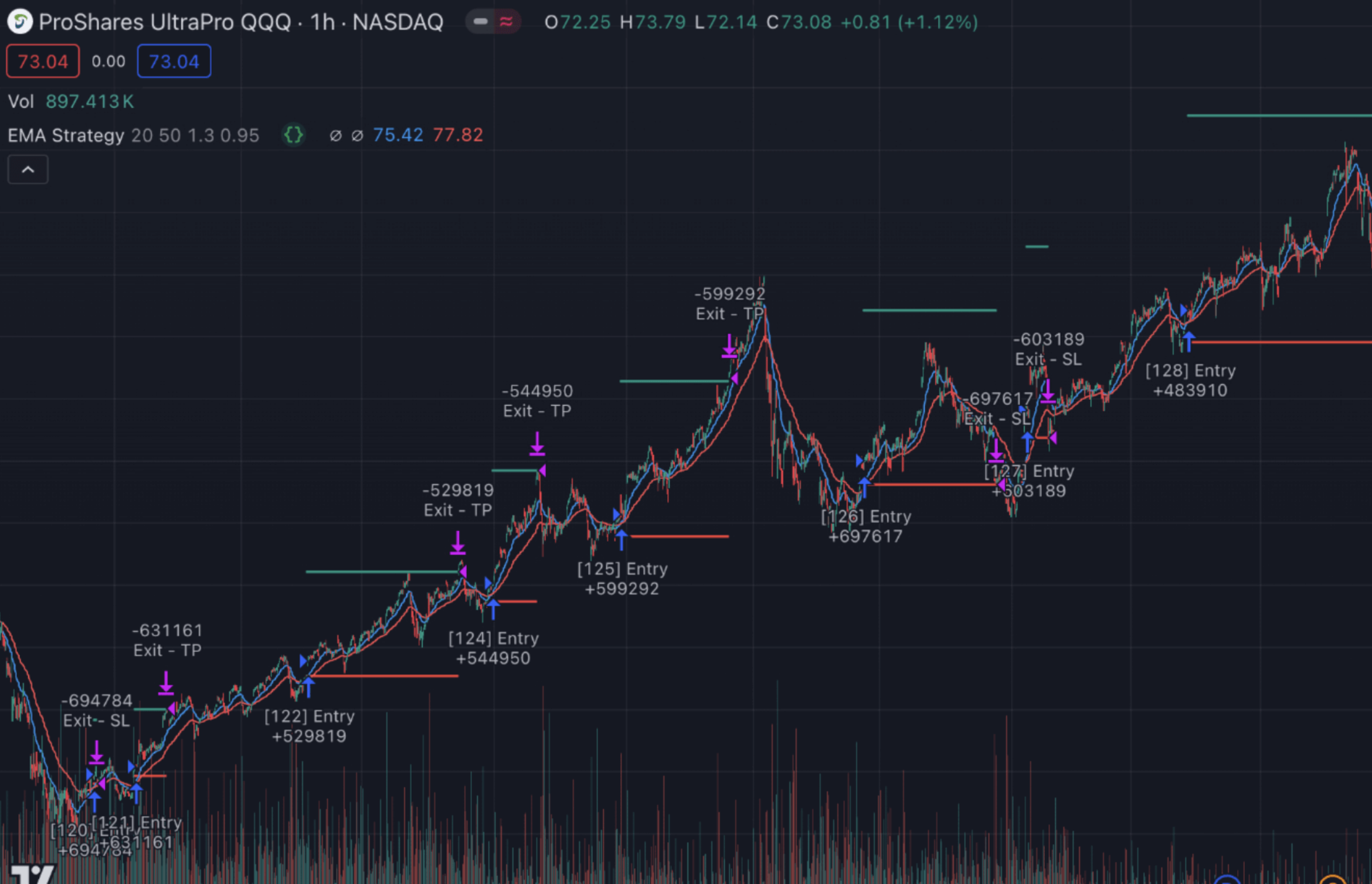
The visual strategy builder represents long and short conditions, exits, and risk parameters as configurable blocks. It generates code for TradingView Strategy Tester, but you still need realistic fees, slippage, session settings, and out-of-sample checks. A backtest describes the selected data and rules, not future returns.
Can the screener generator scan several symbols?
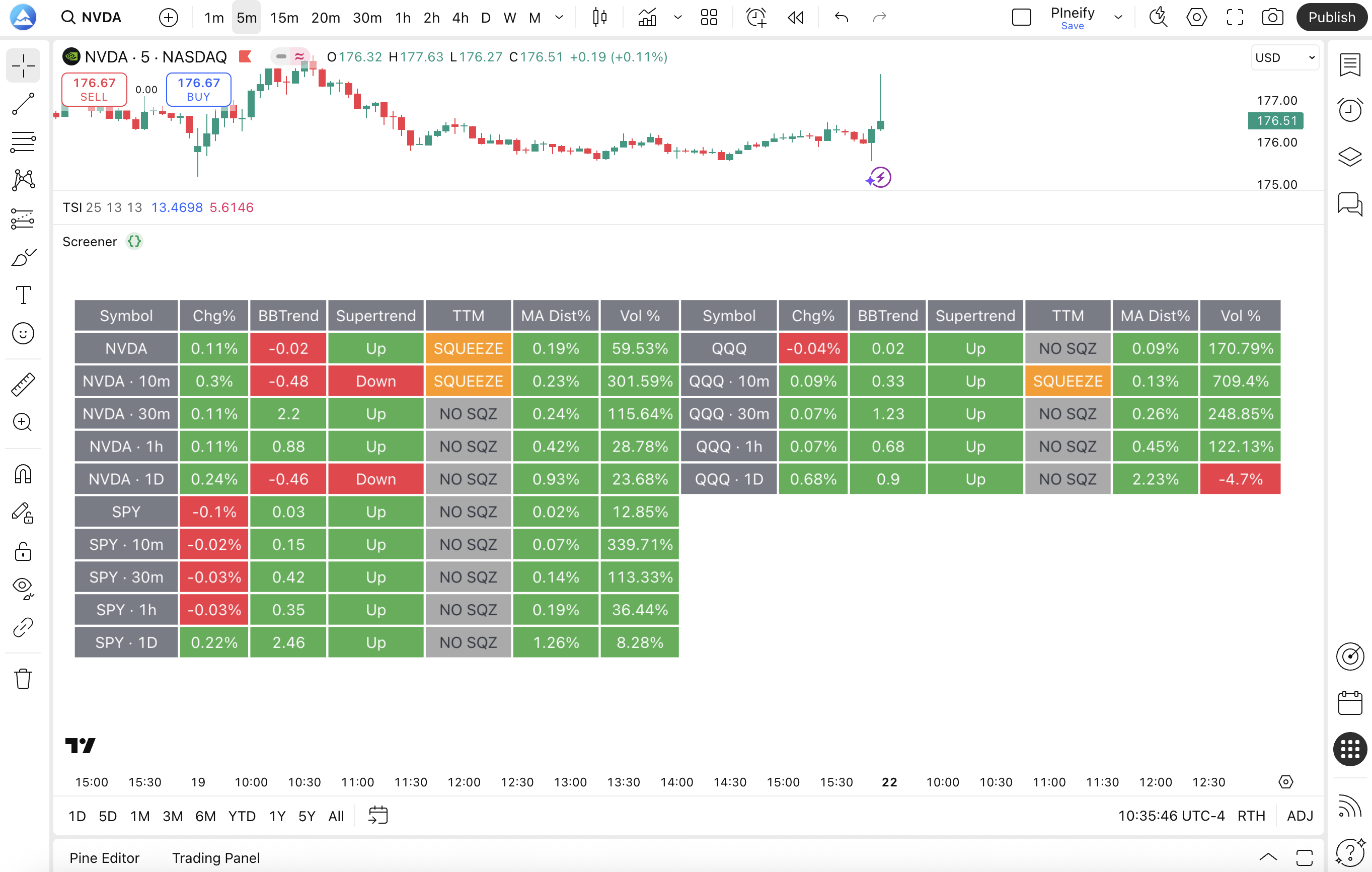
The screener workflow supports custom filters across the symbols and timeframes available in the editor. Build the filter, export the Pine Script, and confirm symbol, timeframe, and alert behavior in TradingView. Treat matches as research signals and verify the underlying chart.
Can you import existing Pine Script code?
Yes. The editor can parse signals and variables from inserted Pine Script for use with visual components. This lets you keep a working calculation while changing part of its logic, then compile the combined result in TradingView.
For the exact import workflow, see Import Custom Code. The Advanced Condition Editor explains how to express multi-step conditions, while Custom Inputs, Alerts, and Plots covers the controls that shape the exported script.
How does Pineify handle Pine Script V6 output?
The visual editor targets Pine Script V6 and produces code that you can inspect, edit, and paste into TradingView. Before publishing or sharing a script, check the compiler output, confirm that the selected data and timeframe match your intent, and test alerts and order behavior. If the visual blocks cannot express a required custom function or data flow, use the Pine Script AI Coding Agent or hand-edit the exported code.
The Visual Editor Guide covers script management and focused workflows, including multiple symbols and timeframes and backtesting an indicator.
What should you verify before using a generated script?
Generation and trading validation are separate tasks. Review the compiler output, test more than one symbol or market period where appropriate, and use realistic fees and slippage for strategies. Compare in-sample results with data that was not used to design the rules.
The editor does not guarantee a profitable strategy, accurate signals, or future market performance. Indicators, screeners, alerts, and backtest statistics are research tools, and TradingView's own execution and data settings remain part of the result.
What is included on each plan?
Controls and export limits vary by Pineify plan. Use the current in-app message and pricing page for access, indicator coverage, strategy features, and code export.
What do users ask about the Visual Pine Script Editor?
What is a visual Pine Script editor?
A visual Pine Script editor represents indicators, conditions, plots, alerts, and strategy orders as configurable blocks. Pineify converts that specification into editable Pine Script V6 for TradingView.
Do I need to know Pine Script to use the editor?
No programming background is required to assemble supported blocks. You should still understand your rules and review the exported code in TradingView.
Can I create both indicators and strategies?
Yes. It supports indicator, strategy, and screener workflows. Strategies can include visual entry, exit, and risk settings for TradingView Strategy Tester.
Can I use the generated code in TradingView?
Yes. Export the Pine Script V6 output, paste it into TradingView's Pine Editor, and confirm the compiler output and behavior. Check inputs, alerts, order assumptions, and external data on the target chart.
Market Insights Dashboard
Explore Pineify's market insights dashboard for options flow, dark pool data, Congress trades, and market tide signals with clear research limits.
TradingView Invite-Only Indicator | Signals & Overlays
Learn how Pineify Signals & Overlays works as a TradingView invite-only indicator, how to request access, read buy and sell signals, and use ATR risk levels.