

Pine Script Input Types in Pineify
Integer, decimal, text, color, checkbox, source, timeframe, symbol, moving-average type, and date or time inputs in the Pineify visual editor.
The Pineify visual editor includes the usual Pine Script inputs: integer, decimal, text, multiline text, color, and checkbox. Subscribed accounts can also add source, timeframe, ticker symbol, moving-average type, time range, date time, and date time range. Each input becomes a named setting in the generated script and in TradingView's Inputs tab.
Here are all the Input Types currently supported:
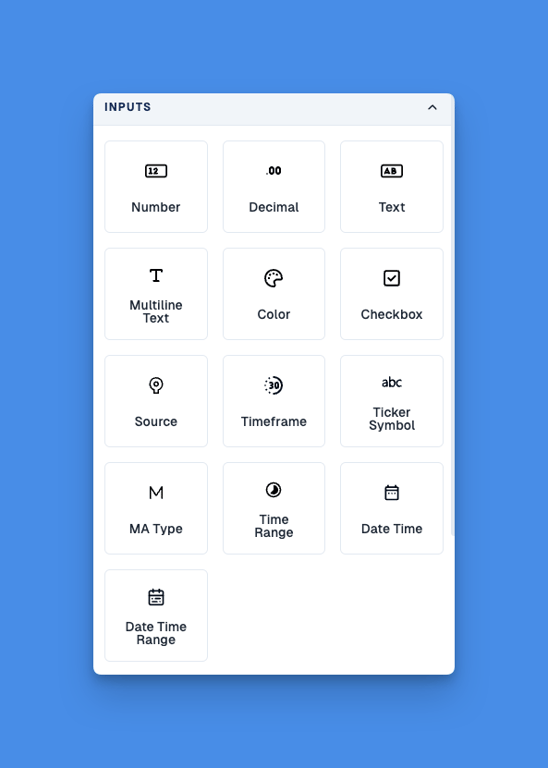
Next, we will explain in detail the configuration of each Input Type.
Number
Number Input is an integer input type. You can input integers to set basic parameters in trading strategies, such as moving average periods and volume thresholds.
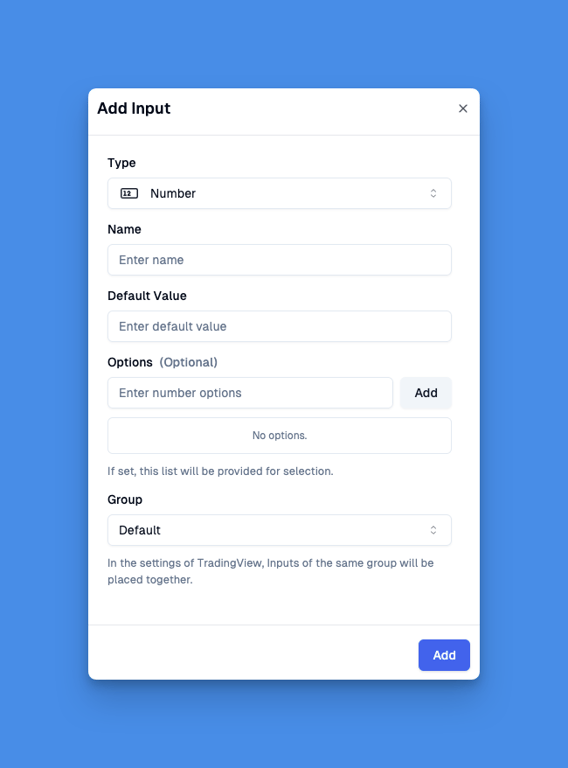
Number Input supports the following properties:
-
Name: The input name, which is also displayed as the input name in TradingView script settings.
-
Default Value: The initial value.
-
Options: Options allow you to set predefined values that users can choose from. You can drag these options to reorder them. Users can only select from these specified values.
-
Group: The group this input belongs to. In TradingView's script settings, Inputs in the same group are displayed together with a group heading.
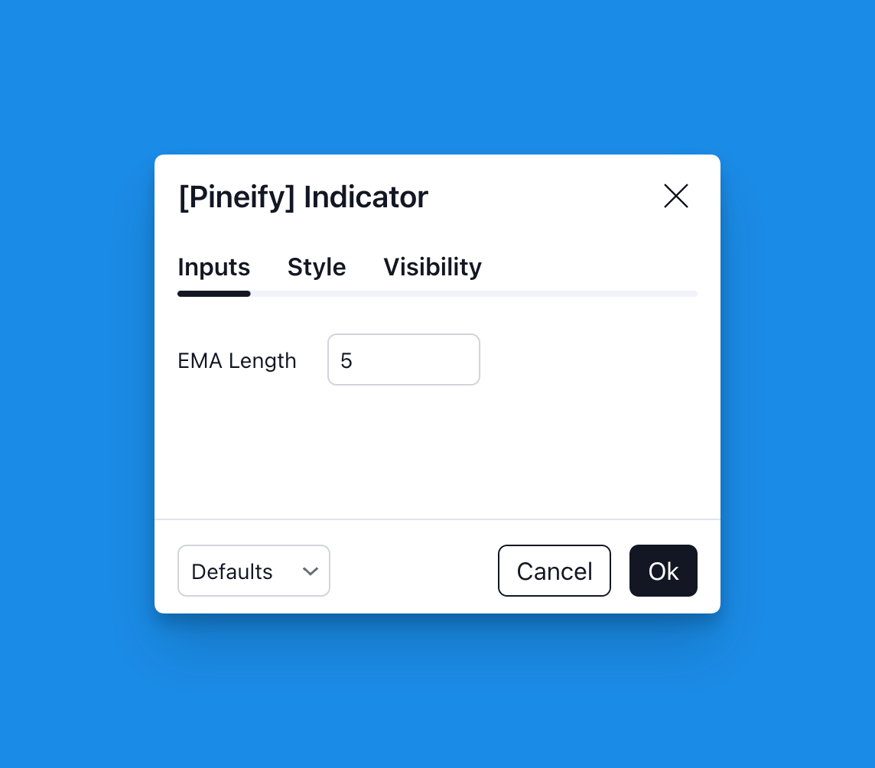
Number Input display in TradingView script settings:
Decimal
Decimal Input lets you enter numbers with decimals. Use it when you need exact values for things like prices, percentages, or ratios in your trading rules.
The difference between Number Input and Decimal Input is that Decimal Input allows decimal points, while Number Input only accepts integers.

Decimal Input supports the following properties:
-
Name: The input name, which is also displayed as the input name in TradingView script settings.
-
Default Value: The initial value.
-
Options: Options allow you to set predefined values that users can choose from. You can drag these options to reorder them. Users can only select from these specified values.
-
Group: The group this input belongs to. In TradingView's script settings, Inputs in the same group are displayed together with a group heading.
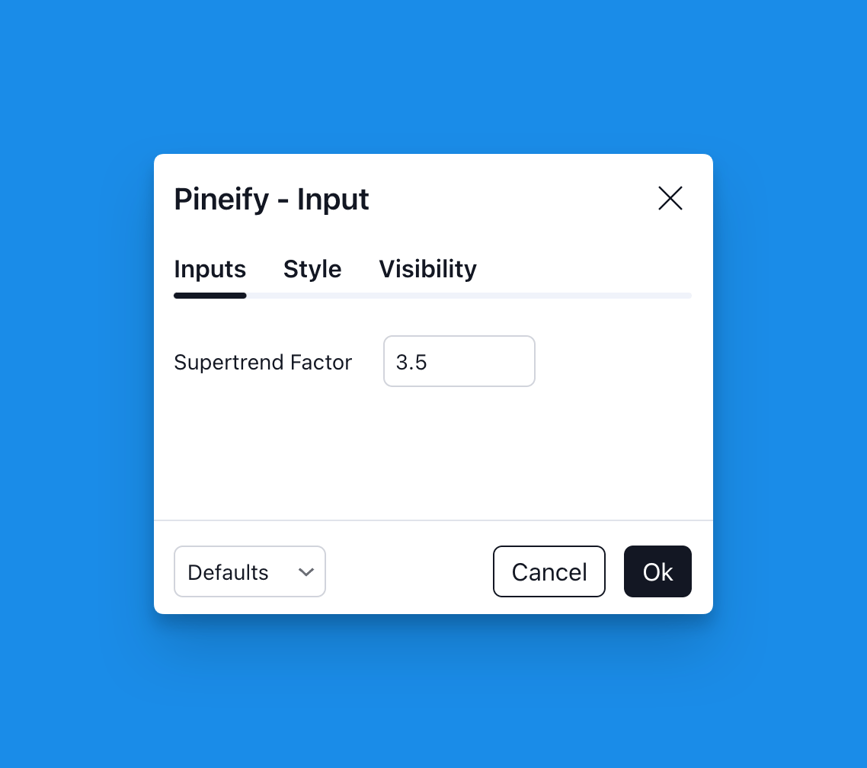
Decimal Input display in TradingView script settings:
Text
Text Input allows you to input text strings for labels, messages, or other text-based parameters. This is useful for customizing alert messages, or any text that needs to be displayed on the chart.

Text Input supports the following properties:
-
Name: The input name, which is also displayed as the input name in TradingView script settings.
-
Default Value: The initial text value.
-
Options: Options allow you to set predefined values that users can choose from. You can drag these options to reorder them. Users can only select from these specified values.
-
Group: The group this input belongs to. In TradingView's script settings, Inputs in the same group are displayed together with a group heading.
Text Input display in TradingView script settings:
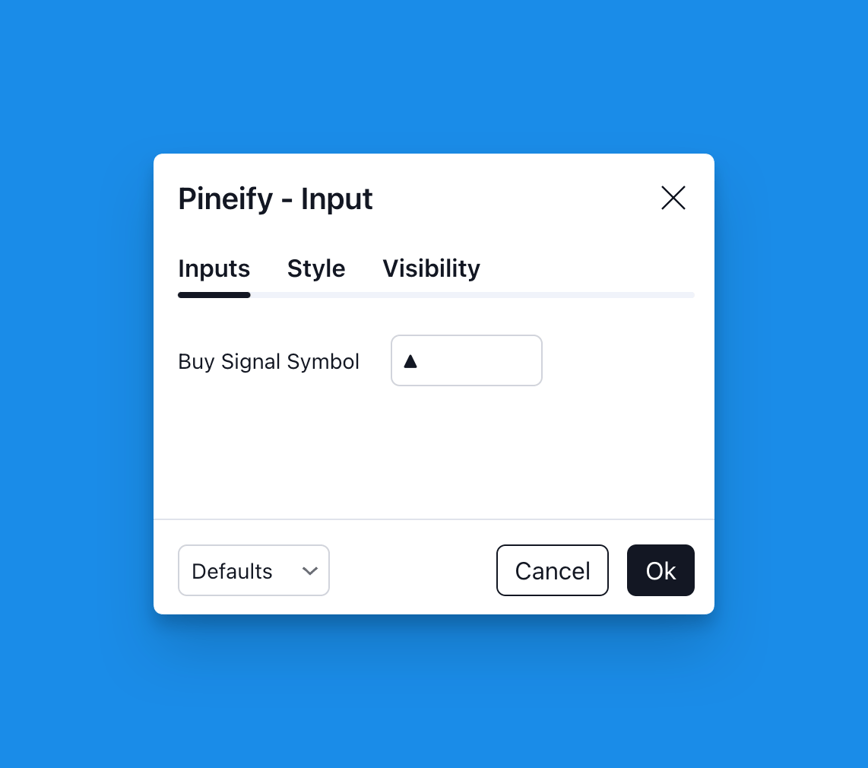
Multiline Text
Multiline Text Input is similar to Text Input but provides a larger text area for entering longer text content. This is particularly useful when you need to input multiple lines of text, such as detailed alert messages.
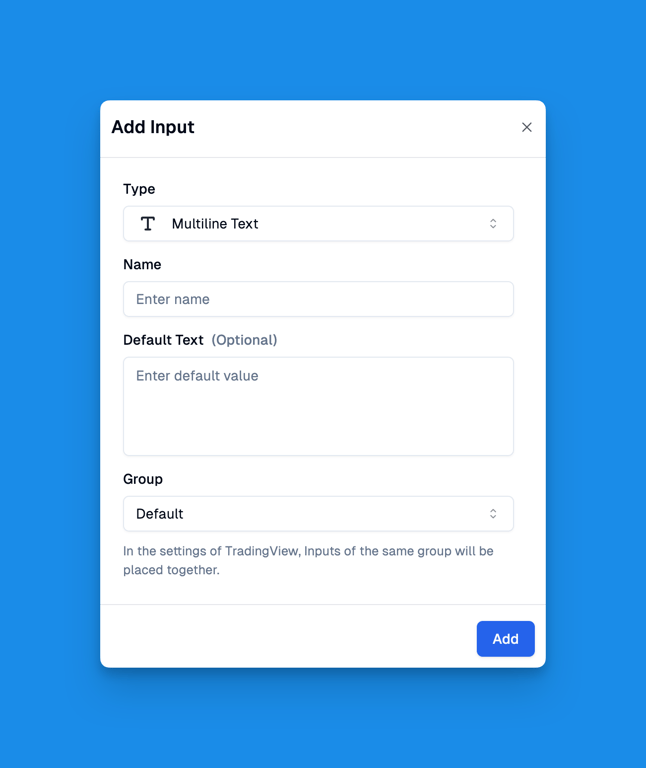
Multiline Text Input supports the following properties:
-
Name: The input name, which is also displayed as the input name in TradingView script settings.
-
Default Value: The initial text value that can span multiple lines.
-
Group: The group this input belongs to. In TradingView's script settings, Inputs in the same group are displayed together with a group heading.
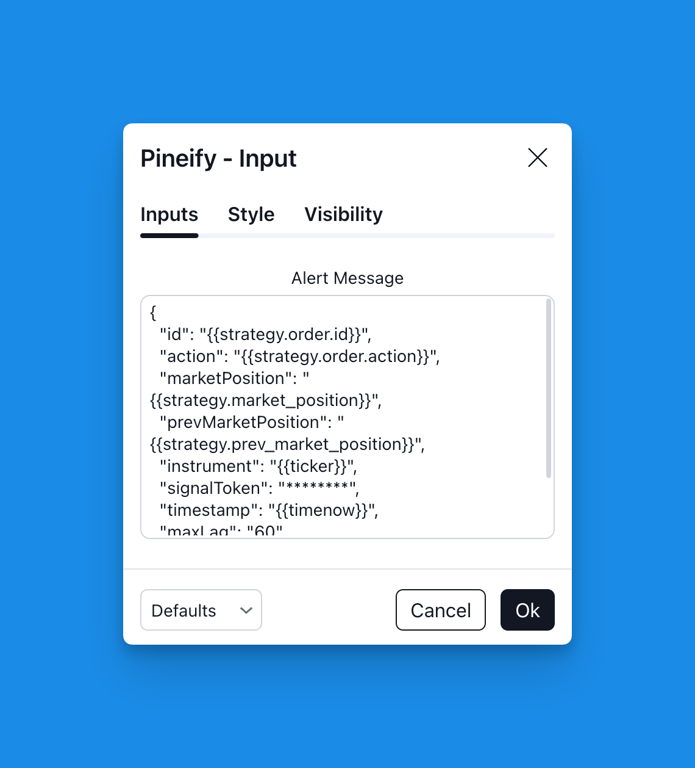
Multiline Text display in TradingView script settings:
Color
Color Input stores a color for a plot or drawing. The picker accepts a palette choice, a hex code, or RGBA values, including opacity.
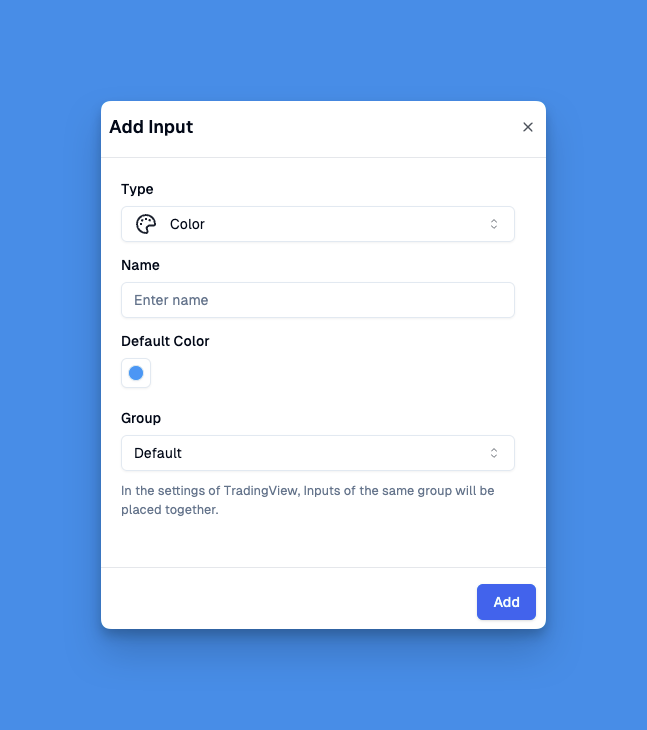
Color Input supports the following properties:
-
Name: The input name, which is also displayed as the input name in TradingView script settings.
-
Default Color: The initial color.
-
Group: The group this input belongs to. In TradingView's script settings, Inputs in the same group are displayed together with a group heading.
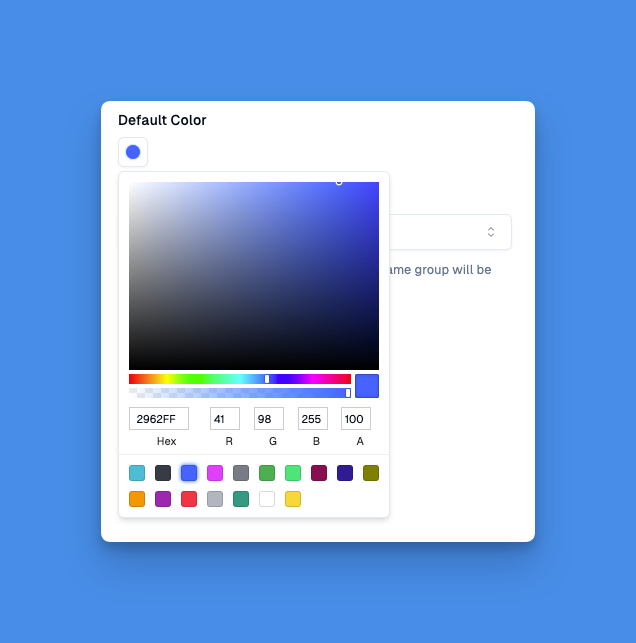
The Color Picker allows you to select colors. Here's how to use it:
-
Choose colors from the main color palette
-
Use the rainbow slider to select a base color
-
Fine-tune colors with RGBA values or hex codes
-
Adjust transparency using the opacity slider
-
Select from preset colors for quick access
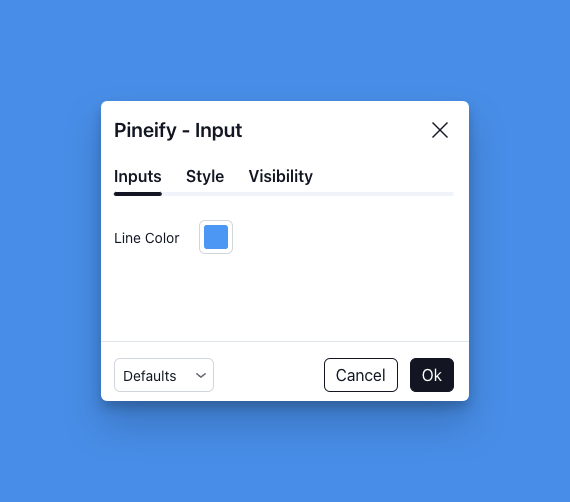
Color Input display in TradingView script settings:
Checkbox
Checkbox Input stores true or false. Use it for a setting that should be on or off, such as showing a plot.
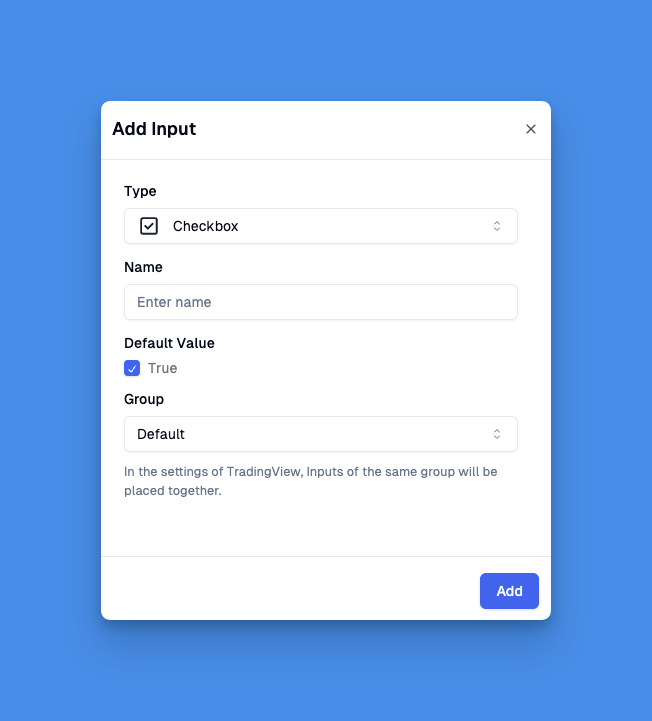
Checkbox Input supports the following properties:
-
Name: The input name, which is also displayed as the input name in TradingView script settings.
-
Default Value: The initial state (checked or unchecked).
-
Group: The group this input belongs to. In TradingView's script settings, Inputs in the same group are displayed together with a group heading.
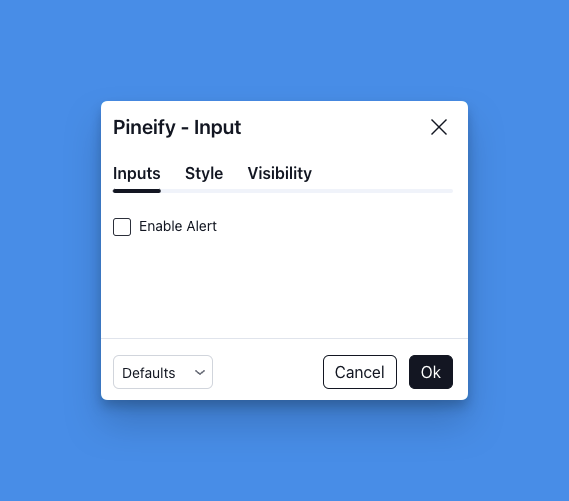
Checkbox Input display in TradingView script settings:
Source
Source Input selects a price series such as open, high, low, close, hl2, hlc3, or ohlc4. That series is the calculation input for the generated script.
After the indicator is on a chart, the same setting can point at another indicator or a plotted signal. A strategy can then use that series as its signal source. The backtest still depends on the script's own rules, costs, and the chart data you load.
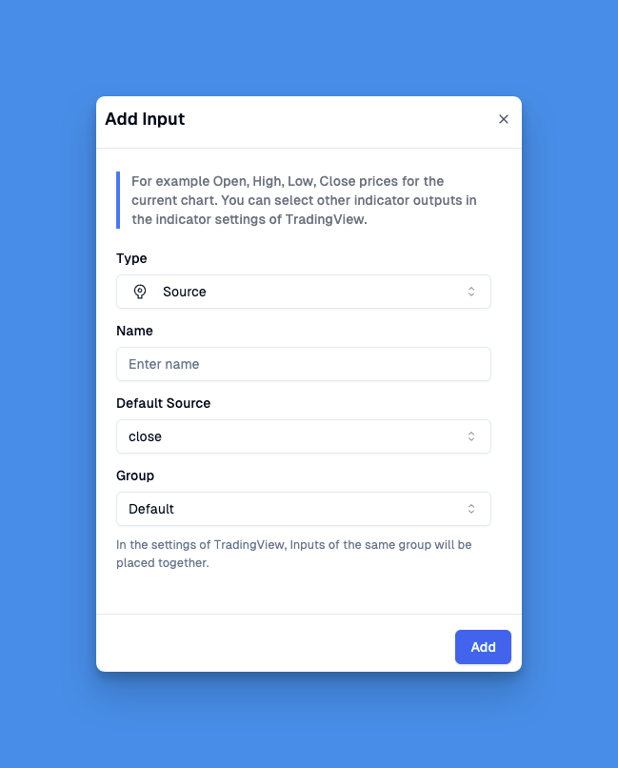
Source Input supports the following properties:
-
Name: The input name, which is also displayed as the input name in TradingView script settings.
-
Default Source: The initial price source selection.
-
Group: The group this input belongs to. In TradingView's script settings, Inputs in the same group are displayed together with a group heading.
Source Input display in TradingView script settings:
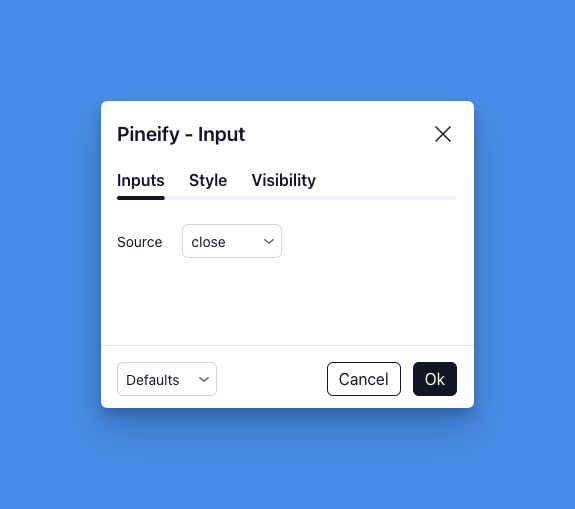
Open the source list to pick another indicator that is already on the chart. The generated script then reads that indicator's output instead of a raw price series.

Timeframe
Timeframe Input sets the chart interval the script requests, such as 1 minute, 5 minutes, 1 hour, or 1 day. Use it when one script needs a second interval besides the chart it is attached to.
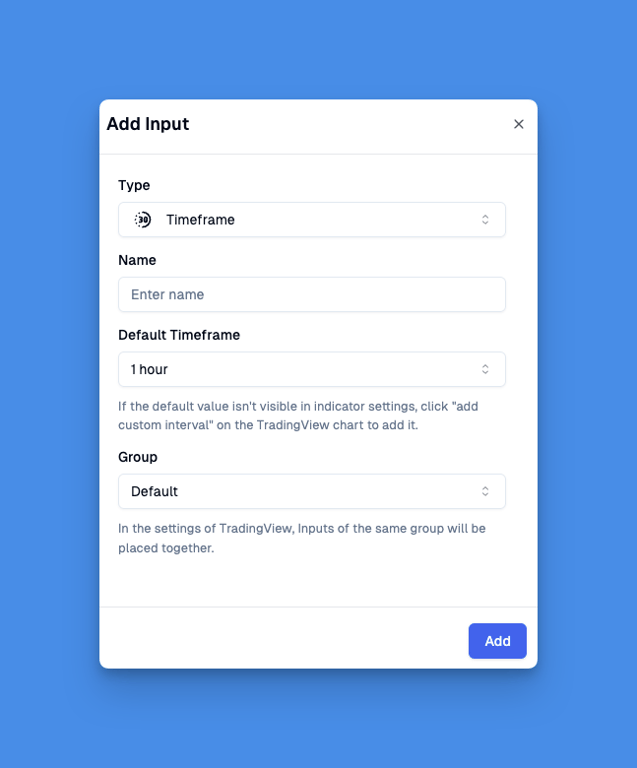
Timeframe Input supports the following properties:
-
Name: The input name, which is also displayed as the input name in TradingView script settings.
-
Default Timeframe: The initial timeframe selection.
-
Group: The group this input belongs to. In TradingView's script settings, Inputs in the same group are displayed together with a group heading.
Timeframe Input display in TradingView script settings:
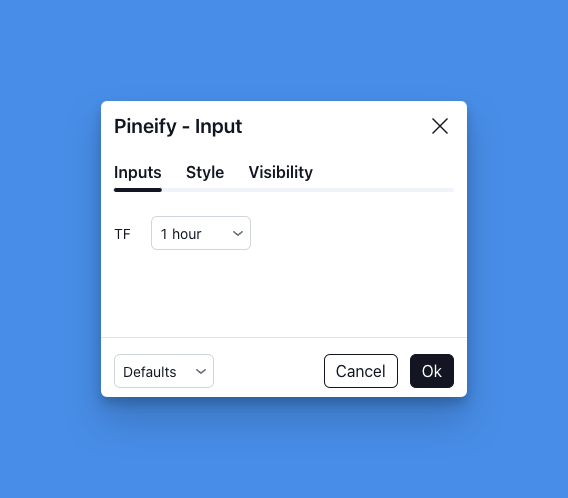
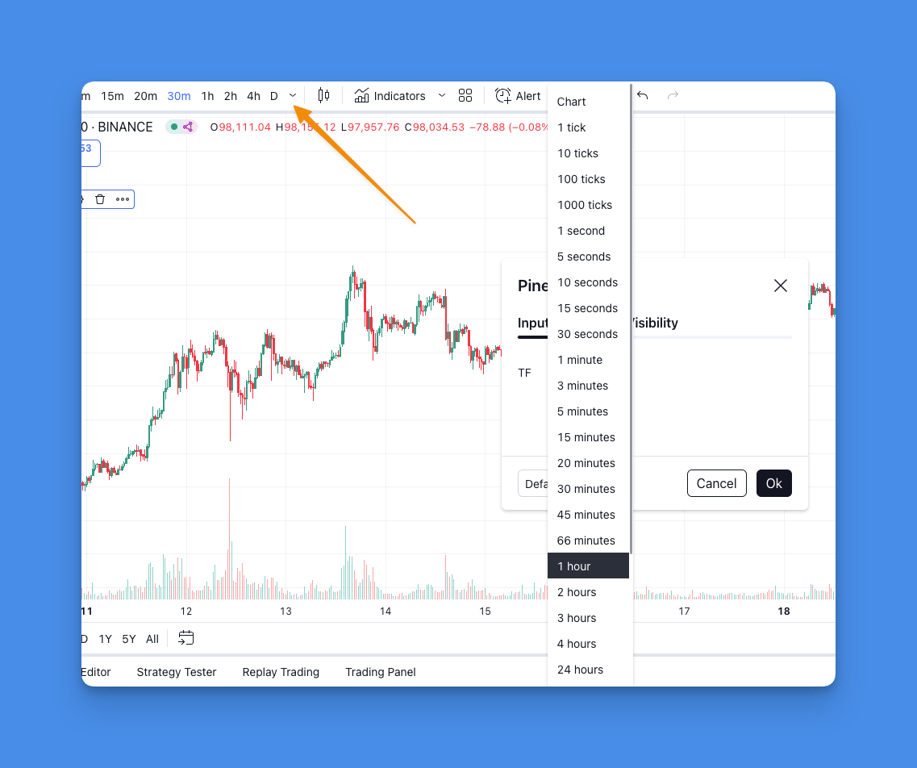
You can add custom time intervals at the Interval section at the top of the chart, and then you can select this custom time interval in the timeframe options.
Ticker Symbol
Ticker Symbol Input stores another symbol inside the indicator or strategy. The script can then request that symbol's data next to the chart symbol.
For example, you can use the Ticker Symbol Input to:
-
Compare the current symbol with another market benchmark
-
Calculate correlations between different assets
-
Monitor related instruments or markets
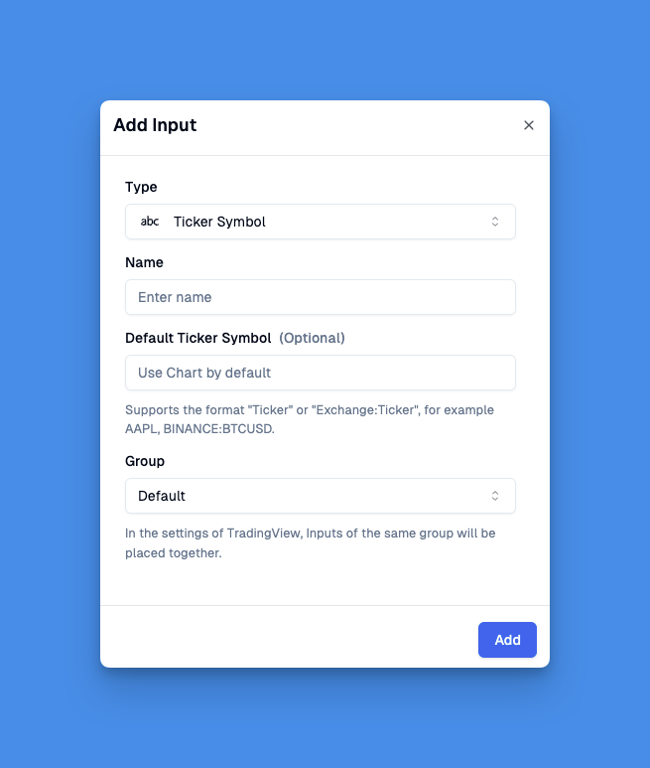
Ticker Symbol Input supports the following properties:
-
Name: The input name, which is also displayed as the input name in TradingView script settings.
-
Default Ticker Symbol: The initial symbol value.
-
Group: The group this input belongs to. In TradingView's script settings, Inputs in the same group are displayed together with a group heading.
How do I get the ticker symbol of the currently open chart?
You can add this script to your chart to display the complete Symbol Ticker Value on the last candle of the main chart.
// This source code is subject to the terms of the Mozilla Public License 2.0 at https://mozilla.org/MPL/2.0/ // © Pineify //@version=6 indicator("[Pineify] Display Ticker Symbol", overlay = true, behind_chart=false) if last_bar_index == bar_index label.new(bar_index, close, syminfo.tickerid)
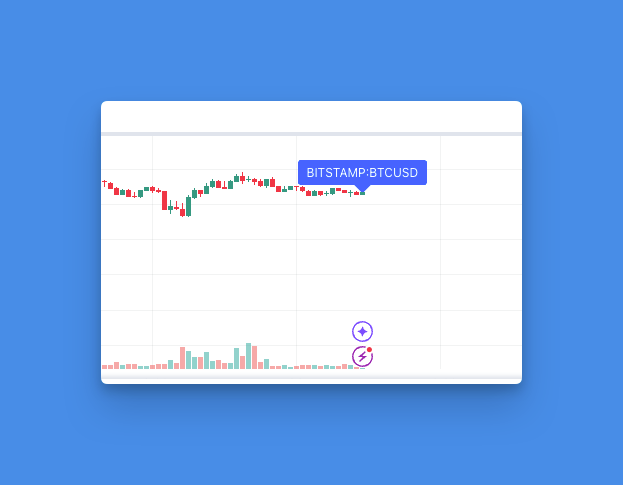
Of course, you can also enter the name of Ticker directly without prefixing it with Exchange. For example BTCUSD.
Ticker Symbol Input display in TradingView script settings:

Click the edit button to modify the Ticker Symbol.
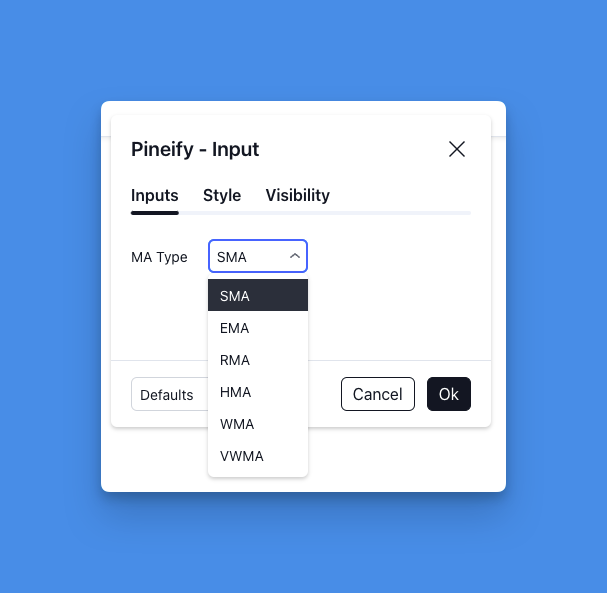
MA Type
MA Type Input lets you select from various moving average calculation methods, such as Simple (SMA), Exponential (EMA), and other standard types. For indicators using moving averages, you can easily switch between these methods without changing any code.
The available MA types include:
-
SMA (Simple Moving Average)
-
EMA (Exponential Moving Average)
-
RMA (Wilder's Smoothed Moving Average)
-
HMA (Hull Moving Average)
-
WMA (Weighted Moving Average)
-
VWMA (Volume Weighted Moving Average)
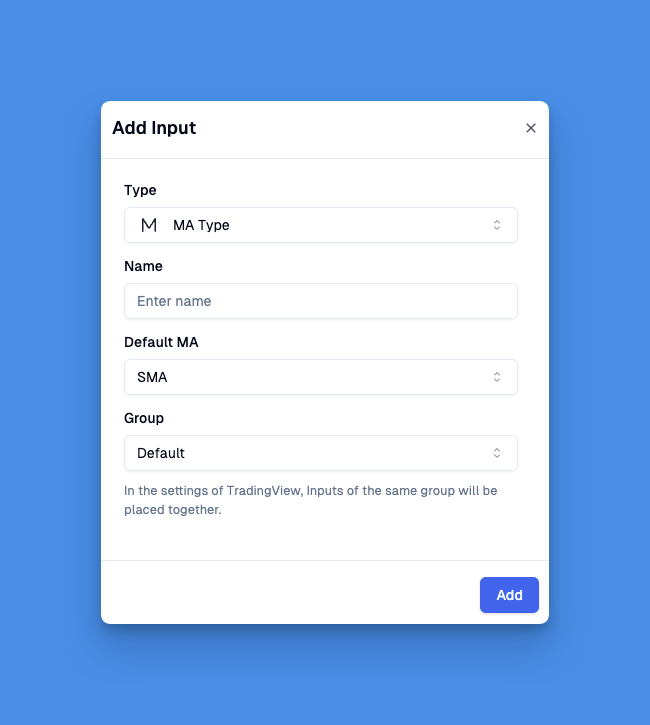
MA Type Input supports the following properties:
-
Name: The input name, which is also displayed as the input name in TradingView script settings.
-
Default Type: The initial moving average type selection.
-
Group: The group this input belongs to. In TradingView's script settings, Inputs in the same group are displayed together with a group heading.
MA Type Input display in TradingView script settings:
Time Range
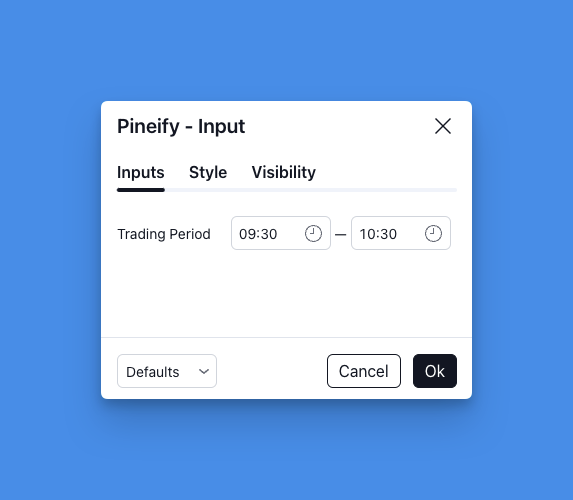
Time Range Input stores a clock-time window, such as 09:30 to 10:30. A script can use that window to limit a calculation or a signal to those hours. The exchange session still decides whether those clock times are valid trading hours.
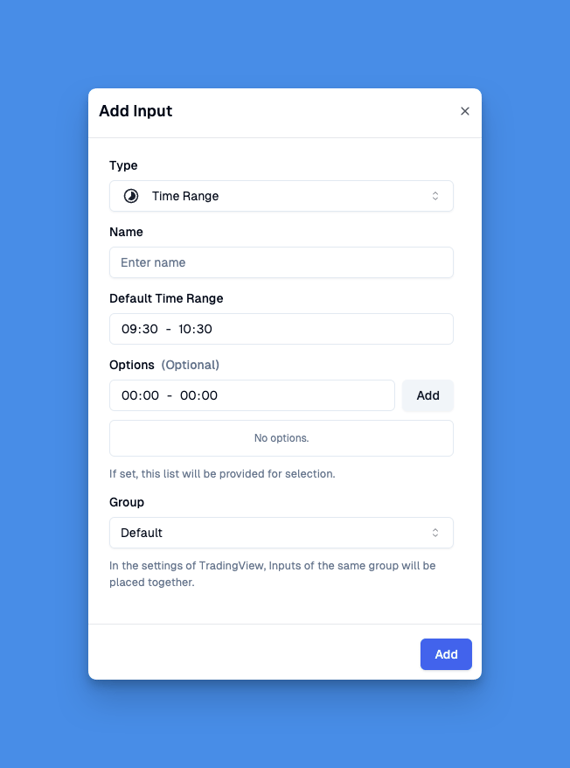
Time Range Input supports the following properties:
-
Name: The input name, which is also displayed as the input name in TradingView script settings.
-
Default Time Range: The initial time range.
-
Group: The group this input belongs to. In TradingView's script settings, Inputs in the same group are displayed together with a group heading.
Time Range Input display in TradingView script settings:
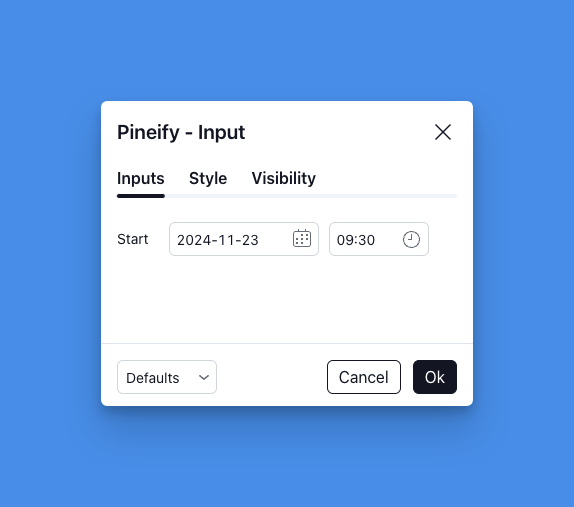
Date Time
Date Time Input stores one date and time. A script can compare bar times with that point. It does not by itself run a backtest or create an alert.
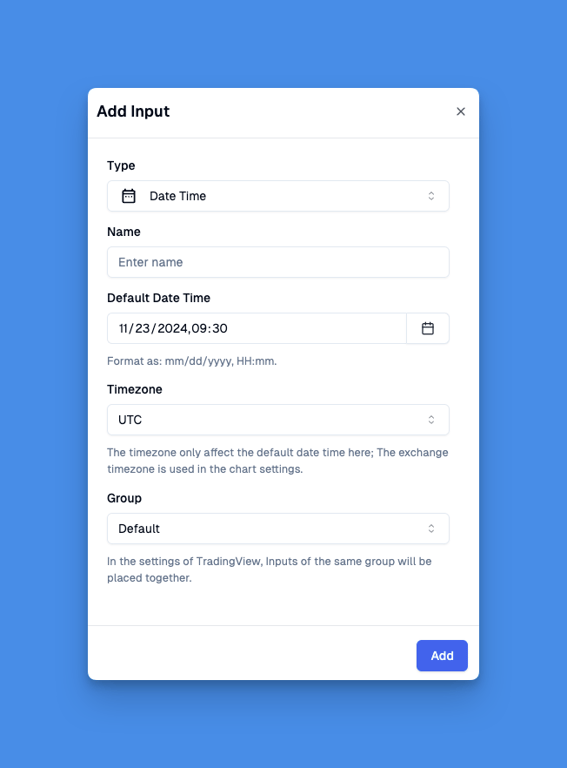
Date Time Input supports the following properties:
-
Name: The input name, which is also displayed as the input name in TradingView script settings.
-
Default Date Time: The initial Date Time.
-
Timezone: The time zone only affects the default date time setting. The time zone of the exchange is used everywhere else.
-
Group: The group this input belongs to. In TradingView's script settings, Inputs in the same group are displayed together with a group heading.
Date Time Input display in TradingView script settings:
Date Time Range
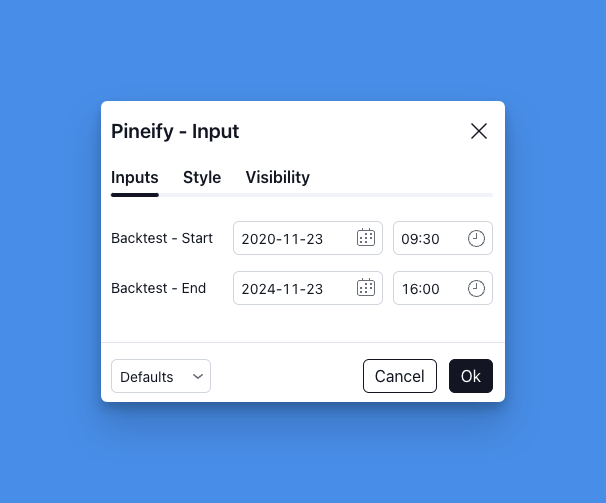
Date Time Range Input stores a start and an end. A script can keep calculations or signals inside that window. The range is a user setting, not a guarantee that the chart contains bars for every timestamp inside it.
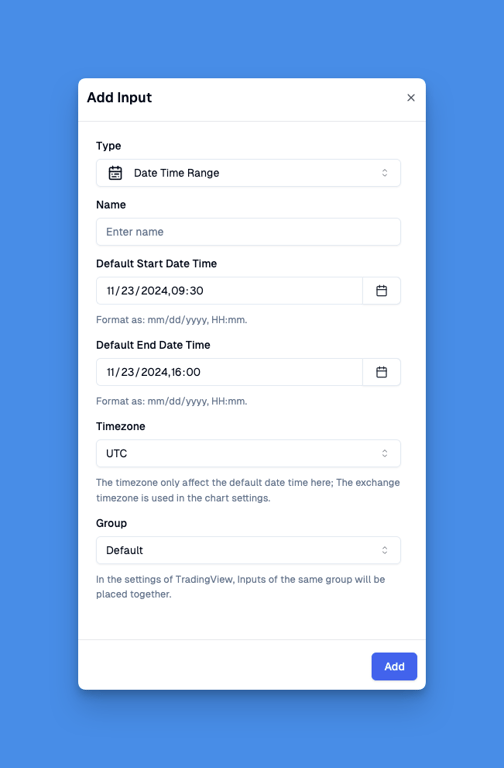
Date Time Range Input supports the following properties:
-
Name: The input name, which is also displayed as the input name in TradingView script settings.
-
Default Start Date Time: The initial Start Date Time.
-
Default End Date Time: The initial End Date Time.
-
Timezone: The time zone only affects the default date time setting. The time zone of the exchange is used everywhere else.
-
Group: The group this input belongs to. In TradingView's script settings, Inputs in the same group are displayed together with a group heading.
Date Time Range Input display in TradingView script settings:
How to Use Input?
Learn how to utilize Pine Script inputs for customizing your trading scripts easily, enhancing flexibility without altering the code directly.
How to Use Price Data?
Discover how to effectively use price data in Pine Script for trading strategies, including cross-timeframe analysis and complex indicators.