

TradingView Invite-Only Indicator | Signals & Overlays
Learn how Pineify Signals & Overlays works as a TradingView invite-only indicator, how to request access, read buy and sell signals, and use ATR risk levels.
A TradingView invite-only indicator is a private Pine Script that approved TradingView accounts can add to a chart. Pineify Signals & Overlays combines trend and reversal context, buy and sell signal markers, TradingView alert conditions, and ATR-based stop levels. This guide explains how the invite-only TradingView script works, how to request access, and how to evaluate its output without treating it as a forecast.
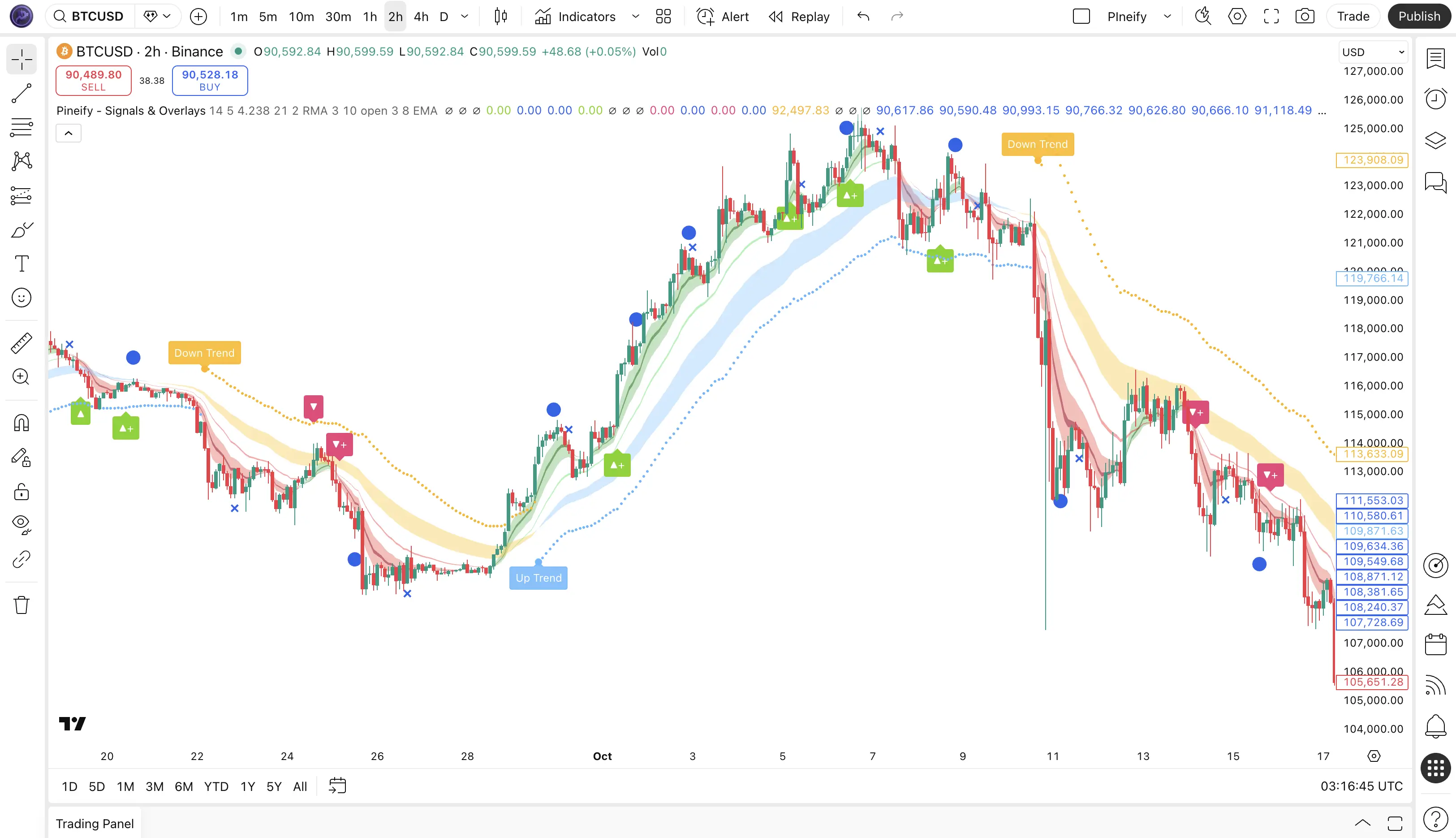
What is Pineify Signals & Overlays?
Pineify Signals & Overlays is an invite-only TradingView script for reading trend direction, possible reversals, buy and sell signal markers, and volatility-aware risk references. It is added to TradingView through the Invite-only scripts area after Pineify grants access to the TradingView username associated with your request.
The script is designed for stocks, crypto, forex, and futures on intraday and higher timeframes. It can organize several observations on one chart, but it does not remove market uncertainty, replace a tested plan, or execute trades for you.
What does this buy and sell signal indicator show?
The chart combines five related outputs. Read each one as context for a decision, not as a standalone instruction.
| Chart output | What it represents | What to verify |
|---|---|---|
| Trend cloud | Color-coded trend context using Dow Theory and related conditions | Confirm the timeframe and trend versus range |
| Reversal markers | Potential direction changes when script conditions shift | Wait for the candle close and compare nearby structure |
| Buy and sell signals | Long or short icons on the TradingView chart | Compare with your rules, liquidity, and position size |
| TradingView alerts | Email, push, or webhook alert conditions | Set the condition and test the notification |
| ATR risk levels | A volatility-adjusted stop-loss reference based on Average True Range | Use it as a reference and set size independently |
How should I interpret ATR risk levels?
The ATR line is a volatility-adjusted stop reference. The documented workflow is to place the initial stop at that level and consider moving it to breakeven after the position moves in your favor. It is a risk framework, not a promise against slippage or loss.
How do you request access to the invite-only TradingView script?
Pineify handles approval before TradingView can list the script. Use this sequence:
- Open Invite-Only Indicator access and sign in.
- Confirm an Advanced plan or higher. Current supported tiers are Advanced, Expert, and Ultimate; check the pricing page for changes.
- Enter the exact TradingView username and submit the request. Correct it if the app cannot find the user.
- In TradingView, choose Indicators, Invite-only scripts, then Pineify® - Signals & Overlays™. Refresh if it is not listed after approval.
How do you use Signals & Overlays on a chart?
Use a repeatable review sequence instead of entering solely because an icon appeared.
- Set the market and timeframe. Match the symbol and timeframe to your plan, then compare lower and broader context when needed.
- Read the cloud and structure. Note color, recent swings, support, resistance, and trend versus range.
- Review at candle close. Use the closed candle as the stable marker and record whether it agrees with your rules.
- Define invalidation and size. Use ATR as one stop reference and size the position from your loss limit.
- Configure alerts after validation. Create and test the relevant TradingView notification before relying on it.
For a second opinion, compare the chart with AI Chart Analysis. Test rules with Strategy Optimizer, including its overfitting limits.
What does the 87% backtested result mean?
The current product page shows an 87% backtested win rate for its showcased configuration. This is a historical product-page result for that configuration only. It is not a universal result for every symbol, timeframe, date range, fee assumption, market regime, or signal setting, and it should not be presented as an expected live win rate.
Before relying on a signal, record losing trades, missed reversals, spread, slippage, and execution timing. Backtest Deep Report can inspect an exported sample, while Trading Journal can record the live decision separately.
TradingView invite-only indicator FAQ
What does invite-only mean on TradingView?
It means the script is not available through the public indicator library. The publisher must grant access to a specific TradingView username before that account can add the script.
How do I add Signals & Overlays to TradingView?
Request access in Pineify with your TradingView username, wait for approval, then open TradingView's Indicators menu and choose Invite-only scripts. Select Pineify® - Signals & Overlays™ and refresh if it is not immediately visible.
Does the buy and sell signal indicator guarantee a profitable trade?
No. A signal describes the script's conditions on the selected chart. It does not guarantee direction, timing, fill quality, or profit, so use independent confirmation and predefined risk limits.
Which Pineify plan includes the invite-only indicator?
The current app allows access for Advanced, Expert, and Ultimate plans. Check the in-app entitlement message and pricing page for the latest plan names and limits.
Is the 87% result the expected win rate for my account?
No. The 87% figure is limited to the historical configuration showcased on the product page. Your symbol, timeframe, settings, costs, and market regime can produce a different result, including losses.
Visual Pine Script Editor
Build TradingView indicators, strategies, and screeners with Pineify's visual Pine Script editor. No-code controls generate editable Pine Script V6.
TradingView Strategy Optimizer
Learn how Pineify's TradingView strategy optimizer runs parameter sweeps in Chrome, compares backtest results, and exports CSV for careful validation.