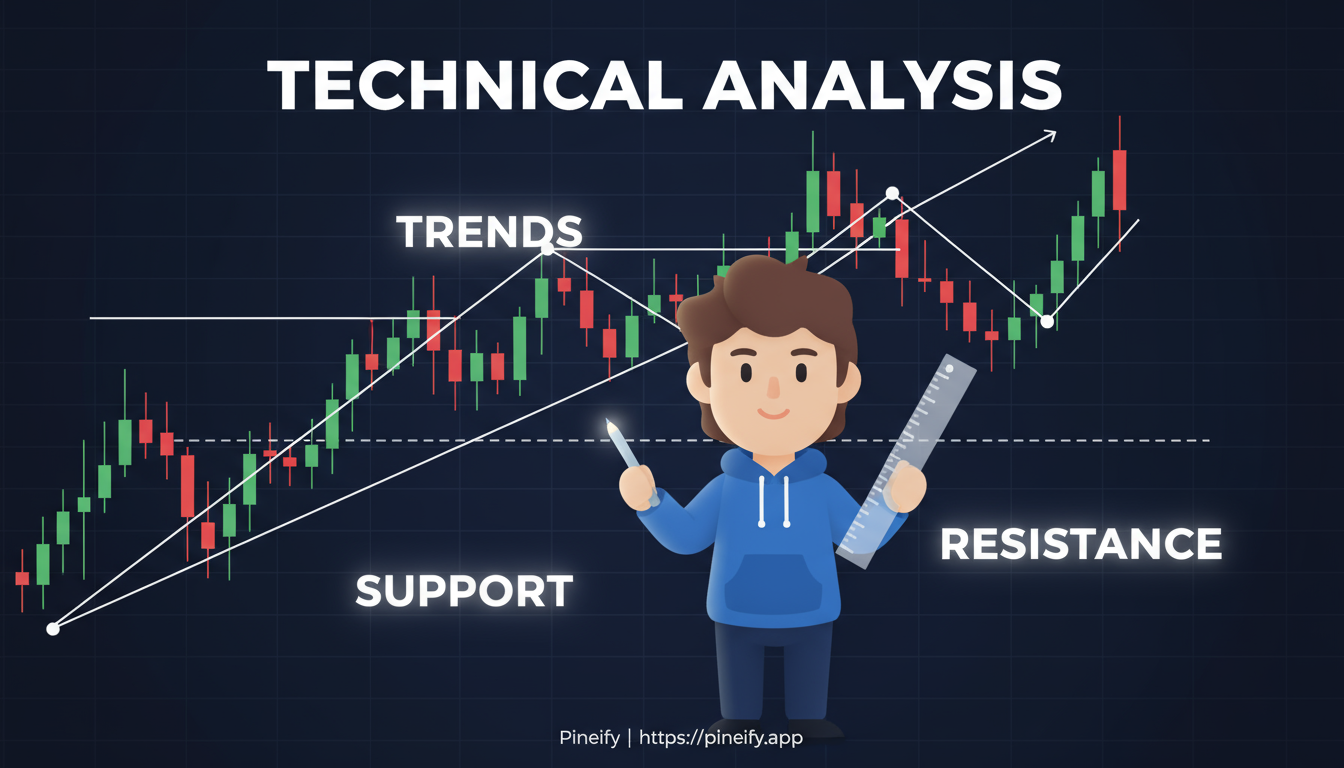
How to Draw Trend Lines in TradingView

· 19 min read

Trend lines are like the trusty compass for navigating the markets. They help you see the general direction prices are moving and spot potential turning points. If you use TradingView, knowing how to draw them properly is a fundamental skill. Let's walk through how to draw trend lines on TradingView, from the simple basics to a few neat tricks, so you can use them confidently in your own analysis. Getting comfortable with this can really sharpen your ability to read charts and make more informed decisions.

How to Draw Trend Lines in TradingView

What Are Trend Lines and Why Do Traders Use Them?

Think of a trend line as a simple connection between important points on a chart. It’s a visual representation of the trend's momentum.

  • In an uptrend, you connect a series of higher lows. This line acts as a rising floor, showing where buyers have consistently stepped in.
  • In a downtrend, you connect a series of lower highs. This line acts as a falling ceiling, showing where sellers have repeatedly taken control.

These lines often become dynamic areas of support (for uptrends) or resistance (for downtrends). The price will often respect these lines by bouncing off them, and a break through the line can signal that the trend might be changing.

On TradingView, trend lines are part of your drawing toolkit. They're not automatic indicators that lag behind; they move and adjust with the live price action, which makes them useful for any market—stocks, forex, or crypto. When drawn well, they can help confirm your market outlook and take some of the emotion out of your trades.

Trend TypeWhat You ConnectWhat It Acts As
UptrendHigher LowsDynamic Support
DowntrendLower HighsDynamic Resistance

How to Draw a Basic Trend Line on TradingView

Drawing a trend line is straightforward. Here's the step-by-step process:

  1. Identify the Trend: First, figure out if the market is generally moving up, down, or is stuck in a range. Look for a clear series of higher highs and higher lows (uptrend) or lower highs and lower lows (downtrend).
  2. Select the Tool: On your TradingView chart, look for the drawing tools menu (it's usually on the left toolbar). Click on the icon that looks like a diagonal line, labeled "Trend Line."
  3. Connect the Dots:
    • For an uptrend line: Click on a significant low point, then drag and connect it to a subsequent, higher low.
    • For a downtrend line: Click on a significant high point, then drag and connect it to a subsequent, lower high.
  4. Adjust and Extend: Once drawn, you can click and drag the endpoints of the line to make sure it touches the most relevant price points. The line will automatically extend into the future, giving you a projected area to watch.

The goal is to have the line touch as many significant highs or lows as possible without the price cutting through the middle of the line. The more times the price respects the line, the stronger and more significant it's considered.

Why Trend Lines Are a Trader's Best Friend on TradingView

If you're learning to read price charts, getting comfortable with trend lines is one of the most impactful steps you can take. TradingView is the perfect place to practice because its interface is so straightforward. Drawing a clean, precise line feels intuitive, not like a chore.

So, what's the real benefit? These lines help you see the story the market is telling. They can alert you to a trend that's about to continue or warn you of a potential reversal. This isn't just about spotting opportunities; it's a core part of managing your risk. By drawing a trend line, you have a logical place to set a stop-loss order. For example, if the price breaks decisively below a well-established uptrend line, it’s often a clear signal that the trend may be over.

The real power comes when you combine trend lines with other tools TradingView offers. You can use them alongside volume indicators or moving averages to confirm what you're seeing. This helps you filter out the market's noise, especially when things get volatile, so you can focus on the most promising setups. For traders looking to automate their analysis, exploring Pine Script Trading Bots: Complete Guide to Automated Trading on TradingView in 2025 can take your strategy to the next level.

What It DoesWhy It Matters
Spots Trends & ReversalsActs as an early warning system for potential price movements.
Defines RiskGives a clear level to place a stop-loss, protecting your capital.
Filters Out NoiseHelps you focus on significant price action, not every little wiggle.

The best part is that TradingView makes all of this accessible. You can start drawing and learning with a free account, and if you find it indispensable, you can explore their pro features. It removes the barrier of needing complicated, expensive software just to practice a fundamental skill.

Step-by-Step Guide: Drawing Trend Lines on Desktop

Getting started with TradingView on your computer is super simple, and one of the first things you'll want to do is learn how to draw trend lines. It's a quick way to visualize what the market is doing. Here’s how you can add them to any chart.

Finding the Right Tools

First, log in to TradingView and pull up a chart for whatever you're looking at, whether it's a stock like Apple (AAPL) or a cryptocurrency like Bitcoin (BTCUSD). On the left side of the screen, you'll see a sidebar with a little pencil icon—that's the "Drawing Tools" button. Click it, and a menu will pop out. Look for the "Trend Line" tool; it's the one that looks like a simple diagonal line, usually grouped with the other line tools.

Creating Your First Trend Line

Once you click on the Trend Line tool, it's ready to use. Now, find the points on the chart you want to connect. If you're looking at an uptrend, you'll want to connect two clear low points where the price stopped falling and started moving up again.

Click on the first low point to start your line, then drag your cursor to the second low point and click again to finish it. You'll see the line automatically continues into the future, which gives you an idea of where potential support might be later on.

Made a mistake or want to change how it looks? Just double-click on the line to open its settings. You can change the color (maybe green for an uptrend), make it thicker or thinner, or even extend it backwards to see how it fits with older price action. Turning on "Show Price Range" is really helpful—it shows you the exact price your line is touching at different points.

Tips for Straight and Angled Lines

Want a perfectly horizontal line? Just hold down the Shift key while you're placing your points—it locks the angle to make it straight. For downtrends, the process is the same, but you'll be connecting two lower high points instead.

A little setting that makes a big difference is the "magnet" tool (you can find it in the general settings). When it's on, your lines will snap right to the exact tops or bottoms of the candlesticks, which is great for precision.

Here's a pro tip that will save you a lot of confusion: start by zooming out to look at the bigger picture on a daily or weekly chart. Draw your main trend lines there first. Once you have the overall direction, you can zoom in to a shorter timeframe, like a 1-hour chart, to refine your lines. This way, you're always working with the main trend and not getting lost in the minor price moves.

Drawing Trend Lines on TradingView Mobile App

Trading on your phone means you need tools that are quick and easy to use. Luckily, drawing a trend line on the TradingView mobile app feels just as powerful as the desktop version, but it's all optimized for your fingertips.

Finding Your Drawing Tools

First, open the TradingView app and pull up the chart you're analyzing. Tap anywhere on the chart itself—this will make a toolbar appear at the bottom of your screen. Look for the icon that resembles a pen or pencil; that's your "Draw" button. Tap it, and a menu of drawing tools will pop up. Scroll through until you find the "Trend Line" option—it's usually in the 'Lines' section.

Your Step-by-Step Guide to Drawing

Once you select the "Trend Line" tool, you'll see a blue dot appear on your chart. This is your first anchor point.

  1. Place the First Point: Navigate to the key price level you've identified, like a significant low during an uptrend, and tap to set the point.
  2. Anchor the Line: Now, drag your finger to the right to the second swing point you want to connect. Tap again to set the second point and anchor the line. Just like on the desktop, the line will automatically extend infinitely in both directions.

And that's it! You've drawn your trend line.

ActionHow-To on Mobile
Select ToolTap the chart > Tap the pen icon > Select "Trend Line"
Set First PointTap on the first significant swing point on your chart.
Set Second PointDrag and tap on the second swing point to complete the line.
Edit the LineTap the line > Tap the gear icon to change color, style, or add a label.

A Few Pro Tips for Mobile:

  • Need a Perfectly Straight Line? Go into your app settings and enable "Grid Snapping." This will make your anchor points lock onto the chart's grid, ensuring your lines are perfectly level.
  • For Pinpoint Accuracy: Use a two-finger gesture to zoom in closely on the chart before placing your points. This makes it much easier to be precise on a smaller screen.
  • Making Changes: To edit a line you've already drawn, just tap on it. A settings (gear) icon will appear, letting you customize everything from the line's color and thickness to adding a useful label or toggling its extensions.

This entire process works the same way whether you're on an iPhone or an Android device. It’s designed to give you a consistent and reliable experience, whether you're catching a setup during your commute or just checking the markets from your couch.

Advanced Techniques for Trend Lines in TradingView

Once you've got the basics down, it's time to take your skills to the next level. These pro-level features can help you spot more nuanced patterns and make better-informed decisions.

Using Channels and Parallel Lines

Think of trend channels as a way to see the "lane" the price is moving in. You start by drawing your main trend line. Then, using the "Parallel Channel" tool, you click on that first line and drag a parallel line to the other side of the price action—like connecting the highs if you've drawn a line along the lows. This creates a channel that helps you see the trading range and potential areas where the price might bounce or break out.

Rays and Extended Projections

Sometimes you need to see where a trend might be heading way out into the future. That's where "Rays" come in. You can change a standard line to a Ray in its settings, which makes it extend infinitely in one direction. To keep your chart from getting too messy, use the "Background" option; this makes the lines slightly transparent so you can layer several without hiding the price action underneath.

You can also combine this with Fibonacci tools. Draw a trend line between two significant points, and then apply Fibonacci retracement levels directly along that line. When your trend line and a key Fibonacci level align, it often makes that area more significant.

Alerts and Auto-Draw Features

Don't want to stare at the screen all day? You can set an alert directly on a trend line. Just click the little alert icon and choose to get a notification when the price touches or breaks your line.

For a more automated approach, you can use Pine Script (TradingView's programming language) to create custom indicators that draw trend lines for you based on rules you set, like connecting recent highs and lows. Here's a simple idea of what that code might look like:

// Example script: Use `line.new()` function to connect recent pivots dynamically.

If you're not comfortable with coding, tools like Pineify make this process much more accessible. With its visual editor, you can create sophisticated trend line indicators and strategies without writing a single line of code, while still generating clean, error-free Pine Script.

Pineify Website

A quick tip for volatile markets: When trading things like crypto, a price wicking through a trend line doesn't always mean a real breakout. To filter out these false signals, look for confirmation from other factors, like a significant spike in trading volume alongside the break.

How to Draw Trend Lines Without the Common Pitfalls

Even the most experienced chartists can slip up sometimes. Let's talk about how to avoid the usual missteps when drawing trend lines in TradingView, so yours can become trustworthy tools instead of just guesses.

  • Connecting the Random Dots: Your goal is to capture the main trend, not every little squiggle on the chart. Avoid forcing a line through minor price fluctuations. Instead, look for at least two clear swing highs or swing lows. The real confirmation comes when the price respects that line for a third touch.

  • Forgetting the Bigger Picture: A trend line that looks perfect on a 5-minute chart might be completely irrelevant when you zoom out. Before you commit to a line, always check the higher timeframes (like the 1-hour or 4-hour charts) to make sure you're aligned with the dominant trend. It saves you from betting on a minor move going against the major flow.

  • Creating a Spaghetti Chart: When you cover your chart with a dozen different lines, it becomes impossible to see what's actually important. A good rule of thumb is to limit yourself to 2-3 key trend lines at a time. Use colors and labels to keep them organized—maybe blue for major support and red for strong resistance. A clean chart leads to clearer decisions.

  • Ignoring the Breakout: A trend line isn't a permanent wall. When the price closes decisively beyond the line, especially if it's accompanied by higher trading volume, that trend line has likely done its job. Don't cling to it! The best move is to accept the break, erase the old line, and start looking for the new swing points to draw a fresh one. A great way to practice this is by using TradingView's bar replay mode on historical data.

By keeping these simple points in mind, you'll find your trend lines become far more reliable, helping you spot real opportunities instead of just adding clutter to your screen.

Getting More from Your Trend Lines by Combining Them with Other Tools

Drawing a line on a chart is a great start, but the real magic happens when you pair that line with other tools TradingView offers. It’s like getting a second opinion before you make a move, which can make your trading ideas much stronger.

Think of your trend line as the main story. You can use other indicators to check if that story holds up. Here are a few powerful combinations:

  • RSI (Relative Strength Index): When the price touches your trend line, take a look at the RSI. In an uptrend, if the price pulls back to your line and the RSI is still above 50, it suggests the underlying momentum is still healthy. It’s a good sign that the bounce might be for real.
  • MACD: This tool helps you see if the momentum of a price move agrees with your trend line. If you have an uptrend line and the MACD is also ticking upward, it confirms that the buying pressure is strong. If they disagree, it might be a warning sign.
  • Volume Profile: This helps you see where most of the trading has happened. If your hand-drawn trend line happens to sit right at a level that the Volume Profile shows as a major support or resistance zone, that’s a fantastic confirmation. It means the market agrees with your line.

And don't forget the community! TradingView has a massive library of custom scripts. You can find scripts that automatically draw or adjust trend lines based on market volatility, taking some of the guesswork out for you. For those interested in programming their own tools, learning about if-statement in Pine Script: A Concise Guide for TradingView Users can be incredibly valuable for creating conditional trend line logic.

By using your trend lines together with these other tools, you move from a simple drawing to a more complete trading plan, helping you spot more reliable signals.

FAQ: How to Draw Trend Lines in TradingView

What's the best way to draw an uptrend line?

Think of it like connecting the dots on a chart where the price keeps making higher lows. Use the Trend Line tool to link at least two of these low points. The line you draw should act as a floor that the price bounces off of. For it to feel really solid, wait for the price to touch that line a third time and bounce again—that's your confirmation.

Can I use trend lines on any type of chart?

Absolutely. You can draw them on candlestick charts, line charts, or any other style TradingView offers. Many folks prefer candlestick charts because the clear high and low wicks give you more precise points to connect. You can switch between chart types using the style menu right above your chart.

How do I get my lines to snap to the candles automatically?

This is where "Magnet Mode" comes in handy. It's a setting in your drawing tools that makes the end of your trend line jump and lock onto the open, high, low, or close of a candle. You can even adjust how sensitive the magnet is, so you have full control over how tightly it snaps into place.

My trend line won't extend into the future. What's going on?

This is a common little snag. The fix is usually in the trend line's style settings. Look for the "extensions" option and set it to "Right" or "Both." If you've done that and it's still not working, a quick refresh of your TradingView page or clearing your browser's cache often does the trick.

Are there any keyboard shortcuts for this?

Yes, and they can save you a lot of time! On the desktop version, just press Alt + L (or Option + L on a Mac) to instantly select the Trend Line tool. While you're drawing the line, hold down the Shift key to lock it into a perfectly straight horizontal or vertical angle.

QuestionQuick Answer
Best way to draw an uptrend line?Connect two or more higher lows; wait for a third touch for confirmation.
Works on candlestick charts?Yes, works on all chart types; candlesticks offer the most precision.
How to snap to candle points?Enable "Magnet Mode" in the drawing tool settings.
Line won't extend?Check the "Extensions" setting in the style panel and set it to "Right" or "Both".
Keyboard shortcut?Press Alt + L (Desktop) to activate the Trend Line tool.

Your Path to Trend Line Mastery

Think of getting good with trend lines like learning any other skill—it's all about consistent, smart practice. Here’s a simple, effective plan to build your confidence.

The best way to build your intuition is to make drawing trend lines a part of your daily routine. Start on a demo chart; it's a risk-free playground. Don't do it in isolation, either. Sharing your ideas and getting a second opinion is incredibly valuable. Head to a community like TradingView's forums, post your chart setups, and see how experienced traders interpret the same lines.

To make this practice work for your lifestyle, use alerts. They let you step away from the screen without missing a potential move.

As you get more serious, you might find that the advanced features of a pro plan, like multi-chart layouts, help you see the bigger picture. But the real growth happens when you start tracking your decisions. Keep a simple journal of your trend line trades. This isn't about complex stats; it's about noticing patterns in your own performance so you can learn from every trade. For traders looking to take their analysis even further, exploring Pine Script Divergence: How to Spot Market Reversals Before They Happen can provide additional confirmation signals for your trend line setups.

Here’s a straightforward way to structure your progress:

StepFocus AreaAction to Take
1FoundationPractice drawing lines daily on demo charts.
2ValidationShare your charts in a community for feedback.
3EfficiencySet up alerts to monitor key levels automatically.
4RefinementJournal your trades to track and improve your success rate.

Ready to put this into action? Pick a live market like EUR/USD and draw your first set of lines. There's no need to go big—start small, trust the process, and scale up as your confidence grows.