Technical Ratings Indicator on TradingView: One Gauge for Buy and Sell Bias

· 9 min read

When you run several indicators at once—moving averages, RSI, MACD—signals can conflict and leave you unsure whether to lean long or short. I've found that TradingView's Technical Ratings indicator solves this by boiling multiple inputs into one number: a rating from -1 (strong sell) to +1 (strong buy). After testing it on different timeframes and assets, it consistently gives a quick read on bias without crowding the chart.

The indicator uses TradingView's built-in Technical Rating library. It blends moving-average-based and oscillator-based scores into a single value, so you get one gauge instead of many. You can choose to use both components (MAs and oscillators), only MAs, or only oscillators, and adjust the weight between them. That makes it flexible whether you prefer trend-following, momentum, or a mix.

This post walks through what Technical Ratings are, how to add and customize them in TradingView (including via Pineify), practical ways to use them in entries and exits, best settings by style, and how to backtest a strategy before going live.

Technical Ratings Indicator on TradingView: One Gauge for Buy and Sell Bias

What is Technical Ratings?

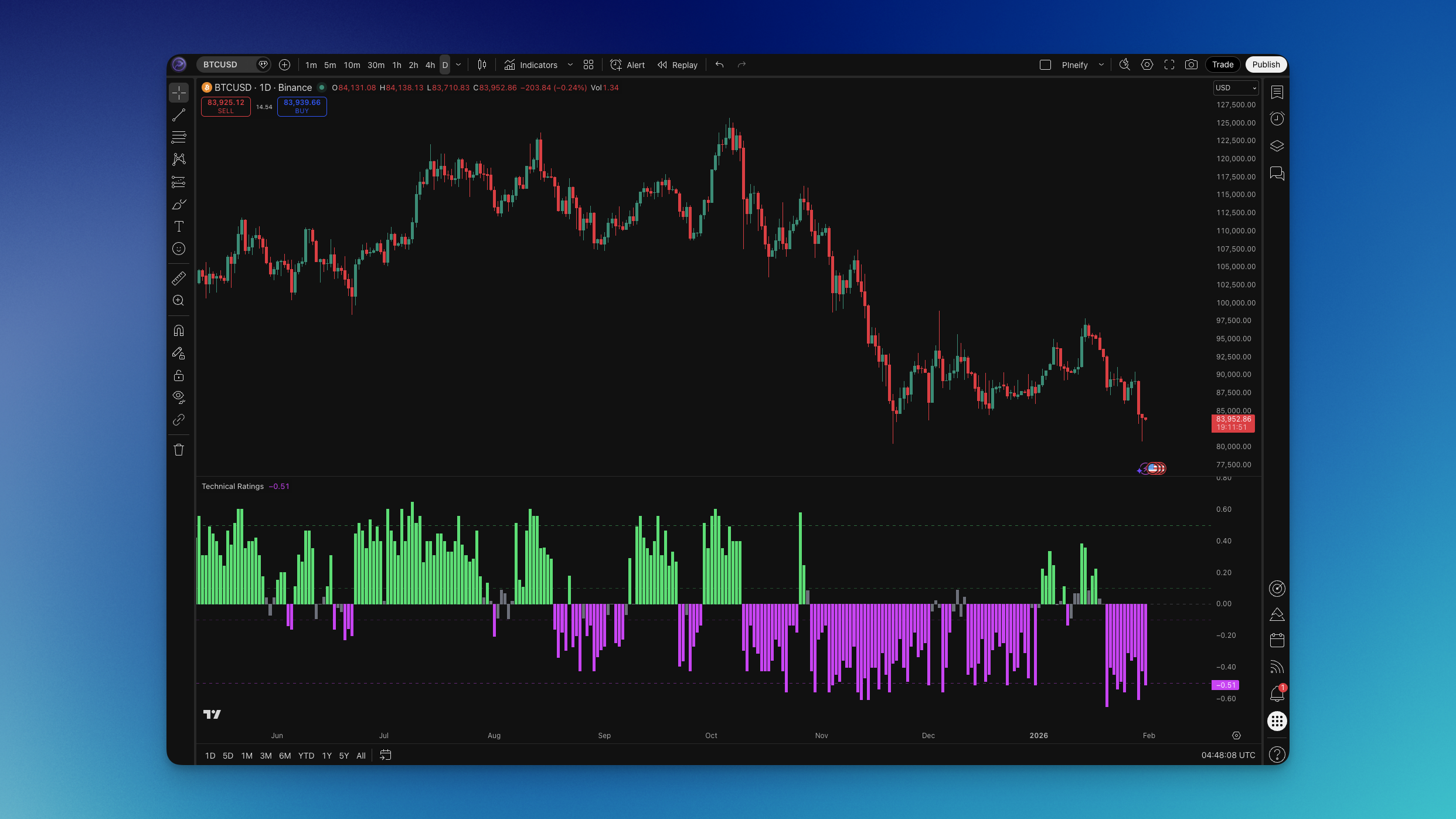
Technical Ratings is a non-overlay indicator that outputs a single rating between -1 and +1. Values above +0.1 are treated as buy bias; below -0.1 as sell bias. The scale is normalized so you see columns (or your chosen plot style) in a separate pane: green when the rating is positive and strengthening, and a contrasting color (e.g. purple) when it is negative and weakening.

Under the hood, the indicator combines two sub-ratings: one from moving averages (trend) and one from oscillators (momentum). The combined rating is:

  • rating_tot = (MA rating × weight) + (oscillator rating × (1 − weight))

The default weight is 50%, so MAs and oscillators contribute equally. You can set "Rating Uses" to 0 (both), 1 (MAs only), or 2 (oscillators only). That lets you align the gauge with your style—for example, more trend-focused by using mostly MAs, or more momentum-focused with oscillators.

Horizontal reference lines are usually drawn at +0.5 (strong buy), +0.1 (buy), 0 (neutral), -0.1 (sell), and -0.5 (strong sell). The plot color can reflect gradient level (e.g. consecutive bullish or bearish bars) so you see not only the level but also whether bias is building or fading. Unlike a single RSI or MACD, this one number already incorporates both trend and momentum from the library’s internal calculations.

How to Add Technical Ratings to TradingView

You can use TradingView’s built-in Technical Rating if available in the indicator list, or add and customize it through Pineify in a few minutes.

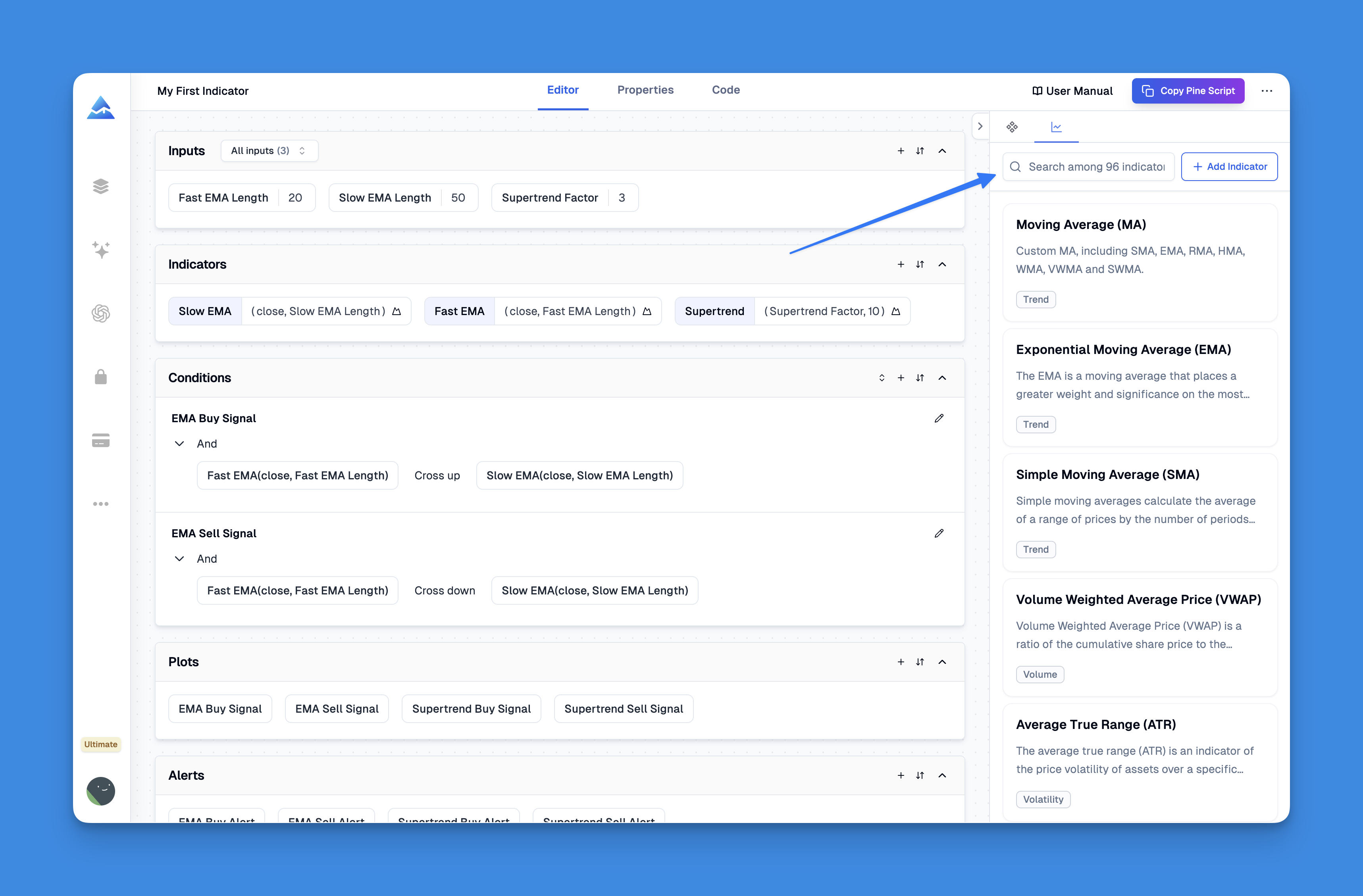
How to search for and add indicator pages in the Pineify editor

Using Pineify:

  1. Open the Pineify editor and go to the indicator library.
  2. Search for "Technical Ratings" (or "Ratings").
  3. Select the Technical Ratings indicator and add it to your script.
  4. Adjust inputs: Higher Timeframe (or leave as chart timeframe), Repainting on/off, Rating Uses (0/1/2), Weight of MAs (0–100), Plot Style (columns, histogram, area, line), and Width.
  5. Generate the Pine Script and copy it to TradingView’s Pine Editor, or use Pineify’s deployment flow to add it to your chart.

Important settings:

  • Higher Timeframe: Leave empty to use the chart timeframe. Set a higher timeframe (e.g. 1H or 4H) for a non-repainting rating from the higher timeframe; the current bar can still repaint on the lower timeframe until the higher-timeframe bar closes.
  • Repainting: When on, the rating updates on the current bar as new ticks arrive. When off, you see the last confirmed value so the current bar does not change.
  • Rating Uses: 0 = MAs and Oscillators, 1 = MAs only, 2 = Oscillators only.
  • Weight of MAs (%): 50 is equal weight; increase for more trend, decrease for more momentum.
The Best Pine Script Generator

How to Use Technical Ratings (Practical Trading Strategies)

Here are concrete ways to use the Technical Ratings gauge in your trading.

Strategy #1: Bias filter for trend entries

  • Setup: Use Technical Ratings on the same timeframe as your chart (or one step higher for confirmation).
  • Entry: Go long when the rating crosses above +0.1 and stays positive; consider shorts when it crosses below -0.1 and stays negative. Use your usual entry trigger (e.g. breakout, pullback to level).
  • Stop-loss: Place below the recent swing low (longs) or above the recent swing high (shorts), or use ATR.
  • Take-profit: First target at a nearby structure or 1.5–2× risk; extend if the rating holds in your favor.

Strategy #2: Strong buy / strong sell zones

  • Setup: Keep default reference lines at ±0.5 and ±0.1.
  • Entry: Look for long setups when the rating reaches or exceeds +0.5 (strong buy); look for short setups when it reaches or goes below -0.5 (strong sell). Require price action confirmation (e.g. rejection, breakout).
  • Stop-loss: Beyond the candle or structure that triggered the extreme reading.
  • Take-profit: Scale out as the rating moves back toward 0 or use a fixed risk-reward (e.g. 2:1).

Strategy #3: Zero-line cross with confirmation

  • Setup: Use the rating as a trend filter: above 0 = allow longs only; below 0 = allow shorts only.
  • Entry: Enter on your preferred signal (e.g. pullback, breakout) only when the rating is on the correct side of zero and, if you like, strengthening (e.g. gradient level increasing).
  • Stop-loss and take-profit: Same as above—structure or ATR-based stops and defined targets.

I've found the gauge particularly useful as a filter: it cuts a lot of counter-trend noise when you only take longs above +0.1 and shorts below -0.1.

Best Technical Ratings Settings

Optimal settings depend on your timeframe and style.

Scalping (1–5 minute charts): Use the chart timeframe or one step higher. Rating Uses = 0 (both), Weight of MAs = 40–50. Turn Repainting on if you want the latest tick; turn it off if you prefer confirmed values only. Plot Style = columns or histogram for quick reading.

Day trading (15–60 minute charts): Chart or one higher timeframe. Rating Uses = 0, Weight of MAs = 50. Consider Repainting = false and a higher timeframe (e.g. 1H) for the rating so signals are more stable. Plot Style = columns or line.

Swing trading (4H–daily): Use the chart timeframe or a higher one (e.g. daily for 4H chart). Rating Uses = 0, Weight of MAs = 50–60 to slightly favor trend. Repainting = false with a higher timeframe often gives cleaner swings. Plot Style = line or area.

Position trading (weekly): Use weekly or chart timeframe. Rating Uses = 0 or 1 (MAs only) for trend bias. Weight of MAs = 55–65. Repainting = false. Plot Style = line.

In choppy or sideways markets, the rating may hover near 0 and produce many small crosses; combining it with volatility or trend filters (e.g. only trade when price is above a key MA) helps.

Advanced Technical Ratings Techniques

Multi-timeframe use: Run the indicator with a higher timeframe (e.g. 4H or daily) so the rating reflects the bigger picture. Use it as a filter: only take long setups when the higher-timeframe rating is above 0, and short setups when it is below 0.

Combining with other indicators: Use Technical Ratings for bias, then add RSI for overbought/oversold, or volume for confirmation. For example: long when rating > +0.1 and RSI bounces from oversold, or short when rating < -0.1 and RSI fails at overbought.

Risk and pitfalls: No indicator works every time. Avoid trading on the rating alone in low liquidity or during news; use stops and position sizing (e.g. 1–2% risk per trade). If you use a higher timeframe for non-repainting, remember that the current bar on your chart can still change until the higher-timeframe bar closes.

How to Backtest Technical Ratings

Before trading live, backtest a strategy that uses Technical Ratings. In the Pineify editor you can define entry and exit conditions based on the rating (e.g. rating crosses above +0.1 for long, below -0.1 for short), add market orders, set take-profit and stop-loss levels, and optionally use a trailing stop.

Keep risk in check: use a fixed risk per trade (e.g. 1–2% of capital), place stops consistently, and avoid over-leveraging. Backtesting shows how often the rating’s signals would have worked in the past; it does not guarantee future results, so use demo or small size when going live.

FAQs

What is the best timeframe for Technical Ratings?
It works on any timeframe. For day trading, 15m–1H is common; for swing trading, 4H or daily. Using a higher timeframe for the rating (with "Higher Timeframe" set) often gives steadier, non-repainting signals on the lower timeframe.

Should I use MAs only, oscillators only, or both?
Use both (Rating Uses = 0) for a balanced view. Use MAs only (1) if you want a trend-focused gauge; use oscillators only (2) if you care more about momentum. Default 0 with 50% weight is a good starting point.

Why does the rating change on the current bar?
If Repainting is on, the value updates with each tick. Turn Repainting off to see only the last confirmed value, or use a higher timeframe for the rating so it updates only when the higher-timeframe bar closes.

Can I use Technical Ratings for crypto and forex?
Yes. The same -1 to +1 scale applies. Crypto can be more volatile, so combining the rating with volatility filters or wider stops often helps. Forex works well on 15m–4H with the same logic.

How do I avoid false signals?
Use the rating as a filter (e.g. only long when > +0.1) and require price confirmation. Avoid trading in tight ranges when the rating hovers near 0. Pair with support/resistance or volume to improve timing.

What is "Weight of MAs"?
It sets how much the moving-average-based rating counts versus the oscillator-based rating (0–100%). 50% means equal weight. Increase for more trend emphasis, decrease for more momentum.

Summary

  • Technical Ratings turns multiple inputs (MAs and oscillators) into one number from -1 to +1, giving a quick buy/sell bias.
  • You can add and customize it in TradingView via Pineify: timeframe, repaint, rating source (both/MAs/oscillators), and MA weight.
  • Use it as a filter (e.g. only long above +0.1, short below -0.1), for strong zones (±0.5), or zero-line trend bias.
  • Tune settings by style: scalping/day/swing/position; consider a higher timeframe for the rating to reduce repainting.
  • Backtest strategies that use the rating for entries and exits, with strict risk (e.g. 1–2% per trade) and stops, then test on a demo before going live.
The Best Pine Script Generator