Automate TradingView Analysis with Pineify Strategy Optimizer

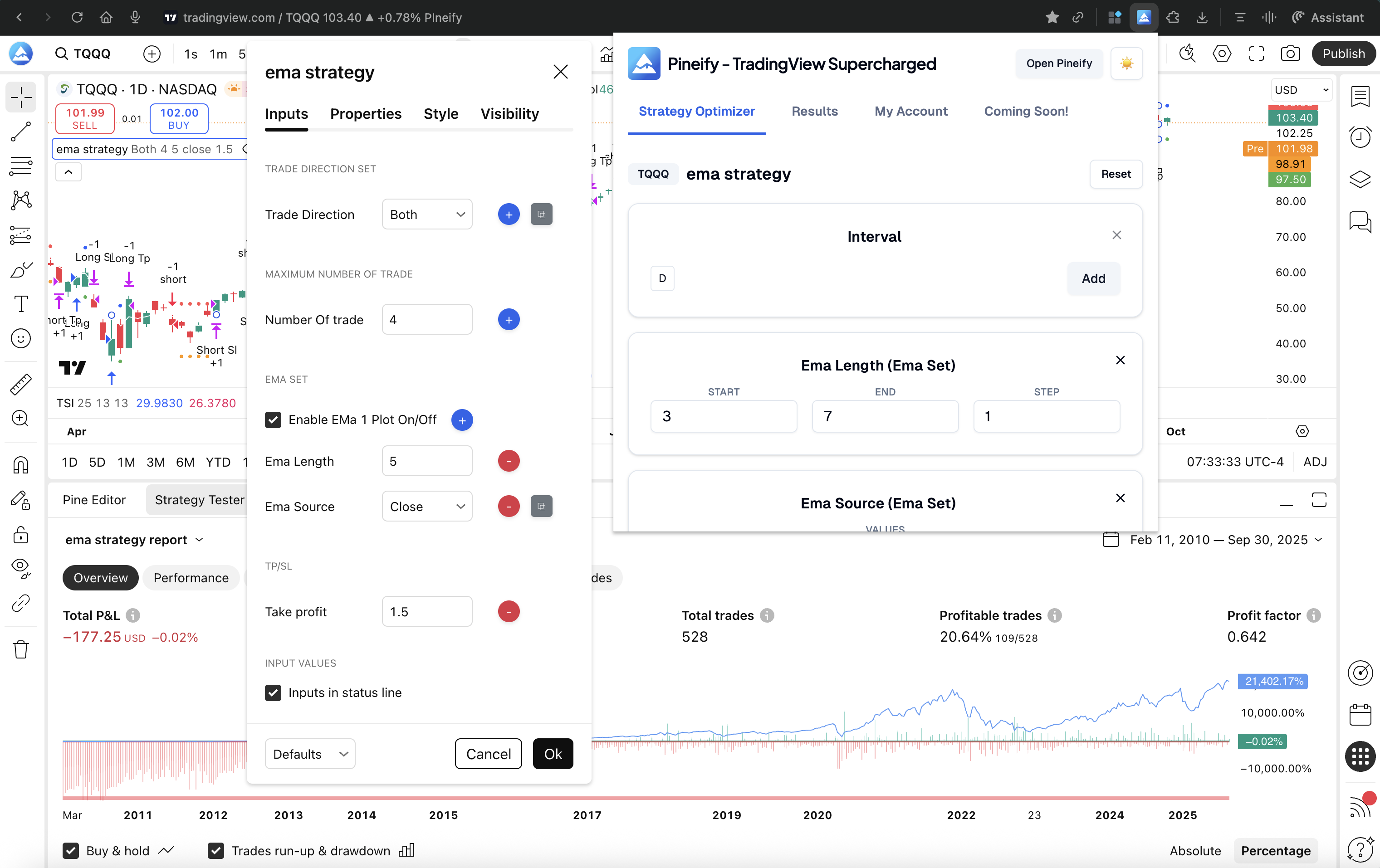
If you've ever found yourself manually adjusting numbers in your TradingView strategy, hitting refresh, waiting, and jotting down results—only to repeat it all again—you know exactly how tedious traditional backtesting can feel. It's a slow, repetitive grind. A strategy optimizer is a tool that automates the search for your best parameter settings, running every combination you define so you don't have to stand guard. The Pineify Strategy Optimizer is a Chrome extension built around that exact idea. I've used it on several of my own strategies, including a mean-reversion system I run on EURUSD, and the time savings are real.
The Hidden Cost of Manual Backtesting
Most traders start with manual backtesting on TradingView, and it makes sense. The platform's built-in Strategy Tester is powerful and easy to use. But things break down quickly when your strategy has more than one setting to tune. The how to back test TradingView strategies guide breaks down the full validation process if you want the methodology.
Let's say you want to test a simple strategy with three inputs: a fast moving average period, a slow moving average period, and a stop-loss level. If you test just 10 different values for each of those three inputs, you're looking at 1,000 individual backtests to run.
Doing this by hand means opening the settings, changing a number, waiting for the chart to update, recording the performance, and starting over—1,000 times. At an optimistic pace of one test per minute, that's over 16 straight hours of focused, error-prone work.
Then there's the issue of human error. After hours of this repetitive task, it's easy to skip a combination, misread a number, or write a result in the wrong row. These small mistakes create gaps and inaccuracies in your data, making it hard to trust the results.
What Is the Pineify Strategy Optimizer?
I've spent way too many evenings manually testing parameters, so I know the frustration firsthand. The Pineify Strategy Optimizer is a browser extension that sits on top of TradingView's Strategy Tester. You define ranges for each setting—like an entry threshold or an RSI period—and it automatically runs a backtest for every possible combination, a method called grid search. It collects all the results and ranks them so you can spot the winners quickly.
The tool works with any standard Pine Script strategy that uses numbers, decimals, true/false toggles, and menus. Everything runs locally in your browser. Your code stays on your machine and is never sent to a server. That said, I haven't tested it with exotic custom input types, so your mileage may vary there.
This optimizer is one part of Pineify, which also includes an AI assistant for writing Pine Script, a visual strategy builder, and a backtest reporting tool.
What Makes This Tool So Effective?
Test Thousands of Variations Automatically
At its core, the optimizer lets you test thousands of strategy variations without touching a single setting manually. For each parameter in your strategy—like a moving average period or a stop-loss level—you tell it where to start, where to end, and what step size to use.
The tool then runs your strategy using every single combination of those settings. It's thorough, and that's the whole point.
- Works with whole numbers, decimals, and on/off switches
- Lets you find settings that work across different chart timeframes at once
- You control how detailed the search is—wide sweeps or fine-tuning
- Handles massive batches of tests without slowing your browser
Whether you're checking 100 combinations or 100,000, the process is the same: set it up, hit start, and walk away.
Make Sense of the Results, Fast
Getting a huge list of backtest results can be overwhelming. This tool helps you cut through the noise by organizing that data instantly.
It automatically ranks every tested combination based on what you care about most—total profit, drawdown, or win rate.
- Sort by Net Profit, Max Drawdown, Win Rate, or other stats
- Best combinations are highlighted visually
- Filters let you narrow results to your risk comfort zone
- Side-by-side comparison of different parameter sets
Instead of staring at a wall of numbers, you get a clean list of the most promising versions.
Save Your Data With One Click
Once an optimization run finishes, you can export the whole result set to a CSV with one click. This opens up more options:
- Build charts and pivot tables in Excel or Google Sheets
- Run your own analysis in Python or R
- Keep a permanent record for future review
- Compare results from different markets or time periods
The exported file includes every parameter set tested and all the performance stats.
Get Hours (or Days) of Your Time Back
The biggest practical benefit is time. What used to be a tedious, multi-day process of manually changing settings and copying numbers into a spreadsheet now takes minutes.
After you define your ranges, the optimizer handles the repetitive work. No need to watch it. I typically set up a run before lunch and come back to finished results. This frees you up for the parts that actually matter: refining your strategy idea, working on risk rules, and researching the market.
Why TradingView's Built-in Tools Fall Short for Strategy Optimization
TradingView's strategy tester is great for checking how a single set of rules performs. But when you want to find the best version of your strategy, you hit a wall. The platform doesn't have a built-in way to test hundreds of different parameter combinations automatically. This is part of a broader discussion on the benefits of TradingView and understanding its core strengths and limitations.
Your only options are painfully manual or overly complex. You can tweak one number at a time in the settings, hit refresh, and take notes—slow and error-prone. Or you can try to build optimization loops directly in Pine Script, which is deep in the weeds and still doesn't give you a clean way to compare all the results.
While external optimization tools exist, they usually ask you to copy and paste your strategy code out of TradingView. That creates delays, formatting errors, and valid security worries.
The Pineify Strategy Optimizer fixes this by working right where you already are. It automates input fields inside TradingView's own interface. Nothing leaves your browser, and there's no new platform to learn.
Getting Started with the Pineify Strategy Optimizer
Setting up the optimizer takes a few minutes. Here's the process I follow:
- Grab the extension. Visit the Chrome Web Store and search for "TradingView Supercharged," or go directly to the Pineify Strategy Optimizer page.
- Open your strategy. Navigate to TradingView and open any Pine Script strategy you want to improve.
- Launch the optimizer. Click the Pineify extension icon in your browser to open the panel beside your chart.
- Set your testing ranges. For each setting you want to test (like RSI period or moving average length), define a start value, end value, and step size.
- Start the test. Click Run. The tool automatically works through every combination using TradingView's own Strategy Tester.
- Review your results. All configurations appear ranked by performance. Filter them to find setups that balance profit and risk.
- Save your data. Export to CSV with one click for further analysis.
You don't need to write any code. That's the whole idea.
Is the Pineify Strategy Optimizer Right for You?
This tool is built for traders who want to improve their strategy performance without the manual grind. Here's who tends to get the most value:
| Who It's For | What Problem It Solves |
|---|---|
| Individual Algorithmic Traders | Saves hours by automating parameter testing and removing guesswork from finding the best settings. |
| Pine Script Coders | Stress-tests strategy ideas across thousands of parameter combinations without writing optimization loops yourself. |
| Traders Using a Rules-Based Approach | Adds data-backed rigor to parameter selection instead of going with what feels right. |
| People Just Getting Started | Gives access to optimization techniques that used to require a statistics or finance background. |
| Active Traders Who Trust Their Gut | Provides hard data to either confirm your intuition or reveal a more objective alternative. |
One limitation worth being straight about: the optimizer is a Chrome extension, so it only works in Chrome. If you primarily use another browser, that's a real constraint.
If you build strategies using Pineify's visual, no-code builder, those strategies are automatically compatible with the optimizer. Learn more about building and testing strategies with Pineify.

The Strategy Optimizer is one part of Pineify's toolset built to help traders. Whether you're using the no-code Visual Editor, the AI-powered Coding Agent, or the AI Stock Picker, the goal is the same: professional-grade tools that save time, reduce errors, and help you trade with more confidence.
Avoiding the Overfitting Trap
Automated optimization changes how you approach strategy development, but there's a catch: overfitting. Think of it like memorizing answers to a specific practice test. Your parameters might ace the historical data they were tuned on, then fail in live trading because they matched random past noise too closely.
The goal is to find settings that work in general, not just ones that got lucky on one chunk of old data.
Here's what I do to build resilience:
- Split your data wisely: Always reserve a chunk of data you do not use during optimization. Test your final parameters on this untouched "out-of-sample" period.
- Look for stability, not just peaks: A good parameter set is a wide plateau, not a lone spike. Nearby values should also perform decently. That shows the strategy is reliable.
- Simulate reality with walk-forward testing: Optimize on a segment of past data, test forward on the next period, then roll forward. It mimics how you'd actually deploy a strategy.
- Explore the whole performance map: Don't grab the single best result. Use CSV export to look at the broader picture. How results cluster tells you where the reliable region is.
To make this easier, Pineify includes a Backtest Deep Report with statistical checks like Monte Carlo simulation, performance across different time windows, and metrics such as Sharpe Ratio and System Quality Number (SQN). These tools help you move from "looks good" to actually having confidence in your parameters.
How to Get and Use the Strategy Optimizer
The optimizer is included in Pineify's Advanced and Expert lifetime plans. One-time fee, no subscriptions, and you get the whole toolbox including the visual strategy builder, AI code helper, Backtest Deep Report, and all premium indicators.
How it works with TradingView: The extension plugs into your existing TradingView account. You can use it with a free TradingView plan, but paid plans process backtests faster since that power comes from TradingView's servers.
If you're curious about broader automation possibilities, the TradingView algorithms guide covers what's possible with automated trading strategies.
Does it work with any TradingView strategy?
Yes. If your Pine Script strategy uses standard inputs—number fields, true/false toggles, dropdown menus—the optimizer handles it without changing a single line of code.
Is my strategy code safe when using the optimizer?
Completely. The extension runs entirely on your computer, inside your browser. It talks to the TradingView page you have open and nothing else. Your code never gets sent anywhere.
Do I need a paid TradingView subscription to use the optimizer?
No. It works with free accounts too. But paid plans run backtests faster, so if you're testing thousands of combinations, a Premium plan will finish the job a lot quicker.
Can I use the optimizer for timeframe optimization?
Yes. Timeframe is treated as another optimization variable. You can test your strategy on 15-minute, 1-hour, and 4-hour charts in a single run. That helps you find which chart speed fits your approach best.
How many parameter combinations can the optimizer test?
There's no published upper limit. The tool manages batch processing and can work through thousands of combinations without you watching. It keeps running until every combination you set up has been tested.
What plans include the Pineify Strategy Optimizer?
The Advanced and Expert lifetime plans. One-time payment, no subscription, and you get the optimizer plus the visual strategy builder, AI coding helper, Backtest Deep Report, and all premium indicators.
How do I install the Pineify Strategy Optimizer?
Go to the Chrome Web Store and search for "TradingView Supercharged," or visit pineify.app/strategy-optimizer to install. Once installed, open TradingView, click the extension icon, and the optimizer panel shows up beside your chart.
Ready to see what your strategy can do? Here's where to start:
- Visit pineify.app/strategy-optimizer for details and installation
- Add the extension to Chrome, open TradingView, and load the strategy you want to test
- Define your parameters, hit start, and let it run
- Export the top results to CSV and verify them on out-of-sample data
- Join the Pineify Discord to share findings with other traders