Visual Pine Script Editor: Build Indicators Without Coding

Ever had a flash of trading insight? A clear idea for a custom chart tool that could help spot opportunities or confirm your market read? For most traders, the next step is the frustrating part. Turning that idea into a working TradingView indicator usually means wrestling with complex code—a roadblock that forces many to abandon great concepts.
A visual Pine Script editor is a no-code interface that lets you build custom TradingView indicators by arranging logic blocks instead of writing Pine Script manually. It handles the syntax and structure for you, so your trading idea goes straight to the chart.
Pineify's Visual Pine Script Editor is built to fix that. It transforms how you create custom indicators, turning a process that used to take hours (or feel impossible) into something you can do in minutes. You don't need to be a programmer; you just need your trading knowledge. I've personally used it to build a multi-condition screener for AAPL and MSFT, and the whole thing took under 10 minutes.
What Makes Coding Pine Script So Difficult?
Pine Script is the powerful language behind all of TradingView's custom indicators and strategies. Its potential is huge, but the path to creating with it is full of hurdles.
Think of it like this: you know exactly what you want to build, but you have to construct it using an unfamiliar toolbox with confusing instructions. Here's why it trips people up:
- A Steep Learning Curve: The syntax is unique and not intuitive. Simple logic can require code that looks nothing like plain English.
- Version Confusion: Differences between Pine Script v4, v5, and v6 can break your code. It's easy to use the wrong function for your chosen version.
- The Debugging Black Hole: Your code might look perfect, but it only reveals errors when you try to add it to a chart. Fixing these invisible mistakes is a tedious cycle of guesswork.
For traders who aren't also software developers, this process is more than just annoying—it's a total blocker. It means your valuable edge stays in your head instead of on your chart. A visual editor solves this by letting you build your logic instead of writing it from scratch.
Tired of typing out code? Meet Pineify's Visual Pine Script Editor. It's a tool that lets you build custom TradingView indicators, strategies, and screeners without writing a single line of code. This is a core part of the TradingView Creator: Pineify - The Ultimate AI-Powered Pine Script Generator for Traders, which is designed to democratize indicator creation.
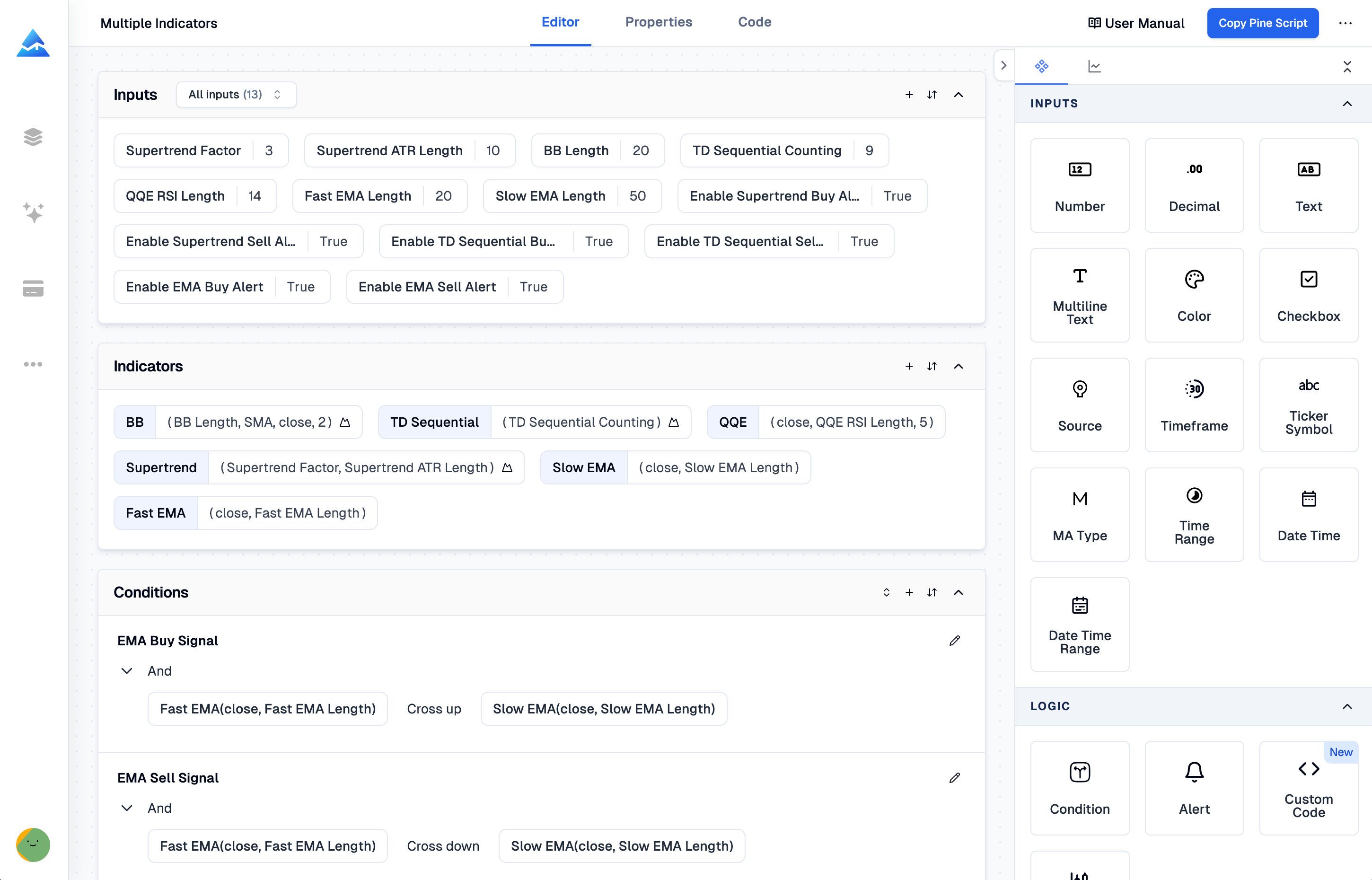
Think of it like building with blocks. You use a simple visual interface to drag, drop, and connect logic pieces. You choose from a huge library of built-in indicators, set your conditions with a few clicks, and the editor does the heavy lifting—it automatically writes the clean, correct Pine Script (v5 or v6) code for you in the background.
It's become a favorite for a clear reason: it helps you work around TradingView's built-in indicator limits. If you've ever been frustrated hitting that cap on a free or basic plan, this is the solution traders are raving about. No wonder it's sitting at a 4.9-star rating.
What Makes This Tool a Development Powerhouse?
Let's be honest: building trading indicators and strategies from scratch can be a grind. You spend hours, maybe days, wrestling with code syntax, debugging logic, and testing. What if you could cut that time down from days to minutes?
That's the core idea behind Pineify's Visual Editor. Think of it less as a simple drag-and-drop tool and more as your co-pilot for building on TradingView. It handles the complex coding so you can focus on your trading ideas.
Here's a breakdown of the features that actually speed things up:
-
235+ Built-In Technical Indicators: SMAs, EMAs, RSI, MACD, Bollinger Bands—you name it. It also includes candlestick pattern recognition and niche indicators popular in the community, like the WaveTrend Oscillator: Best Trading Signals for Buy & Sell Opportunities. The key? You can use all of them instantly. No searching for code snippets or writing boilerplate functions.
-
Visual Logic Builder: Remember trying to code a complex set of conditions? This lets you build that logic visually. Set up AND/OR conditions, create triggers for crossovers, or compare values—all through a simple interface that maps out your thinking.
-
Visual Strategy Builder: Go beyond indicators to a full, automated strategy. Define your entry and exit rules visually, manage stop-loss and take-profit levels, and set risk parameters. It builds the complete, executable strategy code for you.
-
Screener Generator: Need to scan the market for specific setups? Build a Pine Script screener that filters symbols and timeframes based on your conditions. Set it up once and get real-time alerts.
-
Multi-Timeframe & Multi-Symbol Support: This is a big one. Manually coding a script to reference data from a different timeframe (like using a daily trend on a 1-hour chart) is tricky. This feature makes it straightforward, handling the complex code structure in the background.
-
Import Custom Code: Already have some Pine Script you're working on? You can paste it right in. The editor will parse your code, recognize your signals and variables, and let you use them within the visual builder. It's perfect for tweaking existing work or starting a hybrid project.
-
AI Coding Agent: Got stuck? There's an AI assistant built right in. You can ask it to explain a piece of logic, optimize your parameters, fix a syntax error, or even modify sections of your code. It's like having a helpful developer looking over your shoulder.
Last week I used the AI agent to debug a crossover strategy for TSLA. I told it "the entry signal fires twice on the same bar," and it spotted the repaint issue in my logic within seconds. That alone saved me an hour.
The easiest way to see the difference is with a quick comparison:
| The Old Way (Manual Coding) | The Pineify Way |
|---|---|
| Writing and debugging dozens of lines of Pine Script for a basic indicator. | Selecting the indicator from a menu and configuring settings in a form. |
Struggling with Pine Script's security() function to pull in multi-timeframe data. | Using a visual selector to choose your secondary timeframe—the complex code is generated for you. |
| Manually translating trading logic (e.g., "RSI < 30 AND price above the 200 SMA") into correct syntax. | Building that logic with clickable blocks and dropdowns that automatically link together. |
| Scouring forums for code snippets or debugging mysterious syntax errors. | Using the AI agent to explain errors, suggest fixes, or refine your ideas in plain language. |
In short, it takes the steep, technical learning curve of Pine Script and flattens it. You get to keep the power and flexibility of the language, but without the constant friction of manual coding. It's about turning your trading concepts into working tools as directly as possible.
You can try the Visual Pine Editor here to see how it works.
From Your Trading Idea to a Working Indicator in 10 Minutes
Ever had a clear idea for a trading signal but felt stuck trying to code it? The process inside Pineify's Visual Editor is built to bridge that gap—quickly and without any coding. Think of it as sketching out your strategy logic, and having the clean code written for you.
Here's how you go from a concept in your head to a ready-to-use indicator on your TradingView chart, in just four straightforward steps.
-
Pick Your Project Type. Start by telling the editor what you're building. Are you creating a simple Indicator to plot on your chart, a full Strategy for backtesting, or a Screener to filter through markets? You choose from the dashboard, and the editor sets up the right framework.
-
Add Your Technical Pieces. Next, you'll browse and select from over 235 built-in technical indicators—things like RSI, Moving Averages, or MACD. Adding them is just a click. You then configure each one using simple dropdowns to set the period, price source, or any other parameter, exactly how you want it.
-
Connect the Dots with Visual Logic. This is where your idea comes together. Instead of writing
if-thenstatements, you use visual blocks to stack your conditions. You might drag and connect blocks to say something like: "RSI crosses under 30 AND price is above the 200 EMA AND the MACD line crosses above its signal line." It's incredibly intuitive. -
Export and You're Done. When your logic is set, you hit export. The editor automatically generates clean, ready-to-run Pine Script code (for both v5 and v6). You just copy that code, paste it directly into TradingView's Pine Script editor, and it works immediately. No tweaking or debugging needed.
What typically takes hours of manual coding, testing, and fixing can be done this way in under 10 minutes. It turns the complex part—writing error-free code—into a simple, visual process, so you can focus on refining your trading idea instead.
If you're getting started with TradingView indicators, you're faced with a big choice: should you learn to code in Pine Script, or use a visual tool to build what you need?
It's a bit like deciding between building furniture from scratch with raw wood and tools, or using a kit with pre-cut pieces. Both get you a finished product, but the experience is completely different.
Here's a straightforward look at how the two methods compare across a few key areas.
| Dimension | Manual Pine Script | Pineify Visual Editor |
|---|---|---|
| Coding required | Yes — you need to learn and write Pine Script syntax yourself. | None — you build logic by connecting blocks on a canvas. |
| Time to first indicator | Hours or even days, depending on your learning curve. | Usually under 10 minutes for your first simple indicator. |
| Error risk | Higher — you can run into syntax errors and logic bugs that you have to find and fix. | Very low — the code is generated for you, eliminating typos and syntax mistakes. |
| Indicator library | Limited to whatever you can figure out how to code yourself. | 235+ pre-built indicators and tools that are plug-and-play. |
| Multi-timeframe support | Complex to implement correctly in code. | Added with a simple visual toggle. |
| Strategy backtesting | Requires you to manually structure your code as a strategy. | One-click export turns your visual idea into a testable TradingView strategy. |
| Custom code integration | N/A (it's all custom code). | You can import your own Pine Script snippets and merge them with your visual logic. |
If you want deep, unlimited control and enjoy programming, learning Pine Script is a rewarding path. But if your main goal is to test trading ideas quickly without the headache of coding, a visual editor like Pineify can get you there in a fraction of the time. I've been coding in Pine Script for about two years, and I still reach for the visual editor when I need to prototype something fast — my record is 6 minutes from opening the editor to having a working RSI-MA crossover script on my NVDA chart.

As the table shows, the Pineify Visual Editor is designed to remove the technical barriers for traders. You get access to a vast library of 235+ indicators, can build multi-timeframe strategies visually, and export error-free Pine Script code instantly—all without writing a single line. It's the fastest way to transform a trading concept into a working TradingView indicator or strategy.
Who Gets the Most Out of Pineify's Visual Editor?
Ever look at a TradingView chart and think, "I know exactly what setup I want, but I have no idea how to code it"? You're not alone. That's the gap Pineify's Visual Editor fills, and it's incredibly useful for a few types of traders.
Here's who tends to find it most useful:
- Discretionary traders who trade by feel: If you have a set of rules you follow manually—like a specific candle pattern near a moving average—you can now automate those alerts without writing a single line of code. It turns your visual strategy into a working tool.
- Algorithmic traders prototyping ideas: Before diving into a full, complex Pine Script, you can use the visual editor to quickly sketch out your logic. It's a fast way to see if an idea has merit before spending hours coding it.
- Swing and day traders who need precise alerts: Maybe you want an alert that only triggers when three conditions line up. If coding that yourself sounds daunting, the visual editor lets you build that multi-condition alert by just pointing and clicking.
- Educators and content creators: If you teach trading or share setups online, you can build clean, functional indicators in minutes to demonstrate concepts or share with your community, without needing to be a coding expert.
- Developers looking for a head start: Even if you know Pine Script well, you can use the visual layer to map out the core logic of a complex indicator. Then, just export the code and fine-tune the details, saving you the initial scaffolding work.
But honestly, Pineify really shines for a specific kind of person: the trader who's ever found a great public indicator and desperately wished they could "just tweak one thing." Maybe the colors are wrong, or you want to change a default setting the coder locked. That frustration ends here. Pineify makes that tweak—or a complete rebuild of the logic—effortless. It's similar to the control you get from learning How to Remove or Hide TradingView Indicators - Complete Guide, but for creation instead of cleanup.
Keeping Your TradingView Scripts Up-to-Date with Pine Script v6
If you write code for TradingView, you know that keeping up with Pine Script updates can feel like a part-time job. That's where a key benefit of Pineify comes in: it has built-in support for Pine Script v6 right out of the gate.
This latest version of Pine Script is a big deal. It lets you pull in data more flexibly, makes your backtesting more reliable, and gives you better tools to organize your code. With Pineify, you're automatically working with these new standards. You don't have to constantly check for version changes or spend hours rewriting your old scripts to make them work. It handles the modern syntax for you, so you can focus on your strategy. You can see some of these new features in action here.
But Pineify doesn't just help you with today's version; it helps you prepare for tomorrow, too. Its built-in AI assistant is specifically trained to understand Pine Script inside and out. Think of it like having a specialist on call, rather than a general helper.
Here's how it future-proofs your work:
- It's a Pine Script Expert: Unlike broad AI tools, it's trained specifically on TradingView's own documentation and Pine Script patterns. It gets the nuances.
- It Remembers Your Conversation: It keeps the context of your entire session, so you don't have to repeat yourself. It's like chatting with a developer who's already up to speed on your project.
- It Catches Mistakes Early: It can spot syntax errors and suggest fixes as you go, helping you write cleaner, more reliable code from the start.
This means as Pine Script continues to evolve, you have a smart tool that evolves with it, helping you adapt quickly. You can learn more about these features directly at pineify.
Here's a concrete example. Say you want an alert that only fires when:
- The price moves above its 50-period EMA
- The RSI is above 50 but below 65 (showing momentum without being overbought)
- Volume is higher than its 20-period average
If you were to code this from scratch in Pine Script, you'd need to figure out how to use ta.crossover(), combine all the conditions correctly with and operators, structure your if statement, and then format the alertcondition() just right. It's totally doable, but it requires some time and comfort with the language.
With a visual editor like Pineify's, you'd approach it differently. You'd just pick each indicator from a menu, set your parameters using simple dropdowns and fields, and then connect your conditions using an "AND" block. When you're done, you get clean Pine Script code (v5 or v6) that you can export straight to TradingView. After creating your strategy, you can use a tool like Pineify TradingView Backtest Analysis: Professional Strategy Performance Reports to get deep, actionable insights into its performance.
The whole setup—from idea to finished, working script—takes about five minutes. It turns what could be a head-scratching coding session into a straightforward, click-together process.
Questions & Answers: Using Pineify's Visual Editor
Q: Do I need any programming experience to use the Visual Editor? Not at all. Think of it like building with blocks. You create your trading logic by visually connecting steps and choosing from menus. The tool writes all the actual Pine Script code for you in the background, so you never have to look at it unless you want to.
Q: Can I use the generated code directly on TradingView? Absolutely. The code it creates is clean, standard Pine Script (versions 5 or 6). You can copy the entire script, paste it right into TradingView's Pine Editor, and run it. No tweaking or fixes needed—it just works.
Q: What's the difference between the Visual Editor and Pineify's AI Coding Agent? They're two different ways to get the same result (Pine Script code), but how you get there is different.
- Visual Editor: You build logic with a point-and-click, drag-and-drop interface. It's very hands-on and structured.
- AI Coding Agent: You describe what you want in a chat window (like "create a moving average crossover strategy with an RSI filter"), and the AI writes the code for you based on your description. You have access to both tools, so you can use whichever fits your style for the task.
Q: Can I import my existing Pine Script into the Visual Editor? Yes. If you have a script you've been working on, you can paste it in. The editor will read your code, identify your indicators and variables, and pull them into the visual builder. This lets you easily add new logic to your existing work or combine strategies.
Q: Does it support backtesting? Yes, but it works with TradingView's system. The Visual Editor lets you set up your strategy rules, including stop-loss and take-profit. When you export the code to TradingView, you can use their built-in Strategy Tester immediately to run a full backtest and see how it would have performed.
Q: Is it free to get started? Definitely. There's a free plan to explore and build basic strategies. If you need more complex tools—like unlimited conditions, advanced alerts, more chart plots, or the more powerful AI model—then you'd look at the upgraded plans. For those watching their budget, keeping an eye out for a TradingView Sale: The Complete Guide to Scoring the Best Deal can be a smart way to get premium features at a lower cost.
Ready to Build Your First Indicator?
Want to see how the visual editor really works? The best way is to open it up and play around. Go to pineify.app/visual-pine-editor and start with something simple. Pick one common indicator you already look at on your charts, add a single condition to it, and export the code.
Then, just paste that code into TradingView's Pine Script editor. Seriously, you can have your own tweaked version of an indicator running on your chart in less than 10 minutes.
After you get that first one working, try going a bit further. Can you add a second condition using AND or OR? Or maybe take a look at the Strategy Builder to see how entry and exit rules are put together. If you build something useful, share it with friends or your trading group. You can even use the Screener Generator to automatically check your whole watchlist for the setup you just created.
It's never been easier to turn a trading thought into a real, working indicator on your chart. The visual editor handles the tricky code part, so you can focus on your strategy.
How long does it take to build a custom indicator with the visual editor?
Most traders complete their first custom indicator in under 10 minutes. You select your technical pieces from menus, connect conditions visually, and export ready-to-use code—no debugging or syntax errors to fix.
Does the no-code visual editor support multi-timeframe analysis?
Yes. Multi-timeframe support is built in as a simple visual toggle. You can reference data from a different timeframe (such as a daily trend on a 1-hour chart) without writing any complex code manually.
Can I build automated screeners without coding?
Absolutely. The Screener Generator lets you define conditions visually and scan your entire watchlist in real time. Once set up, it monitors symbols and timeframes automatically and triggers alerts when your conditions are met.
What Pine Script versions does the visual editor output?
The editor generates clean, correct code in both Pine Script v5 and v6. You choose your target version before exporting, and the generated code is immediately usable in TradingView without any modifications.
Can I combine my existing Pine Script code with the visual builder?
Yes. Use the Import Custom Code feature to paste in your existing script. The editor parses your code, recognizes signals and variables, and makes them available inside the visual builder so you can extend or modify your work.
Is the drag-and-drop indicator builder suitable for experienced traders?
Yes. Experienced traders use it to prototype complex ideas quickly before committing to manual coding. You can map out full strategy logic visually, export the scaffolded code, and then fine-tune details directly in Pine Script.