How to Use MQL5 for Automated Trading on MetaTrader 5

If you're looking to automate your trading, build custom indicators, or write your own trading robots, learning how to use MQL5 is the place to start. MQL5 (MetaQuotes Language 5) is a programming language built right into the MetaTrader 5 (MT5) platform. It's similar to C++ in style, but designed specifically for creating trading robots, technical indicators, and utility scripts for financial markets.
I've been writing MQL5 code for about two years now, and the backtesting alone saved me from at least three bad strategies I was sure would work. Whether you're brand new to coding or you've already built a few trading systems, I'll show you how to go from zero to a working EA — plus the tools I've found that cut development time in half.
What Is MQL5 and Why Should You Learn It?
MQL5 is a high-level programming language made for developing technical indicators, trading robots (Expert Advisors), and other tools that automate trading on the MetaTrader 5 platform. Its syntax is closely based on C++, so if you're already comfortable with object-oriented programming, you'll find it surprisingly easy to pick up.
Most people learn MQL5 for three main reasons:
- Full automation — Let your code execute trades 24/7 without you needing to be there.
- Custom analytics — Build your own indicators and charts that match exactly how you trade.
- Backtesting power — Test your strategies against years of historical data using the built-in Strategy Tester.
MQL5 also lets you create reusable function libraries, so you can build components once and share them across multiple trading projects.
Setting Up Your MQL5 Development Environment
Before you start coding, you need to get your tools ready. Here's how.
Step 1: Download MetaTrader 5
Head over to the official MetaTrader website or your broker's platform to grab the MetaTrader 5 terminal. Why this matters: MetaEditor ships with MT5 — there's no standalone MQL5 IDE. What can go wrong: some broker-branded versions disable certain features. I'd grab the official build if you can.
Step 2: Open MetaEditor (the MQL5 code editor)
MetaEditor is where you'll write, test, and fix all your MQL5 code. It's built right into MT5.
To open it:
- Press F4 inside MetaTrader 5, or
- Click Tools → MetaQuotes Language Editor from the top menu.
MetaEditor comes with a syntax highlighter, autocomplete, a debugger, and direct links to the MQL5 documentation. You get everything you need in one window. I've seen F4 not work on certain keyboard layouts — use the Tools menu as backup.
Step 3: Understand the File Structure
MQL5 projects live inside the MQL5 data folder. You can find it by going to File → Open Data Folder in MT5. The key subfolders are:
MQL5/Experts/– For Expert Advisors (your .mq5 source files)MQL5/Indicators/– For custom indicatorsMQL5/Scripts/– For one-time run scriptsMQL5/Include/– For reusable libraries of functions
Why this matters: the folder structure mirrors how MT5 loads files at runtime. Put an EA in the wrong folder and it won't show up in the Navigator panel. I made that mistake my first week.
MQL5 Core Concepts: Language Basics
Data Types and Variables
MQL5 works with three main kinds of data that are pretty standard in programming:
| Data Type | Keyword | Example Use |
|---|---|---|
| Integer | int | Bar counts, loop counters |
| Floating point | double | Price values, indicator readings |
| Text | string | Print messages, chart labels |
Beyond these basics, MQL5 also has types like bool, datetime, color, and enum.
Program Structure
Every MQL5 program uses a few standard event handler functions:
OnInit()– Runs once when the program is first loaded. Great for setting things up.OnTick()– Fires every time a new price tick comes in. This is where the main trading logic for EAs lives.OnCalculate()– Used in custom indicators to update buffer values as new data arrives.OnDeinit()– Runs cleanup code when the program is removed.
The single most important skill in MQL5 is knowing which function to use for which piece of logic. Get that right, and everything else falls into place more easily.
How to Create Your First Expert Advisor in MQL5
An Expert Advisor (EA) is basically a trading robot. It sits in MetaTrader 5, watches the markets for you, and places trades based on rules you program.
Step 1: Open the MQL5 Wizard
Start by opening MetaEditor (hit F4 while you're in MT5).
- Press Ctrl+N or click New in the menu bar.
- Pick Expert Advisor from the list.
- Give your EA a name and click Next through the remaining steps.
Why use the wizard: it sets up the function skeleton so you don't have to remember the signatures. What can go wrong: skip the wizard and you might miss the preprocessor directives MT5 needs to recognize your file as an EA. This creates a starter .mq5 file with three ready-made functions: OnInit(), OnTick(), and OnDeinit().
Step 2: Set Up Input Parameters
Input parameters let you tweak your EA from the MT5 interface without touching the code. You define them with the input keyword.
input int FastMA_Period = 10;
input int SlowMA_Period = 50;
input double LotSize = 0.1;
Later, when you run the EA, you can change these numbers directly inside MT5. I run at least 50 backtest variations per strategy, so not having to recompile each time saves hours.
Step 3: Write Your Trading Logic
All the action happens inside OnTick(). This function runs every time a new price tick arrives. You just add your buy and sell conditions here.
For example, a simple moving average crossover strategy: use iMA() to get the fast and slow MA values, compare them, and call OrderSend() when they cross. What can go wrong: I've seen people put heavy calculations inside OnTick() that freeze the chart on fast-moving pairs like EURUSD. Keep it lean.
Step 4: Compile and Test It Out
Hit F7 to compile your code. If everything's good, you get an .ex5 file — that's the executable version of your EA. Then:
- Go back to the MT5 terminal.
- Open the Strategy Tester (Ctrl+R).
- Select your EA, pick a currency pair and a date range.
- Run the backtest and see how it would have performed. For a deeper dive into backtesting methodology, check out this complete guide to backtesting your trading strategies.
That's it. You've built a trading robot. From here you can refine your logic, test more, and gradually make it smarter.
How to Build Custom Indicators in MQL5
Ever wanted to add your own trading signals to MT5 charts? Custom indicators let you do exactly that.
Creating an Indicator with the MQL5 Wizard
The easiest way to start is with the built-in wizard in MetaEditor:
- Open MetaEditor (it comes with MT5), then go to File → New and choose Custom Indicator.
- Give your indicator a name and set any input parameters you want (like period lengths or thresholds).
- Decide where it should draw: either directly on the main chart window (like a moving average) or in a separate sub-window underneath (like an RSI oscillator).
- Use
SetIndexBuffer()to tell MT5 which arrays hold the data it should paint as lines or bars.
The real engine of any indicator is the OnCalculate() function. MT5 calls this function automatically every time a new tick arrives. Inside it, you loop through the price bars, do your math, and fill the buffer arrays. MT5 takes care of rendering them as lines, histograms, or dots.
Installing Pre-Built Indicators
If you've downloaded a custom indicator — whether as .ex5 (compiled) or .mq5 (source code):
- In MT5, go to File → Open Data Folder.
- Navigate to
MQL5 → Indicators. - Paste the indicator file into that folder.
- Back in MT5, open the Navigator panel (View → Navigator or Ctrl+N), right-click on Indicators, and choose Refresh.
- Now simply drag the indicator from the Navigator onto any chart.
Why the refresh step matters: MT5 won't scan new files until you tell it to. I've dropped indicators in the right folder and spent 10 minutes wondering why they didn't show up — hit Refresh first.
Using Built-In Indicators Inside an EA
One of the coolest things about MQL5 is that you can pull in built-in indicators like RSI, MACD, or Bollinger Bands right inside your Expert Advisor. No need to code them from scratch. Here's how it works:
- Create a handle – Call the indicator function (for example,
iRSI()oriMACD()) and it gives you a handle (just a number) that points to where that indicator's data lives. - Declare an array – Set up a
doublearray to hold whatever values you'll grab from the indicator. - Copy data – Use the
CopyBuffer()function to pull the actual values from the indicator into your array, then use those values in your trading logic.
I prefer this approach over calculating indicators manually inside OnTick() because the handle system handles all the history management for you. If you want to see a practical example of coding an RSI indicator from scratch, the guide on how to code RSI in Pine Script offers complementary insights that translate well to MQL5.
Why is this nice? The indicator only gets calculated once, and every EA that needs it just reads the same data — no repeated recalculations. That keeps everything fast and clean.
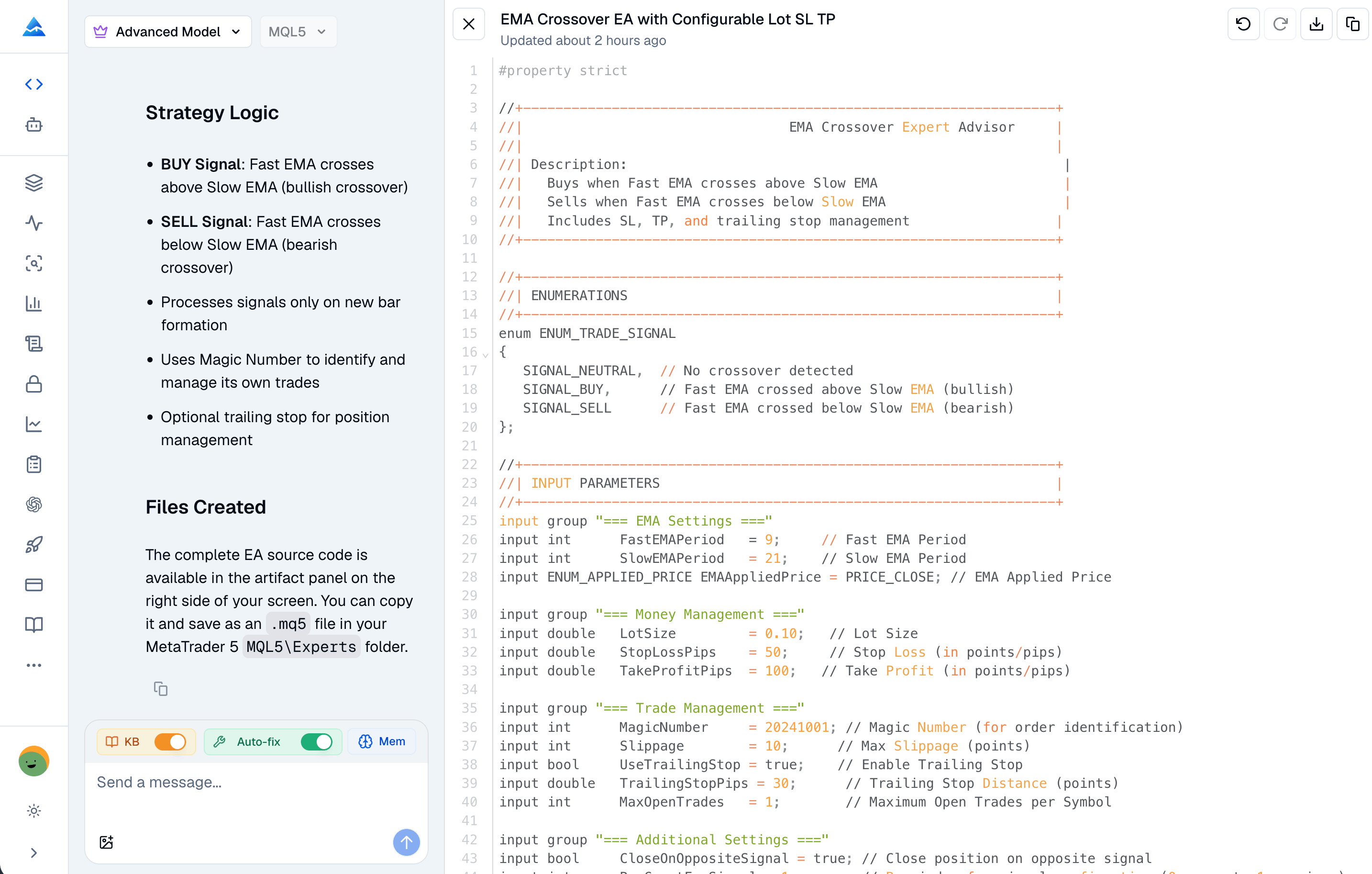
Speed Up MQL5 Coding with AI: Meet Pineify MQL5 Coding Agent
Writing MQL5 from scratch is a real pain, especially when you're trying to debug some tricky logic or turn a trading idea into actual code that works. I've found AI-assisted coding tools cut that time way down.
The Pineify MQL5 Coding Agent is built specifically for MQL5 development — it really understands how MetaTrader 5 works under the hood: EA structure, indicator buffers, order management, all that stuff. Unlike general-purpose AI tools that you have to prompt a million times and still end up with code full of incompatible syntax, Pineify's MQL5 agent spits out .mq5 code that compiles cleanly and follows MT5 best practices without you needing to fix MQL5-specific issues. That said, I haven't tested it with complex multi-symbol EAs, so I can't vouch for those edge cases.
And this goes far beyond just MQL5. Pineify is a 10-in-1 AI trading workspace that integrates a Pine Script AI Agent, visual editors, AI stock picker, options flow tracking, dark pool data, trading journal, backtest deep reports, strategy optimizer, and more — all with a one-time payment and no monthly subscriptions. Over 100,000 traders across 150+ countries already use Pineify to build, test, and automate their strategies without writing a single line of code. For a detailed comparison of the best AI finance agents available, check out this review of Pineify vs competitors.

Here's what makes it click:
- MQL5-native code — The generated code uses correct MQL5 syntax, not generic C++ that requires manual corrections
- Full EA generation — Just describe your strategy in plain language and you get a complete, structured Expert Advisor
- Custom indicator creation — Generate indicator scripts with buffers and
OnCalculate()logic that actually bind correctly - Debugging support — Paste your broken code and get corrected, annotated fixes right away
- Quick strategy iteration — Test variations of your logic fast without starting from scratch every time
Whether you're building your first moving average crossover EA or a more complex multi-condition strategy with dynamic position sizing, Pineify MQL5 Coding Agent cuts down development time and helps you skip the steep syntax learning curve. And if you ever need to pivot to TradingView, Pineify's Pine Script Agent handles that just as effectively — giving you a unified platform for all your algo trading needs.
MQL5 Best Practices for Reliable EAs
To make sure your Expert Advisors are solid and ready for real trading:
- Always double-check your orders — When you call
OrderSend(), check the return value and handle any errors that come up. Don't assume it worked. - Use input parameters for anything you might want to tweak later — like lot size, stop loss, or moving average period. Hardcoding numbers means recompiling every time.
- Don't waste CPU power — In indicators, use
IndicatorCounted()so you only process new bars instead of recalculating the entire history every tick. - Test on a demo account first — The Strategy Tester is great, but it can't simulate real-world delays, price gaps, or broker requotes. Let your EA prove itself with fake money before using real cash.
- Log important events while you're building — Use
Print()to see what's happening during development. But once it's live, either remove those print statements or turn them off so they don't slow things down. I prefer wrapping debug logs in a boolean flag so I can toggle them without editing the EA file. - Avoid nested loops over big sets of data — Doing a loop inside a loop on thousands of bars will make your EA lag or freeze on a live chart. Keep it simple.
Frequently Asked Questions
Do I need to know C++ to learn MQL5?
Not at all. MQL5 borrows ideas from C++ but is much simpler. If you've got the basics down — variables, loops, if-else statements, functions — you're in good shape. I've seen people with zero coding experience pick it up just by working through the official docs.
Can I use MQL5 without writing any code?
Yes, you can. MetaTrader 5 comes with the MQL5 Wizard, which lets you build Expert Advisors by picking pre-built pieces from a visual menu — no typing code at all. There are also AI-powered platforms like Pineify that let you describe your trading idea in plain language and generate working MQL5 code automatically.
How do I share or sell the MQL5 programs I make?
The easiest way is through the MQL5.com Marketplace. You can list your Expert Advisors, indicators, or scripts there for free or for a price. It puts your work in front of thousands of MetaTrader users around the world.
Is MQL5 only for forex?
No, not at all. It's most popular in forex, but MetaTrader 5 gives you access to stocks, futures, commodities, and even crypto — basically any market your broker offers on that platform.
What's the fastest way to write correct MQL5 code?
Using a specialized AI coding assistant tuned for MQL5, like the Pineify MQL5 Coding Agent, can speed up your development a lot. It generates clean, compilable MQL5 code that follows MT5 best practices, reducing syntax errors and debugging time. You can also learn step by step through the official documentation — whatever fits your style.
Next Steps: Start Building Your First MQL5 Strategy
You've got the basics of MQL5 down. Now go build something:
- Download MetaTrader 5 and open MetaEditor — just hit F4 and you're in.
- Use the MQL5 Wizard to create your first Expert Advisor template.
- Try the Pineify MQL5 Coding Agent at pineify.app/mql5-ai-coding-agent — describe your trading idea in plain English and get working MQL5 code in seconds.
- Run a backtest in the Strategy Tester with historical data.
- Join the MQL5.com community — the forum, code base, and articles are full of helpful examples.
The best algorithmic traders I know aren't necessarily the best programmers — they're the ones who try out ideas fast. Tools like the Pineify MQL5 Coding Agent help you skip the syntax headaches so you can focus on what matters: improving your strategy. Start today, test it thoroughly, and only use what the data shows actually works.