Best TradingView Strategy Optimizers for Automated Backtesting

Last December I spent three days tweaking a single EMA crossover strategy by hand — change a number, run a backtest, write it down, repeat. I landed on something half-decent. Then I ran an optimizer and it found a configuration that nearly doubled my net profit in under 20 minutes. A TradingView strategy optimizer is a tool that automates the search for optimal strategy parameters, testing hundreds or thousands of input combinations without you touching a thing. If you want my verdict up front: Pineify's Supercharged Extension is the one I reach for. But I've tested four others too, and each has its place depending on your budget and what you're trying to achieve.
Why Bother with Strategy Optimization?
Small parameter changes create outsized results. A moving average crossover that looks mediocre with a 9 and 21 EMA can become significantly more reliable with 14 and 34. You won't know until you test systematically. TradingView's built-in Strategy Tester handles a single run fine, but it won't iterate through thousands of variations on its own. That's the gap optimizers fill.
The point isn't to chase the highest hypothetical profit number. It's to find parameter sets that hold up across different markets and conditions. I've seen strategies that looked incredible on EUR/USD fall apart on BTC/USD with the same settings. A good optimizer surfaces those zones of stability so you trade with more confidence — not less.
1. Pineify Strategy Optimizer Extension (Top Pick)
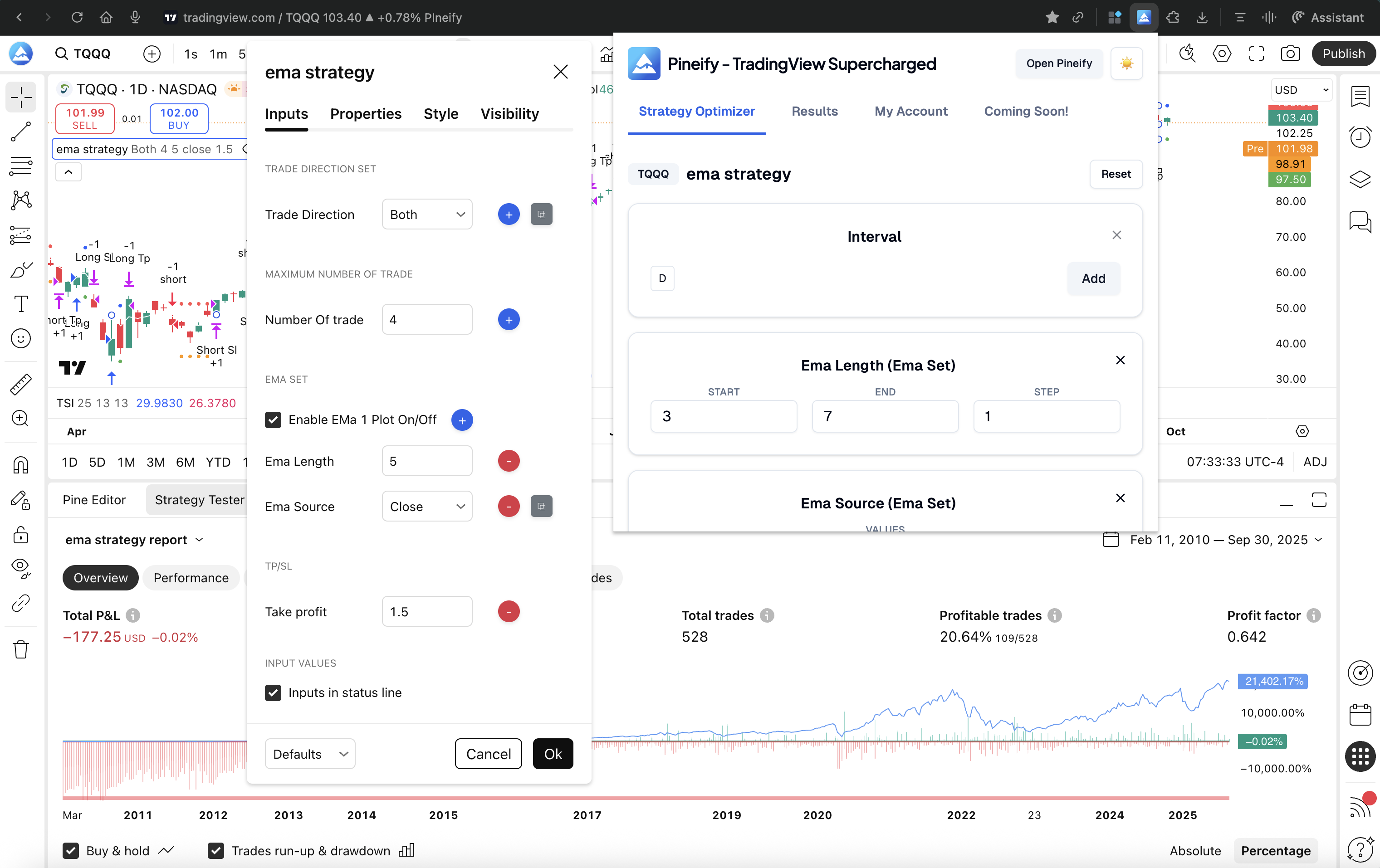
The Pineify Supercharged Extension is my daily driver. It installs as a Chrome extension and adds optimization controls directly into TradingView's existing Strategy Tester. No separate script on your chart, no tab-switching. It just works where you already work.
What makes it worth paying for?
- Grid search across thousands of settings: Define ranges for every input — numbers, decimals, toggles — and let it brute-force every combination. I've run 8,000+ combinations on a single strategy over a weekend.
- Multi-timeframe optimization: This is the feature I use most. Most optimizers only tweak strategy parameters. Pineify also tests which chart timeframe (1m, 5m, 1h, etc.) pairs best with those settings in one pass.
- Sort results by what matters to you: Default view is highest net profit, but you can reorder by max drawdown, win rate, or profit factor with one click.
- One-click CSV export: I export every run to a spreadsheet and cross-reference with Python later. It's saved me hours of manual note-taking.
- Runs locally in your browser: Your strategy code never leaves your machine. No server upload, no privacy concern.
Who it's for and how to get it
You already have a Pine Script strategy and want to improve its performance without learning new software. It works with any strategy using standard inputs — no code changes needed. The optimizer is part of Pineify's Advanced plan, a one-time purchase from $149. For context on the broader platform, I wrote about the Pineify Finance AI Agent: features, pricing, and how it compares to alternatives.
Try it: pineify.app/strategy-optimizer
How the Kioseff Trading AI Strategy Optimizer Works
Kioseff Trading AI-Powered Strategy Optimizer is a Pine Script tool that lives entirely within TradingView. It focuses on stop-loss and take-profit optimization using a heuristic search — smart, not exhaustive.
What stands out
- Compatible with any strategy or indicator on TradingView.
- Flexible exit methods: fixed stop-loss, trailing stop, OCO pairs.
- Goal-driven optimization: tell it whether you want highest win rate, max profit, or best profit factor, and it optimizes toward that target.
- Clear stats display: profit factor, win rate, max drawdown, equity curve.
- Zero coding required.
Limitations I've noticed
It's a separate Pine Script overlay, so its results panel replaces TradingView's built-in backtester. Multi-timeframe testing is limited to whatever the script handles internally. Saving results requires manual screenshots — no CSV export. I haven't tested it on strategies with more than 15 input parameters, so I can't vouch for performance at scale there.
Best for: Traders focused primarily on dialing in stop-loss and take-profit levels with AI guidance, inside TradingView.
3. The Optimiser Chrome Extension
The Optimiser is a free Chrome extension that automates parameter testing for TradingView strategies. No cost, no registration.
How it works
- Auto-detect inputs: It scans your strategy and lists all adjustable settings.
- Smart range suggestions: For numeric inputs, it proposes a range from half to double your current value.
- Three search modes: Sequential (step-by-step, good for quick scans), Random (exploratory), and Simulated Annealing (focuses search on promising parameter regions — I've had the best luck with this one).
- Basic result filters: Set a minimum trade count to exclude noisy backtests.
- Persistence: Results saved in-browser, CSV export available, parameter templates can be reused later.
I prefer this tool when I'm testing a new idea and don't want to commit money yet. The simulated annealing mode is surprisingly effective for a free tool. But it lacks multi-timeframe support, and the interface feels dated compared to paid options.
Best for: Budget-conscious traders who want a functional free optimizer with smart search.
4. Auto Backtest & Optimize Engine (Pine Script)
This is a Pine Script from TradingView's public library — no extensions, no installs. It's an all-in-one optimizer that runs completely within the TradingView platform.
What it does
It tests millions of parameter combinations using a Genetic Algorithm. Here's the flow:
- Wide scan across a large value range.
- Identifies top-performing parameter sets.
- Runs a focused search around those results.
- Repeats the zoom-in process until you're left with roughly 10 candidates.
Each result gets a single Strategy Score — a blended metric of net profit, drawdown, and other factors — so you can compare apples to apples.
It supports fixed, trailing, and ATR-based stop methods with a dedicated control panel for sorting and filtering results.
The catch: You need basic Pine Script knowledge to set it up. I haven't used this on a strategy with more than 8 inputs, and the genetic search can converge on local maxima if you're not careful. Always validate the final candidates on out-of-sample data.
Best for: Pine Script-savvy traders who want a powerful optimizer without leaving TradingView.
5. OptiPie: A Free-to-Start Chrome Extension Optimizer
OptiPie is another Chrome extension that adds a dashboard of optimization tools on top of your TradingView chart.
What it offers
| Feature | Availability |
|---|---|
| Basic Parameter Optimization (numeric, dropdowns, checkboxes) | Free Tier |
| Multi-Timeframe Optimization | Plus Plan ($9.99/month) |
| AI-Powered Input Recommendations | Plus Plan ($9.99/month) |
| Local CSV Export for Results | Free Tier |
The free tier handles basic optimization and CSV export. The Plus plan ($9.99/month) adds multi-timeframe testing and AI input suggestions. I like the free entry point — it's one of the few tools that lets you test multi-timeframe optimization without a one-time purchase. That said, the AI recommendations felt generic in my tests on BTC/USD and ETH/USD pairs. I'd take them as a starting point, not a final answer.
Best for: Traders who want a free starter tool with a clear upgrade path to multi-timeframe optimization.
Side-by-Side Comparison
| Feature | Pineify Supercharged | Kioseff AI Optimizer | The Optimiser | Auto Backtest Engine | OptiPie |
|---|---|---|---|---|---|
| Native TradingView Integration | ✅ Direct extension | ⚠️ Separate script | ✅ Chrome overlay | ✅ Pine Script | ✅ Chrome overlay |
| Multi-Timeframe Optimization | ✅ Yes | ⚠️ Limited | ❌ No | ❌ No | ✅ Plus only |
| AI / Smart Search | ❌ Manual config | ✅ AI prompts | ✅ Simulated annealing | ✅ Genetic algorithm | ❌ Free / Plus |
| One-Click CSV Export | ✅ Built-in | ❌ Manual | ✅ Yes | ❌ Manual | ✅ Locally stored |
| No Code Required | ✅ Yes | ✅ Yes | ✅ Yes | ⚠️ Basic Pine knowledge | ✅ Yes |
| Pricing | One-time $149+ | Subscription | Free | Free | Free / $9.99/mo |
You can check out the Kioseff AI Optimizer on TradingView to see its community reviews. The choice depends on whether you prefer a one-time purchase, need advanced AI features, or want a free option and can accept the trade-offs.
Frequently Asked Questions
What is the best TradingView strategy optimizer for automated backtesting?
I'd recommend Pineify Supercharged Extension for most traders. It integrates directly with TradingView, supports multi-timeframe optimization, offers one-click CSV export, and doesn't require coding. That said, Kioseff is better if your focus is AI-assisted stop-loss and take-profit optimization. The Optimiser and OptiPie are solid free options to start with.
Do I need to know Pine Script to use a strategy optimizer?
Not for most tools. Pineify, Kioseff, The Optimiser, and OptiPie all work without code changes — you just adjust your existing strategy's input settings. The exception is the Auto Backtest and Optimize Engine, which requires basic Pine Script knowledge to configure.
How many parameter combinations can a TradingView optimizer test?
Depends on the tool. Kioseff runs through thousands of stop-loss and take-profit combinations. The Auto Backtest and Optimize Engine uses a Genetic Algorithm and processes millions. Pineify performs a configurable grid search — the total scales with your input ranges and step sizes. I've personally run 10,000+ combinations with Pineify without issues.
Could a strategy optimizer get my TradingView account banned?
Tools that send automated requests to TradingView servers can violate their Terms of Service. Browser extensions like Pineify and OptiPie run locally in your browser — no external server communication — so they're safer. Always check TradingView's current Terms of Service before using any third-party tool.
What is the difference between grid search and genetic algorithm optimization?
Grid search tests every possible combination within your defined ranges. It's thorough but slow. A genetic algorithm starts with a wide scan, identifies strong parameter sets, then runs increasingly focused searches around them. It's much faster but can miss certain combinations. Pineify uses grid search. The Auto Backtest and Optimize Engine uses a genetic algorithm.
Which optimizer supports multi-timeframe optimization?
Pineify Supercharged Extension does out of the box — you can test which chart timeframe works best alongside your strategy parameters. OptiPie offers it on the Plus plan. Kioseff has limited support. The Optimiser and Auto Backtest and Optimize Engine don't offer this feature.
Getting Started: Which Tool Should You Pick?
Here's my honest take on where each tool fits.
-
Go with Pineify's Strategy Optimizer if you want everything in one place. It integrates with TradingView, supports multi-timeframe testing, and exports to CSV with one click. Install the Pineify extension. The optimizer is part of a larger platform. Pineify also includes a visual indicator builder and an AI Coding Agent that writes error-free Pine Script. I've used the Twin Range Filter Indicator for TradingView alongside the optimizer on several strategies, and they complement each other well.

-
Try The Optimiser Chrome Extension if you're watching your budget. It's free and the simulated annealing mode is surprisingly smart. Find it on the Chrome Web Store.
-
Check out the Auto Backtest & Optimize Engine in TradingView's public library if you don't want to install anything extra. It's pure Pine Script and runs inside TradingView. Script link.
-
One warning I give everyone: validate your optimized settings on separate market data before trading live. A strategy that passes backtests can still fail in forward runs if it's overfit. Pair your optimizer results with other confirmation tools, like the Best Pivot Indicator for TradingView, to build a more dependable system.
Tried any of these? Drop a comment on which optimizer fit your style, or ask if you're stuck deciding. Sharing what worked helps the whole community.