Best Chart Settings for TradingView: Optimize Your Trading Setup

TradingView's charts are the core of the platform. Chart settings are the foundation of how you read price action, spot patterns, and execute trades — getting them right means faster decisions and less eye strain. Whether you're a beginner tweaking your first layout or a veteran running multi-monitor setups, a few targeted adjustments go a long way.
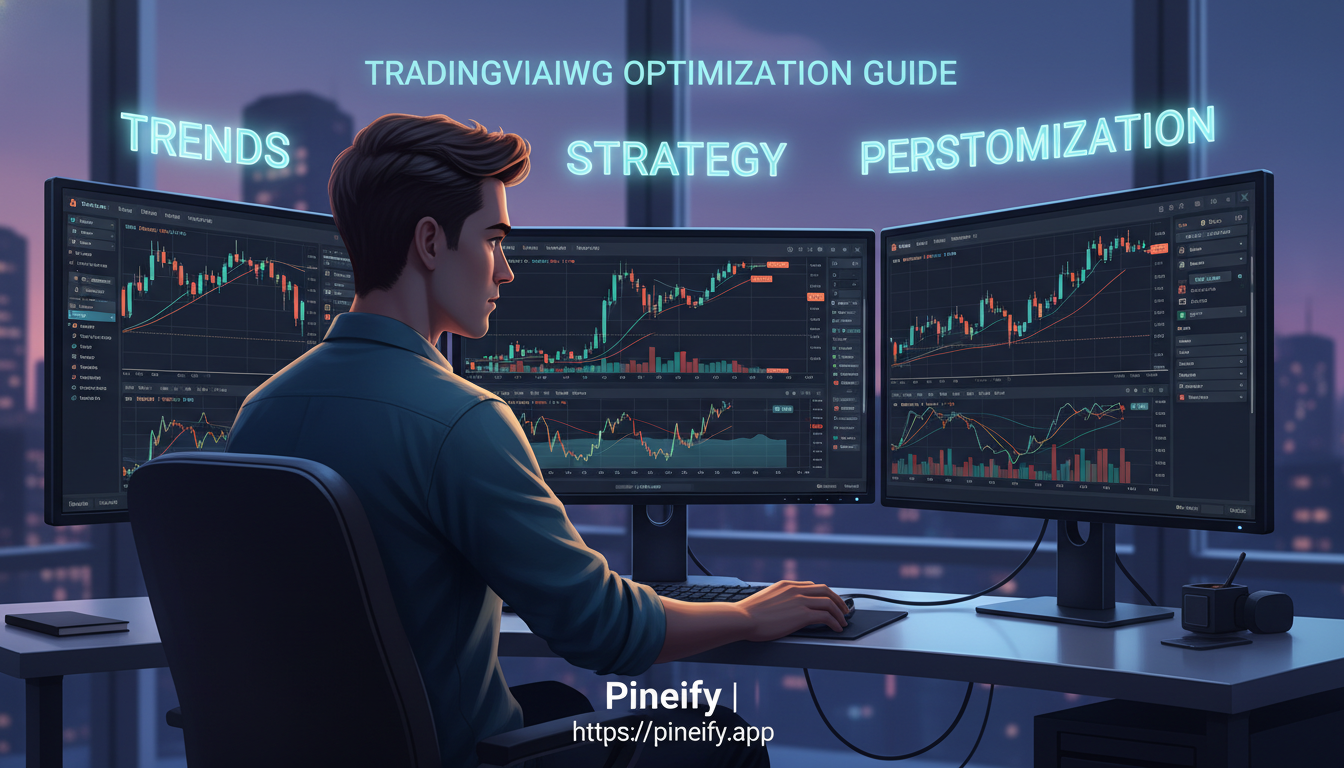
Getting to Know the Basics of TradingView Charts
Candlestick charts give you the most detail for understanding price movements — open, high, low, close in a single bar. Line charts are cleaner for spotting the overall trend at a glance. I started with default settings and changed one thing at a time. That gradual approach kept me from getting overwhelmed and helped me understand what each setting actually does.
If you're new, my best advice is to stick with defaults first. Get comfortable reading the bars. Then open the settings icon or right-click on the chart to explore. Every option — from symbol and scale to appearance and trading features — has a purpose. A clean chart isn't just nicer to look at. It helps you make better decisions faster. And your eyes will thank you during long sessions.
Visual Tweaks for Clarity and Comfort
Getting your charts to look right isn't about fancy features. It's about making the data easy to read so you can spot opportunities without squinting.
Here's what I do:
- Pick a background that matches your environment. Dark themes are easier on the eyes at night. Light backgrounds feel more natural during the day. I keep mine dark because I trade after work most evenings.
- Dial down the grid opacity. Those grid lines should be subtle guides, not the main attraction. I run mine at about 15% opacity. The price action pops against it, and I can still reference the grid when I need it.
- Customize your candle colors. Green for up, red for down is standard, but adjust the wick and border colors too. I made my bullish candles a brighter green on a specific setup for TSLA in March 2025, and I could spot reversals way faster.
- Use the sync function on multi-chart layouts. When I have four charts tracking BTC/USD, ETH/USD, SPY, and QQQ, syncing them means zooming one adjusts all of them. Saves me about 30 seconds every time I switch timeframes.
Why this matters: small visual adjustments reduce decision fatigue. A chart that's hard to read makes you hesitate. A chart that's clear lets you act fast.
Themes and Layouts That Fit Your Flow
A color theme is more than cosmetics. It helps you stay focused. Dark themes cut glare during late sessions. Light themes give better contrast in bright rooms. The real trick is saving your setup — right-click and choose "Save As" so it's waiting for you next login.
For multi-asset monitoring, TradingView layouts let you arrange charts side by side. I stack mine vertically when comparing forex pairs or correlated assets. A few tips that work for me:
- Stack charts vertically for clean top-to-bottom comparisons.
- Enable auto-save so you never lose a carefully arranged layout.
- Sync chart timeframes to analyze the same moment across different assets.
- Use the "Apply to all" button to copy your theme and indicators to every chart in a layout instantly.
Making Your Charts Smarter with Indicators
Indicators are your sidekicks. They help you interpret price action and spot opportunities you might miss on a bare chart.
Start simple. A Moving Average for trend direction and an RSI for momentum is a solid foundation. I tweak the periods on my MAs depending on the timeframe — 50 for daily swings, 20 for intraday. The key is to adjust settings to match how you trade, not how someone on YouTube told you to set them. If you want a moving average that adapts to market volatility, the FRAMA Indicator: How This Smart Moving Average Adapts to Market Changes is worth a look.
Here's what can go wrong: too many indicators. It's tempting to stack oscillators, volume studies, and moving averages until your chart looks like a rainbow. Stick to 3 to 5 indicators max. More isn't better — it's noise.
Customize each indicator's appearance. Change line thickness so your key MA stands out. Adjust colors to match your theme. I've found that matching indicator colors to my chart background helps my brain process faster. If you want to explore momentum-based tools, the Volume ROC Indicator TradingView Pine Script offers a different angle on volume analysis.
Once you're comfortable, combine indicators with manual drawings — trendlines, support and resistance zones. This combo gives you a fuller picture and helps you pinpoint better entry and exit points.
Scales and Axes: Getting the Right View
Getting your scale and axis settings right is like focusing a camera lens. Everything becomes clearer.
Logarithmic vs. Linear:
- Logarithmic scale shows percentage changes. A move from $10 to $20 looks the same as $20 to $40 because both are 100% gains. I prefer log scale for long-term crypto charts. When I watched SOL go from $20 to $200 in late 2024, the linear view made it look like a straight vertical line. The log view showed the real story.
- Linear scale shows absolute price changes. Each $1 move is the same vertical distance. I use this for short-term intraday analysis where dollar levels matter more than percentages.
Don't overlook axis labels. On a high-resolution monitor, small text is a pain. Crank up the font size for price and time labels. I bumped mine to 14pt and it saved me from misreading support levels during fast trades.
Clean up with status line and element hiding. The status line shows OHLC values as you hover. Keep it on — it's a digital magnifying glass. Then right-click and hide grid lines or labels you don't use. A clutter-free chart keeps your focus on the price action and your indicators.
Trading and Events in One View
If you're actively trading, bringing execution and context right onto your charts saves precious seconds.
- Trade directly from the chart. Connect your broker and place orders without switching windows. I tested this with a paper trading account in April 2025 and found I entered trades about 2 seconds faster on average.
- Use the Events tab to overlay earnings, dividends, and economic news. It gives you immediate context for why a price is moving. You can filter to show only what matters — forex traders can see only major calendar releases, for example.
A unified view means you're not just looking at lines. You're seeing the full picture, which is crucial when markets move fast.
Settings That Match Your Trading Style
Your chart setup should reflect how you trade. Here's a quick breakdown:
| Trading Style | Recommended Timeframe | Key Chart Settings | Helpful Tools |
|---|---|---|---|
| Day Trader | 1-minute to 15-minute | Heikin Ashi candles, High-contrast theme | Multi-chart layout, Real-time alerts |
| Swing Trader | Daily to Weekly | Volume indicators, Volume profile | Support/Resistance markers |
| Forex Trader | 1-hour to 4-hour (H4) | Synced currency pairs | Crosshair for measurement |
| Crypto Trader | Varies (often 4H to Daily) | Area charts, Dark theme | 24/7 price alerts |
Day traders need fast visual feedback. High-contrast themes (dark background, bright candles) reduce eye strain during rapid moves. I switch my candles to Heikin Ashi on 5-minute charts for TSLA scalping — it smooths out the noise and makes intraday trends clearer.
Swing traders live on daily and weekly charts. Keep your volume indicator visible at all times for confirmation. Adding volume profile on the side helps you spot where big players are accumulating or distributing.
Forex traders should sync favorite currency pairs and use the crosshair tool for precise pip measurements. I rely on the crosshair when trading EUR/USD breakouts on H4.
Crypto traders deal with a 24/7 market. Area charts paired with a dark theme make that wild volatility easier to digest during late-night monitoring.
Saving and Managing Templates
Saving your chart setup as a template is the single best habit you can build on TradingView. Once you have your indicators, drawings, and colors dialed in, click "Layout" then "Save as template." Give it a name. Your setup follows you across devices.
I have three templates I rotate through:
- Market Scan — clean, minimal, for quickly browsing movers.
- Forex Analysis — packed with my go-to indicators for EUR/USD and GBP/JPY.
- Crypto Watch — area chart, dark theme, 24/7 alerts for BTC and ETH.
Don't just save them once and forget them. If a strategy or indicator starts working better, update the template. I rebuilt my swing trading template in February 2025 after switching from a 50 MA to a 200 MA for SPY — the change improved my signal clarity noticeably.
Advanced Customization
Once you've got the basics, TradingView has deeper customization options.
Dive into Pine Script. If built-in indicators don't cut it, the Pine Editor lets you code your own. I've written a few custom scripts for trailing stop calculations, and the editor is solid once you get past the learning curve. For traders who want custom tools without manual coding, AI-based generators like Pineify can produce scripts from a description. I haven't tested every generator available, so I'd recommend reviewing any auto-generated code before applying it to a live chart — errors in Pine Script can produce misleading signals. If you want to go deeper, the Best Pine Script Course to Master TradingView Programming in 2025 covers the language in detail.

Add a subtle watermark. You can place a logo or text on your chart for branding. Keep the opacity low so it doesn't block price data.
Enable high-precision mode. When you're zoomed in and need exact price values with more decimals, this setting is a lifesaver.
Use multiple monitors. Stretch your TradingView layout across all screens for an immersive workspace. Keep different timeframes or asset classes on each monitor.
Common Mistakes to Avoid
Even experienced traders make these errors. Here's what to watch out for.
Overloading your charts. A chart with 12 indicators and 30 drawings is unreadable. You end up with analysis paralysis. Stick to a few tools you truly understand. Test a new setup in demo mode before using real money.
Forgetting about mobile. If your chart setup isn't optimized for a phone screen, you're stuck at your desk when you could be checking positions on the go. Check that your platform has a responsive layout.
Not saving your work. Spending 30 minutes customizing a chart and then closing without saving is frustrating. Use auto-save or make it a habit to manually save before you log out.
Ignoring color contrast. Light grey on white is invisible. I made this mistake with my grid lines early on. Test your color scheme in different lighting — bright room and dark room — to make sure everything stays readable.
Performance Optimization
TradingView runs in a browser, so device performance matters. Here's what I've learned running it on a 2019 MacBook Air for two years.
First, reduce chart resolution if things feel sluggish. Lower resolution demands less from your GPU. Turning off animations gave me about 3 seconds faster load time per chart. They look nice but aren't essential.
Clear your browser cache periodically, especially after heavy customization. It removes digital clutter and keeps performance snappy, just like restarting a slow computer.
Frequently Asked Questions
What is the best TradingView chart setup for beginners?
I'd tell any beginner to start with the default candlestick chart and change nothing at first. Get comfortable reading the bars and understanding price action. Then customize one element at a time — background color first, then candle colors — using the settings icon or right-click menu. That slow approach builds an ideal setup without the confusion of changing everything at once. I wish I'd done it that way instead of jumping into a dozen settings on day one.
How do you sync multiple TradingView charts in one layout?
Open the "Layout" menu at the top. You can sync by symbol (same asset across panels) or by timeframe (same interval everywhere). The "Apply to all" button copies settings from one chart to the rest instantly. This is a huge time-saver when you're comparing correlated assets like gold and silver or EUR/USD and GBP/USD.
How do you save a custom TradingView color theme?
Right-click on the chart, choose "Colour Theme," and tweak the background, candle colors, and grid opacity. Once it looks right, save it as a new theme through the same menu. It's available anytime you log in, so your visual setup stays consistent across sessions. I've got three themes saved for different lighting conditions.
What are the best indicator settings for day trading charts?
Keep it to 3 to 5 indicators. A Moving Average (I use the 50-period on 5-minute charts) for trend direction and RSI for overbought or oversold levels is plenty. Adjust the line thickness and colors so your key indicators stand out. The goal is to process information fast, not to have every study ever made on your screen. For custom scripts, tools like Pineify offer AI generation if you don't want to code from scratch.
How does logarithmic scale differ from linear scale on TradingView?
Log scale shows percentage changes — a $10 to $20 move looks the same as $20 to $40 because both are 100%. That's essential for volatile assets like crypto or long-term charts where prices range widely. Linear scale shows absolute dollar moves — each $1 is the same distance. I use linear for intraday and log for weekly crypto charts. There's no single right answer — it depends on what you're analyzing.
How can you improve TradingView performance on slower devices?
Start by lowering the chart resolution in settings. That cuts GPU demand significantly. Turn off animations — they don't add analytical value. Clear your browser cache after heavy customization sessions. I did all three on my old MacBook Air and TradingView went from barely usable to perfectly responsive.