NinjaScript vs Pineify's No-Code Visual Editor for TradingView

NinjaScript is NinjaTrader's native scripting language, built on C# and designed for serious futures and forex automation. It gives you total control — if you can write the code. Most traders can't, and I don't blame them. I've scrapped more NinjaScript projects than I've finished, each one dying somewhere in the compile-debug cycle. For TradingView users who want custom indicators without that learning curve, Pineify's visual editor is the practical choice. It won't replace NinjaTrader's order execution — I should be upfront about that — but for building indicators visually and deploying on TradingView in minutes, I haven't found anything faster.
The NinjaScript Challenge: When Power Meets Complexity
NinjaTrader is a powerful platform, especially for futures and forex trading. Its built-in scripting language, NinjaScript, taps into the full potential of C#, which is what major software applications are built with. But there's a catch: that raw power requires serious programming knowledge to use effectively.
On trading forums, you'll often see the NinjaScript learning process described as "hitting a brick wall." Even if you have some technical experience, the platform's documentation can feel overwhelming. You're not just learning a simple scripting syntax; you're diving into object-oriented programming, understanding how NinjaTrader handles data and events, and learning a whole unique system all at once.
Why is NinjaScript So Difficult for Most Traders?
These are the most common sticking points:
- You Need to Know C# Fundamentals: Before you even start, you need a grasp of concepts like classes, methods, and data types. It's like needing to learn automotive engineering before you can drive a car.
- Complicated Setup: You have to set up a development environment, compile your code, and fix compilation errors just to see your idea on a chart. It breaks the creative flow.
- Lengthy Code for Simple Ideas: Basic calculations, like a moving average, require many more lines of code compared to simpler languages like Pine Script on TradingView.
- Platform Lock-In: Any indicator you build in NinjaScript only works on NinjaTrader. Want to use the same logic on TradingView? You're starting from scratch.
- Debugging is a Time-Sink: Finding and fixing logical errors in your code can eat up hours of trading and research time.
The outcome is predictable. Many traders abandon their custom indicator ideas, pay significant fees to a developer, or settle for generic indicators that don't quite fit their strategy. If you're curious about backtesting accuracy on other platforms, check out our guide on TradingView backtesting reliability.
| Pain Point | In NinjaScript | With Pineify's Visual Editor |
|---|---|---|
| Programming Knowledge | Requires understanding of C# | No coding needed; visual drag-and-drop |
| Development Setup | Complex IDE & compiler setup | Works directly in your web browser |
| Speed to Chart | Code, compile, debug cycle | See visual changes update in real-time |
| Code Syntax | Verbose, many lines for simple logic | Handled automatically behind the scenes |
| Cross-Platform Use | Locked to NinjaTrader | Creates Pine Script for TradingView |
| Debugging | Hunting through lines of code | Visual logic flow makes errors obvious |
Is there an easier way to build TradingView indicators?
If you've ever wanted to customize a chart or build your own trading signal without diving into complex code, you've probably heard of Pine Script. It's the language built right into TradingView, and it was made specifically for traders, not software engineers.
Compared to older platforms that feel like they're built for programmers, Pine Script is refreshingly straightforward. If you have a tiny bit of experience with something like Python, you'll recognize the clean, readable style. The best part? It comes with a large library of built-in functions for common trading calculations, so you don't have to build everything from scratch.
But there's a catch: "more approachable" doesn't mean "instant." You still have to get your head around how Pine Script handles data series, how to pull in data from different timeframes — our guide on Pine Script's request.security function covers this in detail — and how to string your trading logic together properly. It takes time and practice.
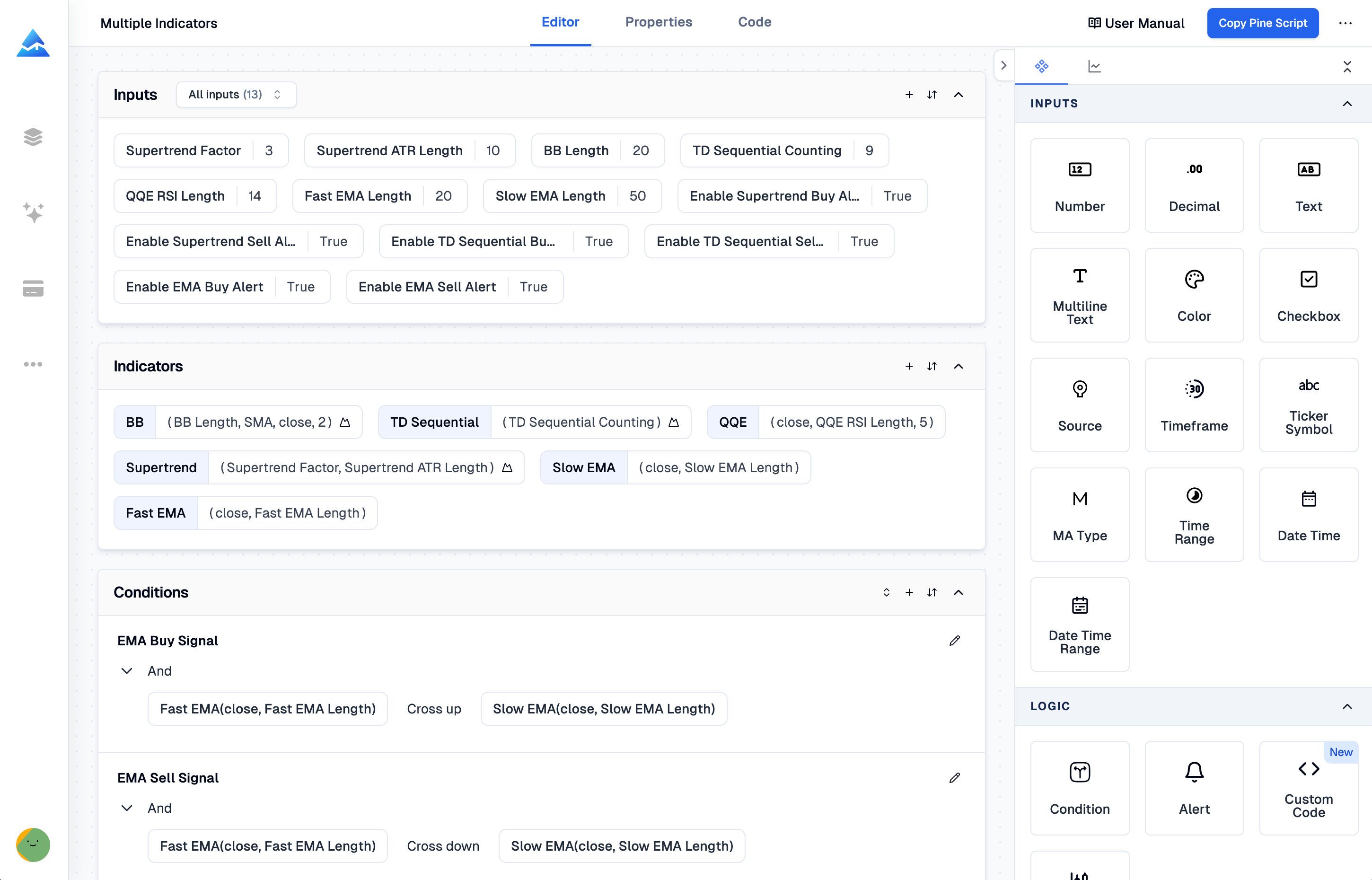
That's where Pineify comes in. You build your trading logic using simple visual blocks, like connecting building blocks. While you're doing that, the tool writes clean Pine Script (version 5 or 6) in the background. The code it creates is standard and ready to use. You just copy and paste it directly into TradingView to add it to your chart. It's your code, with no lock-in.
What You Can Build With Pineify
This visual approach handles pretty much everything you'd want to create for your TradingView analysis:
- Visual Indicator Builder — Choose from over 235 built-in technical indicators (all of TradingView's own, plus popular community ones) and even candlestick pattern recognition. Build your indicator visually from this library.
- Visual Strategy Builder — Set your entry and exit rules, define stop-loss and take-profit levels, and manage risk settings using intuitive logic blocks instead of complex code.
- Screener Generator — Create custom screeners to scan many different symbols and timeframes at once. Results come with clear Long/Short signals, color-coded for easy reading. For a specialized setup, check out our guide on the Pineify AI stock picker and options screener.
- Multi-Timeframe & Multi-Symbol Support — Build one indicator that can pull in data from different time periods or even different assets. Doing this manually in code is notoriously tricky, but here it's handled visually.
- Advanced Condition Editor — Combine multiple indicators and signals into complex "if-then" logic chains, all without writing a single line of code.
- Real-Time Alerts — Visually set up the exact conditions that should trigger an alert. You'll get notified the moment your strategy sees an opportunity.
- Import Custom Code — Already have some Pine Script code? You can import it. The editor will read it and make its signals available for you to use and modify within the visual builder.
One limitation worth noting: Pineify works exclusively with TradingView. If you need NinjaTrader's ATM strategies, advanced order routing, or Order Flow footprint charts, those are outside what this tool can do. It's built for TradingView users, not NinjaTrader power traders.
Choosing Your Trading Tool: NinjaScript or Pineify?
If you're looking to build your own trading indicators or strategies, you've probably heard of NinjaScript and Pineify. They get you to the same destination — a working, automated script — but the journeys are completely different. Think of it like building furniture: one hands you raw wood and a set of chisels, while the other gives you pre-cut pieces and a simple guide.
Here's a straightforward look at how they stack up side-by-side.
| Feature | NinjaScript | Pineify Visual Editor |
|---|---|---|
| Required skill level | Advanced (C# programming) | None — zero coding required |
| Setup time | Hours (IDE, compiler, config) | Minutes (browser-based) |
| Platform | NinjaTrader only | TradingView (any device) |
| Indicator library | Manual coding required | 235+ ready-to-use indicators |
| Backtesting | Built-in (complex to configure) | Instant one-click via TradingView |
| Multi-timeframe support | Requires advanced coding | Visual toggle, no code |
| Error handling | Manual debugging | Auto-generated error-free code |
| Portability | Platform-locked | Standard Pine Script output |
The difference really comes down to time and learning curve. What can take months to get comfortable with in NinjaScript, you can often start doing with Pineify's Visual Editor in an afternoon. I prefer Pineify for rapid prototyping — I'd rather spend my evenings analyzing price action than debugging semicolons.
Who Should Choose Pineify Over NinjaScript
If you're using NinjaTrader and feel stuck because you can't code, you're not alone. Many traders hit that same wall. Pineify's Visual Editor was built to bridge that gap. It's a particularly good fit if you see yourself in any of these situations:
- You're a hands-on trader with great strategy ideas, but you've never written a line of code. You know what you want to see on your charts, but turning that vision into a working NinjaScript indicator feels impossible. Pineify lets you build it visually, by connecting logic blocks — like flowcharting your strategy into existence.
- You're experienced and know your trading logic inside out, but "how to code it" is the missing piece. Instead of translating your ideas into C# syntax, you can use Pineify's interface to directly map your rules (like "buy when this crosses above that, but only if volume is high"). It turns your trading plan directly into a tool.
- You're tired of paying someone else every time you need a tweak. If you've been hiring freelance developers for custom NinjaScript work, Pineify helps you bring that creative control in-house. You can build, test, and adjust indicators yourself, without ongoing costs or waiting for someone else's schedule. This is the core promise of Pineify: helping you create profitable TradingView indicators in minutes — no coding required, saving both time and money on freelancers.
- You already love TradingView's ecosystem and want more from it. If you're comfortable on TradingView but wish you could create the exact indicator you dream of, Pineify lets you do exactly that and use it right there. It's the next step beyond the platform's built-in library.
- NinjaScript's complexity frustrates you, and you're open to trying a different approach. Sometimes, a visual, logic-based method just clicks better than traditional scripting. If you've ever opened the NinjaScript editor and felt overwhelmed, Pineify offers a completely different path.
If you've ever looked at a blank NinjaScript editor and thought, "I know what I want, but I have no idea how to make it happen," then Pineify was designed with you in mind. It provides a complete suite of tools to build, test, and automate your trading strategies, all through an intuitive visual editor or its AI Coding Agent.

Ready to translate your trading ideas into reality without the coding headache? You can start building your first custom indicator for free on Pineify and experience the difference a visual, code-free approach can make.
Getting Started Is Actually This Straightforward
People often think coding trading tools has to be complicated, but with this workflow, it really isn't. I've followed this exact sequence more times than I can count, and it hasn't failed once. Here's how you can go from an idea to having a working indicator on your chart in just a few minutes:
- Head over to the Visual Editor: Start by opening the Visual Pine Editor. This is your main workspace.
- Pick what you're building: Are you making an indicator to spot trends, a full trading strategy with alerts, or a screener to filter assets? Choose the type that fits your goal.
- Select your logic: Browse the library of over 235 technical indicators — things like moving averages, RSI, or Bollinger Bands — and pick the ones you want to use.
- Set your rules visually: This is the cool part. Use the visual builder to drag, drop, and click your way to creating entry and exit conditions. You define the "if this, then that" logic without writing syntax.
- Grab your code: Once you're happy with your setup, the editor generates the ready-to-use Pine Script code for you. Just click to copy it.
- Paste and go: Open the Pine Editor right on TradingView, paste the code you copied, and save it.
- You're done: Add the new script to your chart. It's now running, and you can start using it in your analysis.
And that's the whole process. You skip the frustrating parts like trying to compile broken code or searching forums for hours to fix a simple error.
If you do decide you want to tweak the code yourself or build something from scratch, there's an AI assistant built into the platform. It's specifically trained on Pine Script, so it understands what you're trying to do and can offer relevant suggestions. It feels more like having a knowledgeable friend look over your shoulder than using a generic chatbot.
You can explore more features and details in the Pineify manual.
Common Questions About Pineify
I've never coded before. Can I actually build a real indicator with this?
Absolutely. That's the whole point of the Visual Editor — it's for non-programmers. You connect blocks visually, and the tool writes the code behind the scenes.
Will the indicators I build actually work in TradingView?
Straight into TradingView, no extra steps. Pineify outputs standard version 5 or 6 Pine Script. Copy, paste, save — it runs the same as any indicator you'd install from the community library.
I have some existing Pine Script code. Can I use it with Pineify?
Sure. That's what the Import Custom Code feature is for. Pineify parses your existing script and makes its signals and variables available inside the visual builder so you can extend or modify it.
Can I recreate my NinjaScript indicators from NinjaTrader for TradingView?
In most cases, yes. NinjaScript indicators run on price and volume math — same data TradingView uses. You can rebuild the logic with Pineify's indicator library and condition editor without writing code.
Is there a free option to try Pineify out?
There's a free tier to test the builder. To get advanced features, full exports, and the AI Coding Agent, you'd need a paid plan. They also offer a one-time purchase option with lifetime access starting at $99.
How does Pineify compare to NinjaScript in terms of required programming skill?
Night and day difference. NinjaScript needs C# and object-oriented programming. Pineify needs zero code — it's all drag-and-drop visual blocks. If you can draw a flow chart, you can build an indicator.
Can Pineify replace NinjaTrader for futures and forex trading?
Not exactly — they serve different platforms. Pineify is built for TradingView, not NinjaTrader. If you trade on TradingView, it's a great no-code option. If you need NinjaTrader's execution, keep both tools for different jobs.
Turning Ideas Into Indicators
Turning your trading idea into a real chart indicator doesn't require you to learn complex code. A simpler way is out there. For those interested in applying advanced techniques, our guide on Advanced TradingView backtesting explores how to add sophisticated logic to your tools.
You can start building visually with Pineify's Visual Pine Script Editor at pineify.app/visual-pine-editor. It's free to try, and you could have your first custom indicator working before the week is out.
Once you've built something, consider sharing your process or results in the TradingView community forums — it's a great place for feedback. Or, browse through Pineify's pre-made templates if you need a spark of inspiration.
If you know another trader feeling stuck with complicated platforms like NinjaScript, pass this along. Sometimes, a visual approach is all it takes to get unstuck.