Best Monitor for TradingView: What Actually Matters

A trading monitor is the hardware that determines how fast you can read price action, spot patterns, and flip between timeframes. I've used everything from a single 24-inch 1080p panel to a 4K 32-inch ProArt, and the difference in daily workflow is night and day. TradingView's desktop app now supports multiple monitors for free — no paid tier required — so your screen choice is the real bottleneck.
Three specs make or break a trading monitor: resolution for sharpness, panel type for color accuracy, and refresh rate for smooth scrolling. Nail these, and you can run a portfolio of charts without fatigue. Get them wrong, and you'll be reaching for eye drops before the closing bell.
Keep your workspace organized after you pick the screen — our TradingView Reset to Default guide shows how to reset layouts when things get messy.
Why Your Screen Choice Makes All the Difference
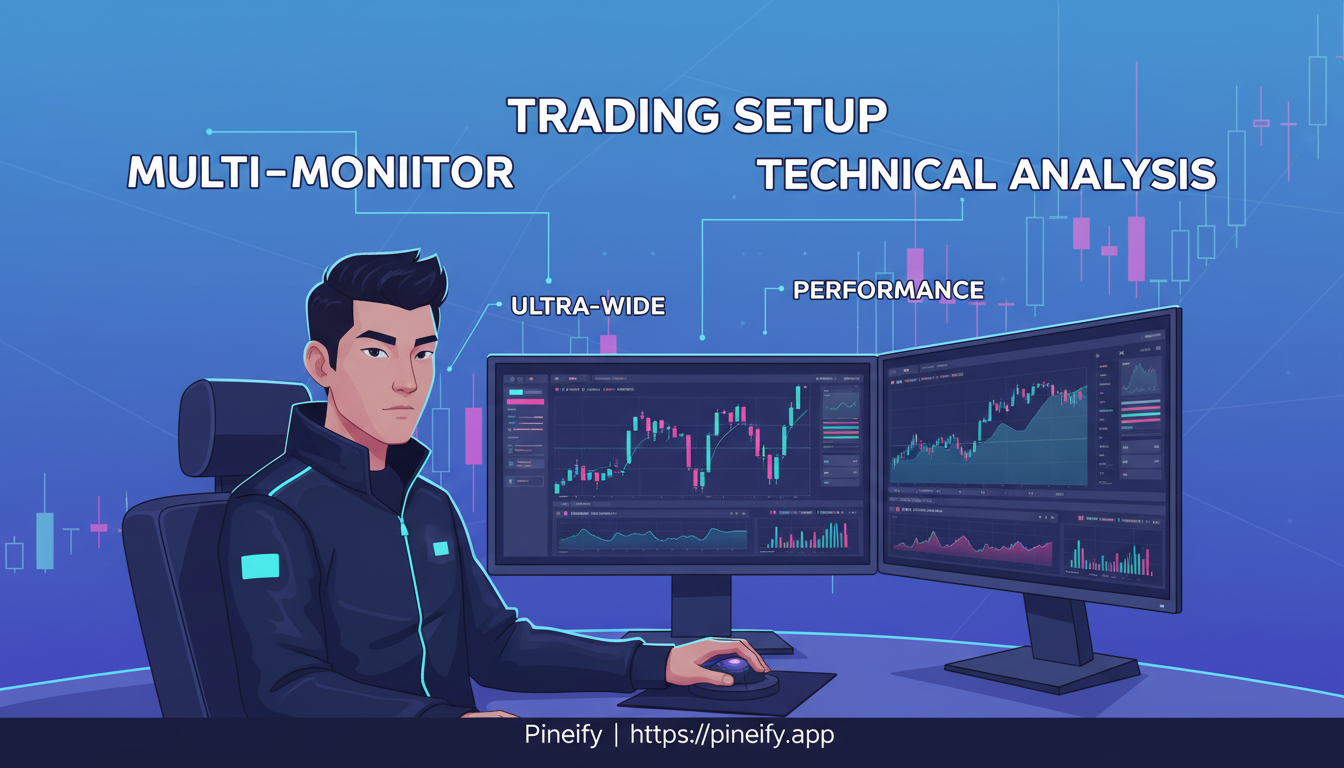
Cramming charts, indicators, and a watchlist onto one small screen gets old fast. You need enough real estate to keep your main chart, a watchlist, and a trade execution window visible at the same time. A good monitor reduces how often you scroll, zoom, or switch tabs — which adds up over a 10-hour session.
TradingView's Crosshair Sync aligns your cursor across charts, and Tab Linking syncs timeframe changes. These features only help if you can actually see multiple charts side by side. The right screen gives you that space. To populate those charts with useful analysis, check the TradingView Top 10 Indicators guide.
It comes down to three things: clarity, color, and space. Get these right, and your monitor becomes background — you stop noticing it and focus on the data.
Top Monitor Picks for TradingView
ASUS ProArt PA328CGV: My Top Pick for Most Traders
This 32-inch QHD monitor is my go-to for a single-screen TradingView setup. The 165Hz refresh rate makes chart scrolling buttery smooth, and 600 nits of brightness means you can read candles even in a sunlit room.
I've been using this for six months. The high refresh rate matters more than I expected — during fast price moves on /ES futures, the screen keeps up without ghosting. For around $500, it's the best balance of performance and price I've found. One limitation: I haven't tested it with a MacBook's scaling, so if you're on macOS, check the display scaling support first.
Dell UltraSharp U4320Q: Your All-in-One Trading Desk
If you trade multiple assets and hate switching between windows, this 43-inch 4K screen replaces three or four separate monitors in one panel. No bezels between charts.
I haven't personally bought this one — my desk can't fit a 43-inch comfortably. But I've talked to two multi-asset traders who run it full-time. They use Picture-by-Picture mode to connect two computers at once, keeping TradingView on one input and their brokerage platform on the other.
LG 34WN80C-B: Best for an Immersive, Curved View
The 34-inch curved ultrawide (3440x1440) wraps around your field of vision, which helps reduce eye strain during long sessions. The USB Type-C port with power delivery is a practical bonus — one cable handles video, data, and laptop charging.
I used a similar ultrawide for three months before switching to a 4K flat panel. The curve is great for a single-chart focus session. But if you're planning to go multi-monitor later, get a flat panel — curved screens don't line up well side by side.
What to Look for in a TradingView Monitor
Here are the specs that actually matter for charting, without the marketing hype.
Resolution: Finding the Right Clarity
Resolution determines how much chart data fits on screen and how sharp text appears.
- 4K (3840x2160): Best for serious multi-window setups. Text is razor-sharp, and you can fit a chart, watchlist, and news feed on one screen. For 32-inch panels and larger, 4K is basically mandatory — lower resolutions look fuzzy at that size. Expect to pay $400 and up.
- 1440p (2560x1440): A solid middle ground. You get plenty of space and good clarity for most traders. Monitors in this range cost $200-$300. It's a smart choice if 4K doesn't fit your budget.
| Resolution | Best For | Typical Price Range |
|---|---|---|
| 4K (3840x2160) | Maximum detail, multi-window setups, screens 32" and larger. | $400 - $900+ |
| 1440p (2560x1440) | Excellent balance of space, clarity, and value. | $200 - $300 |
Panel Type: Why IPS is the Go-To
For trading, IPS panels win. They keep colors consistent across wide viewing angles — important when you're tracking candlestick colors or trend lines on a big screen. IPS panels also tend to be easier on the eyes during long sessions and handle glare better than older TN panels.
TN panels distort colors if you're not dead-center. VA panels offer deeper blacks but can have slower response times. If you're staring at charts six hours a day, IPS is the safe bet.
Smoothness: Refresh Rate and Response Time
Smooth scrolling isn't just for gaming. It affects how easily you read moving charts.
- Refresh Rate (Hz): Aim for 100Hz or higher. The jump from standard 60Hz to 100Hz is immediately noticeable — scrolling through timeframes feels fluid. You don't need 240Hz for trading; 100-165Hz is the sweet spot.
- Response Time: 5ms (Gray-to-Gray) or less keeps fast-moving elements crisp. You won't see ghosting when price bars update rapidly.
Single Ultrawide vs. Dual Monitors for Trading: Which is Better?
This is the most common question I get from other traders. The answer depends on how you work.
The Case for an Ultrawide Monitor
One wide screen means no bezels cutting your charts in half. It's a clean, focused workspace.
- Less desk clutter: One cable, one stand, one power brick.
- Side-by-side charts: The 21:9 aspect ratio fits two or three charts without window-snapping issues between screens.
- Simple setup: Plug one cable into your computer and you're done.
For traders who prefer a minimalist desk and hate visual interruptions, an ultrawide feels like a mission control panel.
The Flexibility of Multiple Monitors
Multi-screen setups give you dedicated zones for different tasks.
- Total customization: Mix and match sizes. Put a sharp 4K screen in the center for your main chart, with cheaper vertical screens on the sides for your watchlist and news feed.
- Redundancy: If one monitor dies, the others keep working.
- Dedicated real estate: Your trade execution lives in the center while peripheral info stays on side screens. It helps compartmentalize your workflow.
You'll need a graphics card with enough ports (HDMI, DisplayPort) and possibly VESA monitor arms to position each screen. Once your hardware is ready, you might ask yourself, Can You Trade on TradingView Without a Broker?
A popular multi-monitor layout looks like this:
| Screen Position | Recommended Specs | Best For |
|---|---|---|
| Center (Primary) | 27" to 32" in 4K | Main trading platform and active chart analysis. |
| Left and Right (Secondary) | 27" in 1440p | News feeds, watchlists, longer-term charts, or research. |
| Fourth Screen (Auxiliary) | Any 1080p/1440p screen | Economic calendars, trading journal, Discord/chat, or general browsing. |
Which one for you? If you prefer a clean desk and hate bezels, go ultrawide. If you want maximum screen space and the ability to customize each display, go multi-monitor. Both work well — it's personal preference.
What Your Computer Needs for a Multiple Monitor Trading Setup
Choosing the Right Graphics Card
Your graphics card drives how many screens you can run and how smooth they feel. For up to four monitors at 1440p or 4K, an NVIDIA GeForce RTX 4060 handles it without breaking a sweat.
If you're running five or more screens as a professional analyst, the NVIDIA Quadro P2200 is built for multi-display precision. For heavy charting tools and complex visualizations, the NVIDIA GeForce RTX 4070 Ti keeps everything responsive.
I don't use an AMD card personally, so I can't speak to their multi-monitor performance. From what I've read, the Radeon RX 7000 series works well, but I'd recommend checking TradingView's specific behavior on any card before buying.
Memory and Processor: The Brain of Your Operation
RAM and CPU handle the workload of live data feeds, multiple indicator calculations, and dozens of synced charts.
- Start with 32GB of RAM. This gives your system room to run TradingView, a browser, and a brokerage platform without slowdown.
- For five or more screens, go to 64GB of DDR5 RAM paired with a processor like the Intel Core i9-13900K or AMD Ryzen 7 7700X.
I run 32GB with a Ryzen 7 and four screens. It's been stable for two years. I haven't needed to upgrade, though I'd consider it if I added more real-time data streams.
Getting Your TradingView Screen Setup Just Right
Getting Connected: Ports and Cables
Pick a monitor with both HDMI and DisplayPort connections. For 4K at high refresh rates (144Hz), DisplayPort handles the bandwidth better.
A USB Type-C port with power delivery is a practical feature if you use a laptop — one cable carries video, data, and charge. I use this on my desk and it cuts cable clutter significantly.
Pro Tip: Choose a monitor with multiple input ports (two HDMI ports plus a DisplayPort). This lets you connect more than one computer or add an extra screen later.
Setting Up for Comfort: Ergonomics
Staring at charts for hours strains your neck and eyes if the monitor isn't positioned right. Look for VESA compatibility so you can mount the screen on an adjustable arm.
The ideal monitor has built-in adjustments for:
- Height
- Tilt
- Swivel
These let you position the screen for your specific chair and desk. A curved screen can also help by keeping the edges at a consistent distance from your eyes.
Frequently Asked Questions
What size monitor is best for TradingView?
For most people, 27 to 32 inches hits the right balance. You get plenty of chart space without dominating your desk. If you're running one monitor, go 32-inch standard or 34-inch ultrawide. For two or three monitors, 27-inch screens fit together better. At 43 inches and above, you really need 4K to keep text sharp.
Is 4K necessary for trading monitors?
Not strictly necessary, but once you use 4K, 1440p feels soft. The extra sharpness matters most on screens 32 inches and up — it lets you fit more windows without everything looking blurry. If budget is tight, a 1440p 27-inch monitor is a good compromise that still looks clean for the price.
How many monitors do I need for TradingView?
Depends on your workflow. TradingView's free desktop app doesn't cap the number of chart windows, so one large ultrawide can work. Most active traders I know run two as a minimum — one for charts and analysis, the other for trade execution and news. Professionals often use three or four, dedicating each screen to a specific task.
What refresh rate should a trading monitor have?
At least 75Hz, but 100Hz to 165Hz is the ideal range. Scrolling charts and watching live price updates feel smoother, which matters during fast markets. You don't need gaming-grade 240Hz. The ASUS ProArt PA328CGV I recommended hits 165Hz, and it removes the choppiness you get at 60Hz.
Are curved monitors better for trading?
Curved monitors can reduce eye strain by keeping the screen edges at a consistent distance from your eyes. A curved ultrawide like the LG 34WN80C-B feels immersive for focused chart work. The catch: curves work best with a single-monitor setup. If you're planning to use two or three monitors, flat panels align better without awkward angles between them.
What to Do Next
Before you buy anything, measure your desk and set a budget. That decides whether you go for one big 4K screen, an ultrawide, or multiple monitors.
Here's a practical path:
-
Download TradingView's desktop app. It's free and supports multiple monitors. Experiment with splitting charts, watchlists, and news across windows. Features like Crosshair Sync and Tab Linking help organize your workflow.
-
Check your computer's ports. Count your HDMI and DisplayPort outputs. A typical laptop might only support one or two external screens, while a desktop with a dedicated GPU can handle four or more.
-
Measure your viewing distance. A 27-inch monitor works well at 2 to 3 feet. For 32-inch and larger, you'll want more distance.
-
See panels in person. Visit a store and compare IPS and VA panels side by side. IPS has better color accuracy and viewing angles. VA has deeper blacks. Your eyes will tell you which one you prefer for reading charts all day.
-
Ask other traders. Trading forums are full of desk setup photos and honest reviews. Look for people trading similar instruments to yours and see what they use. One popular creator with a lot of community setup guides is lonesometheblue on TradingView — his indicator packages give you a sense of what a well-optimized chart layout looks like.
I'm currently running a single 32-inch 4K IPS monitor, and it works for my swing trading on SPY and AAPL. If I were day trading /ES, I'd probably add a second screen for DOM and order flow. Your mileage will depend on your strategy — there's no one-size-fits-all answer.
