MQL4 ERR_TRADE_EXPERT_DISABLED_BY_SERVER

Error 4112 MQL4: trading disabled by the server

error 4112 MQL4 automated trading disabled maps to ERR_TRADE_EXPERT_DISABLED_BY_SERVER: automated trading by Expert Advisors or scripts is disabled by the trade server. This is a server-side automated-trading restriction, distinct from a source syntax problem. Capture GetLastError immediately after the failed call, correct the cause, and retry only when the condition can change.

ServerPermissionDiagnostic.mq4.mq4
#property strict

void OnTick()
  {
   if(!IsConnected())
     {
      Print("No terminal connection.");
      return;
     }

   if(!IsTradeAllowed())
     {
      Print("Trading is disabled or the trade context is busy.");
      return;
     }

   // Evaluate the entry rule only after the terminal checks pass.
  }
  • Official meaning: automated trading by Expert Advisors or scripts is disabled by the trade server
  • Read the failed API return value first
  • Capture GetLastError immediately
  • Retry only when the condition can change

What MQL4 error 4112 means

The official MQL4 runtime table names error 4112 ERR_TRADE_EXPERT_DISABLED_BY_SERVER and defines it as “automated trading by Expert Advisors or scripts is disabled by the trade server.” This is a server-side automated-trading restriction, distinct from a source syntax problem.

The error number is evidence about one failed call, not a diagnosis of the whole EA. Read the API sentinel first, then call GetLastError immediately because that function returns the current _LastError value and resets it.

Check these conditions before editing the strategy

Start with the inputs and external state that existed at the failure point. A later log entry or a successful call can overwrite the useful context.

  • The broker or server disables EA and script trading for the account
  • The account type permits manual trading but not automated requests
  • A server policy changed after the EA was tested
  • The code treats the restriction as a transient trade-context failure

Fix the cause, then choose a retry policy

Do not retry until the broker or server permission changes. Code cannot override this restriction.

Keep the original trading and risk rules intact. A workaround that widens stops, increases volume, changes an account setting, or ignores a failed return value can hide the symptom while changing the system.

CheckAction
The broker or server disables EA and script trading for the accountConfirm automated-trading permission with the broker or account administrator.
The account type permits manual trading but not automated requestsUse an account explicitly permitted to run the intended automation.
A server policy changed after the EA was testedLog the server restriction and alert the operator.
The code treats the restriction as a transient trade-context failureStop new trade requests until the permission state changes.

Review the complete example

The EA checks local trade availability, but a server can still return 4112. Log that response and stop rather than trying to bypass the policy.

The example improves validation and logging. It does not prove the operation will be accepted by a broker or behave safely in live trading.

ServerPermissionDiagnostic.mq4.mq4
#property strict

void OnTick()
  {
   if(!IsConnected())
     {
      Print("No terminal connection.");
      return;
     }

   if(!IsTradeAllowed())
     {
      Print("Trading is disabled or the trade context is busy.");
      return;
     }

   // Evaluate the entry rule only after the terminal checks pass.
  }
Where Pineify fits

Move from the rule to editable MQL4 source

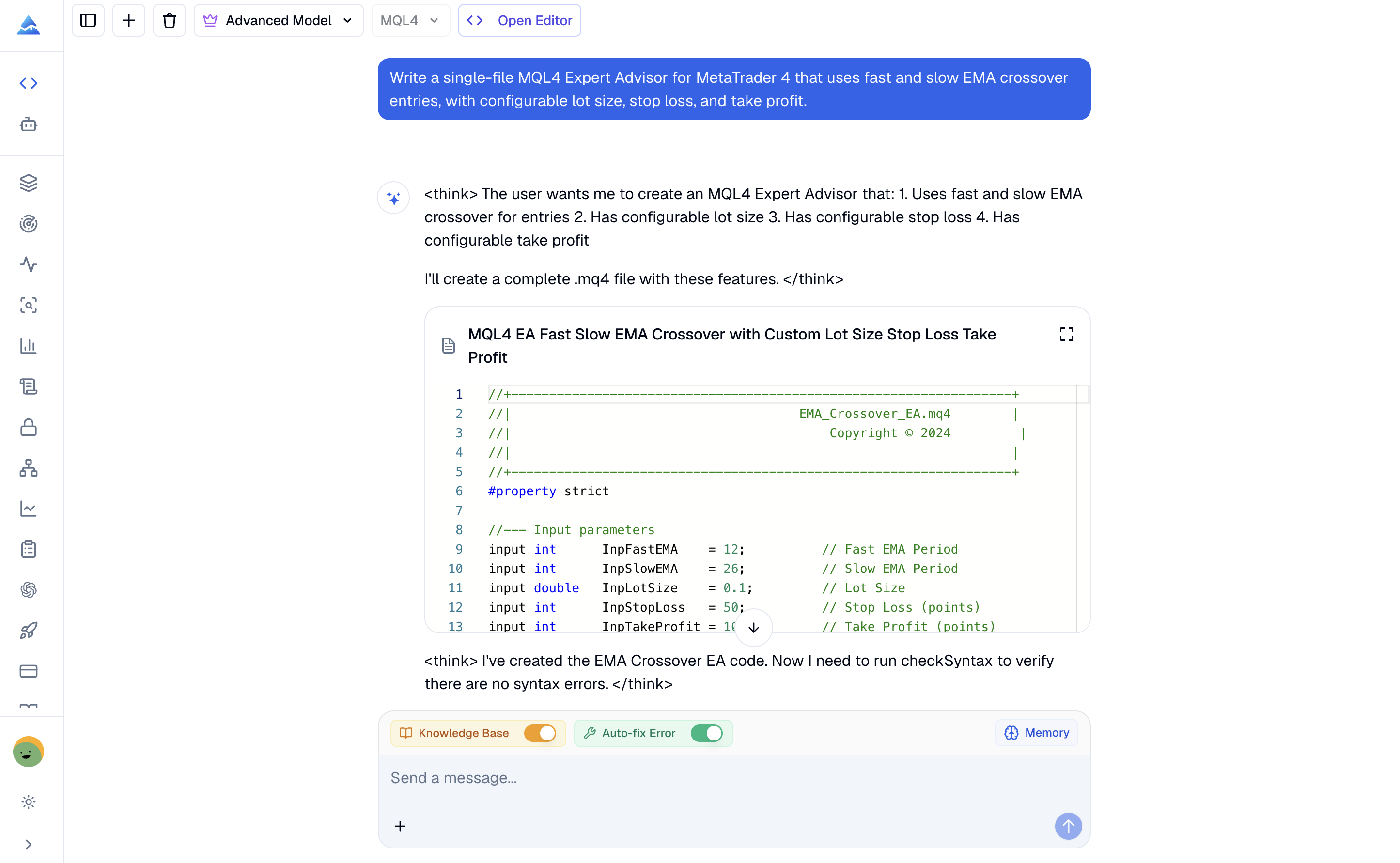
Pineify can generate or revise one self-contained .mq4 file with MQL4-specific reference context. Its independent static checker returns MetaEditor diagnostics so you can repair source issues before testing in your own MT4 environment.

Open MQL4 Coding Agent

Static diagnostics do not prove runtime behavior, backtest results, broker compatibility, or live-trading safety.

Pineify MQL4 Coding Agent with MQL4 selected and an editable MetaTrader 4 code artifact

A practical workflow

  1. 1

    Confirm the failed call

    Check the API return value before interpreting an error number from the log.

  2. 2

    Capture the error once

    Call GetLastError immediately and record error 4112, symbol, prices, volume, ticket, and terminal state relevant to the operation.

  3. 3

    Correct the triggering condition

    Confirm automated-trading permission with the broker or account administrator.

  4. 4

    Retest in the target environment

    Compile the revised source, then test with the same MT4 build, broker, symbol, account permissions, and market state.

Frequently asked questions

What does error 4112 MQL4 automated trading disabled mean?

ERR_TRADE_EXPERT_DISABLED_BY_SERVER means automated trading by Expert Advisors or scripts is disabled by the trade server. The code should still identify which API returned failure and log the inputs used for that call.

What usually causes MQL4 error 4112?

The broker or server disables EA and script trading for the account The account type permits manual trading but not automated requests A server policy changed after the EA was tested The code treats the restriction as a transient trade-context failure

Should an EA retry after error 4112?

Do not retry until the broker or server permission changes. Code cannot override this restriction.

Why should GetLastError be called immediately?

It reports the current _LastError value and resets it. Other operations can change the error state, so a delayed read may describe the wrong call.

Can Pineify fix MQL4 error 4112?

Pineify can revise a self-contained .mq4 file, add validation and error logging, and return static MetaEditor diagnostics. It cannot prove broker acceptance, account permissions, market availability, or live execution.

Last verified against the linked official references on . Compile and test the final source in the MetaTrader 4 build, broker, symbol, and account environment you plan to use.

Continue with one reviewable MQL4 file

Define the requirement, inspect the generated source, repair diagnostics, and test the behavior in your own MT4 environment.

Open Coding Agent