

Import Custom Code
Easily import and customize trading indicators and strategies with Pineify's robust Custom Code feature. Tailor indicators and optimize your trading experience.
Pineify's custom code import feature is one of its most powerful capabilities. This tool lets you seamlessly import various indicators and trading strategies directly into the platform. After importing, you can utilize variables from your code within Pineify, giving you the flexibility to customize.
Through Custom Code, you can implement the following features, with more features waiting for you to explore.
-
Import and customize code
-
Use your own indicators
-
Using Imported Code Variables
-
Quickly Add Backtesting to Your Imported Indicator Code
-
…
Get Pine Script Code
Get Source Code from Chart
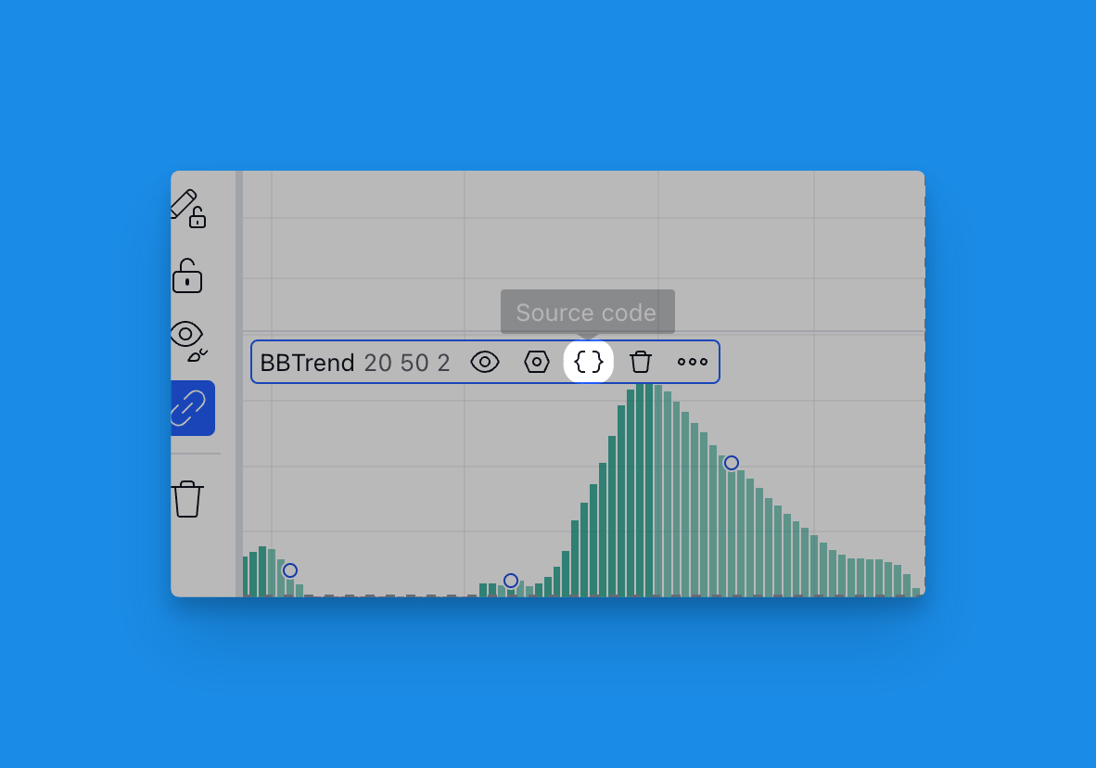
For scripts with publicly available source code, you can obtain the code by clicking the indicator's "Source code" button.
Get Source Code from Community
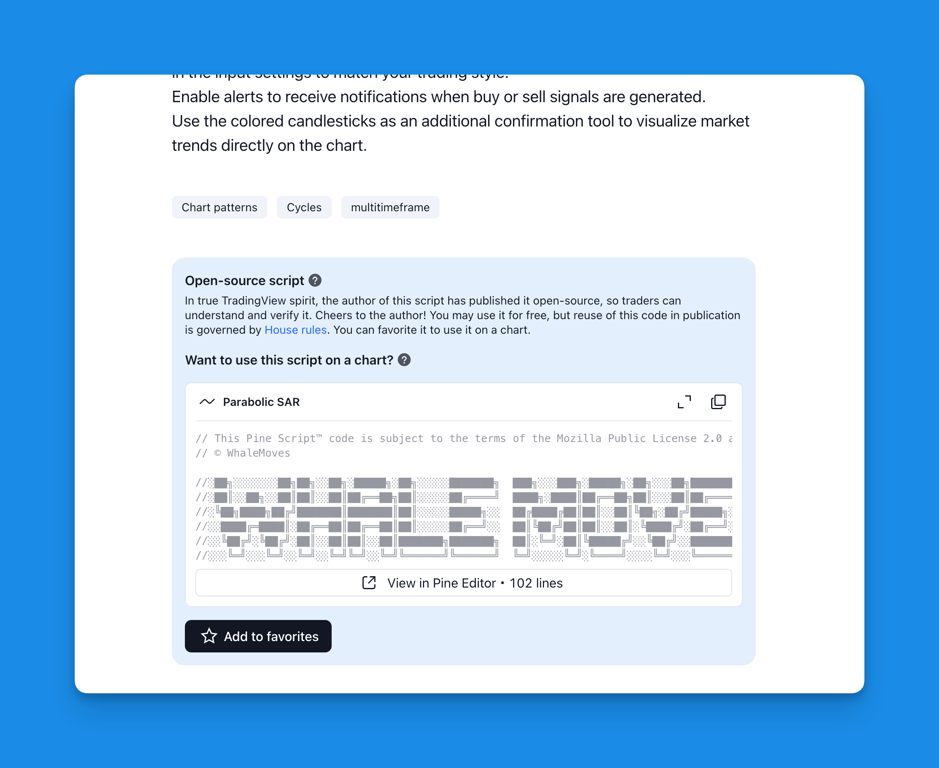
You can find many useful indicators and scripts shared by the TradingView community. To access these, visit the TradingView Community Scripts page, where users publish their custom indicators and strategies. When you find a script you'd like to use, you can view its source code if the author has made it public.
Add Code
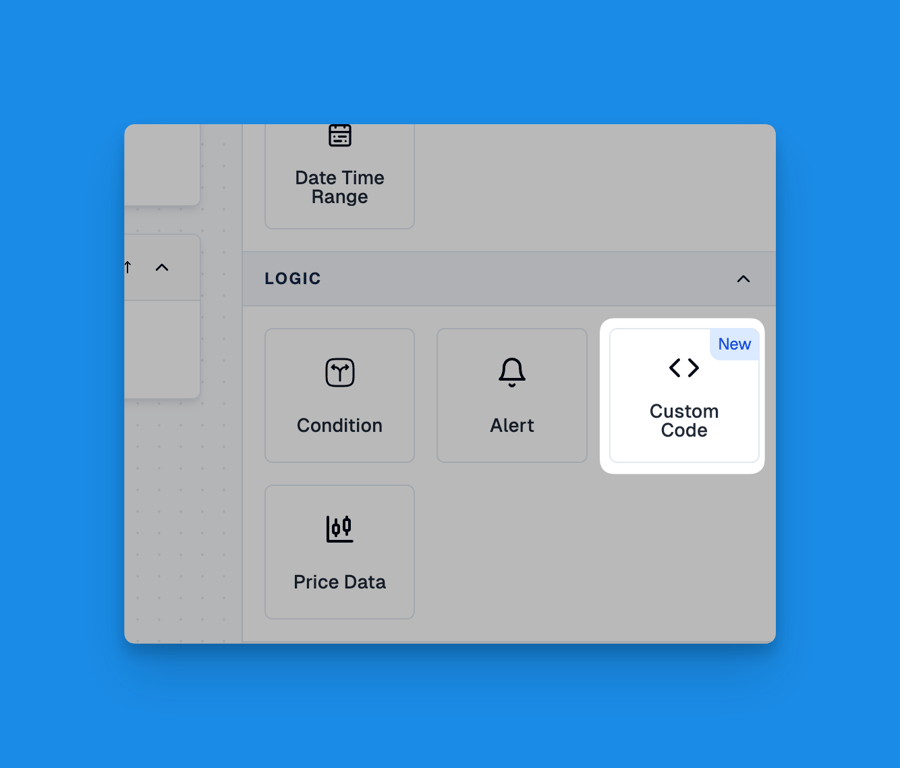
Click "Custom Code" in the Logic panel to add your custom code. In the popup editor window, you can paste or input your Pine Script code. After ensuring the code format is correct, click the "Save" button to complete the addition.
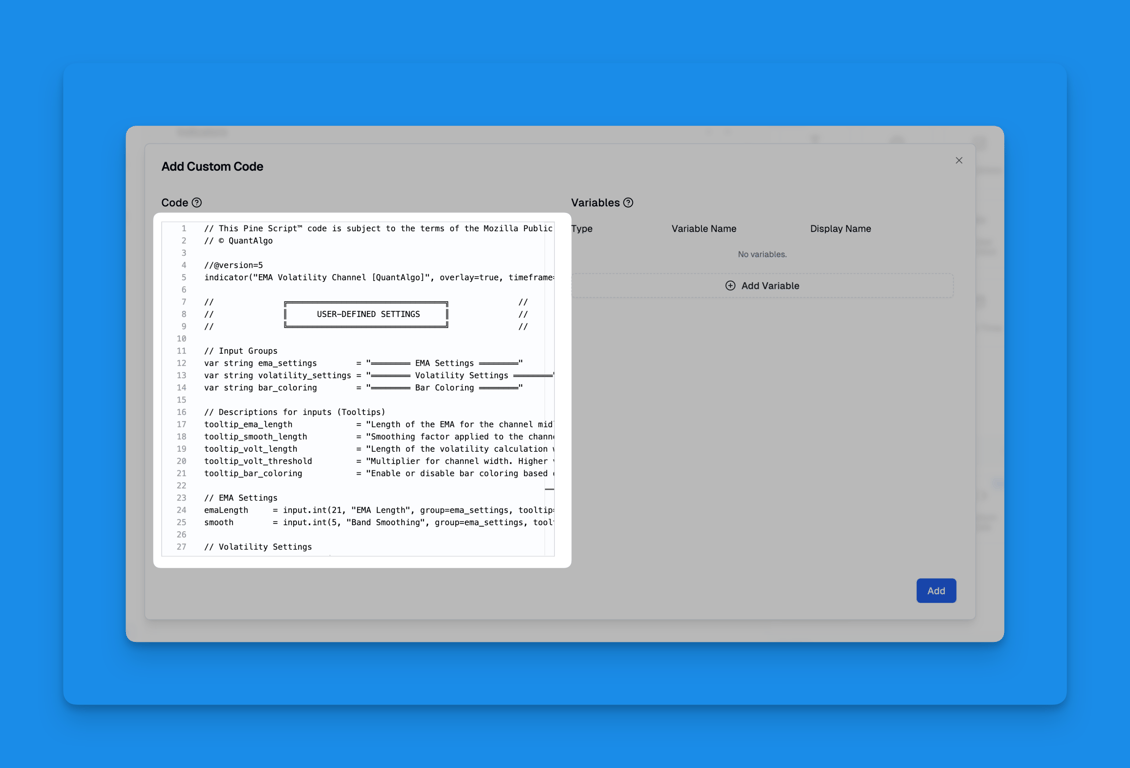
Please make sure the syntax of your code is correct. Additionally, indicator and strategy function calls in imported code will be automatically commented out. This ensures your code integrates smoothly with Pineify's system while ensuring proper execution.
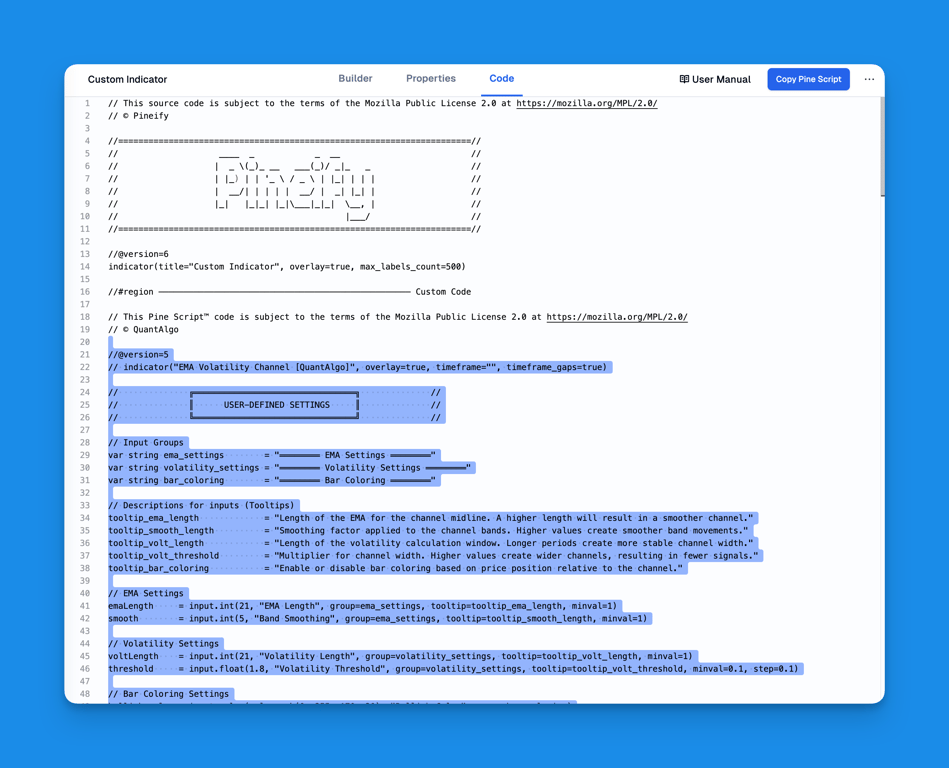
In the final generated Pine Script, you can see that our imported code has been inserted at the beginning.
Add Variables
In addition to importing custom code, you can use variables from your custom code in Conditions, Alerts, Drawings, and Indicators. You just need to add the corresponding variables when adding custom code.
Currently supported variable types are as follows:
-
int/float: such as indicators, price data, etc.
-
bool: such as trading signals, etc.
Here is an example of importing the following indicator:
EMA Volatility Channel [QuantAlgo] — Indicator by QuantAlgo — TradingView
In the imported code, you can easily find the variables for long and short signals (typically boolean values). Simply add these variables on the right side by entering their type, name, and display name in Pineify.
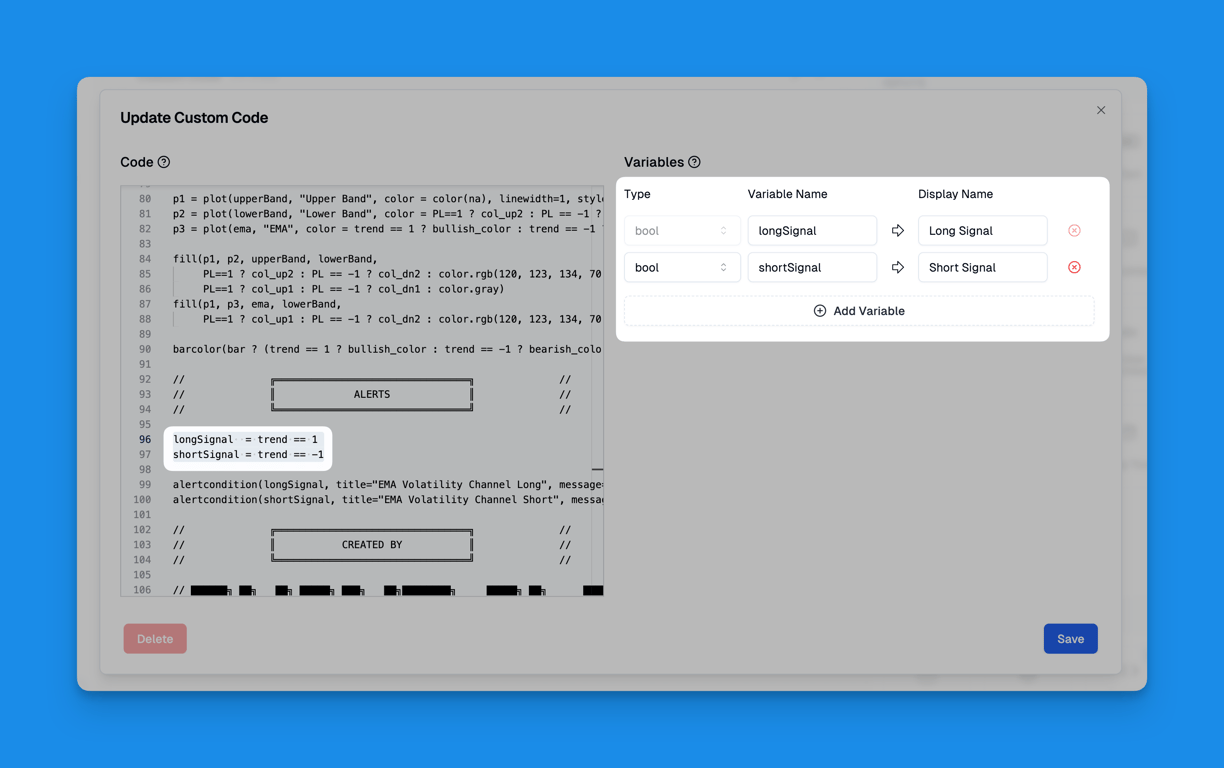
After adding custom code, you can see the number of code lines and variables in the left panel.

Use Variables
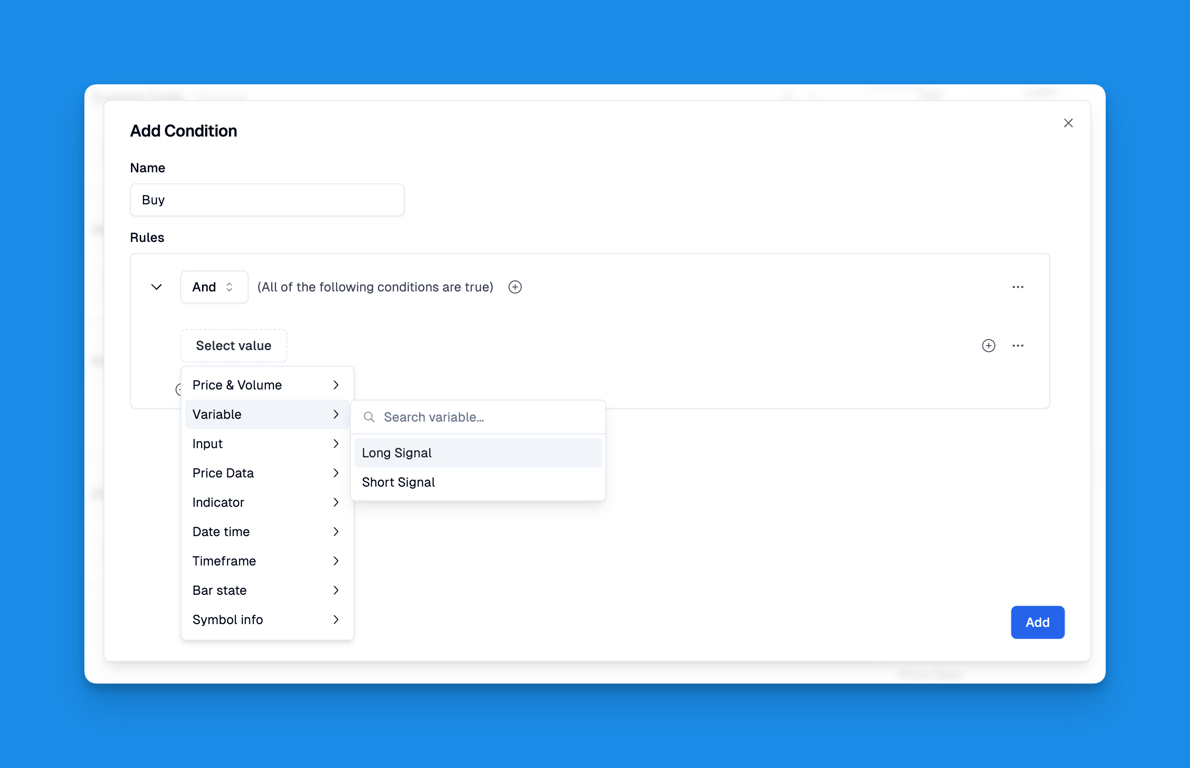
Once you have added the variables, you can use them in Pineify.
- Use the variable in the condition editor
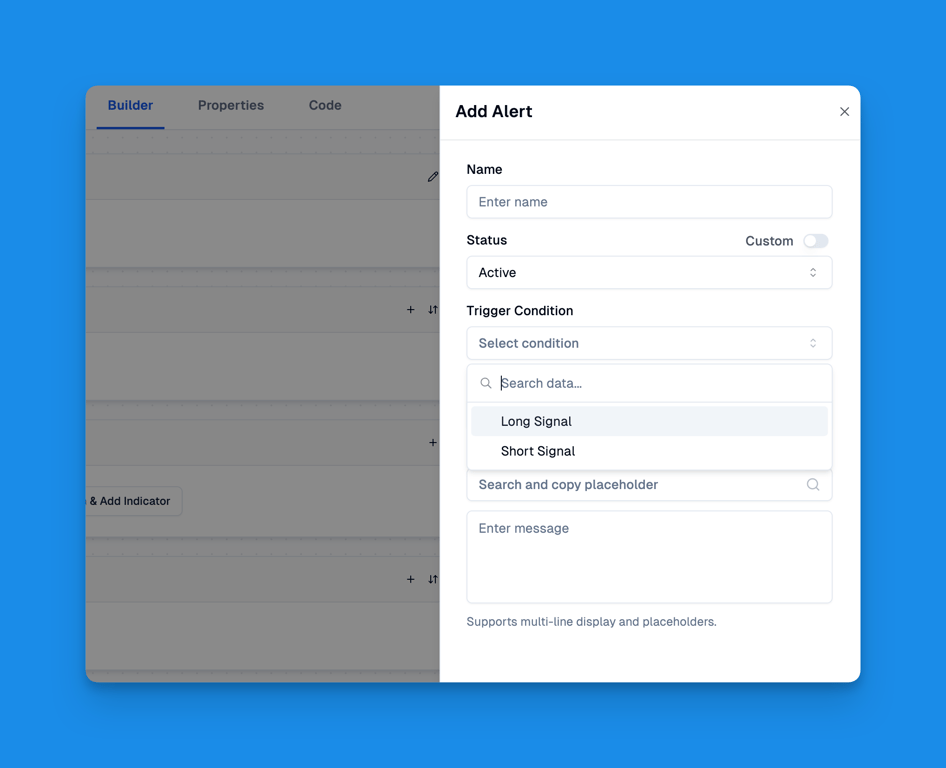
- Alert trading signals
- ….
Transform your trading experience with Pineify's powerful Custom Code Import feature. Whether you're an experienced trader looking to implement sophisticated strategies or a newcomer seeking to leverage proven indicators, our platform makes it seamless to import, customize, and execute your trading logic. With support for various variable types and intuitive integration with alerts and conditions, you can bring your trading ideas to life quickly and efficiently. Take control of your trading journey today with Pineify's flexible and user-friendly custom code implementation.
Add Unlimited Indicators
Unlock TradingView's potential! Add unlimited technical indicators, customize symbols and timeframes, and enhance your trading with Pineify.
Multiple Symbols And Timeframes
Access multiple symbols and timeframes with Pineify for enhanced trading insights, trend confirmation, and accurate custom indicators.