

Indicator
Learn how to create and configure Indicators on Pineify. Follow simple steps to enhance your charting experience with Pine Script.
On the Pineify platform, each Indicator corresponds to a Pine Script. In the following sections, we'll explore how to create these Indicators.
How to Create Indicators
To create an indicator, follow these steps:
-
Visit the Pineify homepage.
-
Click the "Create" button in the top right corner.
-
Select the indicator type.
-
Click "Create" to finalize.
The image below illustrates these steps.
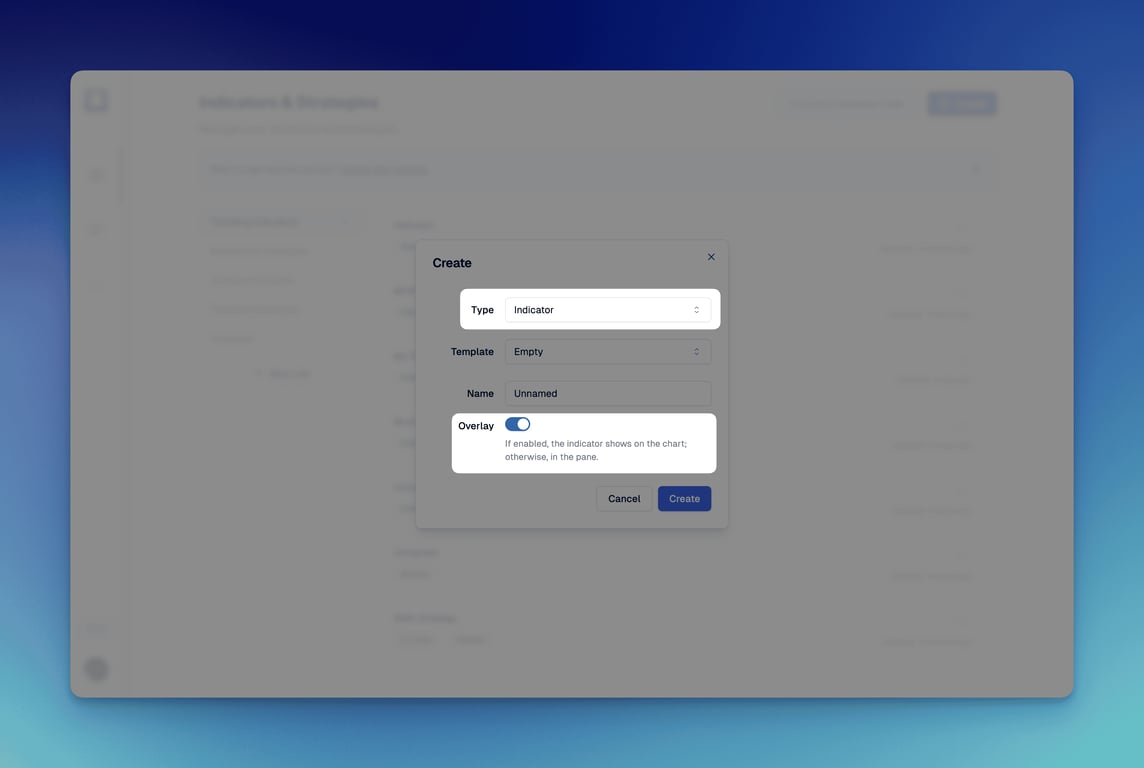
When Overlay is enabled, the indicator appears on the main chart pane. To display it on a separate panel, disable Overlay.
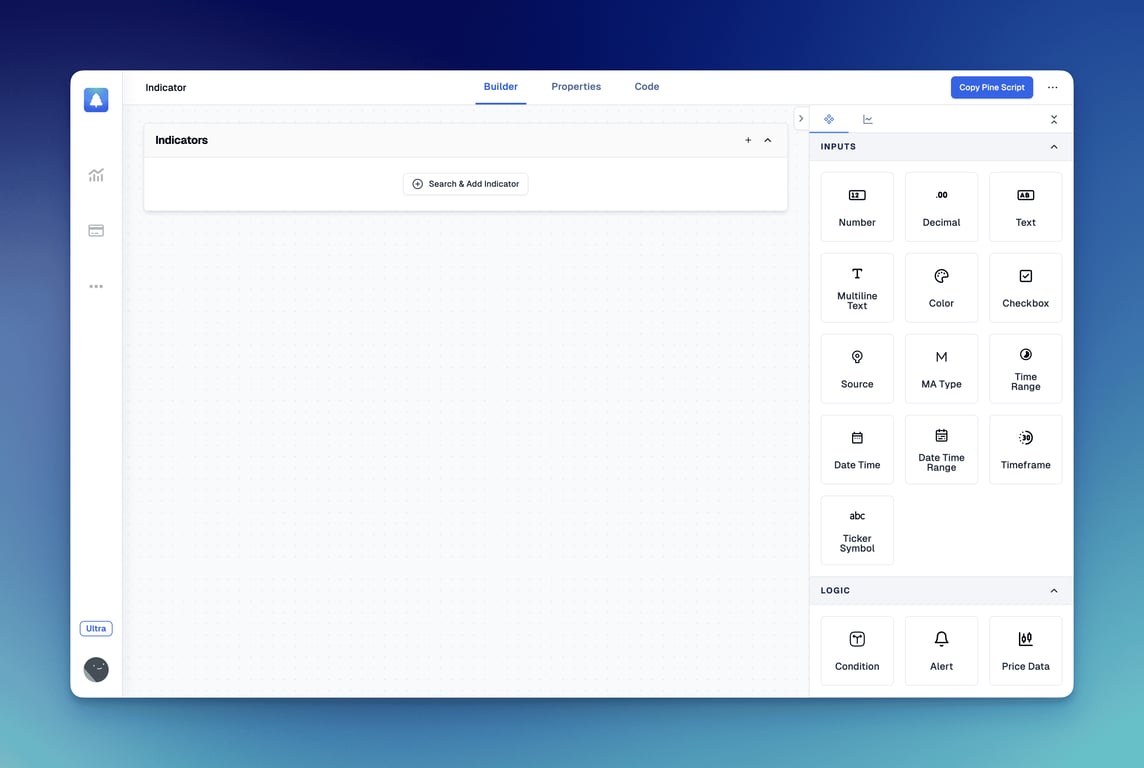
Once created successfully, you'll be taken to the indicator's editor interface.
Indicator Properties
Switch to the Properties tab to view the current indicator's properties.
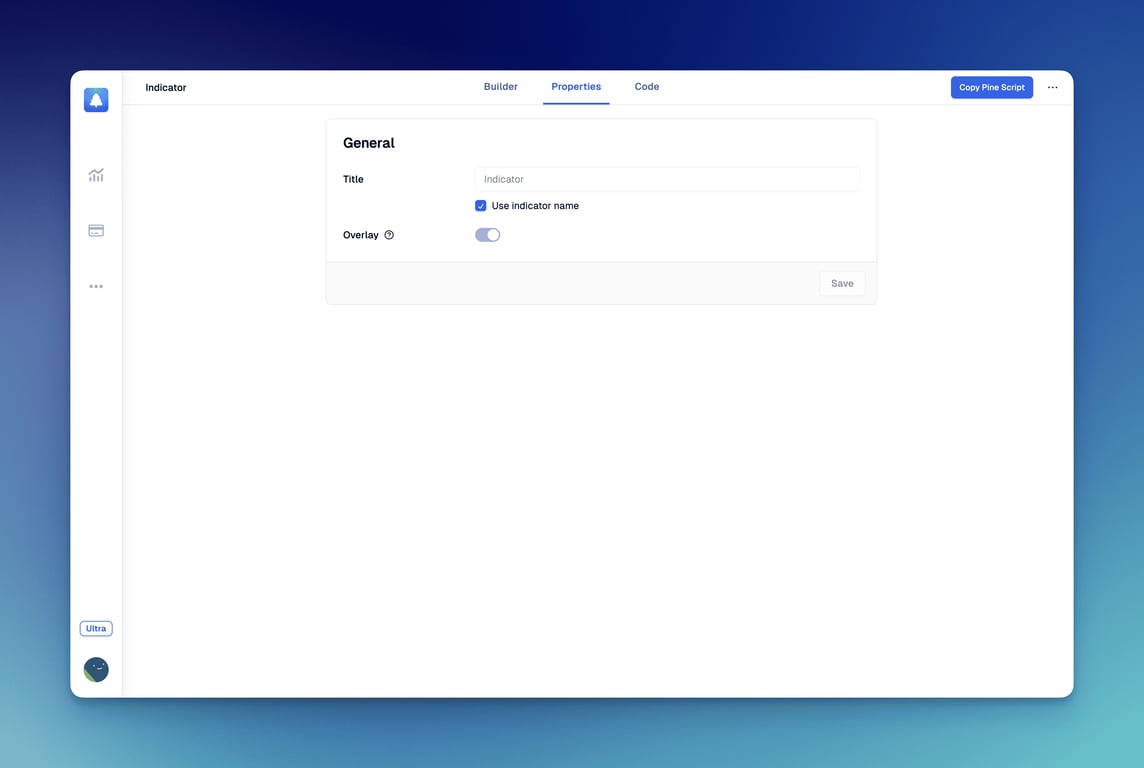
The following properties can be configured for the indicator:
-
Name: The title that appears for the indicator on the chart.
-
Overlay: Determines whether the indicator displays on the main chart pane. Note that this setting can't be changed after creating the indicator.
Create Your First Strategy
Learn to create effective trading strategies with Pineify's easy-to-use builder. Perfect for beginners, automate your trading and optimize investments!
Strategy
Discover how to create and manage trading strategies on Pineify. Enhance your trading with backtesting capabilities and detailed configuration options.