

What is TradingView?
Discover TradingView, a powerful charting platform for traders to analyze markets like Stocks, Forex, and Crypto. Enhance your trading with Pineify.
TradingView is a free charting platform and social network for traders and investors. It allows users to analyze financial charts across various markets, including Stocks, Forex, Crypto, Futures, and Commodities. Users can connect their brokers to trade directly from the platform and act on opportunities in real-time. Pineify is a tool specifically designed for TradingView traders. You can create a free TradingView account and sign up on our website to access Pineify to enhance your trading decisions on TradingView.

How to Create a TradingView Account
-
Visit the TradingView Homepage.
-
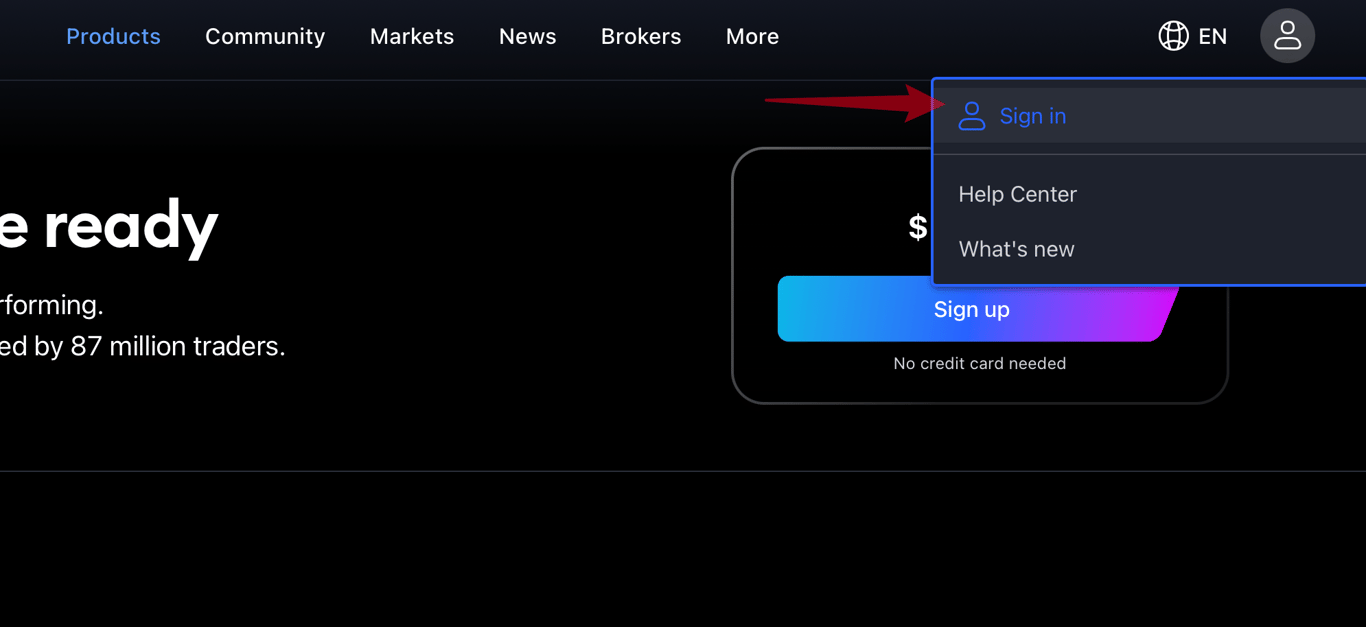
Click "Sign in" at the top right, then select "Sign up" at the bottom of the window.
-
You can register using your social media accounts or an email address.

TradingView Charts
How to Open a Chart
To open a chart, log in to TradingView and click "Chart" at the top left of the page.

How to Change a Symbol
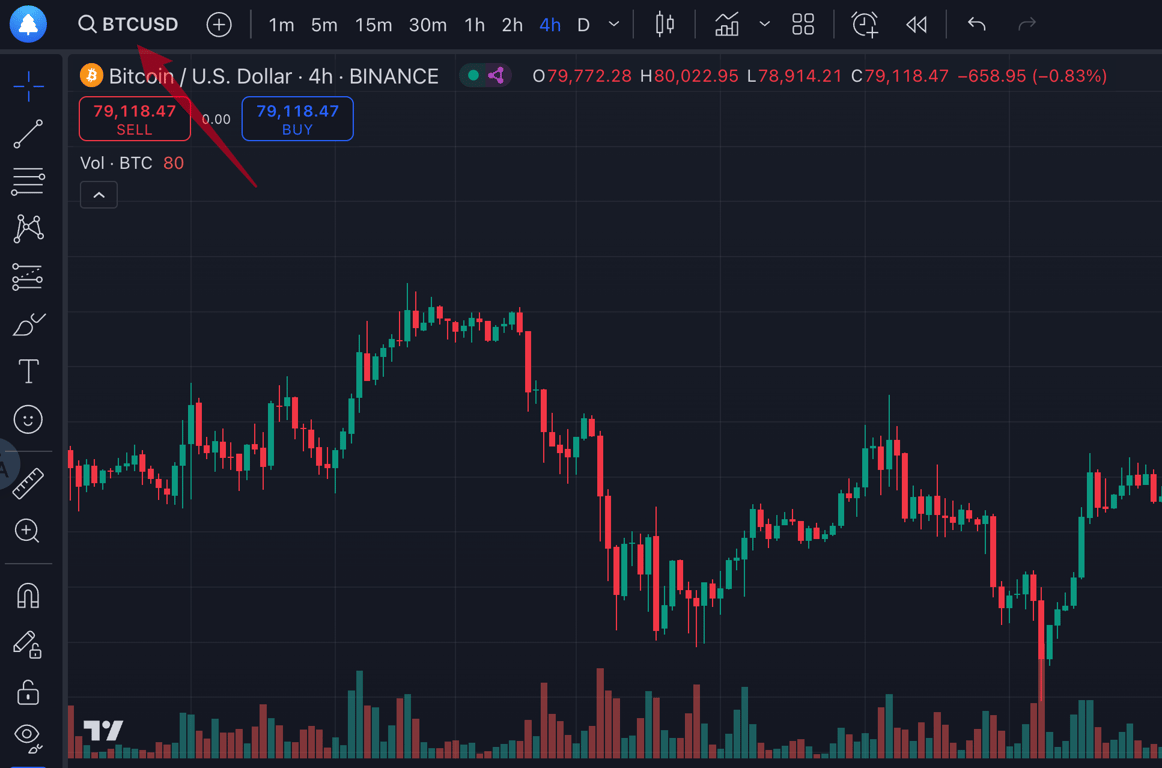
To change the symbol on a chart:
-
Click on the current ticker symbol at the top left of the chart.
-
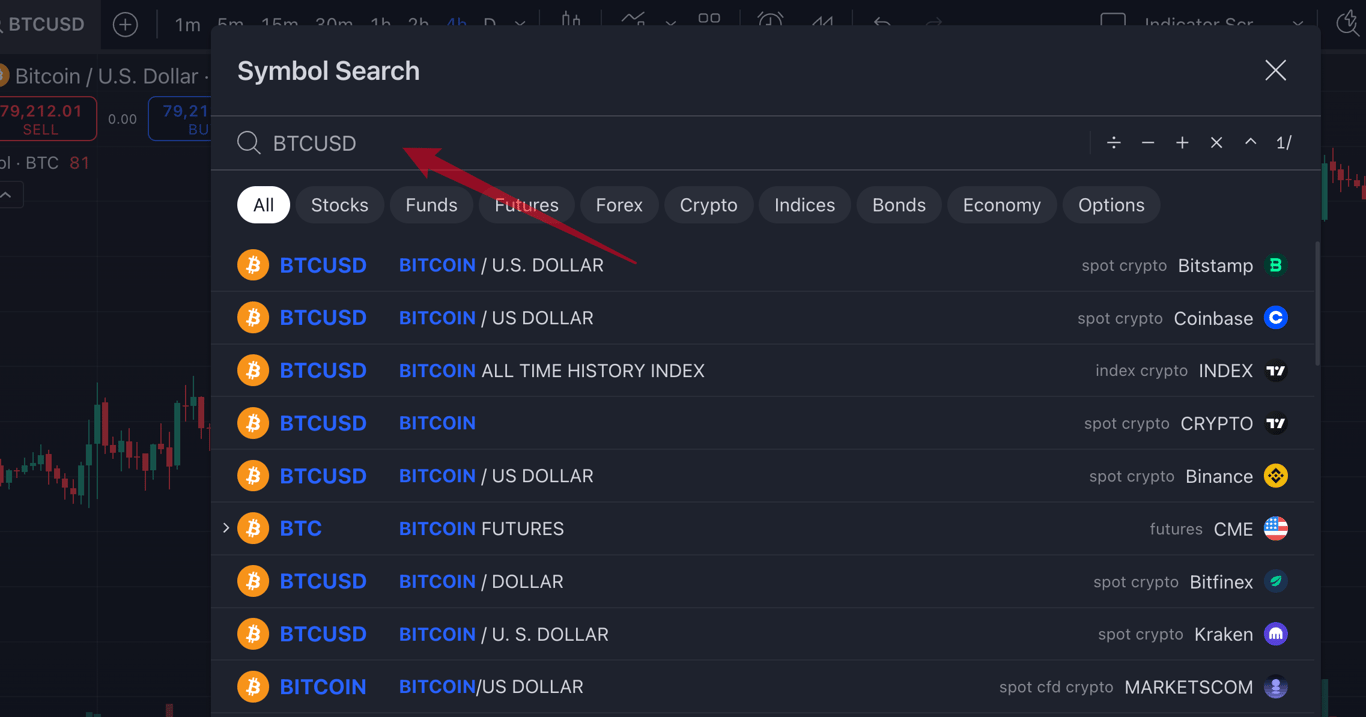
Type the name of the symbol or use filters to search by market or exchange.
How to Change Chart Timeframe
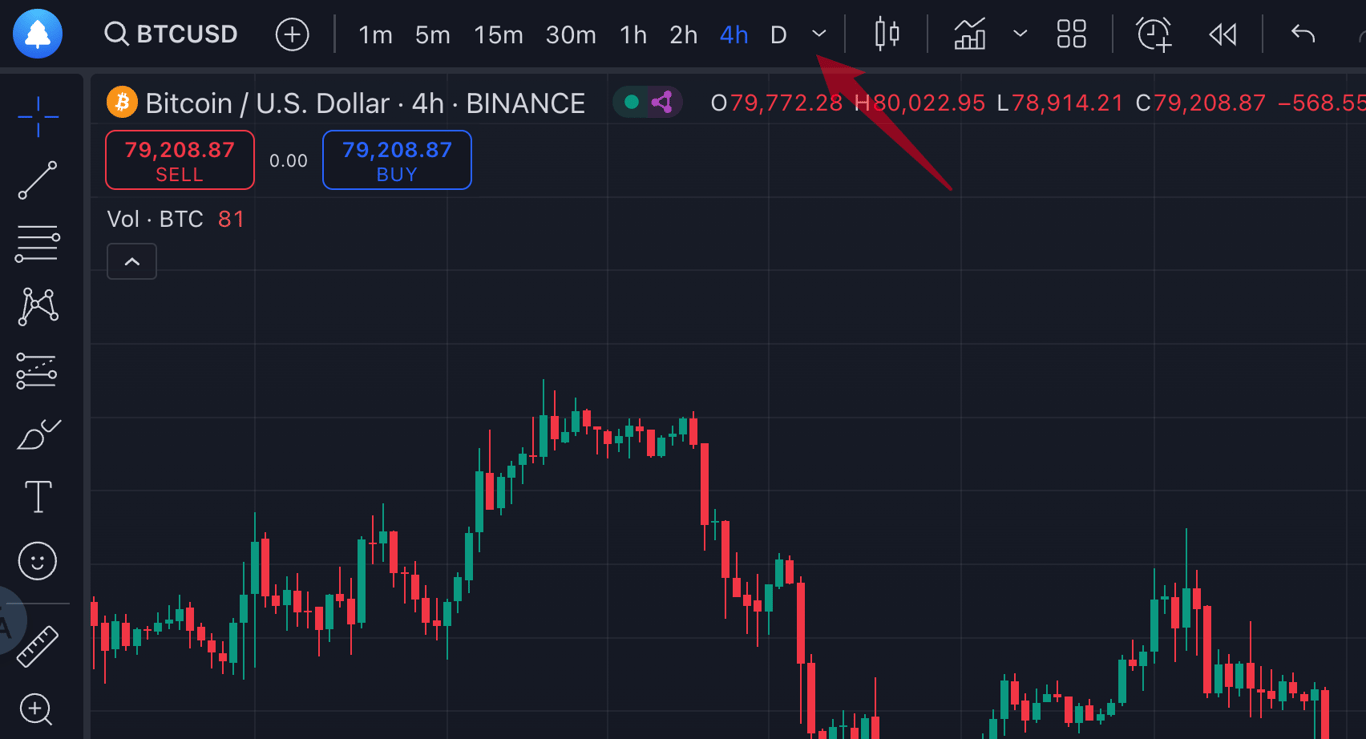
Timeframes control how often new candles appear on a chart. To change it:
-
Click next to the ticker name.
-
Select your preferred timeframe or type it directly on your keyboard.
How to Add Indicators
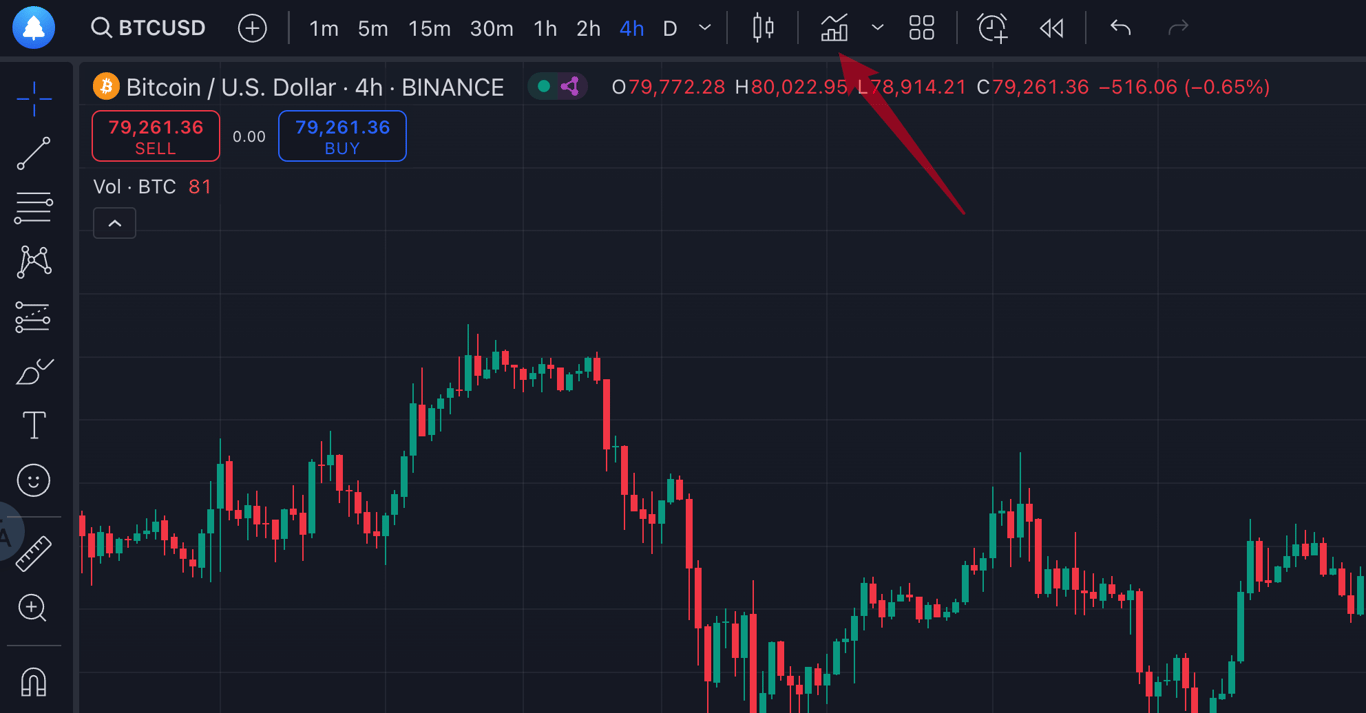
To add indicators:
-
Click "Indicators" at the top of the chart.
-
Search for and select your desired indicator from the menu.
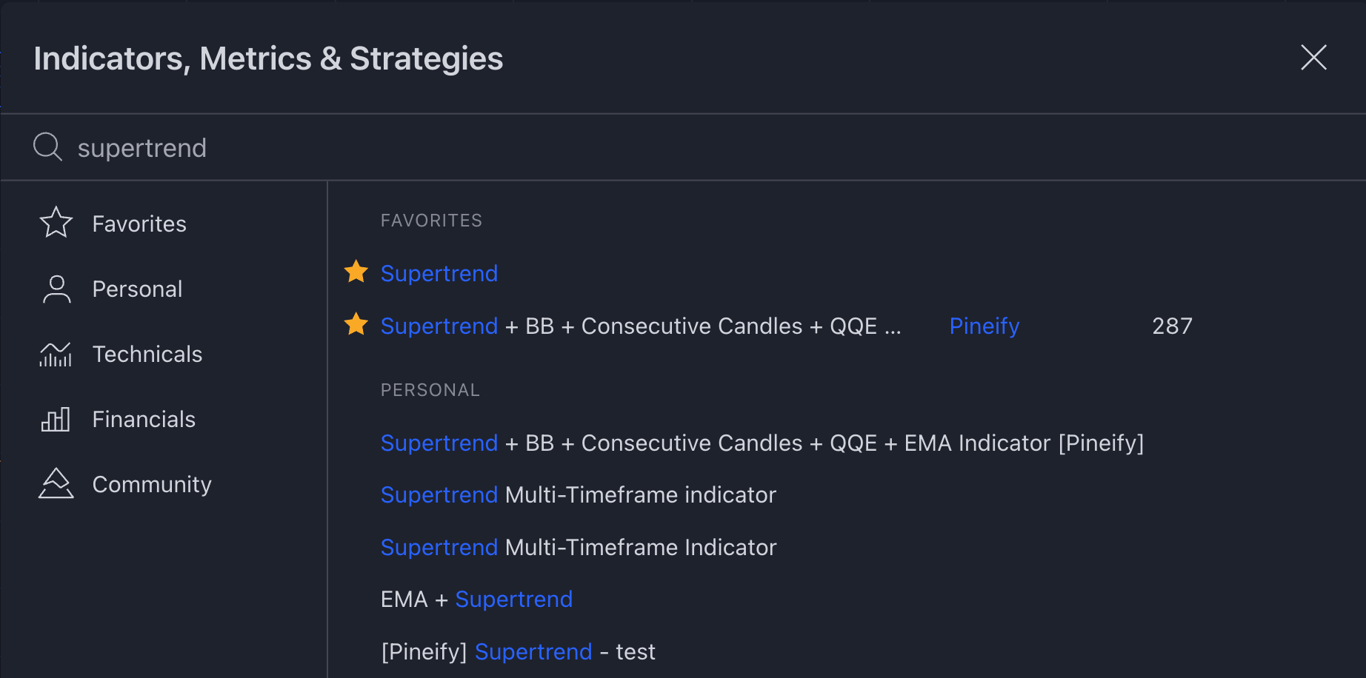
How to Add Custom Indicator
To add indicators:
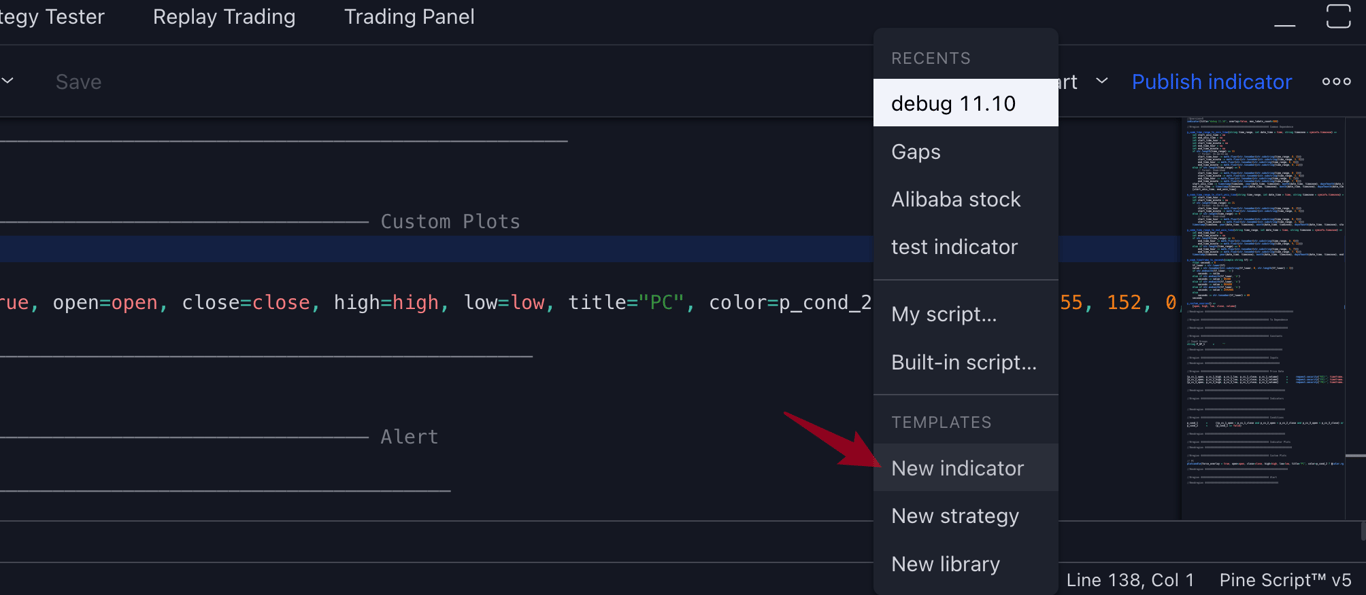
- Click "Pine Editor" at the bottom of the chart.
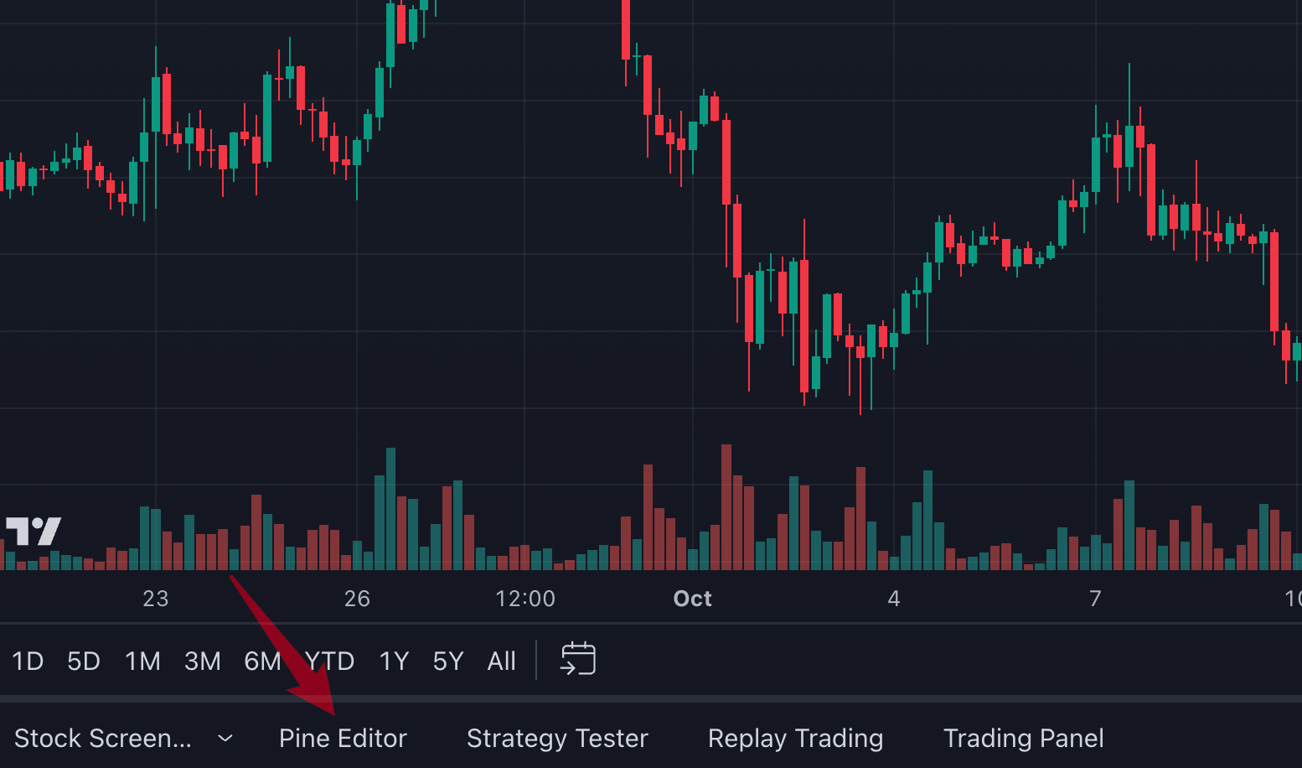
- Click “Open” Button.
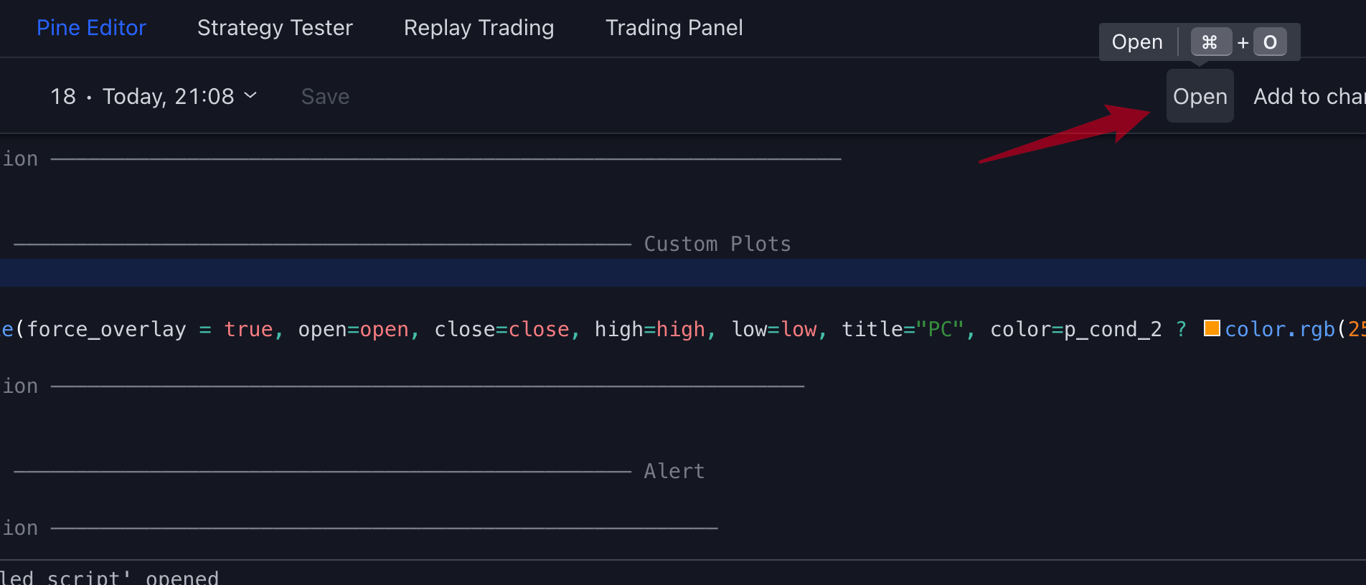
- Click “New Indicator”
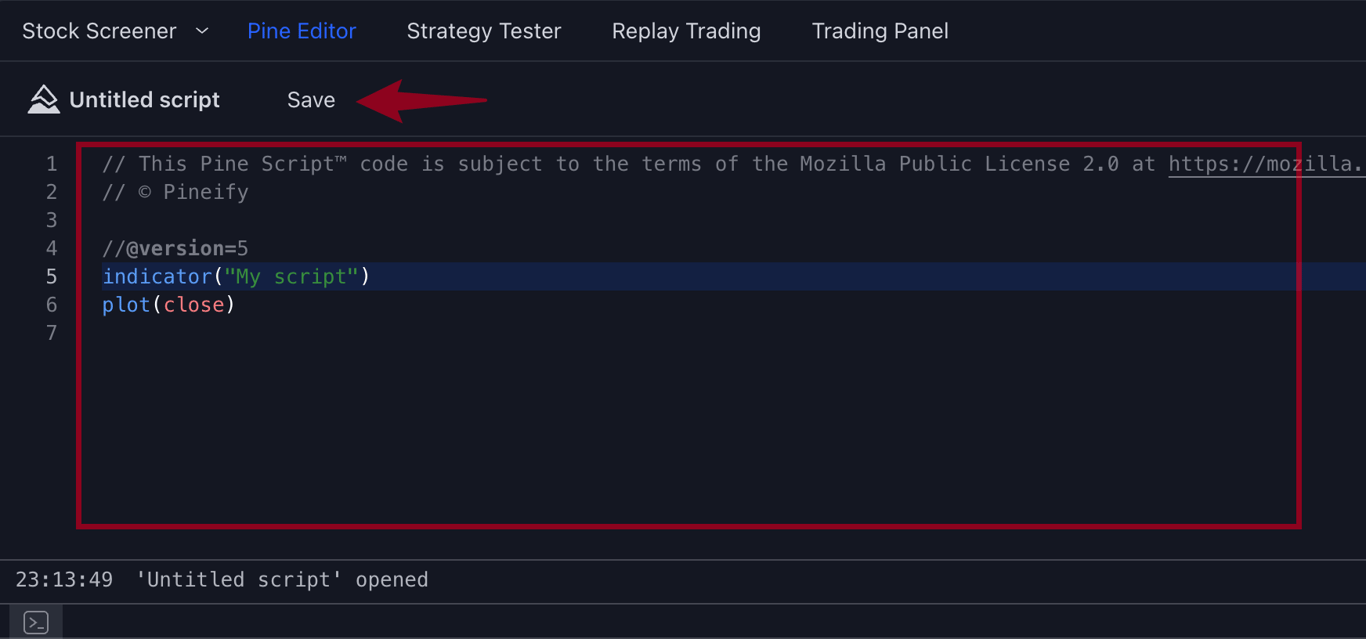
- Paste the code and click “Save”.
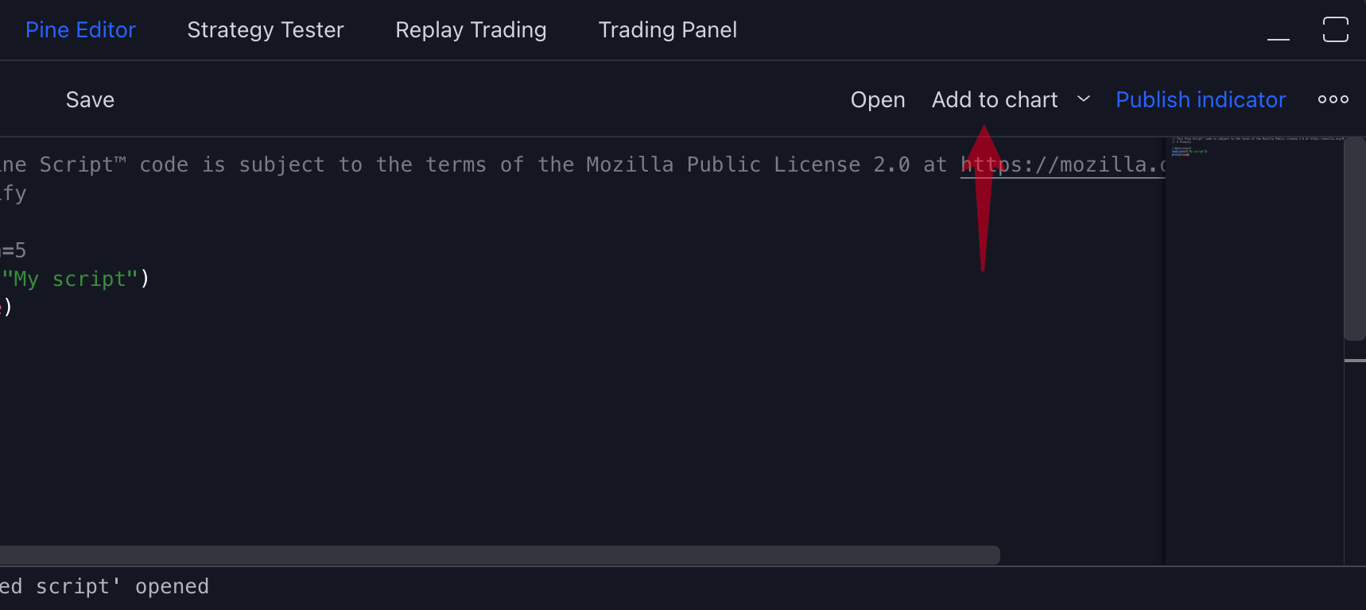
- Click “Add to chart”, Indicators or strategies will be added to the chart.
How to Save a Chart Layout
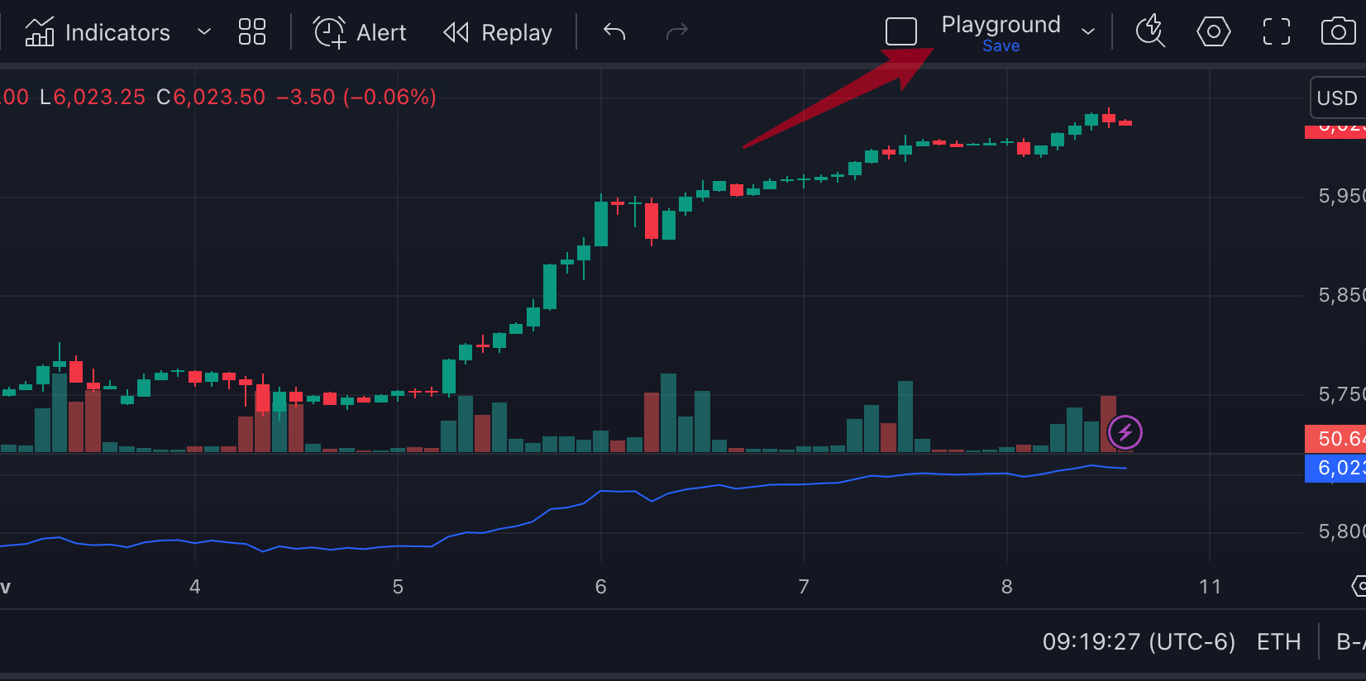
You can save your chart settings (including indicators and timeframes) by clicking the cloud icon at the top right of the chart. Alternatively, use Ctrl + S (or Cmd + S for Mac users) to save your layout. This version eliminates unnecessary details while keeping instructions clear and easy to follow.
What is Pineify AI?
Turn your trading ideas into error-free code instantly. Meet Pineify 3.0, the world's first AI Coding Agent specialized for TradingView Pine Script.
Our Story
Discover Pineify's journey to make trading accessible for everyone. Empowering traders to create and optimize strategies without coding skills.