

Strategy Optimizer
Optimize your TradingView strategy parameters automatically with Pineify's Strategy Optimizer extension. Find the best settings through automated backtesting and parameter sweeps.
The Strategy Optimizer is a Chrome extension that automates TradingView strategy parameter optimization. Instead of manually adjusting inputs and running backtests one by one, the optimizer performs a multi-parameter grid search — testing every combination of values you specify and ranking the results by net profit, win rate, profit factor, or maximum drawdown.
You can install the extension from the Chrome Web Store or get it from the Pineify website.
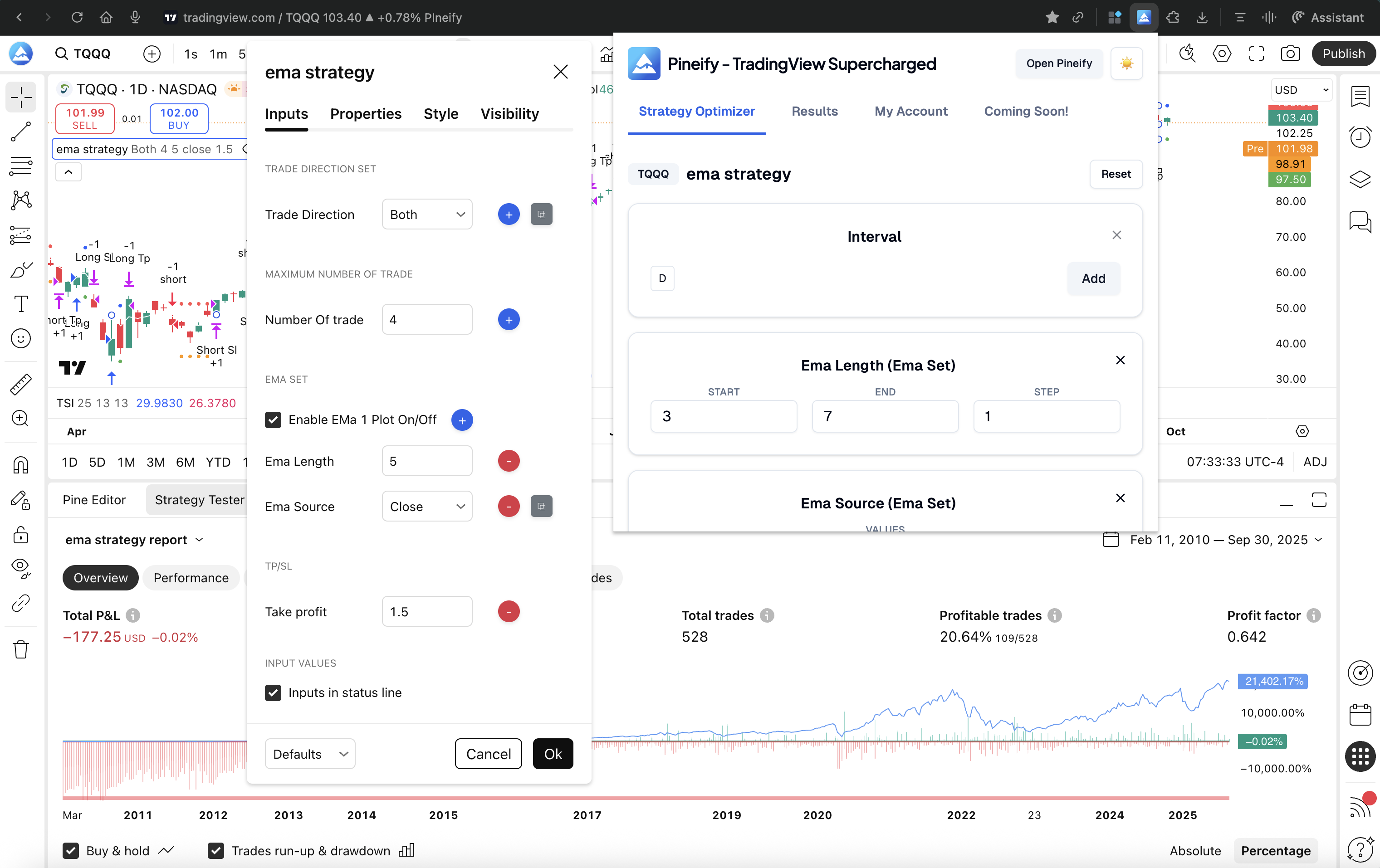
Install Extension
Chrome Web Store (Recommended)
TradingView Supercharged - TradingView Strategy Optimizer - Chrome Web Store
Install Manually
Download the extension:
First, click the link above to download the supercharged plugin. After the download is complete, unzip it, and then open Chrome.
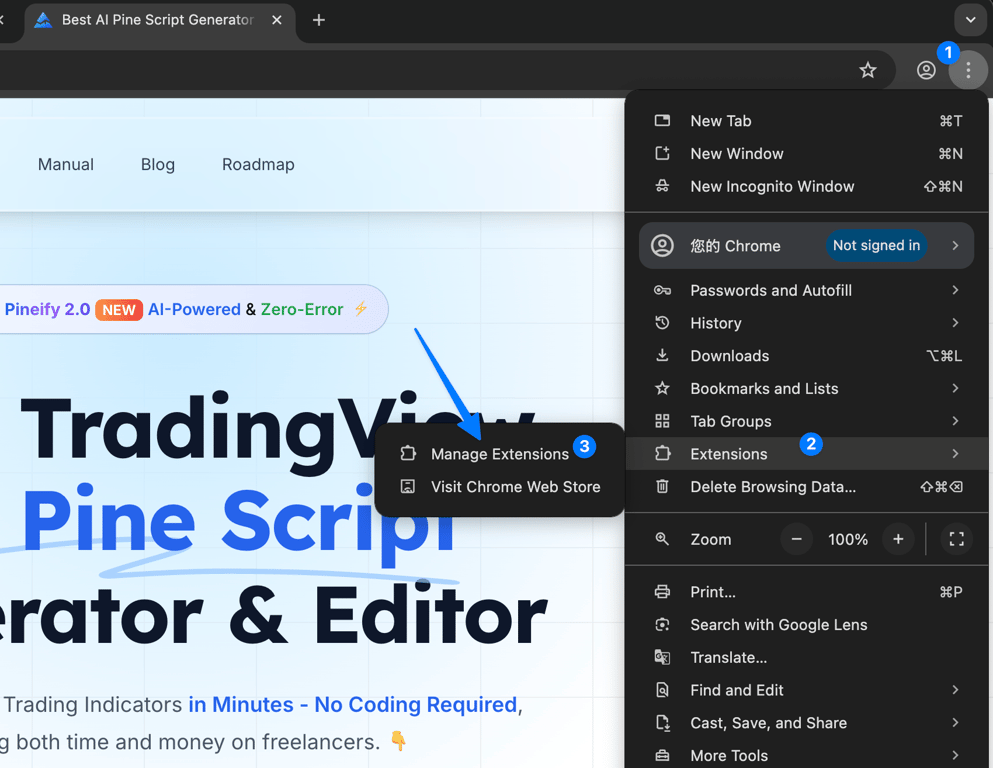
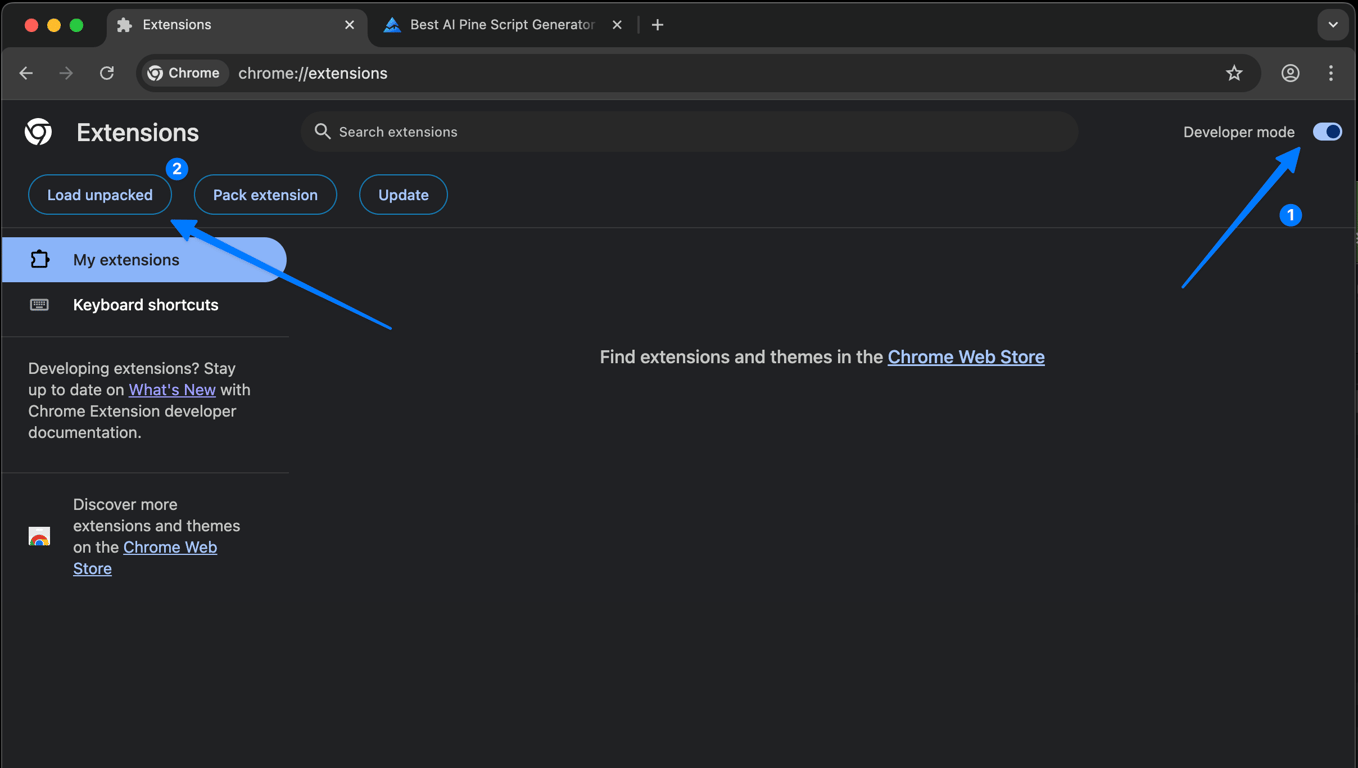
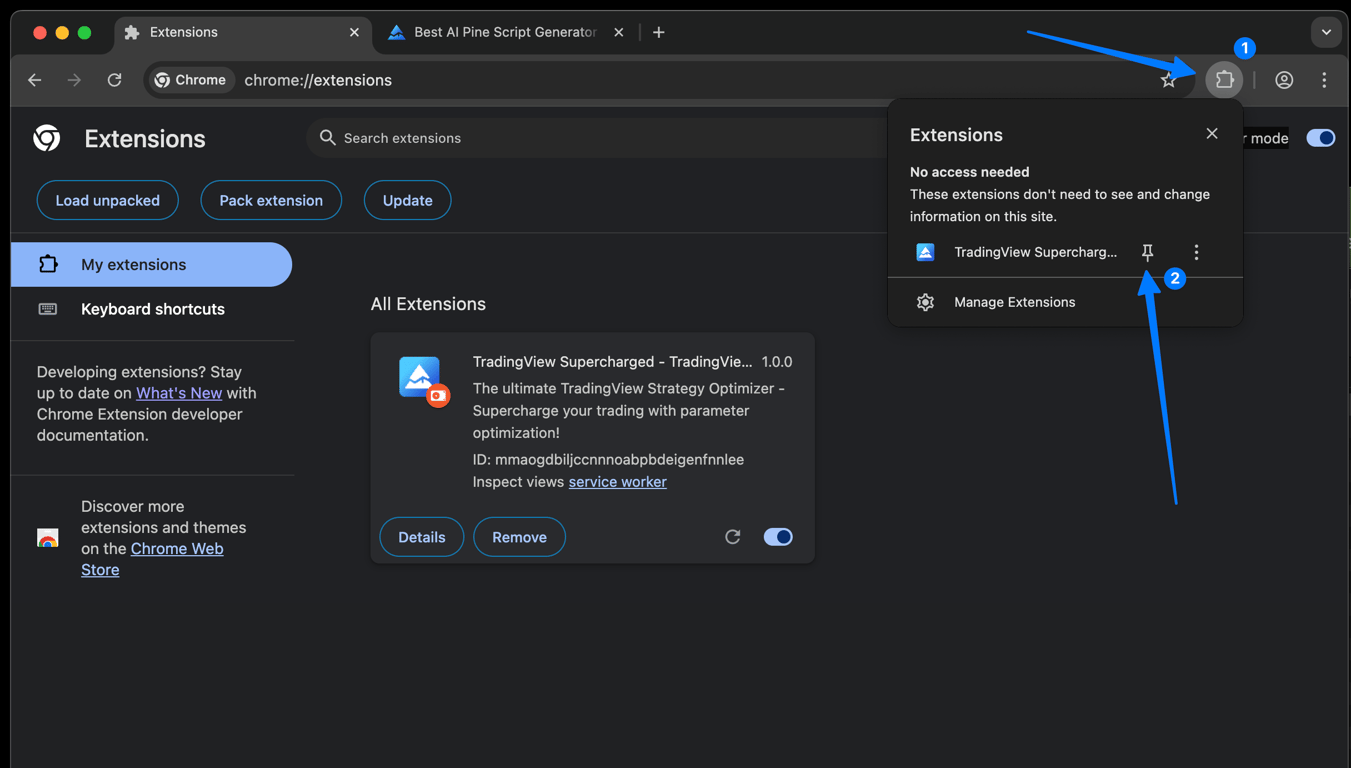
Next, enable Developer mode, then select Load unpacked, and choose the file you just unzipped.
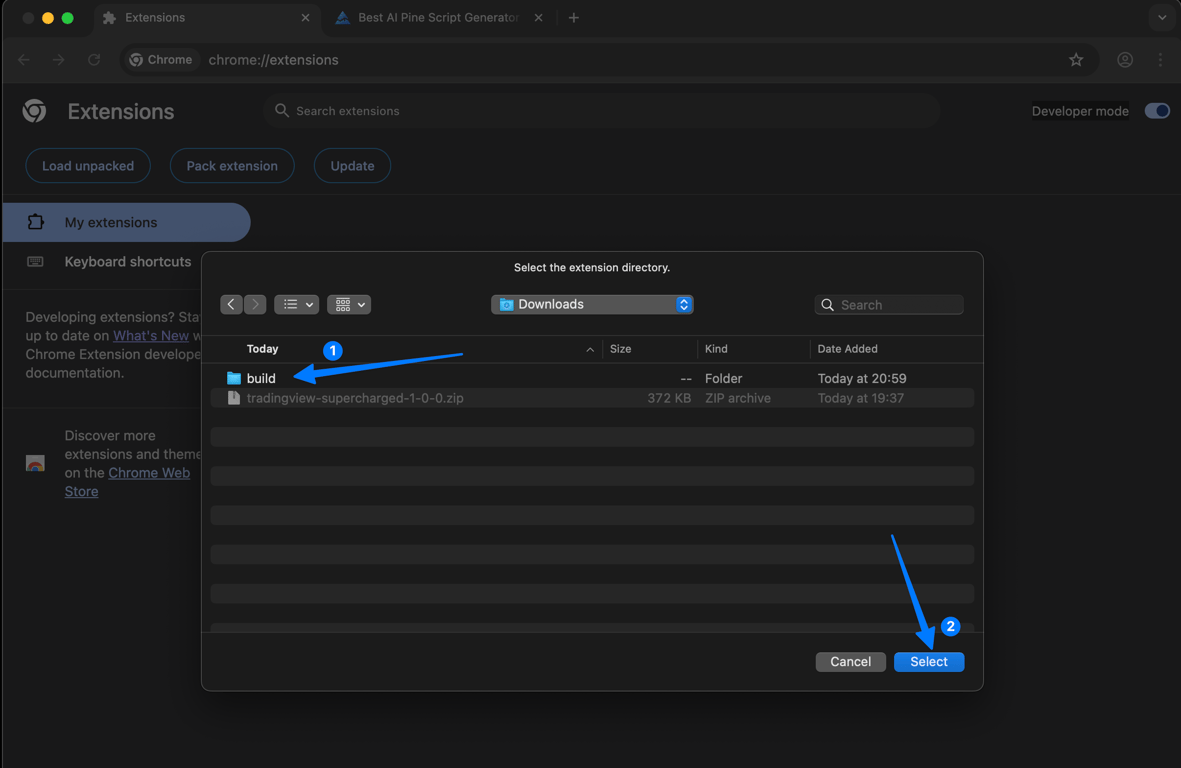
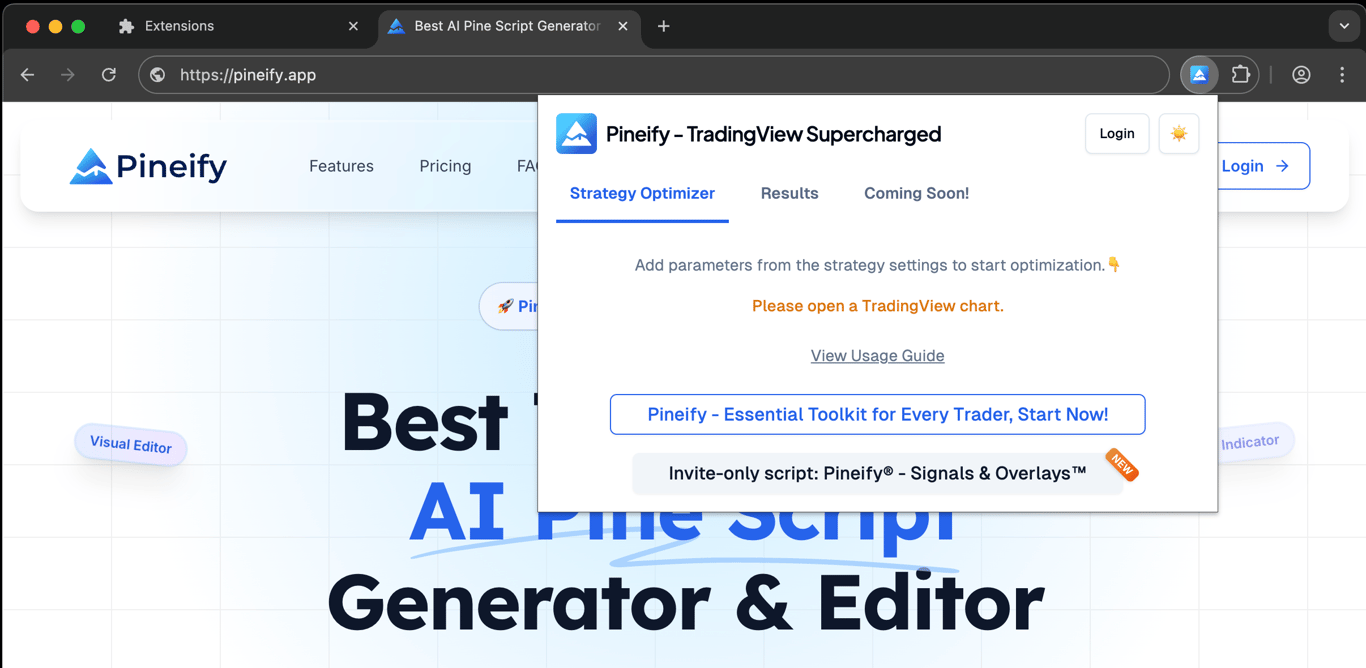
After the install is complete, you can see the plugin in the Chrome menu bar.
Login
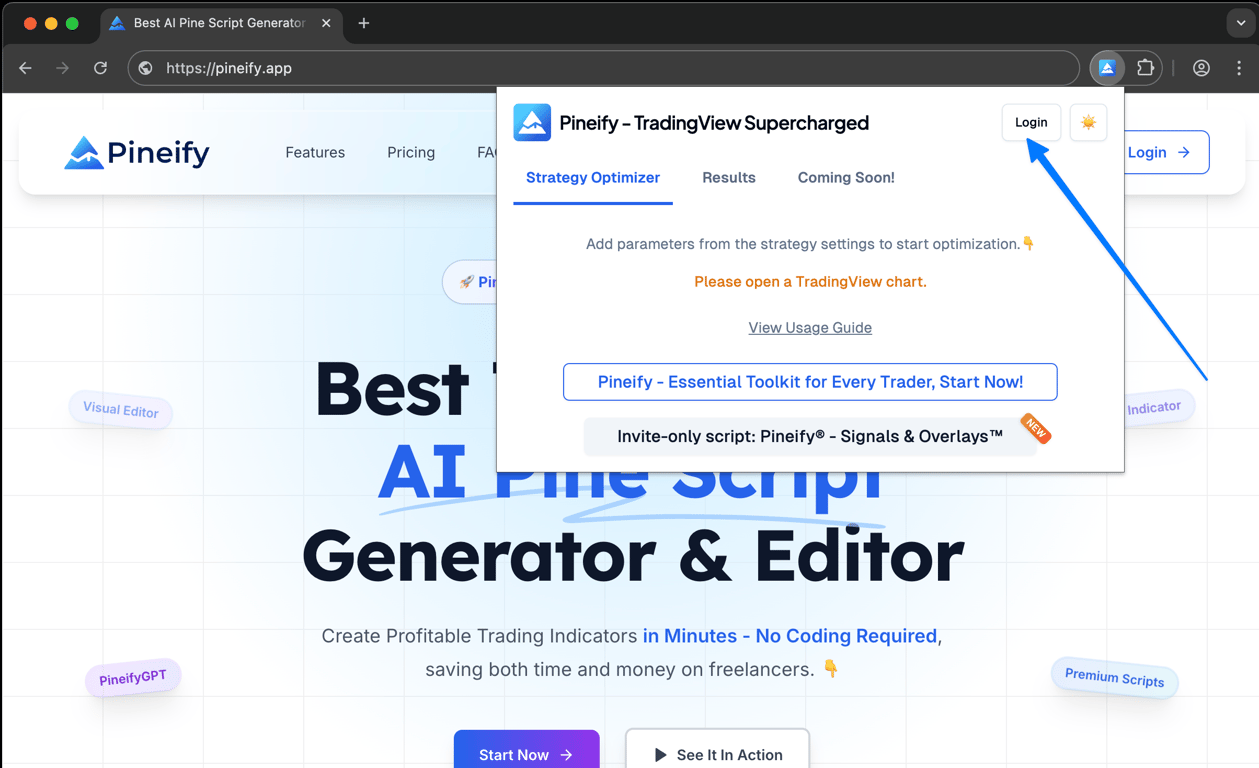
Click the login button in the upper right corner of the plugin Popup. At this time, you will be redirected to the Pineify official website to log in. After logging in, open the plugin again, and you will see that you are logged in.
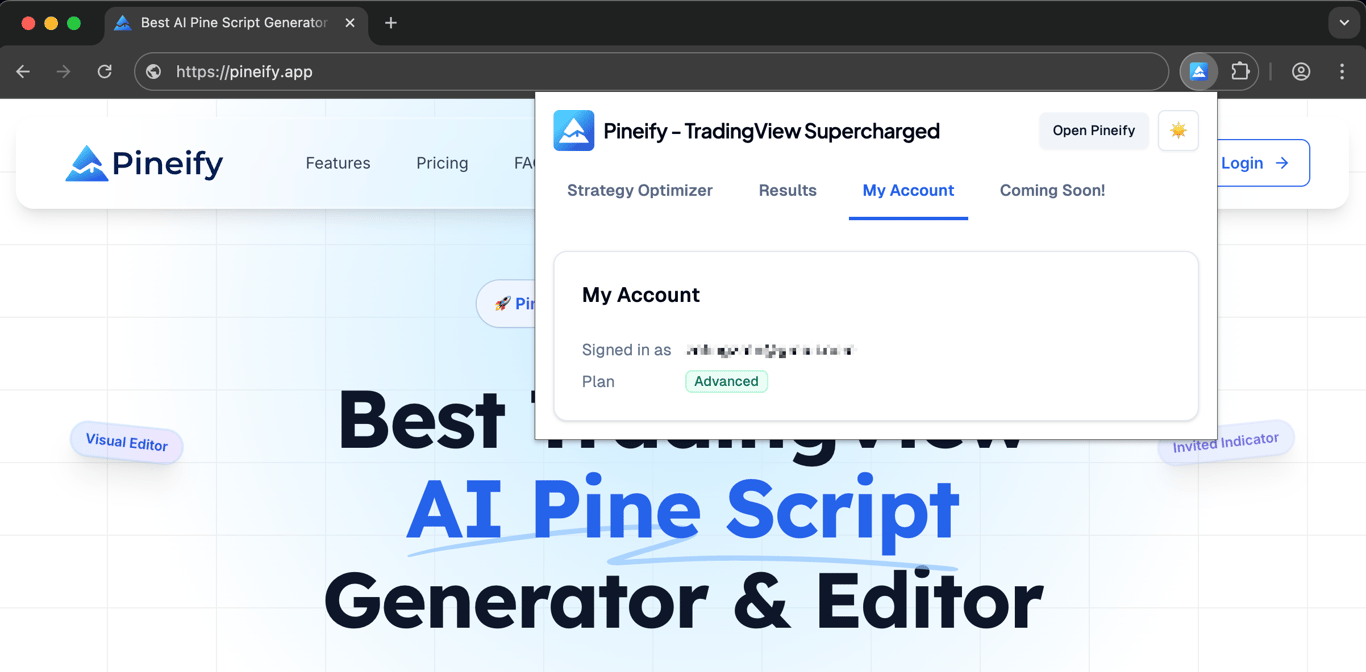
After successful login, you can view your account information in My Account.
Open Strategy Settings
Next, we open the TradingView page, search for the SuperTrend STRATEGY, and add it to the chart.
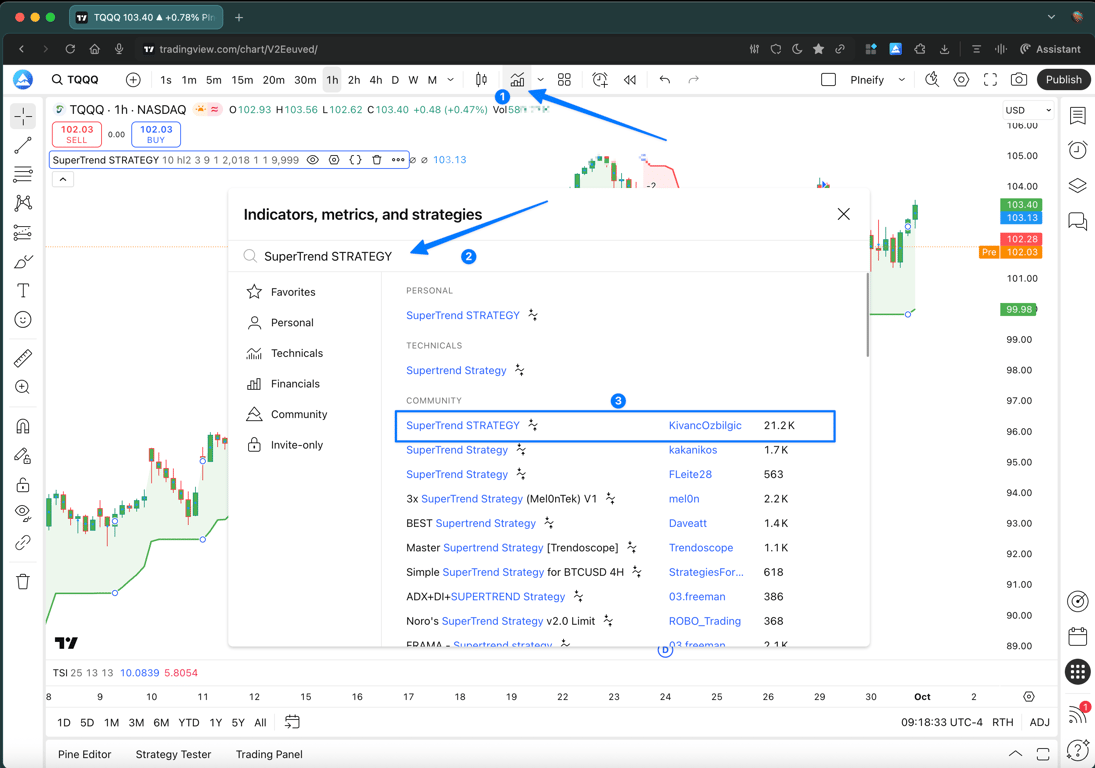
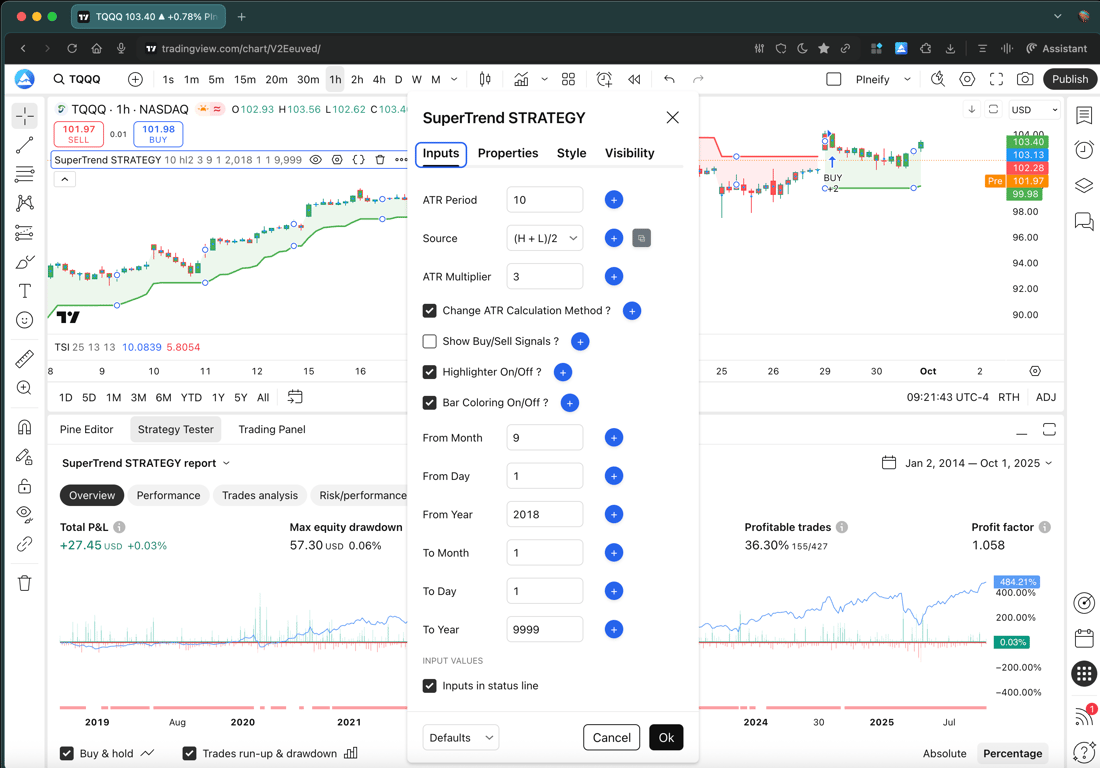
After successful addition, we switch to the "Strategy Tester" Tab and open the Settings panel of the strategy indicated by the arrow at the same time.

After opening it, you can see that all input parameters have been identified. Click the add button on the right to add the current parameters to the optimization project.
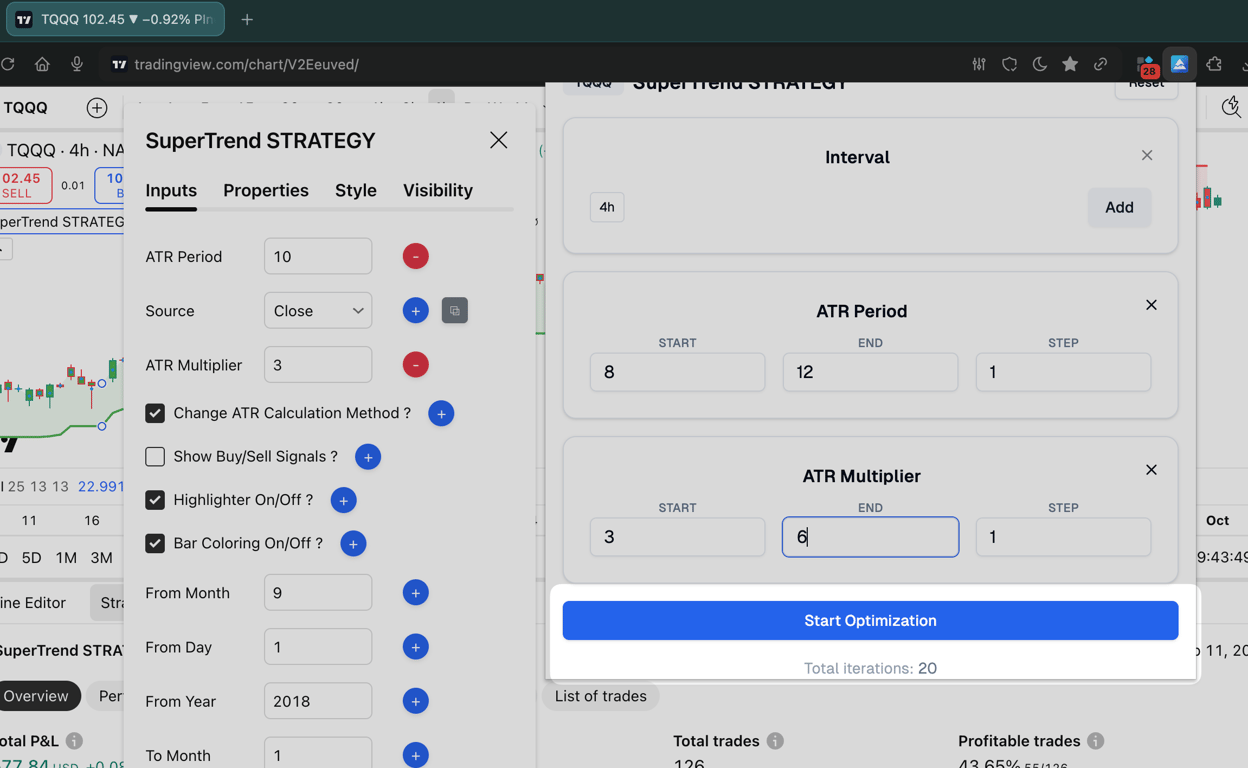
After clicking the add button, you can see this parameter in the popup window, and you can adjust the start value, end value, and step size.
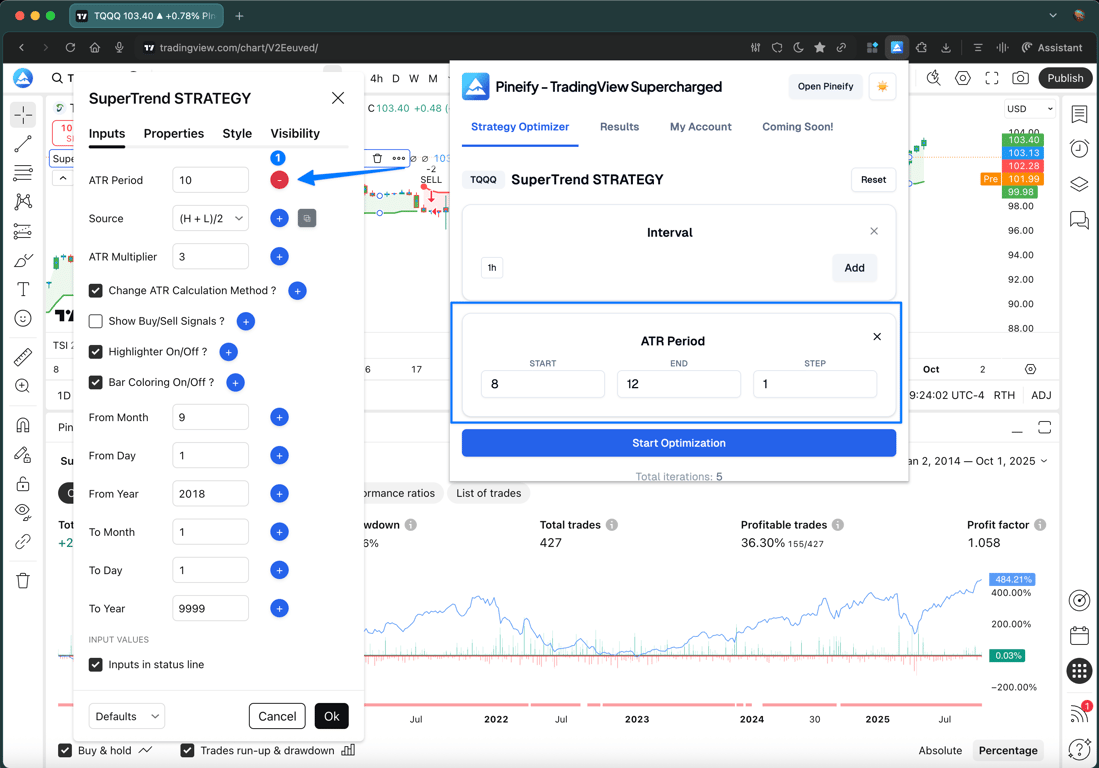
At the same time, you can see the total number of iterations at the bottom of the Start Optimization button.
Add Parameters
Next, let's introduce each parameter type respectively:
Interval
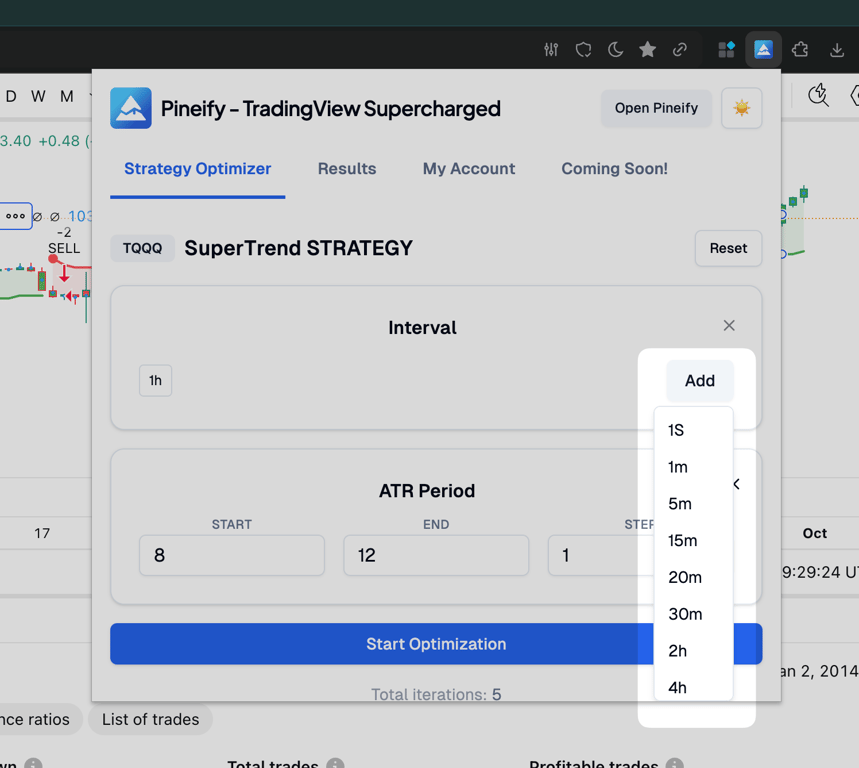
One of the most powerful features of TradingView Supercharged is that timeframe can be used as an optimization item during the iteration process. By default, it uses the interval corresponding to the chart, and of course, multiple ones can be added.
After clicking the add button, you can add multiple timeframes.
Number
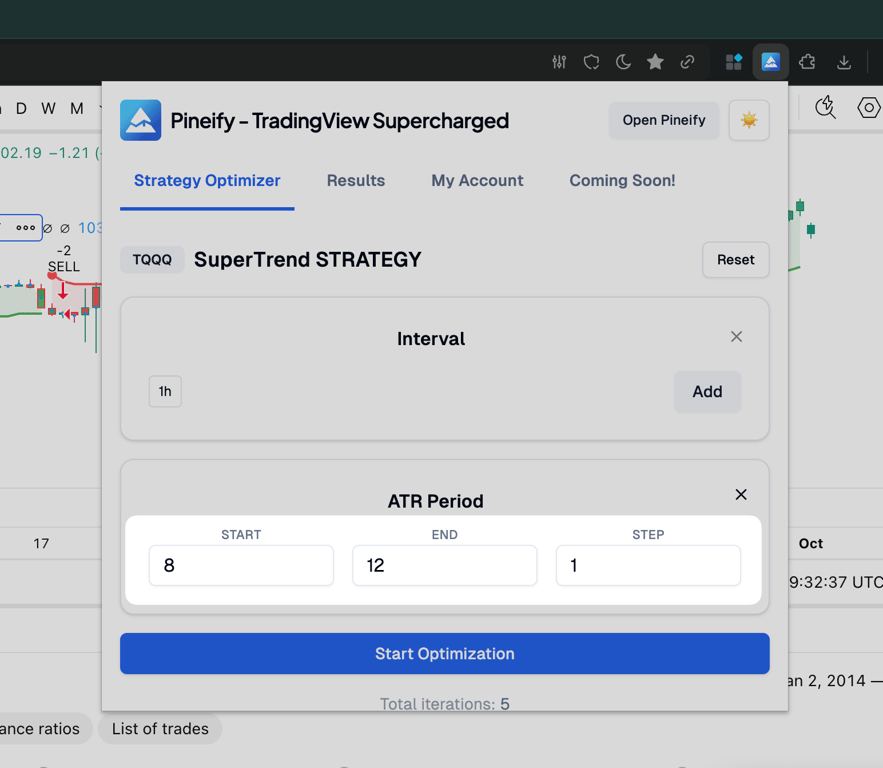
Number type inputs include integers and decimals, you can configure start value, end value, and step value.
For example: start=5, end=10, step=1, this means that for this input, the program will iterate through the values 5,6,7,8,9,10.
Select
For the input of the dropdown selection box, we can also use it as an optimization parameter item. After clicking the add button, this input will be treated as one of the optimization items.

Next to the add button, there is also a button to copy the current value. After copying, paste it into the input box of the corresponding parameter in the Popup, and then click add. Then, this value will be used as one of the iterative parameter values.

Start Optimization
Once we have confirmed the inputs that need to be iterated, we can start performing the optimization. Click "Start Optimization". Below the "Start Optimization" button, we can also see the total number of iterations.
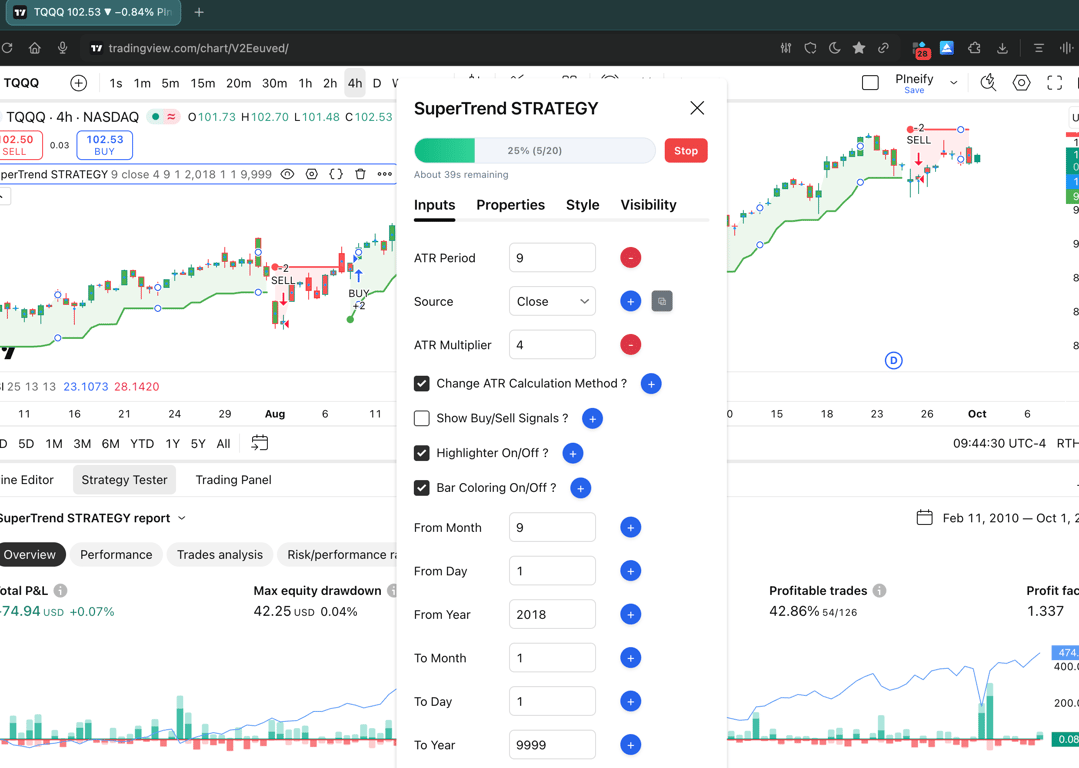
After starting the optimization, we can see the corresponding progress and the estimated remaining optimization time.
View the Results
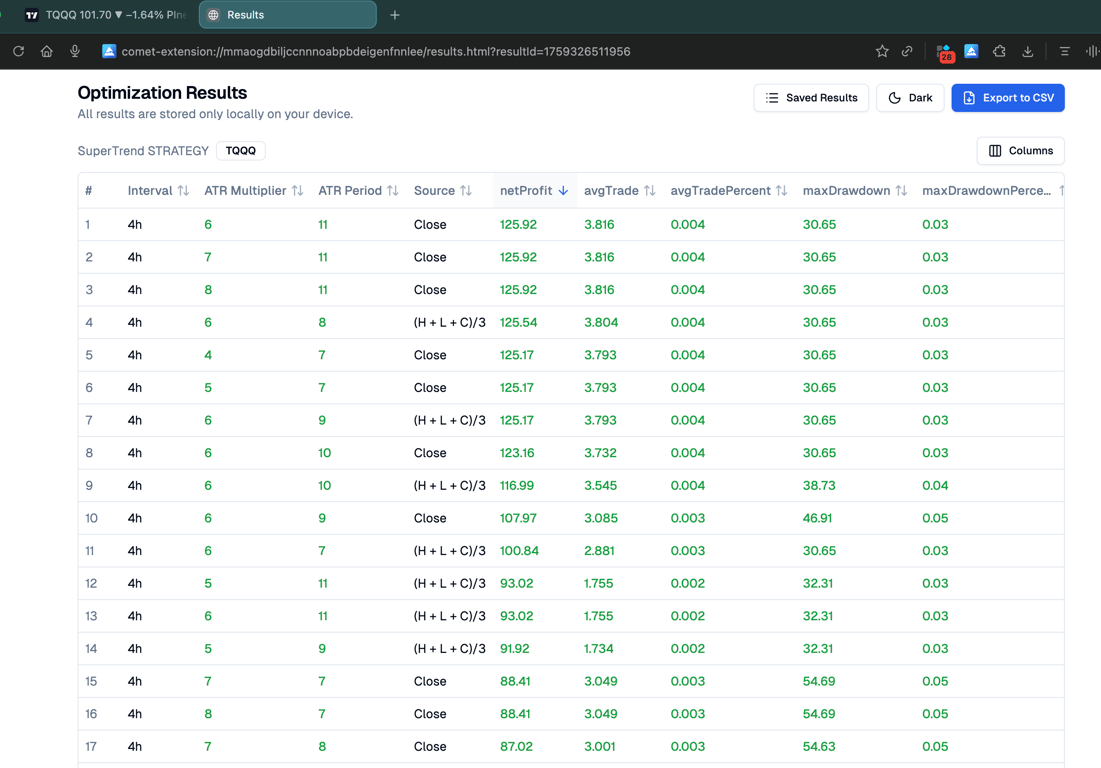
After the optimization is completed, it will automatically jump to the optimization results page (if the page is not displayed, please refresh the page).
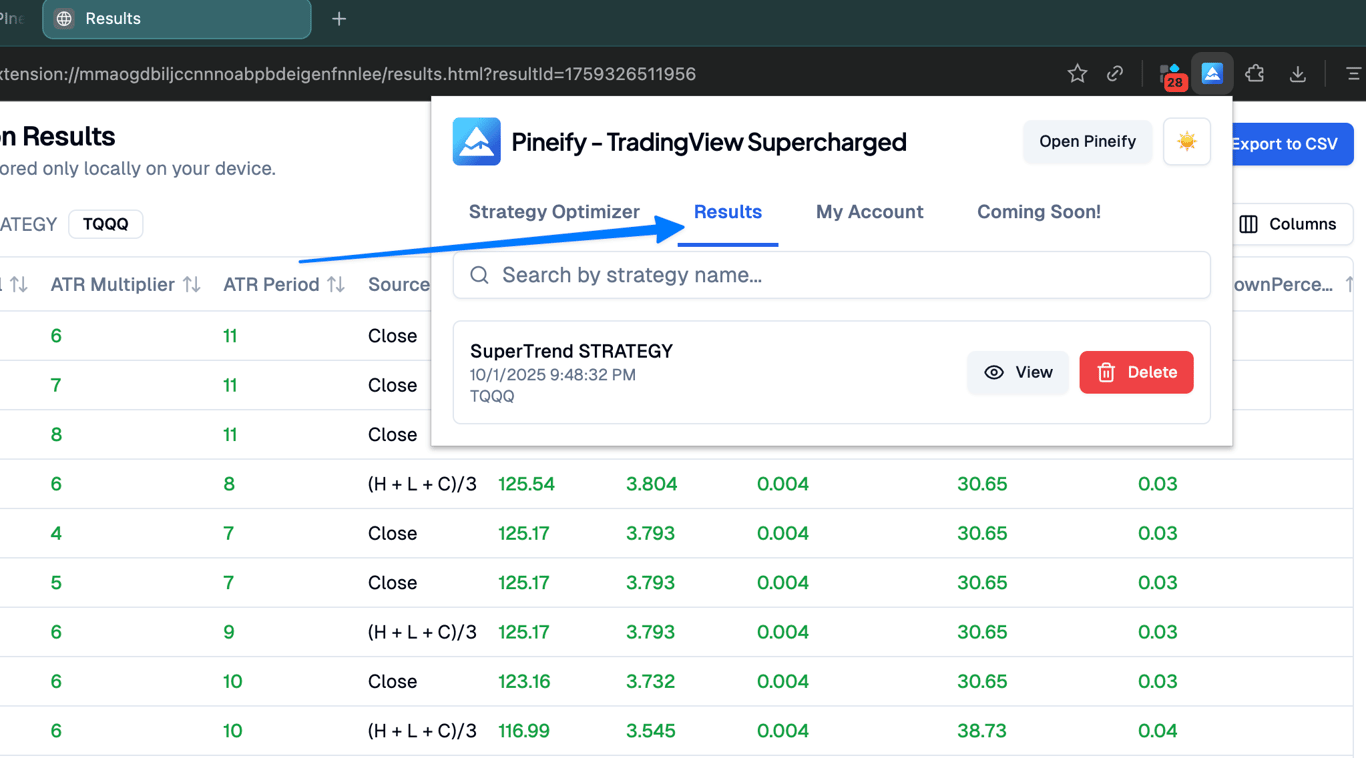
The data is sorted in descending order of Net Profit by default, and you can adjust the sorting column as needed. Meanwhile, you can also export the data to a CSV file in the upper right corner for subsequent statistics and analysis.
At the same time, in the Results Tab of the Popup, you can see all the optimization history records.
Invite-Only Indicator
Access Pineify's institutional-grade invite-only TradingView indicator — Signals & Overlays™ — with backtested buy/sell signals, Dow Theory trend detection, and ATR-based risk management.
Premium Scripts
Explore Pineify's premium TradingView scripts and indicators — professional Pine Script tools with full source code, step-by-step tutorials, and lifetime access.