

Chart work
Change chart context, add indicators and drawings, and work with Pine scripts.
Independent guide, verified October 20, 2026
TradingView AI Copilot now runs inside Supercharts on the web and desktop. The September native release supersedes the earlier browser-extension workflow. This guide separates documented capabilities from checks you should perform on a specific answer.
Pineify is not affiliated with TradingView. This is a documentation review, not a comparative hands-on benchmark.
Context
Your active Superchart
Analyze
Indicators and key levels
Act
Create and manage alerts
Explain
News, earnings, fundamentals
Discover
Screens and watchlist setups
Check the linked current documentation and your account entitlements before relying on a workflow.
What TradingView AI Copilot does
The main advantage is context. The assistant works beside the chart instead of making you describe the symbol and setup in a separate tool.
Change chart context, add indicators and drawings, and work with Pine scripts.
Manage alerts and watchlists; inspect the resulting settings after each change.
Use financials, earnings and news alongside technical context.
Explore screeners and strategy reports. A result still needs independent interpretation.
The current help page describes access separately from the main charting subscription. Check checkout terms instead of assuming an old free-beta offer still applies.
Sign in on the web or desktop and open the native Copilot panel.
Review the add-on at checkout before paying; confirm the renewal and usage terms shown to your account.
Ask for analysis, alerts, catalysts, or a screen. Check the chart levels, settings, and source material before acting.
TradingView AI Copilot alternative
Both products can support company and market research. Do not infer superior accuracy or broader coverage from their names. Compare the particular ticker, reporting period, available fields and original sources returned for your question.
| Decision point | TradingView AI Copilot | Pineify Finance Agent |
|---|---|---|
| Workspace | Native chart-side assistant. | A separate Finance Agent chat; it does not inherit your open TradingView chart. |
| Chart actions | Chart, script, alert and watchlist controls are documented. | The Finance Agent workflow on this page does not control TradingView alerts or layouts. |
| Financial research | Company data and news are among its documented inputs. | Registered tools retrieve quotes, news, statements, earnings and other supported records; coverage varies by tool. |
| Evidence to compare | Check the actual source, period, units and context in the answer. | Check the returned tool fields and missing-data limits rather than assuming all questions are covered. |
| Trade outcome | A coherent analysis is not a demonstrated trading edge. | A sourced response is not a forecast accuracy or profitability guarantee. |
If your goal is prompt-based Stock Screener setup, read the TradingView AI Screener guide. It covers prompt-based filter configuration inside Stock Screener.
Pineify product evidence
Finance Agent can establish a dated quote, find company news, compare earnings with estimates, screen assets, and continue into other supported company research. It is a separate workspace, so it does not inherit the active TradingView chart or its alert controls.
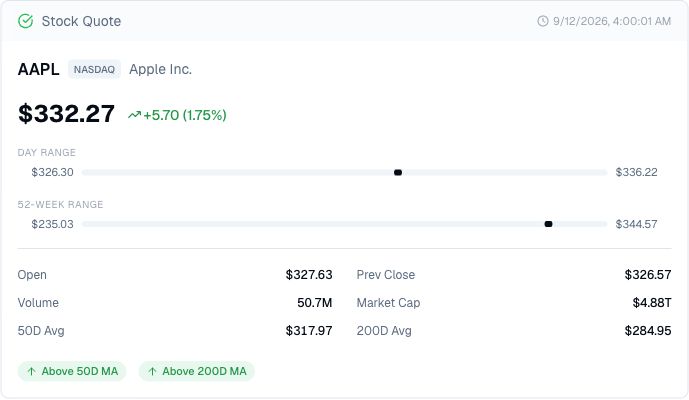
Keep dates, timestamps, and source links in the question. That makes the result easier to check against the chart and the original records.
Ask for one named company’s most recently reported quarter. Require the fiscal period, revenue units, diluted EPS basis and original filing. Then compare the returned numbers with that filing. Mark unavailable fields explicitly; an invented substitute is a failed check.
For a chart action, write the symbol, interval and desired setting first. Afterward inspect the actual indicator inputs or alert condition. For a strategy report, record the test dates, costs and order timing before comparing metrics. These are proposed verification steps, not results from a test we performed.
The pictured Pineify quote is historical product evidence. Its caption identifies older display assumptions; it is not a live quote or a demonstration of current TradingView behavior.
Current Copilot access and capabilities · Earlier extension announcement and migration notice
No. The April launch post now points to the native release and warns that the extension is no longer actively supported. Use the current access documentation linked here.
TradingView documents script writing and chart application, plus backtest analysis. Review the generated logic, confirmation timing, orders and costs before interpreting a report.
Give each product the same research question and check its actual evidence. Record missing fields and inconsistencies. This page does not report a measured accuracy, speed or coverage winner.
No. A quote establishes an observation. Attributing the move requires timed news, comparable expectations and other evidence; the explanation may remain uncertain.
Start with a dated quote, then ask for the news, earnings, or company records that can support or challenge the chart story.
Source and risk note
The native release and current help page were checked on October 20, 2026. The older extension announcement now says that extension is no longer actively supported. Documentation establishes advertised behavior; it does not establish output accuracy, investment returns or an independently tested comparison.