

Choose Screener
Start a new script in the Visual Editor and select the Screener type.
TradingView can now move every Pine table created by one indicator from the chart into a dedicated bottom-panel tab. Right-click the table and choose Move tables to bottom panel, or use the indicator's More menu. Existing table-based scripts work without a rewrite.
Read the official TradingView release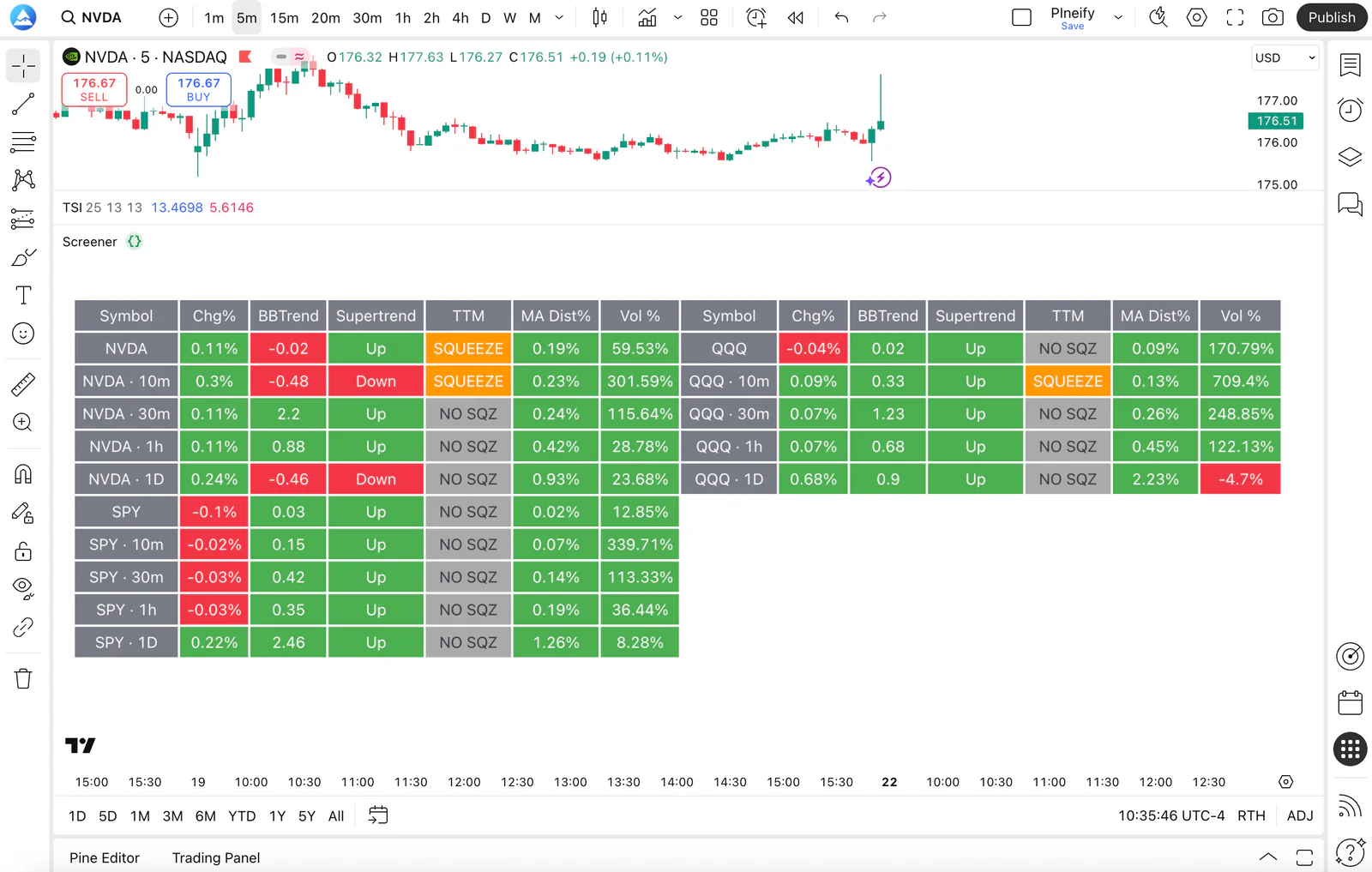
How to use the new panel
The command changes where TradingView displays the table. It does not change the script's calculations or cell content.
Add an indicator, strategy, or screener-style script that uses Pine table objects to the chart.
Right-click the table on the chart. You can also open the indicator More menu.
Choose Move tables to bottom panel. All tables drawn by that indicator move together into one panel tab.
Use the panel context menu to switch between moved indicators or send a table back to the chart.
What the feature changes
Pine tables are fixed visual objects. They can show strategy metrics, screener-style reports, or custom statistics, but a large table can cover candles. The new bottom panel keeps that output available without placing it over price.
Pine Script table documentationBuild the table visually
Pineify's Screener type produces standard Pine Script table objects. The generated code defines the table with table.new() and fills its cells with table.cell(), so the result uses TradingView's native table system.
Start a new script in the Visual Editor and select the Screener type.
Choose symbols, timeframes, and the technical values you want in the table.
Configure its position, page size, headers, borders, colors, text, and calculation range.
Add the generated Pine Script to TradingView, then move its tables into the bottom panel.
Configure the table in the Visual Editor, review the generated Pine Script, then add it to your TradingView chart.
Similar names, different views
Both features use rows and columns, but they solve different tasks.
| View | What it displays | What changes |
|---|---|---|
| Indicator tables below the chart | Custom table objects drawn by a Pine script | Moves those objects from the chart into a bottom-panel tab |
| Chart Table View | Chronological chart rows with symbol and active indicator values | Replaces the visual chart display with a structured data table |
The answers below separate TradingView's display behavior from the script that creates the table.
Right-click a table and select Move tables to bottom panel. The same command is available from the indicator More menu. TradingView moves every table drawn by that indicator into a separate tab below the chart.
Yes. TradingView says the feature works with any script that uses Pine table functionality. The script does not need to be rewritten just to use the new placement option.
Yes. You can move more than one table-based script into the panel. Its context menu lets you switch between those indicators or move one back to the chart.
No. Indicator tables below the chart are Pine table objects created by a script. Chart Table View replaces the chart display with chronological rows of symbol and indicator values.
Yes. Pineify Visual Editor has a Screener script type that generates standard Pine Script table objects with table.new() and table.cell(). You can configure symbols, timeframes, indicators, table position, page size, and cell styles visually before generating the script.
Build indicators, strategies, and screeners with visual controls.
Learn moreUnderstand plan limits and combine related calculations in one script.
Learn moreCompare technical snapshots across a saved collection of symbols.
Learn moreScreeners and indicator tables organize market data. They do not predict returns or guarantee profitable trades. This page is for information and product education, not investment advice.
Choose the Screener type, configure the table visually, and generate standard Pine Script for TradingView.