TradingView "Save and Use More Scripts": 1-Script Limit Fix

TradingView's free Basic plan lets you save one custom Pine script. If you already have a saved indicator or strategy, choosing to create another can bring up Save and use more scripts before you type a line of code. If you only want to change your existing script, close the popup, open that script in Pine Editor, and save your edits there.
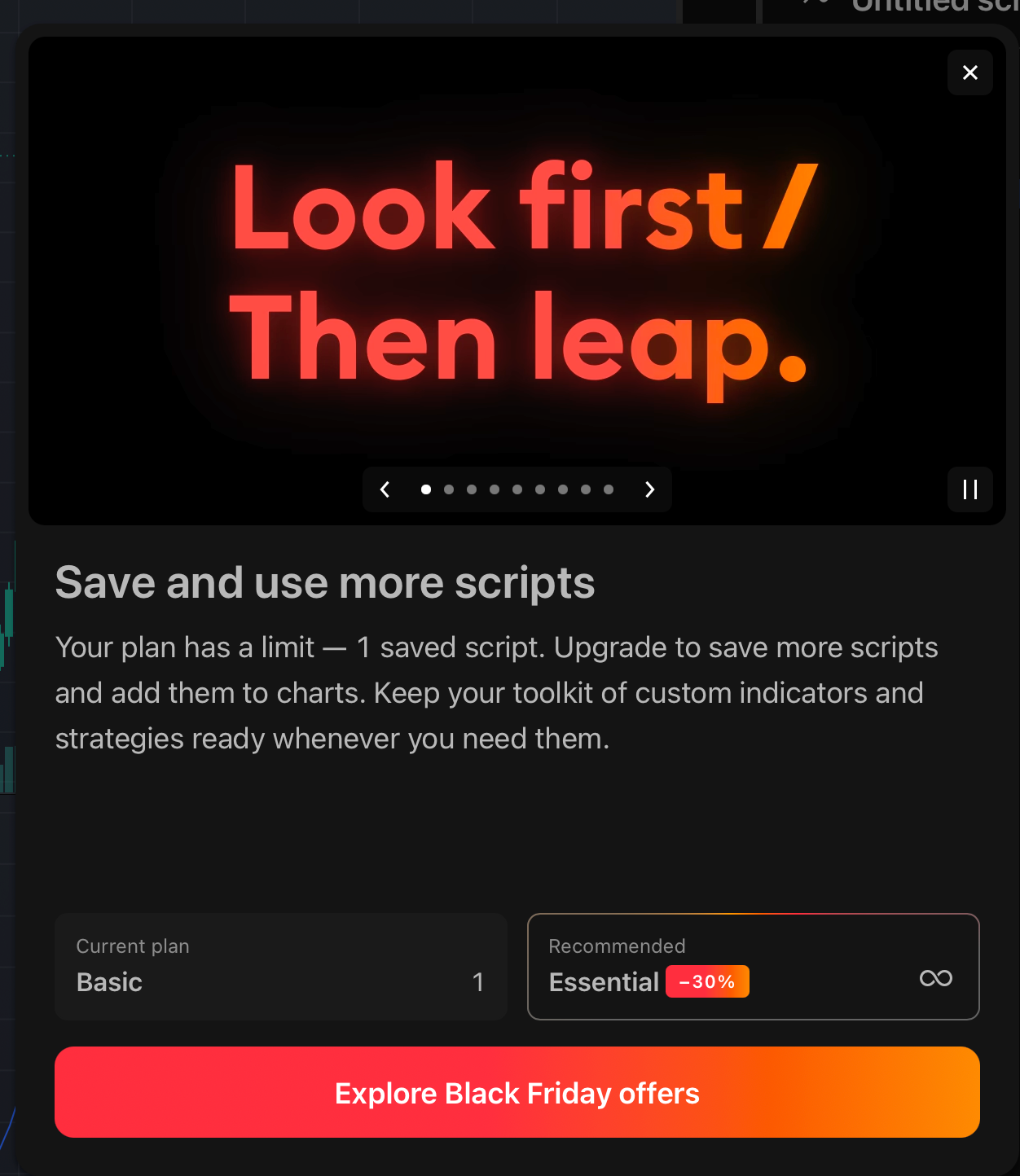
Why can't I save a second Pine script on TradingView?
Look for 1 saved script beneath the popup heading. The popup counts personal scripts saved to your account, not indicators currently visible on your chart. For example, if you saved a moving-average indicator yesterday and open a blank chart to write a breakout strategy today, the indicator still occupies your slot. Removing it from the chart only removes that chart instance.
| Basic allowance | Limit | What it counts |
|---|---|---|
| Saved Pine scripts | 1 | Personal indicator or strategy source files stored in your account |
| Indicators per chart | 2 | Active studies displayed on a single chart (built-in or custom) |
| Saved chart layouts | 1 | Named chart workspaces stored in your account |
You can find your saved source even on an empty chart. Open Pine on the right toolbar, click the script name at the top of the editor, and choose Open script. Select your existing script to keep working on it. The same menu offers Make a copy, which creates a separate script, and Version history, which lets you inspect earlier revisions of the one you already have. TradingView's Pine Editor guide
If you are new to adding and updating scripts in the editor, see how to run Pine Script in TradingView.
How do I keep two scripts on the free plan?
You can keep the source for both scripts locally and choose which one occupies your TradingView slot. Suppose you use the moving-average indicator every day but want to test a breakout strategy this weekend:
- Back up the indicator. Open its saved source in Pine Editor, copy the entire file into a plain-text editor, and save it as
moving-average.pine. Reopen the file and check that the first and last lines match. If you changed the indicator's inputs on the chart, record those values too. - Give the strategy its own file. Keep the new draft in
breakout-strategy.pine. You can edit both files independently and leave the chart setup alone until you want to test the strategy. - Switch when you're ready to test. Open the existing saved script in TradingView, replace its contents with the backed-up strategy draft, and choose Save script. This overwrites the source in that slot. Add the strategy to your chart and check its name in Strategy Tester. To switch back, restore the indicator source from your first file or review prior revisions in Version history.
If you want both scripts to appear as separate entries in TradingView's script picker, the upgrade dialog shows Essential with an unlimited saved-script allowance. Compare all free-tier caps in TradingView's free plan limits for 2026 or check the TradingView plan comparison before choosing a subscription. Official TradingView pricing
Can I put two indicators in one saved script?
Yes, if you use them together. For example, a fast and a slow moving average can share one indicator, with a separate length input and plot for each line. That makes both lines available each time you add the indicator while using only one chart slot and one saved-script slot. A breakout strategy you backtest separately is usually easier to maintain in its own file.
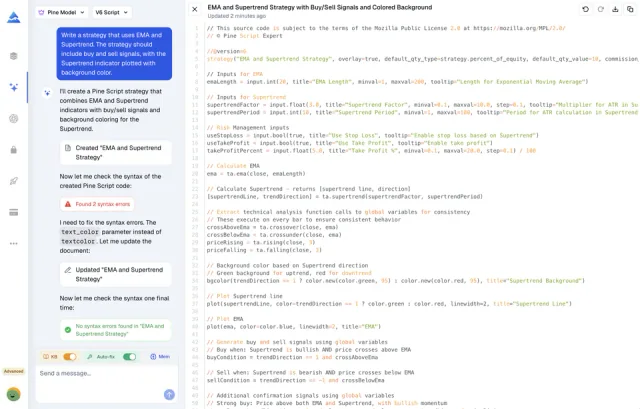
Keep in mind that a combined indicator still has to finish within Basic's 0.5-second Pine Script calculation limit. You can draft the combined indicator on Pineify AI before you overwrite anything in TradingView.
If you already have the two indicators' source files, give them to the Pine Script AI coding agent and ask it to preserve each average's input, plot color, and alert conditions in a single indicator. Before replacing your saved copy, compare both lines with the originals on the same symbol and timeframe.
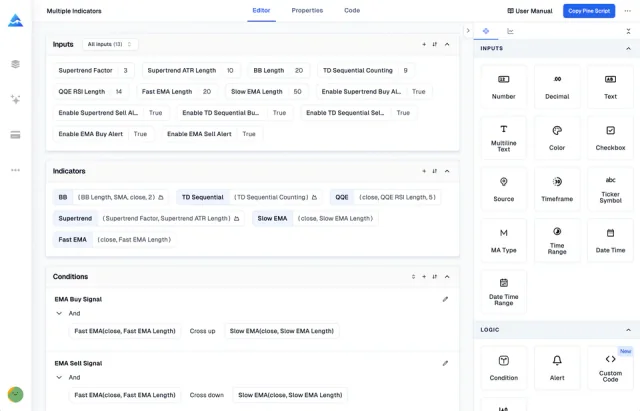
If you prefer to build the indicator visually, open the Pineify Visual Editor, add two moving averages, set their lengths, and export the Pine source. For a walkthrough that covers plots and alerts, see how to combine multiple TradingView indicators in one script.
Frequently asked questions
Why does TradingView say "Save and use more scripts"?
TradingView Basic allows one saved personal Pine script. The dialog appears when you already have a saved script in your account and try to create a new script or make a copy.
Does removing an indicator from the chart free up my saved script slot?
No. Removing an indicator from a chart only removes that chart instance. Your saved source remains in your account under Pine Editor's Open script menu until you edit or replace it.
Can I still run two indicators on a chart if I can only save one Pine script?
Yes. The two-indicator chart limit is separate from the one saved-script limit. You can run your single saved custom script alongside a built-in TradingView indicator such as RSI.
Which TradingView plan removes the 1 saved script limit?
The Basic upgrade dialog lists Essential as the first paid tier with an unlimited saved-script allowance. Check the official pricing page for current plan terms.