TradingView "Save More Chart Layouts": 1-Layout Limit Fix

TradingView Basic allows one saved chart layout. If you see Save more chart layouts when you try to create a second one, close the popup and go to Manage layouts → Open layout to find the workspace you already have. If all you need is the same chart setup on another ticker, open that ticker in your existing layout. Your indicators and chart style carry over. TradingView's layout guide
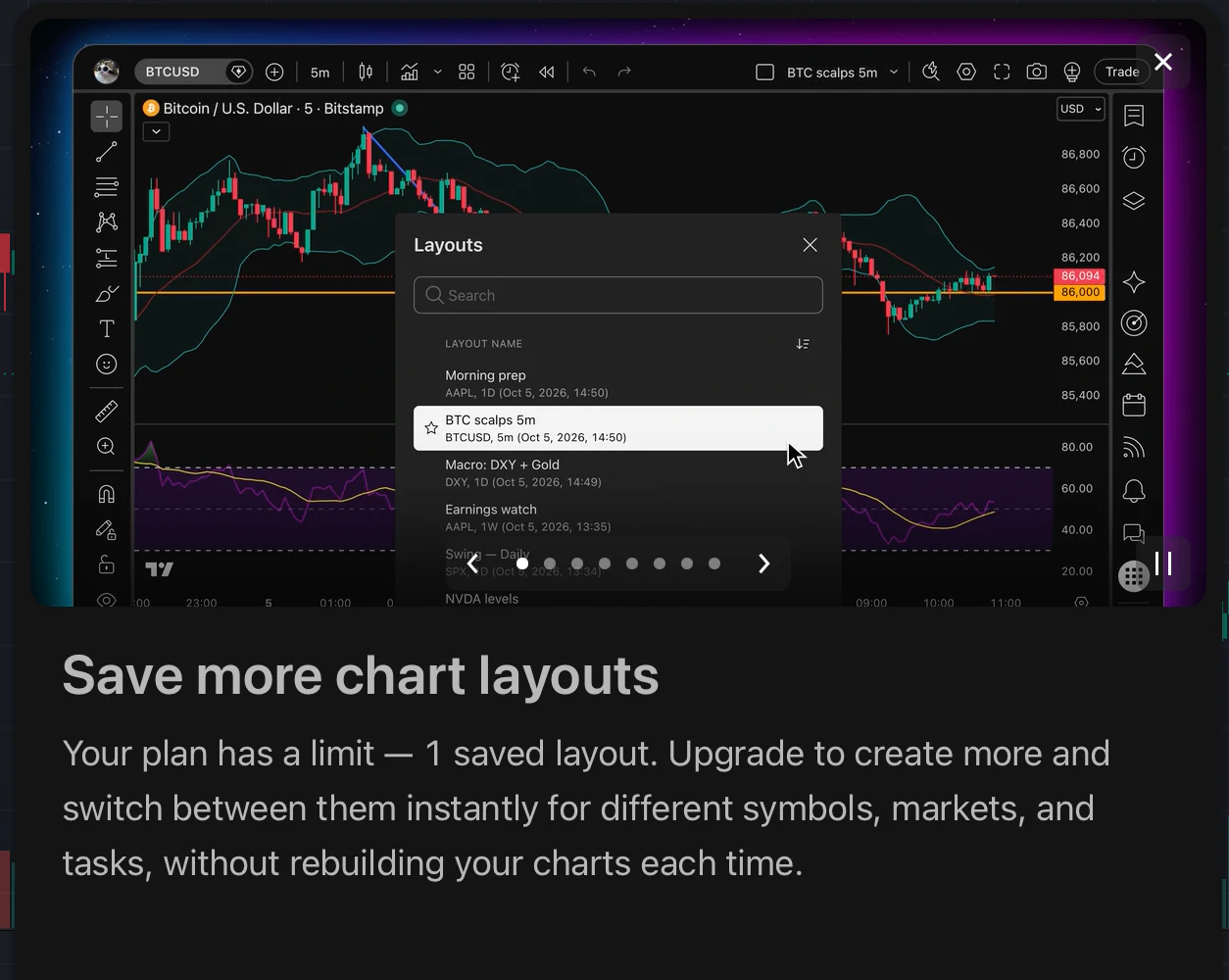
Why can't I save a second chart layout on TradingView?
The words 1 saved layout refer to a named workspace in your account. A layout remembers the symbol, interval, chart type, indicators, drawings and appearance. Save updates that workspace. Create new layout and Make a copy both need room for another one. Opening the same layout in a second browser tab still points to the same saved workspace.
Many traders confuse three separate chart limits on Basic:
| Feature | Basic (Free) | Essential | Plus | What it controls |
|---|---|---|---|---|
| Saved chart layouts | 1 | 5 | 10 | Named workspaces stored in your account |
| Charts per tab | 1 | 2 | 4 | Panels displayed side by side in one tab |
| Custom indicator templates | 1 | More | More | Saved groups of indicators and inputs |
Look for the Saved chart layouts and Charts per tab rows in TradingView's official plan comparison when deciding whether you need an upgrade. For the rest of the free tier allowances, see TradingView's free plan limits for 2026.
How do I use one layout for several symbols?
Suppose you review AAPL and MSFT on daily candles with the same moving averages. One layout can serve both, even if you draw different support levels for each stock:
- Open your saved layout on AAPL. Set the interval and indicators, draw your AAPL levels, then choose Save in Manage layouts.
- Use the chart's symbol selector to switch to MSFT. The moving averages stay on the chart. Add the levels that matter for MSFT.
- Switch back to the same AAPL symbol. Its drawings reappear because TradingView associates them with that symbol. If you change an indicator's length while viewing MSFT, that edit belongs to the shared layout and will also apply when you return to AAPL. How TradingView layouts and drawings work
Can I keep two different setups on the free plan?
It depends on what you want to restore. Take the two examples pictured in the popup: Morning prep uses AAPL on daily candles, while BTC scalps 5m uses BTCUSD on five-minute candles.
| What changes between setups? | What to do on Basic |
|---|---|
| Only the ticker and interval | Switch the symbol and interval in your existing layout. |
| The indicators and their inputs | Save the combination you want to recall as an indicator template. Basic includes one custom indicator template. |
| The entire workspace, including chart style and pane arrangement | Keep your main workspace in the saved layout. For a second layout you can reopen by name with its own settings, you need a plan with another layout slot. |
To protect your usual studies before experimenting, put them on the chart, open Indicator templates in the top toolbar, then choose Save indicator template. You can reapply that set later. A template restores the studies, while a screenshot helps you reconstruct colors or pane sizes if needed.
Check whether Autosave is turned on in the Manage layouts menu before running experiments. With Autosave enabled, temporary changes you make to indicators or intervals can overwrite your one saved layout automatically. Turning Autosave off while testing keeps your saved baseline intact. TradingView's indicator template instructions
What if I only want to switch indicator settings?
If your two setups use the same calculations with different lengths, you can put that choice inside one indicator. For example, use an input called Setup to select a 20-period moving average for daily review or a 9-period average for intraday review. You still choose the symbol and interval on the chart.
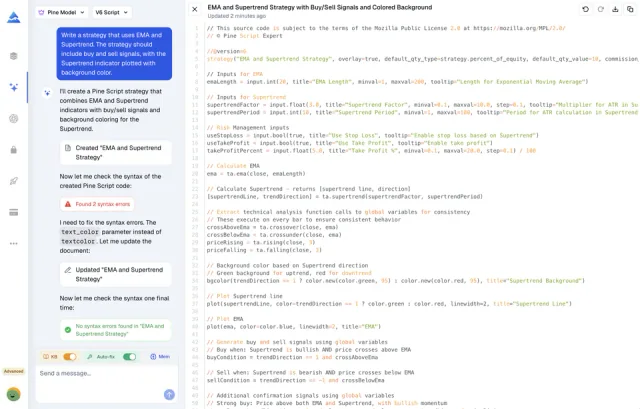
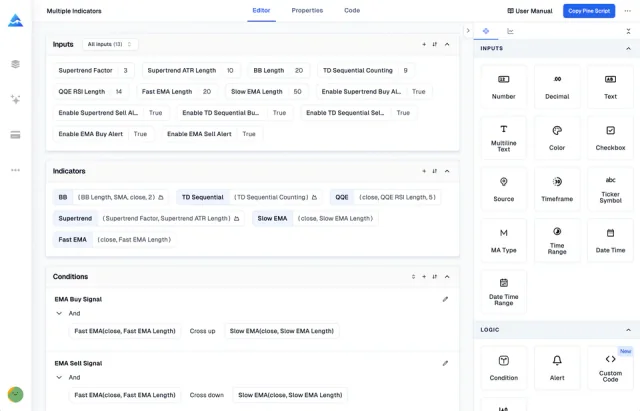
To build that indicator with Pineify AI, describe the two settings to the Pine Script AI coding agent. If you prefer to choose the moving average and its inputs visually, use the Pineify Visual Editor and export the source. Both approaches let you reuse the calculation within your existing layout.
For multi-chart synchronization and workspace organization on paid plans, see our TradingView layout setup guide and TradingView plan comparison. If TradingView instead says Save and use more scripts when you open Pine Editor, see the separate limit on saved Pine scripts.
Frequently asked questions
Why does TradingView say "Save more chart layouts"?
The dialog appears on TradingView Basic when you already have one saved chart layout and click Create new layout or Make a copy. Basic includes one named layout slot.
Do I lose my drawings when I switch symbols in one layout?
No. TradingView stores drawings per symbol inside the layout. Switching from AAPL to MSFT hides AAPL's trendlines while you view MSFT, and restores them when you return to AAPL.
How many saved chart layouts do Essential and Plus include?
TradingView lists one saved chart layout on Basic, five on Essential and ten on Plus. Check the official pricing page for higher tiers and your current account entitlement.
What is the difference between a chart layout and an indicator template?
A chart layout saves the entire workspace, including symbol, interval, chart type, appearance and drawings. An indicator template saves a set of indicators and their input settings so you can reapply them to any chart.