Indicator
An indicator script calculates and displays values on a TradingView chart. It can expose inputs and alert conditions, but it does not itself produce the Strategy Tester's simulated order results.
Create an indicator
Open Visual Pine Editor, follow the application link, and sign in to your workspace. Create an indicator from a blank template or an available example. Give it a name that identifies its calculation and intended use.
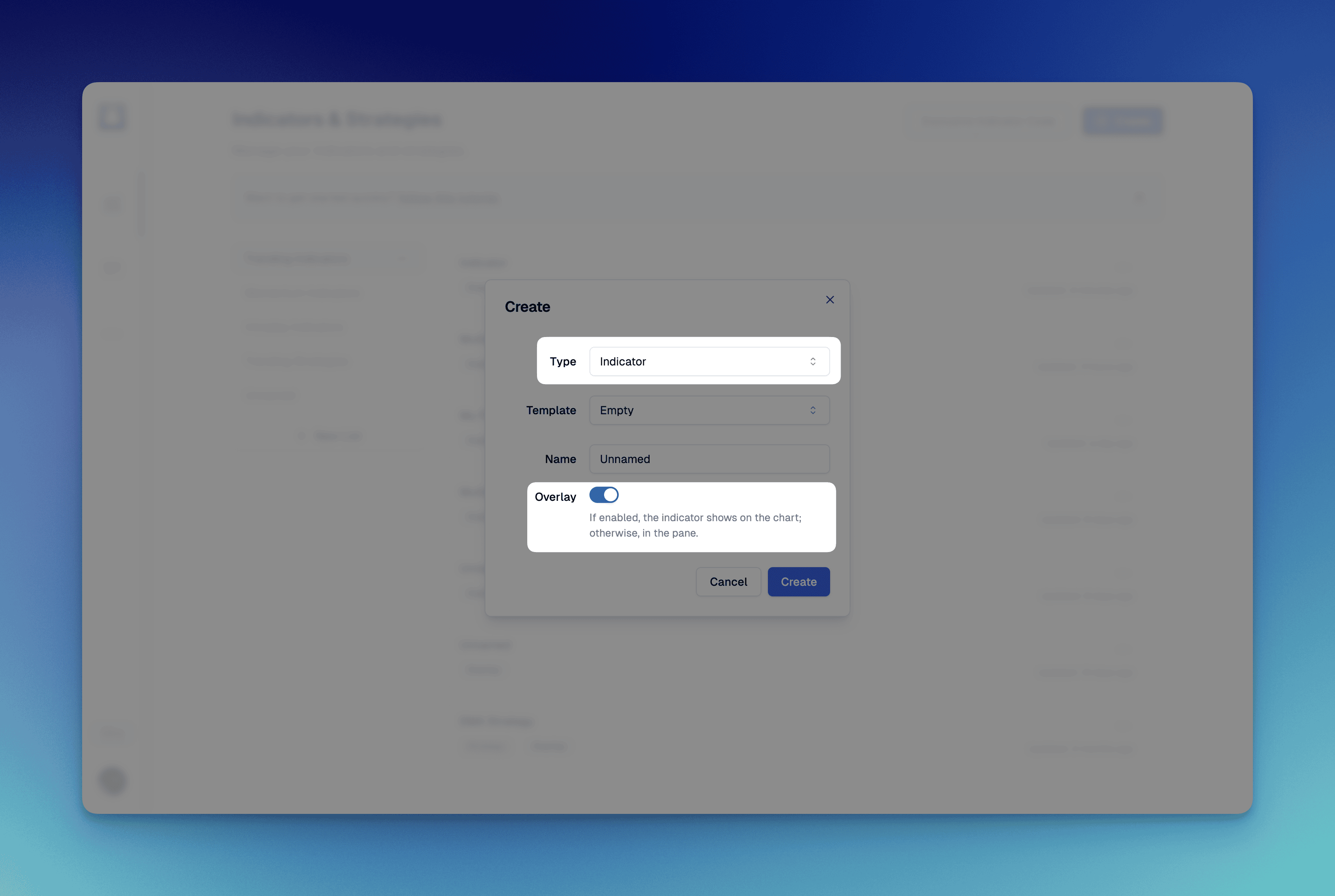
The screenshot illustrates an earlier interface. Refer to the current manual if navigation differs.
Choose chart placement
Use an overlay for price-aligned displays such as moving averages. Use a separate pane for values with another scale, such as RSI. This is a display choice; moving a signal to the main chart does not change its calculation.
Inspect the exported indicator() declaration and the result after adding the script to TradingView. If you change declaration-level display settings, removing and re-adding the script may be necessary to see the change.
Configure and verify
- Add the calculations you need and choose their data source and timeframe.
- Expose values such as lengths as inputs when users should adjust them.
- Add plots and conditions, then copy the generated script into TradingView's Pine Editor.
- Compile it and compare the output with the intended calculation on the same chart and inputs.
Use Create Your First Indicator for a complete EMA and Supertrend walkthrough. Use a strategy when the task requires simulated entries and exits.