TradingView's New 30 Drawing Limit and How to Fix It

TradingView's new 30 drawing limit applies to the free Basic plan. Hidden drawings and drawings on other symbols can count, so a chart that looks empty can still trigger the Add more drawings popup. To make room without upgrading, open Object Tree → Manage layout drawings and remove old objects until you have fewer than 30. TradingView plan comparison
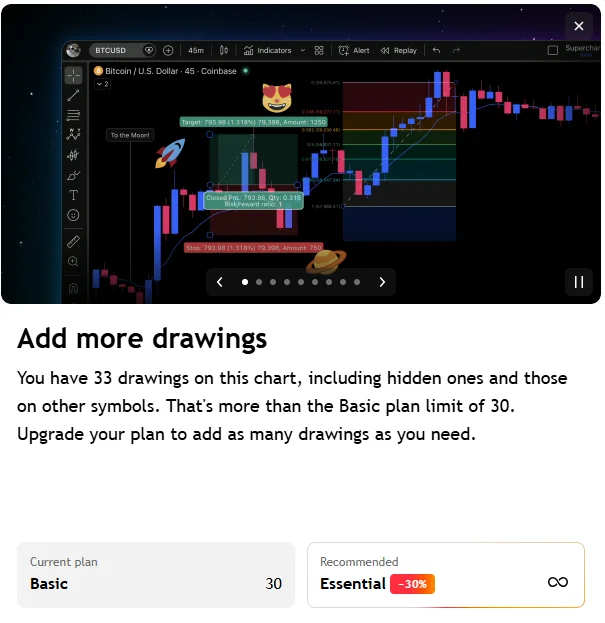
The popup shows 33 drawings and explicitly includes hidden objects and drawings on other symbols. A trader who shared it on November 23, 2026, reported being blocked even on a new chart. Screenshot and user report on r/TradingView
What counts toward TradingView's 30 drawing limit?
TradingView's pricing table lists 30 drawings per chart for Basic. Manual chart objects such as horizontal lines, trendlines, rectangles, and Fibonacci retracements use the drawing tools allowance. An object can still count after you hide it or switch away from the symbol it belongs to. Check the number in the popup when deciding how many drawings to remove. TradingView drawing tools
| What you see | What to check |
|---|---|
| No lines on the current ticker | Drawings saved on other symbols in Manage layout drawings |
| The eye icon is off | Hidden objects are still saved and can count |
| The popup returns on another chart | Globally synced drawings can appear on new layouts for the same symbol |
For example, if the popup reports 33 drawings, deleting three brings the total to 30. Delete four to reach 29 and leave one slot for a new drawing. Use the popup count even if the current symbol has zero visible annotations. TradingView layout and drawing sync guide
How to fix the Add more drawings popup without upgrading
- Open Object Tree and Data Window on the right side of TradingView Supercharts.
- Click Manage layout drawings in the Object Tree header.
- Check Synced globally, Synced in layout, and Not synced. Expand the symbols with saved objects. For a long list, sort by date to find older annotations.
- Use Remove drawing beside an individual object. Start with a duplicate or an expired setup, then remove enough objects to get below 30.
- Return to the chart and try adding one horizontal line. Save the layout after checking that the drawings you want to keep are still there.
Capture a chart snapshot or record the price and anchor points of any annotations you may need again. TradingView says Undo cannot restore objects deleted from a symbol that is closed on the chart. Deleting a drawing also removes its attached alerts. Check globally synced objects before deleting them because they can be shared across layouts. TradingView removal instructions · Drawing sort options
How to keep marking support and resistance on Basic
Keep hand-drawn lines for levels you choose individually. If you mark the same reference levels for every symbol, such as the previous day's high and low, a Pine Script indicator can calculate and display them automatically. Script-generated lines are separate from manual drawings and have their own limits. A script uses an indicator slot, and Basic allows two indicators per chart. Pine Script drawing documentation · TradingView plan limits
To choose a script based on how it finds levels, see our guide to TradingView support and resistance indicators.
Does TradingView Essential remove the 30 drawing limit?
Yes. TradingView lists unlimited drawings on Essential, Plus, Premium, and Ultimate. If you regularly need more than 30 hand-drawn objects, Essential is the first paid tier to compare. A recurring set of calculated levels may fit on Basic with a single indicator. Official TradingView plan comparison
For the other differences, see our TradingView plans comparison.