How to Change TradingView to Dark Mode on Web and Mobile
TradingView dark mode changes the interface's appearance. A chart can also retain its own custom background, so check both the application theme and the chart canvas when they do not match.
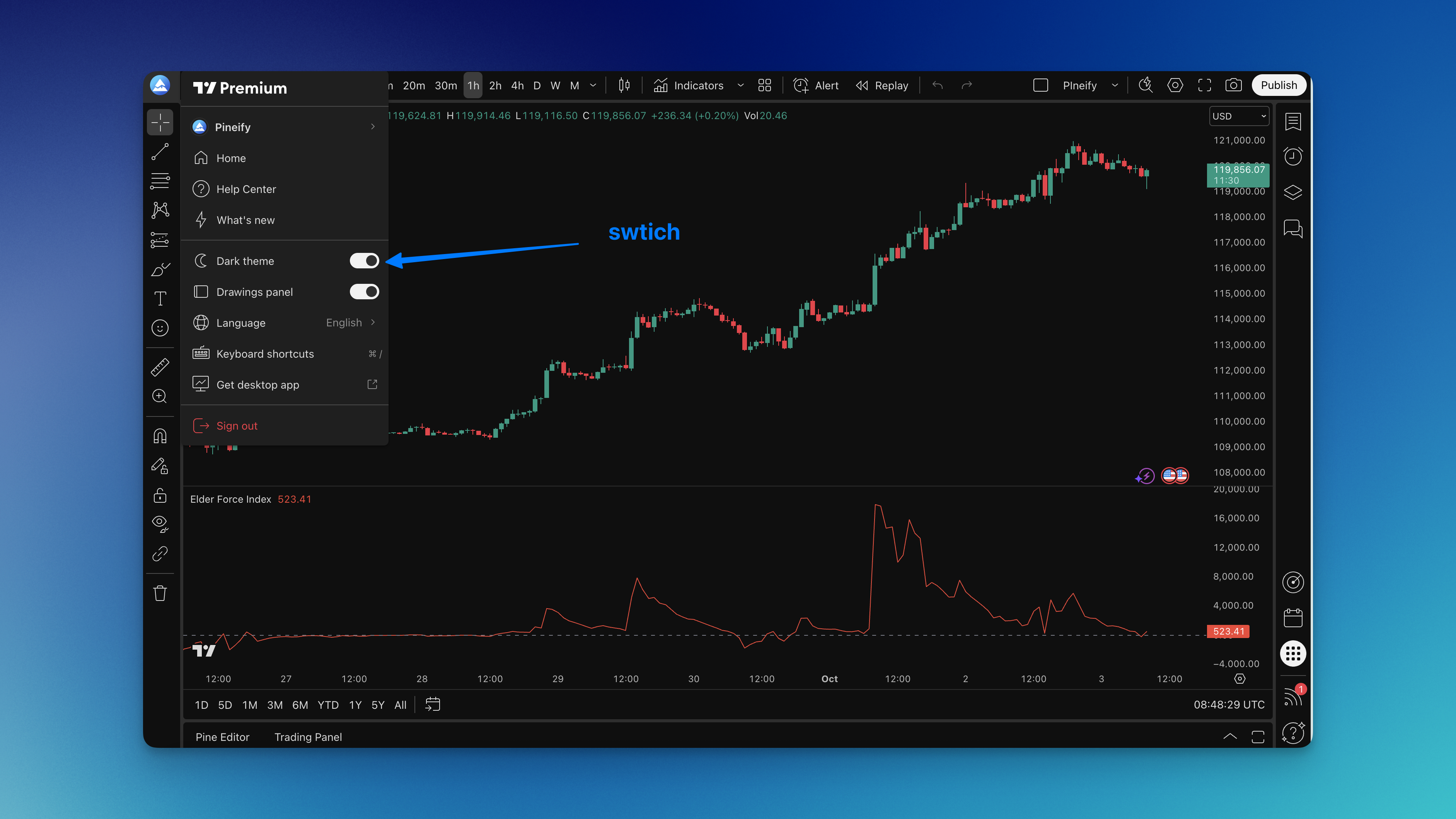
Change the Web Theme
Open the main account/menu controls and choose the dark theme. TradingView's web theme instructions show the relevant control. The native desktop app has separate application settings; use its current theme control rather than assuming every web menu position is identical.
Inspect the surrounding panels and the chart. A custom chart background can remain different from the interface. Use Canvas in chart settings for the chart background itself.

Change the Mobile Theme
For iOS and Android, TradingView documents Menu → settings gear → Theme → Light or Dark. If prompted about a custom chart theme, choose whether to keep it or apply the new appearance. See the official mobile instructions.
Verify the result on the phone. Do not assume the theme automatically synchronizes identically across all devices or that a specific old app version introduced every current option.
Check Contrast
After switching, inspect candles, drawings, grid lines, scale text and custom indicator plots. Select colors that remain distinguishable at your normal screen brightness. A dark plot can become difficult to see on a dark canvas even though the calculation is unchanged.
Dark mode is a preference, not a verified treatment for headaches or sleep problems. This article does not provide measured battery savings or a tested improvement in trading performance.
If the Theme Does Not Persist
TradingView's theme persistence guide discusses system themes and browser storage. Check whether your browser removes site settings, and whether you are inspecting the same account and layout.
Save chart work before resetting settings. A chart-background mismatch is not enough evidence to clear every cookie or reinstall the application. Record the app/browser version and the steps that reproduce the problem if support is needed.
Pineify can help create custom indicators, but generated plot colors still need inspection on the theme you choose. There is no automatic guarantee that every color combination will be readable.
Does dark mode change the market data?
No. It is an appearance setting. Check custom colors and visibility after applying it.
Why is my chart background different from the panels?
The chart may have a custom canvas. Inspect Canvas settings and any keep-or-apply choice when changing the theme.
Does this guide prove battery or eye-strain benefits?
No. Choose the appearance you find readable; no device benchmark or medical effect is established here.