How to Change Chart Background Color in TradingView Mobile

Chart background color in TradingView Mobile is the canvas behind your price bars, grid lines, and indicators. I changed mine to dark navy during an AAPL earnings session — the default white was too harsh at 2 AM. Whether you're on iPhone or Android, finding the right background takes about 30 seconds and changes how comfortably you read charts.
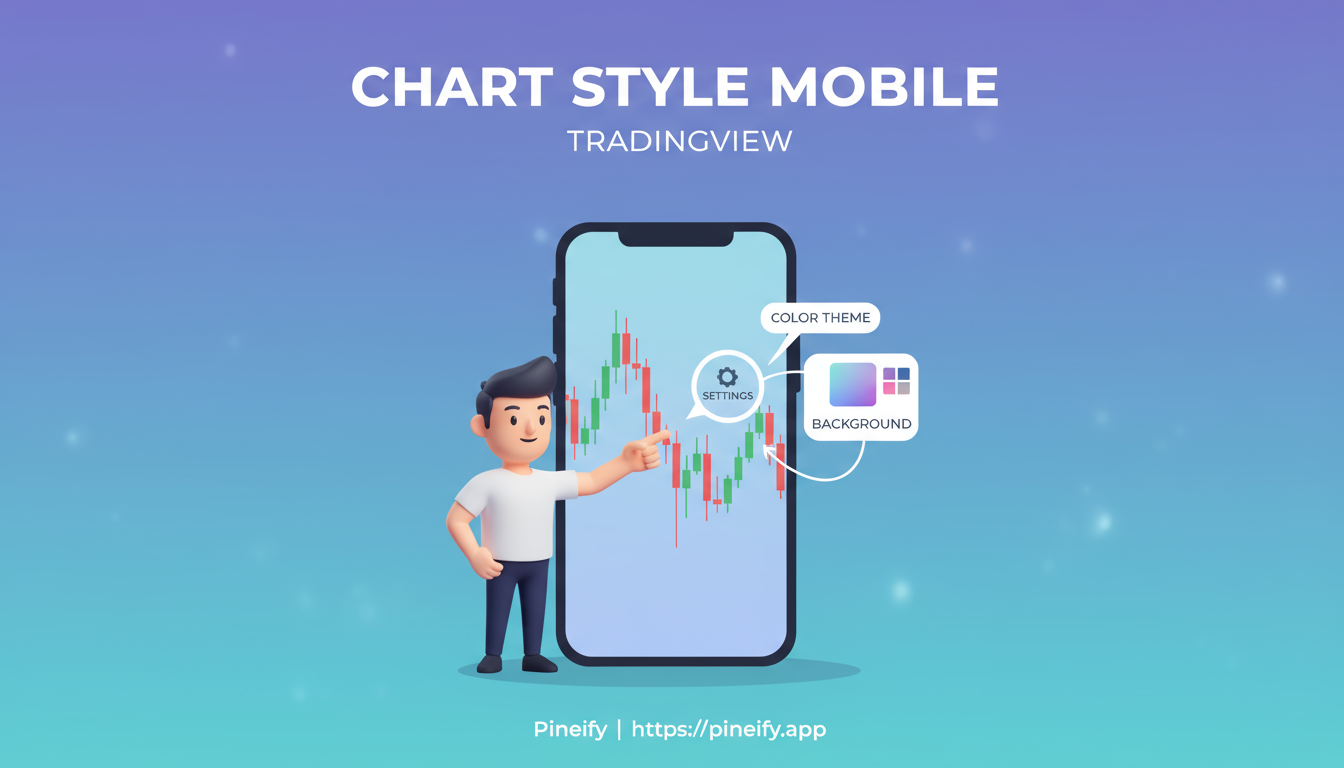
Why Bother Changing Your Chart Background?
Ever find yourself squinting at your phone screen? The right background color fixes that. It's not about looks — it's about readability.
I use a dark gradient (navy to black) for crypto pairs like BTCUSD because I check them at odd hours. A dark background cuts glare and helps green candles stand out. On my iPhone 15 Pro, I tested both themes side by side. The dark setup reduced eye strain noticeably after about 45 minutes of scanning altcoins.
On a small screen, contrast between the background and candlesticks matters most. You want bullish bars visible without zooming or squinting. If you're syncing the same theme across mobile and desktop, check our comparison of YCharts vs TradingView 2025 for how each platform handles chart customization.
I haven't tested the gradient feature on Android phones older than the Galaxy S22, so your experience may differ. On iOS it's been reliable across several updates.
Here's a quick look at the popular choices:
| Background Type | Best For | Key Benefit |
|---|---|---|
| Dark Theme | Night trading, reduced eye strain | Mimics professional terminals, less glare |
| Light Theme | Daytime analysis, traditionalists | Feels familiar, like a spreadsheet |
Step-by-Step Guide to Changing Background Color
Launching the App and Navigating to Charts
Open the TradingView app and log in if needed. I do this every day, and the most common mistake is tapping the wrong bottom icon. The chart icon is the one next to your watchlist, not the search icon.
Why it matters: you need an active chart loaded before the settings menu appears. If no chart loads automatically, type a symbol like "AAPL" or "BTCUSD" in the search bar at the top. The chart renders against the default background, usually white or light gray.
What can go wrong: if the chart appears in a small view, pinch to zoom first. Some users report the settings gear gets hidden behind other UI elements when the chart is too zoomed out.
Accessing Chart Settings
Tap the three dots (...) or gear icon in the bottom-right corner of the chart. A menu pops up with options for indicators and alerts. Select "Chart Settings" or just "Settings."
Why it matters: this panel controls everything visual. The background option isn't always at the top, so swipe through the list.
What can go wrong: don't tap the pencil icon for drawing tools by mistake — it opens a completely different panel. I've done this more times than I'd like to admit.
Selecting and Applying Background Colors
Inside settings, swipe to the "Canvas" or "Appearance" tab. Tap "Background" to see your choices — solid color or gradient.
- For a solid color, tap the palette and pick a preset or enter a custom hex code. I prefer #1a1a2e (dark navy) because it's easy on the eyes during long sessions.
- For a gradient, select two colors. The top color blends into the bottom. Many traders use a dark blue-to-black gradient for extended screen time.
Why it matters: the live preview shows changes in real time behind the settings panel. You can check whether your candlesticks stay readable — green up bars should still pop against a dark background. When you're happy, tap "OK" or "Apply" to lock it in.
What can go wrong: if the gradient doesn't look right, make sure you're not in landscape mode. Rotating the phone can reset the preview. Some older Android versions also struggle with gradient rendering.
Making TradingView Mobile Truly Yours
So you've changed the background — but the chart still doesn't feel right. Let's fine-tune the rest.
If you're using a dark background, set grid lines to light gray. This gives you a subtle guide without clutter. Same for axis colors — make sure the price scale on the left and time scale at the bottom contrast against the background.
Next, the candles. Go to the "Style" tab. Set bullish candles to green and bearish to red. I tested this with TSLA on a dark background, and the contrast made direction changes visible at a glance. On a light background, I'd use a darker green for the same effect.

The real trick is saving combos as themes. You can duplicate your settings and create different setups for different times of day:
| Theme Name | Best For | Key Features |
|---|---|---|
| Night Mode | Dark backgrounds | Light grid lines, high-contrast axes, vibrant candlesticks |
| Day Mode | Light backgrounds | Darker grid lines, muted axes for reduced glare |
Once you've got your themes, toggle cloud save in your account preferences to sync across devices. If you'd rather skip the manual setup, the app's main menu has predefined "Dark" or "Light" themes you can tweak.
One thing I learned the hard way: check your indicators against the new background. An indicator line that's barely visible on a dark theme can ruin your setup. Tap the three dots next to any indicator name to adjust its colors. For building custom indicators that match your theme, I've been using a tool called Pineify — it generates scripts without manual coding. Check out the Pine Script Transparent Color guide for more advanced color techniques.
Quick limitation: mobile doesn't support the full visual effects suite you get on desktop. The rendering is simplified to keep performance smooth. Keep the app updated through your phone's store for the latest color options.
Troubleshooting Common Issues
Chart background not changing? Here's what I've found works:
- Restart the app. It clears temporary glitches 90% of the time.
- On Android: check the app has full-screen or overlay permission in your phone settings.
- On iOS: toggle your device's dark mode on and off. The app sometimes gets stuck reading the system setting.
- Battery saver mode can alter colors. Disable it while setting up.
Colors looking washed out?
- Your phone's theme might override the app. In TradingView's main menu, toggle "Use system theme" on or off.
- Gradient issues? Exit landscape mode. The preview resets when you rotate.
Changes not syncing?
- Log out and log back in. This refreshes the cloud connection.
Still stuck?
- Check TradingView's help center in the app menu.
- Reddit's TradingView community shares workarounds daily. For a stubborn theme that won't stick, clearing the app's cache usually works — it won't delete your layouts. If you want more customization options, our guide on how to get invite-only scripts on TradingView might help.
Why Your Phone's Trading Background Matters
Trading from your phone means you're not always at a desk. You could be outside with screen glare or in a dim coffee shop. The right background adapts to that.
I've made snap decisions on BTCUSD while standing on a train platform. A dark background with high contrast meant I could read the chart in under two seconds. That speed matters when the market is moving.
Less eye strain also means longer, more comfortable sessions. If you're watching volatile assets, every small comfort helps you stay focused.
FAQ Section
Can I use custom hex codes for backgrounds in TradingView mobile? Yes. The color picker has a hex input field. I use it to match specific brand colors or get the exact shade I want.
Does changing the background affect indicator visibility? It can. A dark background might wash out a dark indicator line. My rule: set the background first, then check each indicator and adjust its colors for contrast.
How do I revert to the default background? Tap the reset button in settings, or pick a pre-made theme like "Light" or "Dark" from the main menu.
Is this feature available on all TradingView mobile plans? Basic color changes work on the free plan. Full advanced themes need a Pro subscription. I'll admit the free options are limited — you get solid colors but no custom gradients.
Why is my gradient not saving on iPhone? Usually a temporary glitch. Update both iOS and the TradingView app. If it persists, it's likely a beta-version bug. Report it through the app's support channel.
Can I share my custom background with others? Yes. Save your chart as a template — it remembers the background color. Then use the share function to send it to someone.
What if the three dots icon is missing? Try swiping up from the bottom of the chart screen. If it's still gone, check for app updates.
Hop into the TradingView community forums to share your custom chart setups and grab ideas from other traders. Keep your app updated — new color options drop with each release. For trend-spotting, the Moving Average Shift Indicator works well with a clean dark theme.
What's your go-to background? Drop a comment or tag #TradingViewMobile on Twitter.